Deploying the Windows UEFI CA 2023 via Microsoft Intune
Introduction
Starting in June 2026, the Windows UEFI CA 2011 certificates used to cryptographically sign Secure Boot components will begin to expire. Devices that have not been updated to trust the replacement Windows UEFI CA 2023 certificate chain before this deadline face a risk of boot failures, degraded Secure Boot enforcement, and potential incompatibility with future Windows updates signed under the new certificate.
This guide documents the end-to-end process for proactively deploying the updated Secure Boot certificates across managed Windows devices using Microsoft Intune, following Microsoft’s official playbook, including full coverage of the critical known issue affecting Windows Pro editions that surfaces as Intune Error Code 65000 and requires a specific licensing service remediation.
WARNING | ACTION REQUIRED — DEADLINE: JUNE 2026
The Windows UEFI CA 2011 certificate chain expires June 2026.
All managed Windows 10 and Windows 11 devices must receive the Windows UEFI CA 2023 update before expiry.
Devices enrolled in Intune can be targeted now. Pro edition devices require additional remediation (see Section 5). Central reference: https://aka.ms/GetSecureBoot
Background: What Is Secure Boot and Why Do Certificates Matter?
How Secure Boot Works
Secure Boot is a UEFI (Unified Extensible Firmware Interface) standard that ensures a device will only boot using software that is cryptographically trusted by the OEM and Microsoft. During the power-on sequence, UEFI firmware validates each boot component from the bootloader to the OS loader against a set of certificates and hashes stored in protected firmware variables.
The four core UEFI firmware variables involved in Secure Boot are:
- PK (Platform Key): The root of trust. Owned and set by the OEM during manufacturing. Authorizes updates to all other keys.
- KEK (Key Exchange Key): Signs updates to the db and dbx variables. Microsoft holds a KEK alongside the OEM.
- db (Authorized Signature Database): Contains the certificates and file hashes of software authorized to run at boot. The Windows UEFI CA certificate lives here.
- dbx (Forbidden Signature Database): A revocation list of certificates and hashes that are explicitly blocked, even if they are in db. Updated to revoke vulnerable or malicious boot components.
The Windows UEFI CA certificate in db is what allows Windows Boot Manager, the Windows OS loader, and related components to pass Secure Boot validation. If this certificate is missing or untrusted, firmware will refuse to boot Windows.
Why the Certificates Are Expiring
The current Microsoft UEFI signing certificate Windows UEFI CA 2011 was issued in 2011 with a fixed validity period. Beginning in June 2026, this certificate starts expiring across the fleet. Microsoft has issued a replacement, the Windows UEFI CA 2023, which must be enrolled into the db firmware variable on every device before the old certificate expires.
This transition is also the completion of remediation work for CVE-2023-24932, the BlackLotus UEFI bootkit vulnerability, which required both a new certificate chain and an updated Windows Boot Manager binary signed under that new chain.
Technical Note – Staged Deployment The update is not a simple certificate swap. Windows performs a staged deployment, it must enroll a new KEK, add the 2023 CA to db, optionally update dbx with new revocations, and finally replace the Boot Manager binary with one signed under the 2023 certificate chain. Each stage requires at least one reboot. In a managed enterprise environment, allow approximately 48 hours and 2-3 reboots for the full process to complete.
Devices Already Covered
Most Windows PCs manufactured since 2024 ship with the Windows UEFI CA 2023 pre-enrolled in firmware and do not require any action. The remediation population consists primarily of devices manufactured before 2024 that have not yet received an OEM firmware update incorporating the new certificate store. These are the devices that Intune policy targets.
Deployment Approach: Why Intune?
Microsoft supports four methods for deploying the updated certificates. The correct method depends on how devices are managed:
| Method | How It Works | Best For |
| Intune (Recommended) | Settings Catalog CSP policy. Three configurable settings. Native monitoring via Secure Boot status report in Autopatch. | Cloud-managed, Entra-joined devices |
| Registry Keys | Set HKLM\…\SecureBoot\AvailableUpdates to 0x5944 via script or Group Policy preference. | Scripted, hybrid, or fallback scenarios |
| Group Policy (GPO) | Enable Secure Boot certificate deployment policy under Computer Config > Admin Templates > Windows Components > Secure Boot. | Domain-joined, on-premises managed |
| WinCS CLI / PowerShell | New command-line tooling for W11 23H2/24H2/25H2. Feature: Feature_AllKeysAndBootMgrByWinCS. Key: F33E0C8E002. | W11 domain-joined, script-based rollout |
Intune was selected for this deployment because the target fleet is fully cloud-managed and Entra ID joined. Intune also provides native integration with the Secure Boot status monitoring report in Windows Autopatch, giving per-device visibility into certificate deployment state without requiring PowerShell queries or direct registry access.
Intune Policy Configuration — Step by Step
Where to Find the Settings
The Secure Boot certificate deployment settings are CSP-backed policies exposed through the Intune Settings Catalog. Navigate to:
Intune Admin Center (intune.microsoft.com)
> Devices > Configuration > + Create policy
> Platform: Windows 10 and later > Profile type: Settings catalog
> Settings picker > Search: “Secure Boot” > Category: Secure Boot
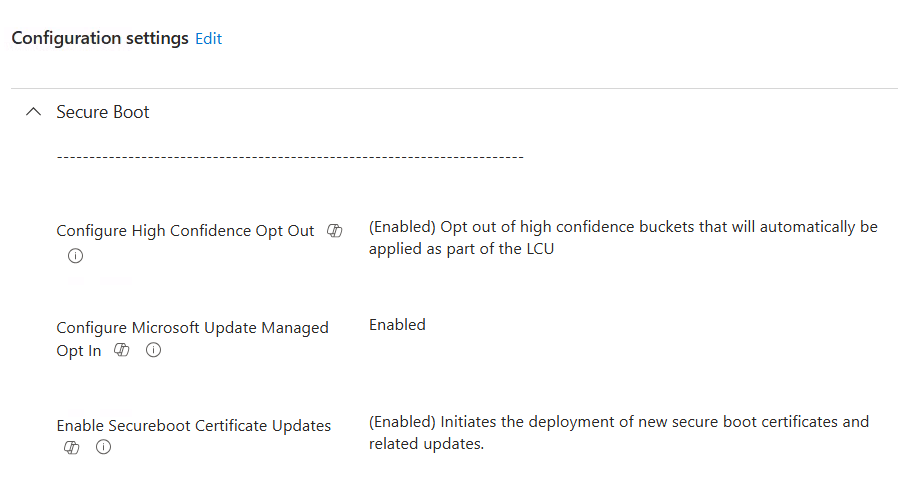
The Three Available Settings
| Setting Name | What It Does | Recommended Value |
| Enable SecureBoot Certificate Updates | The primary deployment trigger. Instructs Windows to begin the full staged certificate update process. Equivalent to setting AvailableUpdates = 0x5944 in the registry. | Enabled |
| Configure Microsoft Update Managed Opt In | Opts the device into Microsoft’s Controlled Feature Rollout (CFR). Microsoft manages deployment timing. Requires diagnostic data sharing enabled on the device. | Enabled |
| Configure High Confidence Opt-Out | Prevents Windows from automatically pushing the cert update to ‘high confidence’ devices via monthly security updates. Recommended if you want admin-controlled rollout timing. | Enabled (to retain admin control) |
| What Is a ‘High Confidence’ Device? Microsoft classifies a device as high confidence when automated checks indicate it is likely ready to receive the certificate update without firmware compatibility issues. For high confidence devices, Microsoft will automatically push the cert update via monthly security updates unless the High Confidence Opt-Out setting blocks this. For enterprise environments where you want to control rollout timing and validate per model first, enabling the opt-out is recommended. |
Policy Assignment Strategy
Microsoft recommends a phased rollout to avoid fleet-wide issues caused by incompatible firmware on specific device models:
- Phase 1 – Pilot Group: Assign the policy to a small device group that includes a representative cross-section of models: multiple OEM makes, a mix of Windows 10 and Windows 11 versions, and at least some older hardware. Run for 7–14 days and validate results before expanding.
- Phase 2 – Broad Fleet: After pilot validation, expand assignment to all managed devices. Monitor the Secure Boot status report continuously.
- Phase 3 – Pro Edition Devices: Windows Pro devices require the licensing workaround described in Section 5 before the policy takes effect. Handle these separately.
IMPORTANT – Do Not Mix Deployment Methods Microsoft explicitly warns against applying multiple deployment methods to the same device. Do not configure both an Intune policy and a registry key targeting the same device. Choose one method per device and maintain it. Mixing methods can produce unpredictable behavior during the staged, multi-reboot certificate update process.
What Happens After Policy Assignment — Staged Deployment
Once the policy reaches a device and the device reboots, the certificate update proceeds through a series of stages. Each stage applies one component of the update and requires a reboot before the next stage can proceed. The full process typically takes 48 hours and 2–3 reboots in a managed environment.
| Stage | What Is Applied | Registry / Status Indicator |
| 1 | New KEK (Key Exchange Key) enrolled into firmware | AvailableUpdates bit 0x0004 set; UEFICA2023Status = In Progress |
| 2 | Windows UEFI CA 2023 added to db variable | AvailableUpdates bit 0x0040 set |
| 3 | dbx revocation database updated | AvailableUpdates bit 0x0100 set |
| 4 | Boot Manager updated to 2023 CA-signed binary | AvailableUpdates bits 0x5800 set |
| Done | All stages complete | UEFICA2023Status = Updated | Event ID 1808 in System log |
The value 0x5944 is the bitwise OR of all stage flags (0x0004 | 0x0040 | 0x0100 | 0x5800). This is what the Enable SecureBoot Certificate Updates Intune policy writes to the AvailableUpdates registry key when Enabled.
Monitoring Deployment Status
Intune / Windows Autopatch – Secure Boot Status Report
For organizations with Windows Autopatch enabled, a dedicated Secure Boot status report is available in the Intune admin center:
Intune Admin Center > Reports > Windows Quality Updates > Reports tab > Secure Boot Status
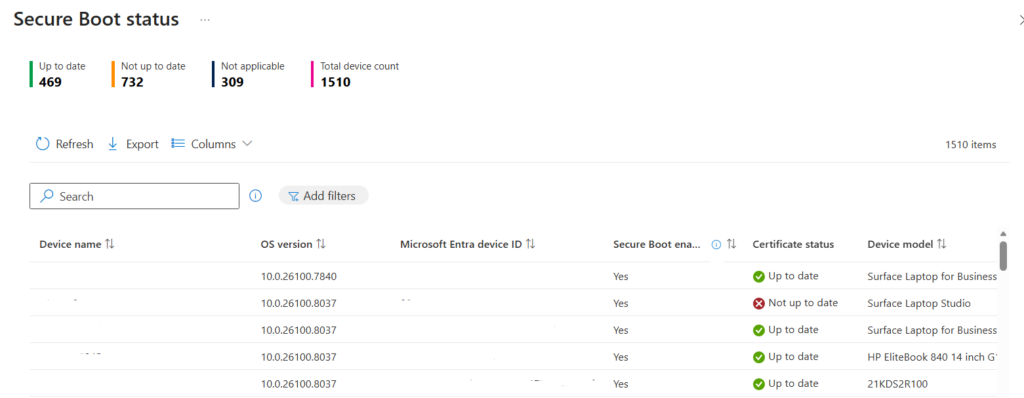
The report provides per-device visibility into certificate status with a Certificate Status column showing Up to Date or Not Up to Date. Clicking any cell in this column reveals which specific certificates are missing for a given device.
Registry-Based Status Check
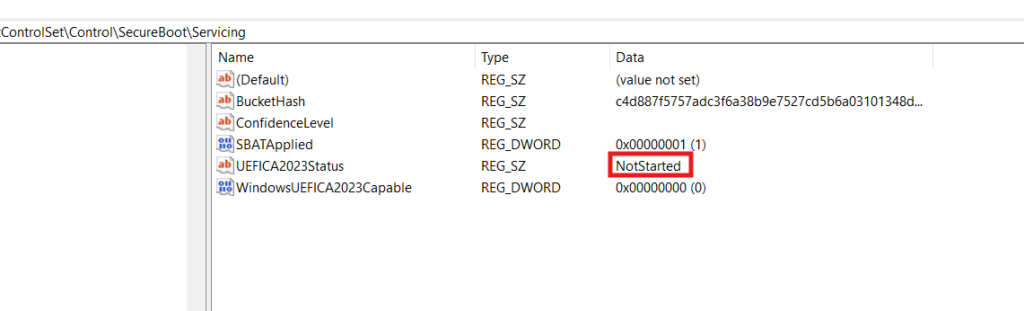
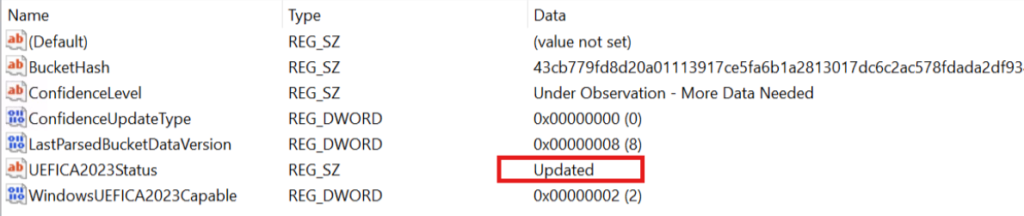
The UEFICA2023Status registry key provides a human-readable deployment status directly on the device:
Path: HKLM\SYSTEM\CurrentControlSet\Control\SecureBoot\Servicing
Value: UEFICA2023Status
States: Not Started | In Progress | Updated
Also check for the presence of UEFICA2023Error under the same registry path. This key should not exist if there are no errors. If it is present with any non-zero value, an error occurred during one of the deployment stages and requires investigation
Before:
After:
Windows Event Log Events
Events are logged to Windows Logs > System during the update process. The three key Event IDs to monitor:
| Event ID | Severity | Meaning |
| 1808 | Info | Certificate update fully and successfully applied to device firmware. Deployment is complete. |
| 1801 | Error | Updated certificates have NOT been applied. Review device-specific attributes in the event detail to identify the cause. |
| 1795 | Error | Windows failed to hand off certificates to firmware. Often indicates a firmware-level issue. Check with OEM for BIOS update. See Troubleshooting section. |
PowerShell Status Commands
The following can be run directly or deployed via an Intune remediation script for fleet-wide inventory:
# Confirm Secure Boot is enabled
Confirm-SecureBootUEFI
# Check deployment status
(Get-ItemProperty ‘HKLM:\SYSTEM\CurrentControlSet\Control\SecureBoot’).UEFICA2023Status
# Check for deployment errors
(Get-ItemProperty ‘HKLM:\SYSTEM\CurrentControlSet\Control\SecureBoot’ -ErrorAction SilentlyContinue).UEFICA2023Error
# Check AvailableUpdates stage bits
(Get-ItemProperty ‘HKLM:\SYSTEM\CurrentControlSet\Control\SecureBoot’).AvailableUpdates
# Verify 2023 CA is present in db
[System.Text.Encoding]::ASCII.GetString((Get-SecureBootUEFI db).bytes) | Select-String ‘Windows UEFI CA’
Known Issue: Intune Error Code 65000 on Windows Pro Editions
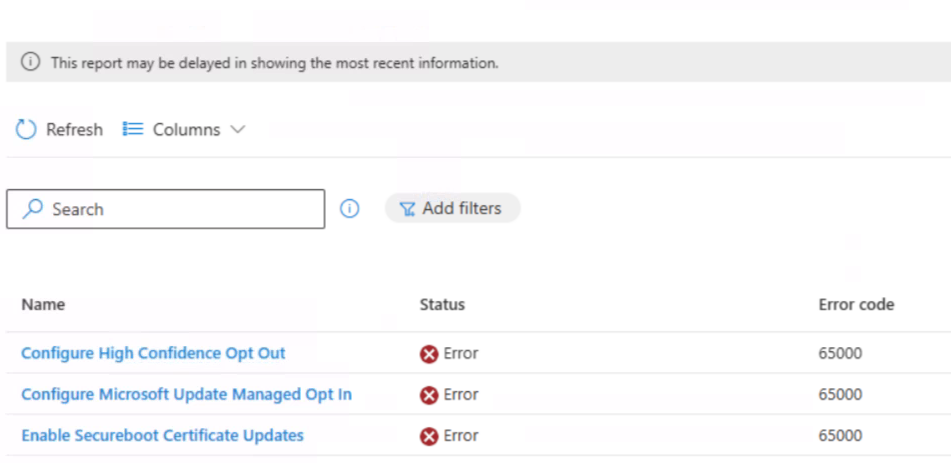
RED FLAG | THIS IS A DOCUMENTED MICROSOFT KNOWN ISSUE – NOT A MISCONFIGURATION If you see Intune Error Code 65000 after deploying the Secure Boot certificate policy to Windows 10 Pro or Windows 11 Pro devices, this is a known platform issue. The Secure Boot CSP was initially scoped to enterprise editions only. A licensing service fix was released January 27, 2026, but devices require license renewal to pick it up. Windows 11 23H2 Pro has a further OS-level issue with a separate fix path.
Symptoms
The following symptoms are observed on affected Windows Pro devices:
- Intune shows Error Code 65000 in the device configuration policy status for the Secure Boot policy.
- Windows Event Log (Application and Services Logs) records: POLICYMANAGER_E_AREAPOLICY_NOTAPPLICABLEINEDITION, indicating the MDM policy area is not available on this OS edition.
- The certificate update does not progress. UEFICA2023Status remains Not Started.
- Windows 11 version 23H2 Pro devices may persist with this error even after the licensing fix is applied, this is a separate OS-level issue.
Root Cause
The Secure Boot certificate deployment CSP was originally published as available only on enterprise-tier Windows editions (Enterprise, Education, Business). Windows Pro devices were excluded from the MDM policy scope. When the policy was assigned to Pro devices in Intune, the device rejected it with Error Code 65000 because the MDM licensing evaluation determined the policy area was not applicable to the device’s edition.
Microsoft updated the Intune licensing service on January 27, 2026 to allow Secure Boot CSP policies on Pro editions. However, devices that had their MDM license evaluated before this date retain the cached restriction until their license is renewed. MDM licenses are renewed automatically every 30 days, meaning self-remediation would complete by February 27, 2026 for most devices. For devices requiring immediate remediation, a manual license renewal can be forced.
Remediation Steps
For Pro devices showing Error Code 65000 (excluding Windows 11 23H2 Pro – see note below):
Identify all affected Pro devices: In Intune, filter the Secure Boot configuration policy’s per-device status for error 65000. Cross-reference against the OS edition column (should show Windows 10/11 Pro).
Force MDM license renewal on each device: Run the following two commands in USER context (not as administrator). These must be run under the logged-in user’s session, not elevated:
ClipDLS.exe removesubscription
ClipRenew.exe
Allow policy re-evaluation: After the license renews, Intune will re-push and re-evaluate the policy at the next MDM check-in cycle. This can take up to 8 hours. Trigger an immediate Intune sync from Settings > Accounts > Access work or school > Info > Sync to accelerate.
Reboot and validate: After the device syncs and receives the updated policy, reboot and monitor UEFICA2023Status in the registry. It should transition to In Progress within 15–30 minutes of the first post-fix reboot.
Windows 11 23H2 Pro – Separate Issue
Devices on Windows 11 version 23H2 Pro may continue to show Error Code 65000 even after completing the license renewal steps above.
This is a separate OS-level bug in Windows 11 23H2. The licensing fix does not resolve it.
Microsoft has confirmed a resolution is planned for a future Windows update for this specific build.
Interim workaround for 23H2 Pro devices: Deploy the Secure Boot update via registry key instead.
– Set: HKLM\SYSTEM\CurrentControlSet\Control\SecureBoot\AvailableUpdates = 0x5944 (DWORD)
– This achieves the same result as the Intune policy but bypasses the MDM CSP restriction. Monitor https://aka.ms/GetSecureBoot for the specific Windows update KB that resolves the 23H2 Pro issue.
Troubleshooting Common Deployment Issues
Device Stuck at KEK Stage – AvailableUpdates = 0x4104
If the AvailableUpdates registry key is set to 0x4104 and the 0x0004 bit does not clear after multiple reboots, the device is stuck at Stage 1 (KEK enrollment). The firmware is not accepting the new KEK from Windows.
- Root Cause: The OEM firmware does not meet the requirements in the Windows Secure Boot Key Creation and Management Guidance specification. The firmware is rejecting the KEK write.
- Resolution: Contact the OEM and verify a firmware update is available that addresses Secure Boot key compatibility. Apply the latest BIOS/UEFI firmware update, then re-attempt the Secure Boot deployment.
Event ID 1795 – Firmware Handoff Error
Event ID 1795 in the System log means Windows could not pass the certificate data to the UEFI variable store. The error typically reads: ‘The system firmware returned an error: The media is write protected.
- Hyper-V Virtual Machines: This was a known issue resolved in Windows updates released on or after March 10, 2026. The fix must be applied to both the Hyper-V host and the guest VM. For Azure-hosted VMs, the fix is included in the Azure 2603 security update and later.
- Physical Devices: Check with the OEM for a firmware update. Some older UEFI implementations have a bug where the variable store incorrectly reports write protection.
UEFICA2023Error Key Present
If the UEFICA2023Error registry key exists with a non-zero value after a deployment attempt, an error occurred at one of the deployment stages. The error does not surface in the Event Log, it must be read from the registry and cross-referenced with the Secure Boot DB and DBX variable update events documentation on Microsoft Support.
Check: HKLM:\SYSTEM\CurrentControlSet\Control\SecureBoot\UEFICA2023Error
Reference: https://support.microsoft.com/topic/37e47cf8-608b-4a87-8175-bdead630eb69
OEM Firmware Update Dependency
For any device exhibiting deployment failures, the single most impactful remediation step before anything else is applying the latest available OEM BIOS/UEFI firmware update. OEM firmware updates in the context of this rollout typically contain:
- Pre-enrollment of Windows UEFI CA 2023 in the device’s firmware certificate store.
- Bug fixes for UEFI variable write operations that trigger Event ID 1795 errors.
- Compatibility fixes for the updated, 2023-CA-signed Windows Boot Manager binary.
The Microsoft-maintained list of OEM Secure Boot firmware update pages is at: https://support.microsoft.com/en-us/topic/original-equipment-manufacturer-oem-pages-for-secure-boot-9ecc3ba4-fb50-4bd3-9e9b-f16b35b8fb68
Registry Key Reference
All Secure Boot-related registry values are under one of two base paths:
HKLM\SYSTEM\CurrentControlSet\Control\SecureBoot
HKLM\SYSTEM\CurrentControlSet\Control\SecureBoot\Servicing
| Value Name | Type | Purpose |
| AvailableUpdates | DWORD | Set 0x5944 to trigger all staged updates. This is the registry equivalent of the Intune Enable policy. 0x4104 stuck = KEK issue. |
| UEFICA2023Status | String | Deployment state: Not Started, In Progress, or Updated. Target state is Updated. |
| UEFICA2023Error | DWORD | Present only when an error occurred. Non-zero value = deployment failure. Cross-reference with Microsoft’s event documentation. |
| HighConfidenceOptOut | DWORD | Set to 1 to prevent automatic updates on high-confidence devices via monthly Windows updates. Recommended for controlled rollouts. |
| MicrosoftUpdateManagedOptIn | DWORD | Set to 1 to opt into Microsoft’s Controlled Feature Rollout. Requires Windows diagnostic data sharing to be enabled on the device. |
Deployment Checklist
Phase 1 – Pre-Deployment
- Inventory all managed devices: capture OS edition (Pro vs. Enterprise/Education), OS version, and device model/OEM.
- Identify devices manufactured post-2024 – these are likely already updated and do not need the policy.
- Apply latest OEM BIOS/UEFI firmware updates to all pilot devices before deploying the Intune policy.
- Flag all Windows 11 23H2 Pro devices for registry-based fallback (bypass Intune CSP for this build).
- Confirm Intune enrollment health and MDM check-in frequency for target device groups.
- Decide High Confidence Opt-Out position – enable to retain admin control over rollout timing.
Phase 2 – Pilot Deployment
- Create Intune Settings Catalog policy: Enable SecureBoot Certificate Updates = Enabled.
- Assign policy to pilot device group (representative cross-section of OEMs, models, OS versions).
- Allow minimum 48 hours and 2-3 reboots for full staged deployment.
- Validate UEFICA2023Status = Updated on all pilot devices via registry or Intune report.
- Confirm Event ID 1808 in System Event Log for each completed device.
- Check no devices are showing Event ID 1795 or 1801.
- Verify UEFICA2023Error key is absent on all pilot devices.
Phase 3 – Broad Deployment
- Expand Intune policy assignment to full managed device population.
- Run ClipDLS.exe removesubscription + ClipRenew.exe on all Pro devices showing Error Code 65000.
- Deploy registry key workaround (AvailableUpdates = 0x5944) to Windows 11 23H2 Pro devices as fallback.
- Monitor Intune Secure Boot status report weekly. Track fleet-wide completion percentage.
- Escalate devices with persistent Event ID 1795 or 1801 to OEM for firmware investigation.
- Document any models with known firmware incompatibilities and track against OEM update schedules.
References