Here Is How to Govern It Properly in Your Enterprise via Intune.
Why This Blog Exists
Google Gemini is a genuinely impressive AI assistant. Millions of people use it every day for research, writing, summarization and productivity and for good reason. This blog is not about whether Gemini is a good product. It is.
This blog is about a specific enterprise governance question: when Google ships Gemini as a default feature inside Chrome enabled automatically on managed corporate devices without an explicit IT admin decision, how should IT teams respond? What are the data boundary considerations? And what controls does Microsoft Intune provide to manage this thoughtfully?
The answer is not necessarily to block Gemini entirely. For many organizations, allowing Gemini in Chrome is perfectly appropriate. The goal of this guide is to help IT administrators make an informed, deliberate decision rather than discovering weeks later that a new AI feature has been running on their managed fleet without any governance framework around it.
What This Guide Covers
- What Gemini in Chrome does and what data it can access.
- Why this is a governance question, not a product quality question.
- The enterprise policy options available in Intune Settings Catalog.
- How to make a deliberate, informed decision for your organization.
- How to configure full disable, partial restrictions, or monitored enablement.
- Verification steps to confirm your chosen policy has applied.
What Is Gemini in Chrome – A Fair Summary
Gemini in Chrome is Google’s AI assistant integrated directly into the Chrome browser starting with version 136. It appears as a side panel that users can open from the toolbar. When a user opens the side panel and asks Gemini a question about the page they are viewing, Gemini can read the text content of that page to provide a contextually relevant response.
This is the same type of AI-assisted browsing experience that Microsoft offers with Copilot in Edge. Both products give users an AI assistant that understands the content of what they are reading. Both are useful productivity tools for personal and professional research. The governance considerations for both are similar.
What Gemini in Chrome Can Do
| Feature | Description |
| Page summarisation | Reads and summarises the content of the active browser tab when the user explicitly invokes Gemini on that page. |
| Chat assistance | Users can ask questions about any topic. Responses use Google’s AI infrastructure. General queries do not require page access. |
| Multi-tab context (Chrome 144+) | When enabled, Gemini can access context across up to 10 open tabs to provide cross-page responses when the user requests it. |
| Gemini Live (voice) | Voice-based interaction with Gemini. Audio is processed by Google’s infrastructure. Requires microphone permission. |
| Writing assistance | Help Me Write provides AI suggestions in text fields across websites. Part of the broader Generative AI feature set. |
| Auto Browse | Agentic browsing – Gemini can take autonomous actions on web pages. Currently limited to AI Pro/Ultra subscribers in specific regions. |
An Important Nuance
Gemini does not passively read every page you visit. Page content is only sent to Google when a user explicitly invokes Gemini on that page and asks a question about it. The exception is Auto Browse, which operates more continuously. Understanding this distinction matters when assessing the actual data exposure surface.
The Governance Question – Why IT Teams Need a Policy
The reason this requires an IT governance decision is not that Gemini is dangerous. It is that Chrome 136 ships Gemini as a default-enabled feature, meaning it becomes available on managed corporate devices without an explicit IT admin decision to enable it. That gap a new capability appearing on managed devices without a deliberate governance choice is what requires attention.
Every organization’s answer to this will be different based on their risk profile, industry, data classification practices, and existing AI governance framework. Here are the key questions that should inform the decision:
Key Governance Questions to Answer
- What data could users access via Gemini on managed devices? If users primarily access public web content and general productivity tools in Chrome, the data exposure surface is low. If Chrome is regularly used to access internal systems, sensitive HR data, customer records, or financial information, the consideration changes.
- Is Gemini in Chrome within your approved AI tool list? Most organizations are building formal AI governance policies. If your organization has defined an approved AI tool list or requires security assessment before deploying AI tools, Gemini in Chrome should go through that process just as Microsoft Copilot, ChatGPT Enterprise, or any other AI tool would.
- Does your DLP framework extend to Chrome-to-Google data flows? Microsoft Purview DLP policies govern data flows within the Microsoft 365 ecosystem. Data sent from Chrome to Google’s AI infrastructure is outside that governance boundary. This does not make it impermissible, it means your DLP controls do not cover it and you need to account for that.
- Are you in a regulated industry? Healthcare (HIPAA), financial services (OSFI, PCI DSS), legal, and government organizations may have specific constraints on where certain categories of data can be processed. Verify whether Gemini in Chrome meets those requirements before allowing it on devices that access regulated data.
- What is your current AI governance maturity? Organizations early in their AI governance journey may choose to disable all unvetted AI features by default and enable them deliberately after assessment. More mature organizations may choose a monitored enablement approach. Both are valid.
The Right Outcome Is Not Always Disable
For many organizations – particularly those without regulated data, with mature AI governance programs, or in industries where AI tool adoption is encouraged – the right decision may be to allow Gemini in Chrome with monitoring rather than blocking it. The goal of this guide is to help you make that decision deliberately, whatever the outcome.
Three Approaches – Choose What Fits Your Organization
The Intune Settings Catalog gives you granular control over Gemini in Chrome. Rather than presenting this as a binary block/allow decision, here are three governance approaches with their appropriate configurations:
Approach 1 — Full Governance Block (Most Restrictive)
Appropriate for: regulated industries, organizations with strict AI governance policies, environments where Chrome regularly accesses highly sensitive internal systems, or organizations that require formal security assessment before enabling any AI tool.
| Setting | Value | Effect |
| Settings for Gemini integration (Device) | 1 – Disabled | Removes Gemini side panel and toolbar icon from Chrome entirely. |
| GenAI Default Settings (Device) | 2 – Block all | Blocks all current and future Chrome AI features. Prevents new AI capabilities from activating automatically in future Chrome updates. |
| Settings for Gemini Act On Web (Device) | 1 – Disabled | Specifically disables Auto Browse – Gemini’s agentic web action capability. |
Approach 2 – Selective Restriction (Balanced)
Appropriate for: organizations that want to allow general Gemini chat functionality but restrict page content access and agentic features. Users can still use Gemini for general queries but it cannot read page content or take autonomous actions.
| Setting | Value | Effect |
| Settings for Gemini Act On Web (Device) | 1 – Disabled | Disables Auto Browse. Gemini cannot take autonomous actions on web pages. |
| HelpMeWriteSettings (Device) | 2 – Disabled | Disables AI writing assistance in text fields across websites. |
| GeminiSettings (Device) | Not configured | Allows Gemini side panel. Users can chat but page content sharing depends on user choice. |
For this approach – also consider
Pair with Microsoft Purview Endpoint DLP policies that flag or block pasting of content classified as Confidential or higher into browser text fields. This provides a data classification layer that complements the Chrome policy controls.
Approach 3 – Monitored Enablement (Least Restrictive)
Appropriate for: organizations with mature AI governance programs, non-regulated environments, or those actively encouraging AI tool adoption. Gemini remains available but usage is monitored via Defender for Endpoint Advanced Hunting.
| Setting | Value | Effect |
| GeminiSettings (Device) | Not configured | Gemini remains available for users. |
| Settings for Gemini Act On Web (Device) | 1 – Disabled | Auto Browse disabled even in monitored mode – agentic web actions carry higher risk. |
| Defender Advanced Hunting | Query below | Monitor connections to Google AI infrastructure from Chrome for visibility. |
Defender for Endpoint Advanced Hunting query for monitoring Chrome-to-Google AI traffic:
DeviceNetworkEvents
| where RemoteUrl has ‘generativeai.googleapis.com’
or RemoteUrl has ‘gemini.google.com’
| where InitiatingProcessFileName =~ ‘chrome.exe’
| summarize Count=count(), Devices=dcount(DeviceName) by
RemoteUrl, bin(Timestamp, 1d)
| order by Count desc
This query gives you daily visibility into which devices are actively using Gemini in Chrome, which helps you understand usage patterns before deciding whether to implement more restrictive controls.

Configuring the Policy in Intune – Step by Step
Navigation Path
Intune Admin Center (intune.microsoft.com)
> Devices > Configuration > + Create policy
> Platform: Windows 10 and later
> Profile type: Settings catalog > Create
Finding the Settings
- In Configuration settings: Click + Add settings.
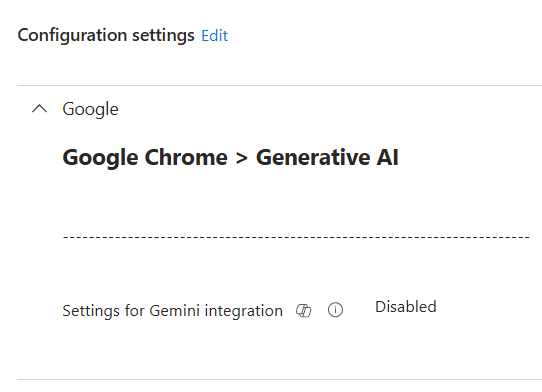
- Search for ‘Gemini’: Results appear under Google Chrome > Generative AI.
- Alternatively browse: Google Chrome > Generative AI in the category tree.
Applying and Verifying the Policy
- Assignment: Assign to your Windows device groups that have Chrome installed. Start with a pilot group to validate.
- Allow time: Policies apply at next MDM check-in up to 8 hours. You can trigger a manual sync from the device.
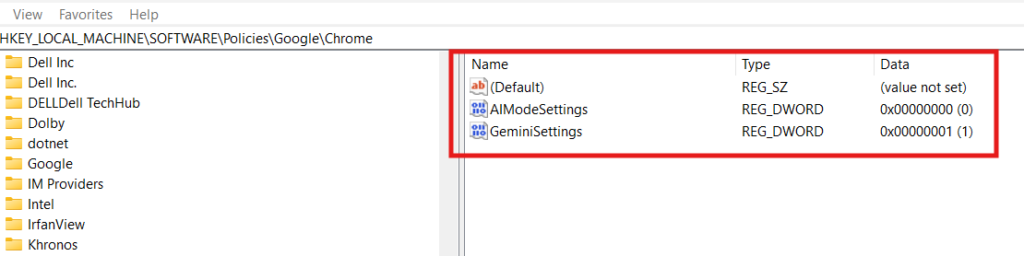
- Verify via chrome://policy: Open Chrome on a managed device and navigate to chrome://policy. Click Reload policies. Search for GeminiSettings.
Navigate to: chrome://policy
Search: GeminiSettings
For Approach 1 (block): expect GeminiSettings = 1, Source: Platform, Level: Machine
For Approach 3 (allow): GeminiSettings should not appear (not configured)

PowerShell approach
New-Item -Path “HKLM:\Software\Policies\Google\Chrome” -Force | Out-Null
New-ItemProperty -Path “HKLM:\Software\Policies\Google\Chrome” -Name “GeminiSettings” -Value 1 -PropertyType DWord -Force
New-ItemProperty -Path “HKLM:\Software\Policies\Google\Chrome” -Name “AIModeSettings” -Value 1 -PropertyType DWord -Force
Decision Framework – How to Choose Your Approach
| Your Situation | Recommended Approach | Key Reason |
| Regulated industry (healthcare, finance, legal, government) | Approach 1 – Full block | Data category restrictions may apply. Formal AI governance assessment required before enabling. |
| Chrome used regularly to access sensitive internal systems | Approach 1 or 2 | Page content access risk is higher when internal systems are accessed via Chrome. |
| No formal AI governance policy yet | Approach 1 – temporarily | Block by default while building your AI governance framework. Revisit once policy exists. |
| Mature AI governance, non-regulated, general productivity use | Approach 3 – Monitored | Governance is in place. Monitoring provides visibility without restricting a useful tool. |
| Mixed fleet — some users need access, others do not | Approach 1 (Device) + exceptions | Block at device level for sensitive roles. Use User-scoped policy to allow for approved groups. |
Implementation Checklist
Step 1 – Assess
- Review what data users typically access via Chrome on managed devices.
- Check your AI governance policy, is Gemini in Chrome within scope?
- Confirm your industry regulatory requirements.
- Determine which approach fits your organization’s risk posture.
Step 2 – Configure
- Create a Settings catalog profile for your chosen approach.
- Add the relevant Generative AI settings from the Google Chrome category.
- Assign to a pilot device group first.
- Verify via chrome://policy after policy applies.
Step 3 – Communicate
- Create a Settings catalog profile for your chosen approach.
- Add the relevant Generative AI settings from the Google Chrome category.
- Assign to a pilot device group first.
- Verify via chrome://policy after policy applies.
Step 3 – Communicate
- Brief your helpdesk on the change especially if Approach 1 (full block) is chosen.
- Communicate to end users why the change has been made frame it around data governance, not product quality.
- Document your decision and rationale in your AI governance runbook.
Step 4 – Monitor and Review
- If using Approach 3, run the Defender Advanced Hunting query monthly.
- Review your approach as your AI governance framework matures.
- Stay current with new Chrome Generative AI settings as Google releases them.
- GenAiDefaultSettings = 2 (Approach 1) automatically covers new AI features in future Chrome releases.
References
| Resource | URL |
| GeminiSettings Policy – Chrome Enterprise | https://chromeenterprise.google/policies/gemini-settings/ |
| GenAiDefaultSettings Policy – Chrome Enterprise | https://chromeenterprise.google/policies/ |
| Gemini in Chrome – Enterprise Admin Help | https://support.google.com/chrome/a/answer/16291696 |
| Manage Chrome with Intune Settings Catalog | https://support.google.com/chrome/a/answer/12129062 |
| Microsoft Purview – Endpoint DLP Overview | https://learn.microsoft.com/en-us/purview/endpoint-dlp-learn-about |
| Defender for Endpoint Advanced Hunting | https://learn.microsoft.com/en-us/defender-xdr/advanced-hunting-overview |
| Gemini for Google Workspace – Enterprise Overview | https://workspace.google.com/products/gemini/ |