What IT Teams Need to Know, Configure, and Watch Out For
What Is Happening and Why It Matters
Starting with the May 2026 Windows security update, Microsoft is enabling hotpatch updates by default for all eligible Intune-managed Windows devices. This is a significant shift in how enterprise patch management works – previously, hotpatch was an opt-in feature. Now it becomes the standard behavior unless administrators actively opt out.
The core promise is compelling, security fixes applied without waiting for a device restart. Microsoft’s own data shows this approach can cut the time to reach 90% patch compliance across a fleet by half. For organizations managing hundreds or thousands of endpoints, that is a meaningful reduction in the exposure window between vulnerability disclosure and remediation.
But this is not a seamless, zero-risk change. Hotpatch operates differently from traditional monthly cumulative updates, and understanding those differences is essential before May 11, 2026 – the date the first default hotpatch deployment begins.
KEY DATES — Act Before These
April 1, 2026: Tenant-level opt-out controls become available in Intune.
April 2026: Baseline month – devices must install the April cumulative update (restart required) to be eligible for hotpatch in May.
May 11, 2026: First default hotpatch deployment begins. Eligible devices receive the May security update WITHOUT a restart. If you are not ready, configure your opt-out BEFORE May 11, 2026.
How Hotpatch Works – The Technical Reality
The Update Servicing Rhythm
Hotpatch is not a replacement for Windows monthly updates – it is a layered delivery mechanism that operates within a structured quarterly cadence. Understanding this cadence is critical to understanding what hotpatch does and does not do:
| Month Type | Update Type | What Happens |
| Jan / Apr / Jul / Oct | BASELINE | Full cumulative update – RESTART REQUIRED. This establishes the new baseline from which hotpatches are layered. All devices must be on the current baseline to receive hotpatch in subsequent months. |
| Feb / Mar / May / Jun / Aug / Sep / Nov / Dec | HOTPATCH | Security-only update applied in memory on top of the running baseline. NO RESTART required. Takes effect immediately after installation on eligible devices. |
This means that every quarter, devices still require one restart to install the new baseline. Hotpatch then allows the following two months to receive security fixes without interrupting users. It is not a world with zero reboots – it is a world with fewer reboots, strategically scheduled.
How Hotpatch Actually Applies a Fix
Hotpatch works by patching code that is already loaded into memory on a running system. When a hotpatch is applied, Windows loads the patched code as a memory overlay without touching the binary files on disk. The original files on disk remain unchanged – only the in-memory execution paths are updated.
This is why a restart is eventually required after the quarterly baseline: the on-disk binaries need to be synchronized with the patched state. Until that baseline restart happens, there is a known divergence between what is running in memory and what exists on disk – a detail that has real implications for recovery scenarios (covered in Section 5).
Technical Note — Hotpatch vs. LCU vs. Baseline A hotpatch is a security-only delta applied in memory. A Latest Cumulative Update (LCU) is the traditional monthly package that updates files on disk and requires a restart. A baseline is the quarterly LCU from which hotpatches are layered. If a device is not on the current baseline when a hotpatch is released, Windows Autopatch will first install the baseline (restart required) before applying the hotpatch on top.
Prerequisites – Not Every Device Gets Hotpatch
Hotpatch is not universal. Devices must meet all of the following prerequisites to receive hotpatch updates. Devices that do not meet these requirements continue on the traditional cumulative update cadence – no restart-free patching, no change in behavior:
| Prerequisite | Details |
| Windows Edition | Windows 11 Enterprise, Education, or Enterprise LTSC 2024. NOT available on Windows 11 Pro, Home, or Windows 10. |
| OS Version | Windows 11 24H2 or 25H2 for full hotpatch support on client devices. Earlier versions have limited or no support. |
| Virtualization-Based Security (VBS) | Must be enabled. VBS is required for the memory patching mechanism hotpatch relies on. Devices with VBS disabled receive traditional LCU updates. |
| Management | Device must be managed via Microsoft Intune or Windows Autopatch (via Microsoft Graph API). On-premises WSUS or ConfigMgr alone do not support hotpatch. |
| Current Baseline | Device must have the current quarterly baseline installed. For May 2026 hotpatch, the April 2026 baseline (restart required) must be installed first. |
| Licensing | Requires Microsoft 365 E3/E5, Windows Enterprise E3/E5, or equivalent. Previously this was tied to higher-tier licensing; Windows Pro devices are excluded. |
Configuring Hotpatch in Intune – What We Set Up
How the HotPatch Policy Surfaces in Intune
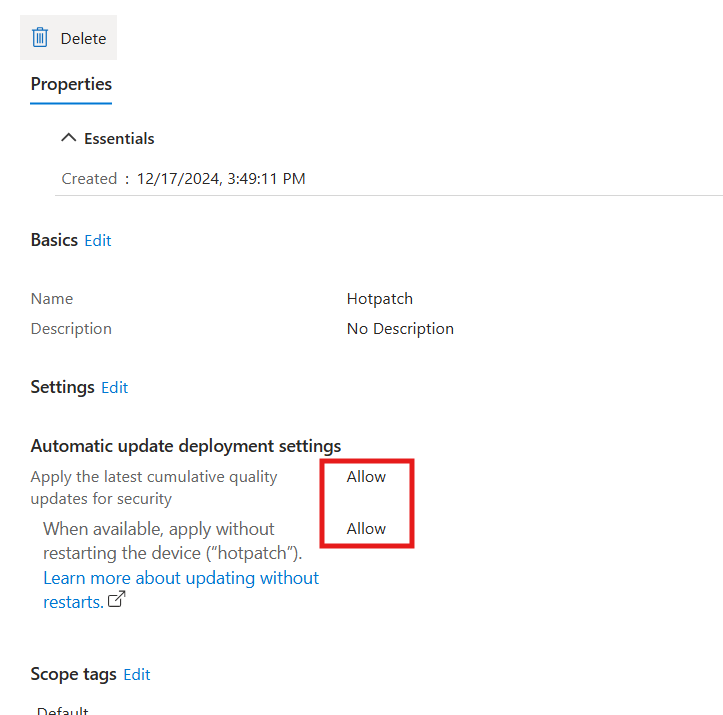
The hotpatch setting is configured through a Windows quality update policy in Intune. As shown in the screenshots, the policy is straightforward – a single toggle under Automatic update deployment settings:
Intune Admin Center > Devices > Manage updates > Windows updates > Quality updates tab
Create > Windows quality update policy
Setting: ‘When available, apply without restarting the device (hotpatch)’ = Allow
How the VBS Policy Surfaces in Intune
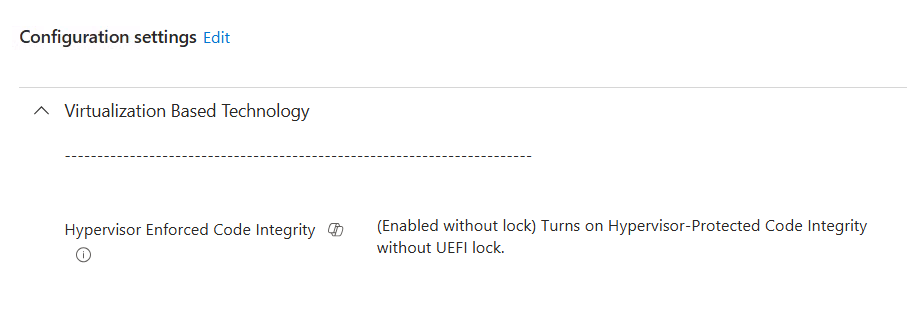
The policy we created and tested (shown in screenshots) has the following configuration:
Created: December 17, 2024 – proactively deployed ahead of the May 2026 default rollout
Policy Name: Hotpatch
Setting — Apply latest cumulative quality updates for security: Allow
Setting — When available, apply without restarting the device (hotpatch): Allow
Scope Tags: Default
Why We Created This Policy Early Microsoft announced the May 2026 default enablement of hotpatch in March 2026 and made tenant-level controls available April 1, 2026. By creating and testing a quality update policy before this date, devices assigned to our policy honour our explicit configuration rather than falling back to the tenant default. This is the recommended approach – policy-level settings always override the tenant default in Windows Autopatch.
Tenant-Level Default vs. Policy-Level Override
The May 2026 change introduces a two-tier configuration model that administrators must understand:
| Level | Where to Configure | Scope / Behavior |
| Tenant Default (NEW) | Intune > Tenant administration > Windows Autopatch > Tenant management > Tenant settings | Applies to all eligible devices NOT already assigned to a quality update policy. Defaults to Allow from May 2026. |
| Quality Update Policy (Override) | Intune > Devices > Manage updates > Windows updates > Quality updates | Applies to specific Entra ID device groups. OVERRIDES the tenant default for those devices. Can be Allow or Block per group. |
The practical implication: devices with no quality update policy assigned will start receiving hotpatch updates in May 2026 automatically. Devices assigned to a quality update policy with hotpatch explicitly set to Block will not – regardless of the tenant default.
How to Opt Out — If Needed
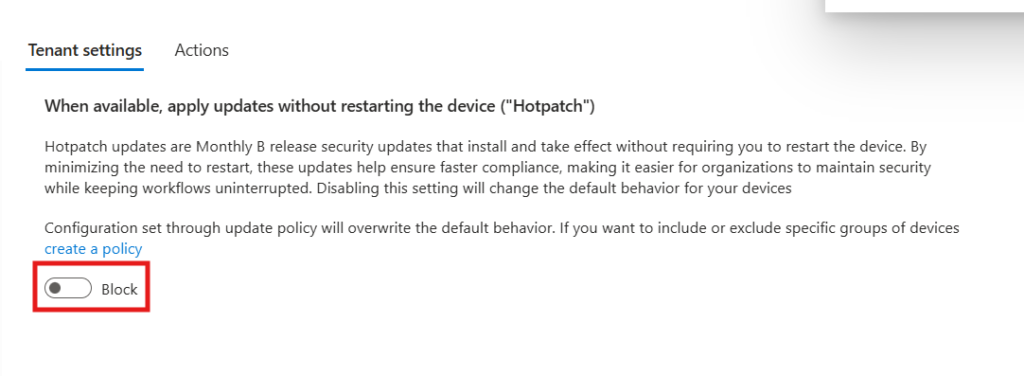
For organizations not ready for the May 2026 default, Microsoft provides clear opt-out paths. The tenant-level toggle went live April 1, 2026:
Tenant-Wide Opt-Out
- Open the Intune Admin Center (intune.microsoft.com)
- Navigate to: Tenant administration > Windows Autopatch > Tenant management
- Select the Tenant settings tab
- Toggle ‘When available, apply updates without restarting the device (hotpatch)’ to Block
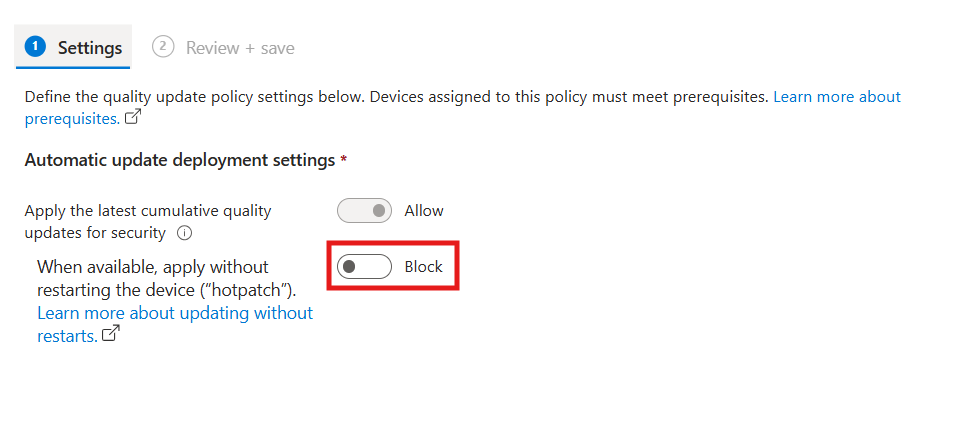
Per-Group Opt-Out (Policy Level)
- Navigate to: Devices > Manage updates > Windows updates > Quality updates tab
- Create or edit a quality update policy
- Set ‘When available, apply without restarting the device (hotpatch)’ to Block
- Assign the policy to the specific Entra ID device group(s) requiring the opt-out
Recommendation: Use Policy-Level Control Over Tenant Default Even if you plan to allow hotpatch across your fleet, creating explicit quality update policies for your device groups is better practice than relying on the tenant default. It gives you per-group control, makes your configuration auditable, and means future default changes by Microsoft will not silently alter your managed devices’ behaviour.
Monitoring Hotpatch Deployment Status
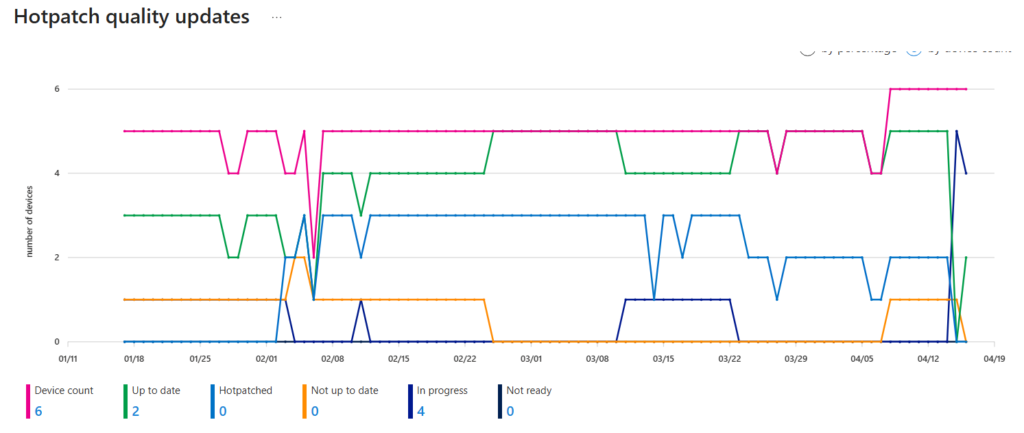
Hotpatch Quality Updates Report
The primary monitoring tool for hotpatch in Intune is the Hotpatch quality updates report. Review this before the May 11 deployment date:
Intune Admin Center > Reports > Windows quality updates > Hotpatch quality updates report
- Hotpatch ready column: Shows which devices have hotpatch enabled AND meet all prerequisites. These will receive the May update without a restart.
- Hotpatched column: Devices that have already successfully received a hotpatch update.
- Hotpatch Readiness (in Quality update status report): Per-device indicator of whether prerequisites are met.
- Hotpatch enabled column (new): Added to show the per-device hotpatch enablement status – check this after May 12.
Device side – Hotpatch Status

Intune Admin Reports
What to Check Before May 11
Before the first default hotpatch deployment runs, validate the following for your fleet:
- Inventory devices by OS version and edition – confirm which are on W11 Enterprise 24H2/25H2 (hotpatch-eligible) vs. everything else.
- Check VBS status – devices with VBS disabled will fall back to traditional LCU. If VBS is disabled for a reason (hardware compatibility, performance), ensure those devices are in a policy set to Block.
- Confirm April 2026 baseline is installed on pilot devices – the April LCU is the baseline for May hotpatch. Devices not on the April baseline will receive it first (with restart) before hotpatch can apply.
- Review quality update policy assignments – any device not assigned to a policy is governed by the tenant default. Audit for ungrouped devices.
Known Issues – Read This Before Enabling Fleet-Wide
Microsoft’s default-on approach for hotpatch is operationally significant precisely because it is no longer something only sophisticated early adopters configure. When an update mechanism becomes the default, its failure modes affect everyone. Two specific issues are worth detailed attention.
Issue 1 – Reset This PC Failure After Hotpatch
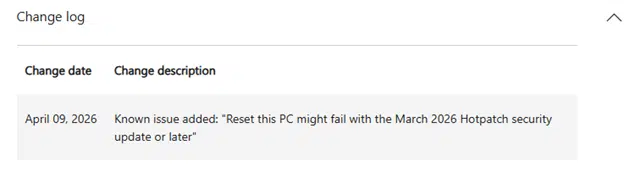
Microsoft-Confirmed Bug – KB5077212 and KB5079420 Microsoft has officially confirmed and documented that the February 2026 (KB5077212) and March 2026 (KB5079420) hotpatch updates for Windows 11 Enterprise LTSC 2024 (24H2 and 25H2) can cause the Push Button Reset (‘Reset This PC’) feature to fail when using either ‘Keep my files’ or ‘Remove everything’ options.
What Happens
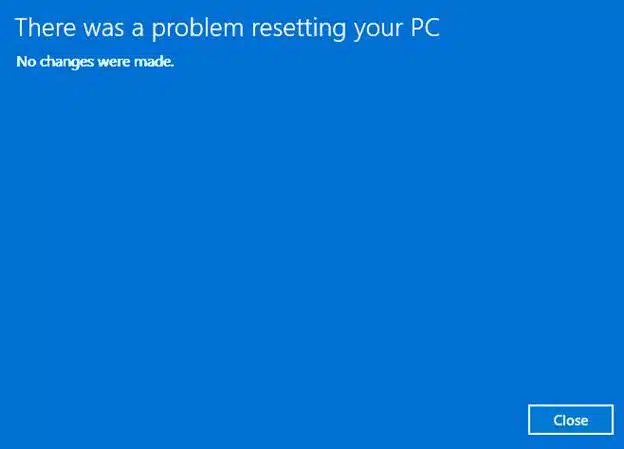
When a user or IT admin initiates a device reset on an affected system, the reset process launches Windows Recovery Environment (WinRE) but does not complete. The device reboots back to the desktop displaying, ‘There was a problem resetting your PC. No changes were made.’ No data is lost, but the reset fails entirely.
The root cause is the divergence between the in-memory patched state and the on-disk binary files that WinRE references during the reset process. Hotpatch updates the running kernel in memory without updating the files on disk. When WinRE tries to rebuild the OS from the on-disk files, it encounters a mismatch that causes the failure.
Why This Matters for Enterprises
Push Button Reset is not just a user convenience feature. For enterprise IT teams, it is a critical recovery mechanism used in the following scenarios:
- Remote wipe via Intune (Fresh Start / RemoteWipe CSP) when a device is lost, stolen, or being repurposed.
- Autopilot reset – re-enrolling a device without physical access.
- Helpdesk-initiated factory reset when troubleshooting persistent issues.
- End-user self-service reset when a device is non-functional.
If reset fails silently, the device remains enrolled in Intune, BitLocker keys and LAPS passwords may have already been rotated or deleted, and the device is left in an unmanaged or partially wiped state – creating both a security and operational problem.
The Fix – KB5079471
Microsoft has provided a resolution via the March Safe OS Dynamic Update (KB5079471). This update patches WinRE to align with the hotpatched system state, restoring reset functionality. Key details:
- The fix is a one-time application: KB5079471 only needs to be installed once per device.
- It targets the recovery environment, not the OS: This is a Safe OS Dynamic Update – it updates WinRE, not Windows itself.
- Delivery: IT administrators can deploy KB5079471 to managed devices via Intune (as a Windows Update for Business supplement or via PowerShell/SCCM).
- April 2026 cumulative update: The April 14, 2026 cumulative update (KB5083769) also addresses this reset issue directly – devices that have installed the April baseline are remediated.
Action Required – Before May 11 Hotpatch Deployment
1. Confirm all hotpatch-eligible devices have installed KB5079471 OR the April 2026 baseline (KB5083769).
2. If deploying hotpatch via policy, run a test reset on at least one device of each affected model/build before broad rollout.
3. If any devices cannot receive KB5079471 before May 11, consider setting those devices to Block hotpatch until remediated. 4. Update helpdesk runbooks to include the reset failure symptom and the KB5079471 fix.
Issue 2 – Secure Boot Certificate Updates and Hotpatch
There is an important and often overlooked intersection between the hotpatch update cadence and the Secure Boot CA 2023 certificate deployment that all organizations are also managing ahead of the June 2026 certificate expiry.
The Problem
Hotpatch months are security-only updates built on top of the current baseline. They do not include the same breadth of servicing data as a full monthly cumulative update. Specifically, the February 2026 hotpatch release notes do NOT include the Secure Boot device targeting changes that the regular February 2026 cumulative update carried. This means that a device that received February’s security fix via hotpatch may not have received the Secure Boot certificate rollout eligibility data that month.
The Secure Boot certificate update process relies on specific cumulative updates to identify which devices are ready (high confidence devices) for automatic certificate enrollment. If a device skips those full LCU months due to hotpatching, the Secure Boot rollout may progress more slowly or not at all on those devices.
Why This Matters Right Now
This convergence of timelines is not trivial:
- The June 2026 Windows UEFI CA 2011 certificate expiry creates a hard deadline for all managed devices to receive the Windows UEFI CA 2023 update.
- The April 2026 baseline is the key Secure Boot checkpoint month – Microsoft has identified April as a critical baseline moment for Secure Boot certificate targeting.
- Devices that receive the April 2026 baseline (restart required) are well-positioned for Secure Boot certificate enrollment.
- Devices that then switch to hotpatch-only months (May, June) may miss further Secure Boot targeting updates if those are bundled in full LCUs only.
Recommendation – Coordinate Hotpatch and Secure Boot Deployments
Do not treat hotpatch and Secure Boot certificate deployments as independent workstreams.
Ensure all devices receive the April 2026 baseline (LCU) with a full restart BEFORE May 2026 hotpatch begins.
Monitor UEFICA2023Status registry value alongside hotpatch status in your patch compliance reports.
For devices where Secure Boot certificate updates have not yet completed, consider keeping them on the traditional LCU path (Block hotpatch) until the Secure Boot update shows ‘Updated’. Reference our Secure Boot CA 2023 deployment guide for the full registry monitoring approach.
Issue 3 – BitLocker Recovery Trigger After April Baseline + Secure Boot
The April 14, 2026 cumulative update (KB5083769) introduced a specific scenario where some devices may enter BitLocker recovery mode after installation, related to the Secure Boot boot manager update. This occurs on devices where:
- msinfo32.exe shows Secure Boot State PCR7 Binding as ‘Not Possible’
- The Windows UEFI CA 2023 certificate is present in the device’s Secure Boot DB
The device has not yet updated to the 2023-signed Windows Boot Manager
When Windows updates the Boot Manager to the 2023-signed version (part of the Secure Boot certificate deployment), BitLocker’s PCR7 measurement changes, triggering recovery mode. This is a one-time event – subsequent reboots after entering the recovery key will not re-trigger it, provided group policy configuration remains unchanged.
- Mitigation before deployment: Audit BitLocker group policies for explicit PCR7 inclusion and check msinfo32.exe for PCR7 binding status on test devices before broad deployment.
- Available KIR: A Known Issue Rollback is available from Microsoft Support for organizations that cannot audit group policies before the update – this prevents the automatic Boot Manager switch, avoiding the BitLocker trigger.
Recommended Deployment Strategy
Phase 1 – Prepare (Now, Before May 11)
- Audit your fleet: identify all devices on W11 Enterprise 24H2/25H2 – these are hotpatch-eligible.
- Check VBS status across the fleet using Intune device reports or PowerShell.
- Verify all eligible devices have the April 2026 baseline installed (or will have it before May 11).
- Deploy KB5079471 (Safe OS Dynamic Update) to all hotpatch-eligible devices to pre-remediate the Reset This PC issue.
- Review Secure Boot certificate deployment status – ensure UEFICA2023Status is progressing.
- Audit for devices with PCR7 binding issues if deploying Secure Boot + hotpatch simultaneously.
- Create explicit quality update policies for your device groups – do not rely solely on the tenant default.
Phase 2 – Pilot (First Two Weeks of May)
- Assign a pilot group to your hotpatch quality update policy (Allow). Include varied hardware, apps, and user profiles.
- Monitor the Hotpatch quality updates report daily. Check Hotpatch ready and Hotpatched columns.
- Test Push Button Reset on at least one pilot device after hotpatch installs.
- Verify no unexpected application compatibility issues or boot failures.
- Check UEFICA2023Status has not stalled on hotpatch devices.
Phase 3 – Broad Rollout
- After pilot validation, expand quality update policy assignment to the full eligible fleet.
- Maintain a Block policy for devices where reset functionality cannot be validated (e.g., imaging-critical devices).
- Update helpdesk documentation with hotpatch-specific troubleshooting steps.
- Set calendar reminder for July 2026 baseline month – devices will require a restart again.
Quick Reference – Hotpatch Eligibility and Behaviour
| Scenario | Hotpatch? | What Happens |
| W11 Enterprise 24H2, VBS on, April baseline installed | YES | Receives May security update in memory. No restart. Most users never notice. |
| W11 Enterprise 24H2, VBS off | NO | Falls back to traditional LCU. Restart required as normal. |
| W11 Pro (any version) | NO | Pro edition is not eligible. Traditional LCU path only. |
| W11 Enterprise, NOT on April 2026 baseline | BASELINE FIRST | Windows installs April baseline first (restart required), then hotpatch on top. |
| Device assigned to Block policy | NO | Respects policy override. Traditional LCU path. Restart required. |
| Device not in any quality update policy (tenant default) | YES (from May 2026) | Receives hotpatch per tenant default. No explicit opt-in required after May 2026. |
| Quarterly baseline month (Jan/Apr/Jul/Oct) | RESTART | All devices, including hotpatch-enabled, require a restart for the quarterly baseline. |
References
| Resource | URL |
| Hotpatch Default Enablement Announcement (Tech Community) | https://techcommunity.microsoft.com/blog/windows-itpro-blog/securing-devices-faster-with-hotpatch-updates-on-by-default/4500066 |
| Known Issues: Hotpatch Reset This PC Problem | https://support.microsoft.com/en-us/topic/february-10-2026-hotpatch-kb5077212-os-builds-26200-7781-and-26100-7781-722c74c5-ea30-4622-8436-6b8dcb975b2b |
| Microsoft Confirms Reset Failure KB5077212/KB5079420 | https://support.microsoft.com/en-us/topic/february-10-2026-hotpatch-kb5077212-os-builds-26200-7781-and-26100-7781-722c74c5-ea30-4622-8436-6b8dcb975b2b |
| April 2026 CU — Fixes Reset Issue (KB5083769) | https://support.microsoft.com/kb/5083769 |
| Intune Hotpatch Quality Updates Report | https://learn.microsoft.com/intune/intune-service/protect/windows-update-reports#hotpatch-quality-updates-report |
| Message Center MC1248388 — Hotpatch Default Change | https://techcommunity.microsoft.com/blog/windows-itpro-blog/securing-devices-faster-with-hotpatch-updates-on-by-default/4500066__ |
| Secure Boot CA 2023 Deployment Guide (our blog) | See our Secure Boot Intune Deployment Guide – internal reference |