Now in Intune – What Changed, What Breaks, and How to Deploy Safely
What Just Landed and Why You Need to Act
Microsoft has released the Windows 11 version 25H2 Security Baseline in Microsoft Intune as part of service release 2603, shipping in April 2026. This is the latest recommended security configuration for Windows 11 endpoints – replacing the 24H2 baseline as the current standard.
If you have an existing Windows 11 security baseline profile in Intune, it did not automatically update. Your 24H2 baseline profile is now read-only. You must either create a new 25H2 baseline profile or explicitly upgrade your existing profile to the latest version. Neither happens without your action.
This blog covers every change in the 25H2 baseline in technical detail – what each setting does, why Microsoft changed it, what breaks if you misconfigure it, and exactly how to deploy it safely in a production Intune environment. Screenshots placeholder locations are marked throughout for your own environment captures.
KEY FACTS – Before You Continue
- Intune SR2603 (April 2026) ships the Windows 11 25H2 Security Baseline.
- Your existing 24H2 baseline profiles are now read-only – they cannot be edited.
- To adopt 25H2 settings you must create a new profile or update the existing one to the latest version.
- 9 changes from 24H2: 4 new/added settings, 3 updated/changed settings, 2 removed/retired settings.
- Two settings carry the highest operational risk: Disable NetBIOS and Include command line in process creation events. Always pilot new baseline versions before production rollout – baseline conflicts with existing config profiles are common.
Background – What Is an Intune Security Baseline?
An Intune Security Baseline is a pre-configured group of Windows settings that represent Microsoft’s recommended security posture for enterprise endpoints. Rather than building a security configuration policy from scratch, admins can deploy a baseline profile that immediately applies hundreds of security-relevant settings – BitLocker, Credential Guard, SmartScreen, audit policies, User Rights Assignments, ASR rules, and more.
Baselines are versioned. Each new Windows release (e.g., 24H2, 25H2) produces a new baseline version that reflects updated Microsoft guidance, deprecated settings, and new OS capabilities. Crucially:
- Old baseline versions become read-only: You can still assign an older baseline profile, but you cannot edit it. To change any setting, you must upgrade to the latest version.
- Upgrading is not automatic: When a new baseline is released, your existing profiles do not change. You must explicitly choose to update them.
- Conflicts with Configuration Profiles: Baseline settings can conflict with settings in your Settings Catalog configuration profiles. When a conflict exists, the most restrictive value typically wins, but the conflict is surfaced in Intune reporting and can cause unexpected device behavior.
Baseline profiles are cumulative: A 25H2 baseline contains ALL settings from prior versions plus the new changes. It is not just the delta, it is the full configuration.
Where to Find Baselines in Intune Intune Admin Center > Endpoint Security > Security Baselines > Security Baseline for Windows 10 and later. The 25H2 version appears as ‘Windows 11, version 25H2’ in the version picker when creating or editing a profile.
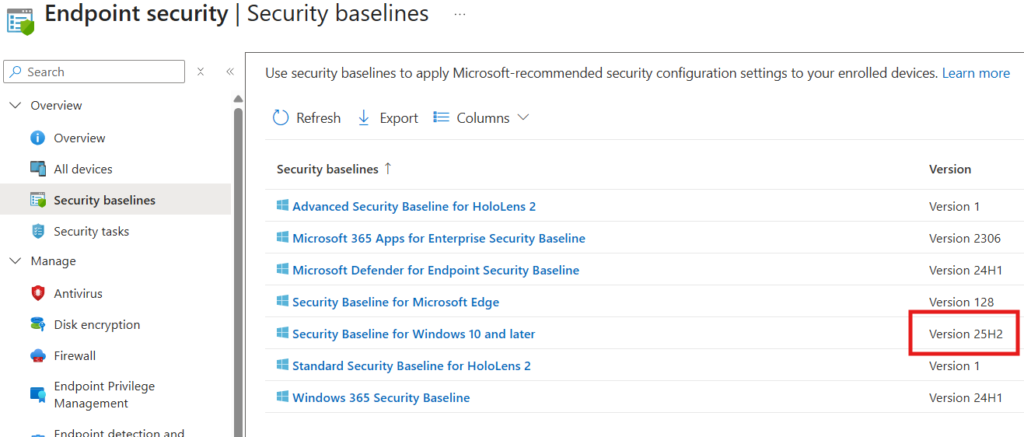
The 9 Changes – Full Technical Breakdown
The 25H2 baseline introduces 9 specific changes from the 24H2 baseline. Each change is categorized below.
| Type | Setting | Change Summary | Risk |
| NEW | ASR: Block PSExec + WMI commands | Added rule d1e49aac in Audit mode (value 2) | LOW — audit only |
| NEW | Include cmd-line in process creation | Enabled — captures full command arguments | MEDIUM — check for passwords in cmd |
| NEW | Print Spooler SID added | RESTRICTED SERVICES\PrintSpoolerService in user rights | LOW — required for WPP |
| NEW | NTLM Auditing Enhanced | Enabled by default in OS — no baseline config needed | LOW — informational |
| CHANGED | Disable NetBIOS on all adapters | Configured OFF for all network types | HIGH — test first |
| CHANGED | Disable IE11 via COM automation | Blocks CreateObject(InternetExplorer.Application) | MEDIUM — legacy apps |
| CHANGED | Exclusion visibility — child policy | Moved to Not Configured — parent overrides | LOW |
| REMOVED | WDigest Authentication | Deprecated in 24H2+ — setting has no effect | NONE — cleanup only |
| REMOVED | Scan packed executables | No longer functional — MDAV always scans these | NONE — cleanup only |
New Settings – Detailed Technical Reference
1. ASR Rule: Block PSExec and WMI Command Process Creations
Rule GUID: d1e49aac-8f56-4280-b9ba-993a6d77406c | Value: 2 (Audit) | Policy path: Windows Components\Microsoft Defender Antivirus\Attack Surface Reduction
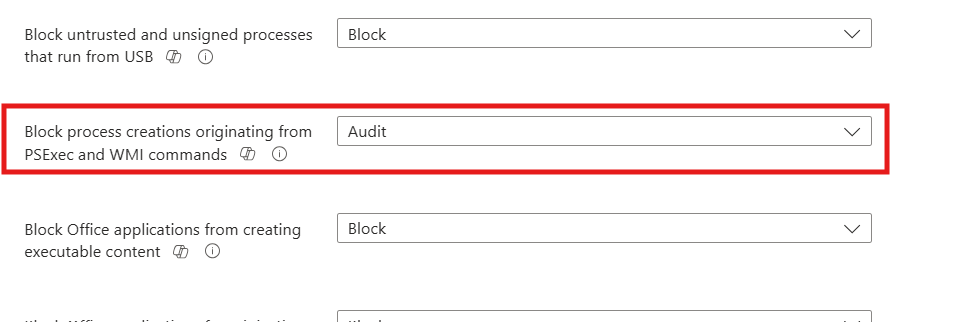
What This Rule Does
This Attack Surface Reduction rule targets two of the most commonly abused lateral movement tools in enterprise environments: PsExec and Windows Management Instrumentation (WMI). Both are legitimate administrative utilities, but they are also standard tools in ransomware deployment chains, living-off-the-land attacks, and post-compromise persistence mechanisms.
When this rule is active, Windows monitors for processes spawned via PsExec (Sysinternals) or WMI command execution. It does NOT block PsExec or WMI themselves, it targets processes that are CREATED by PsExec or WMI as their child processes. This is the typical attack pattern: an attacker uses PsExec or WMI to remotely spawn a payload (cmd.exe, PowerShell, a malicious binary) on a target machine.
Why Audit Mode First
The baseline deliberately sets this to value 2 (Audit) rather than value 1 (Block). This is correct for initial deployment. In most enterprise environments, legitimate administrative tooling – SCCM task sequences, endpoint management scripts, monitoring agents, creates processes via WMI. Jumping straight to Block mode would immediately break these workflows.
The recommended approach: run in Audit mode for 4–6 weeks. Review Event ID 1122 in the Microsoft-Windows-Windows Defender/Operational event log. Each event identifies the process creation that would have been blocked. Use this data to build exclusions before switching to Block mode.
Monitoring Audit Events
- Event Log: Microsoft-Windows-Windows Defender/Operational
- Event ID: 1122 (ASR audit event — would have been blocked)
- Event ID: 1121 (ASR block event — was blocked)
PowerShell query for ASR audit events:
Get-WinEvent -ProviderName ‘Microsoft-Windows-Windows Defender’ |
Where-Object { $_.Id -eq 1122 } |
Select-Object TimeCreated, Message |
Format-List
In Intune, ASR event data surfaces in the Endpoint Security > Attack Surface Reduction reports. Filter by device and rule GUID to identify which machines are generating audit hits and for which processes.
Operational Risk Assessment
- Risk: LOW in Audit mode. No process blocking occurs. Monitoring only.
- Risk: HIGH if switched to Block prematurely. SCCM, N-able, remote management agents, and WMI-based scripts will break. Audit first, always.
- Exclusion path: ASR exclusions can be configured per file, folder, or extension under the same ASR policy. Excluded paths bypass all ASR rules — keep exclusions minimal and well-documented.
2. Include Command Line in Process Creation Events
Setting Summary Policy: System\Audit Process Creation\Include command line in process creation events | Value: Enabled | Requires: Process Creation auditing must also be enabled
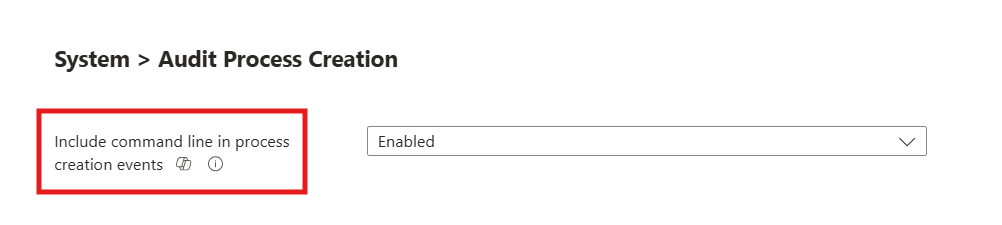
What This Setting Does
When enabled, Windows captures the full command-line string used to launch every process in Security Event Log Event ID 4688 (Process Creation). Without this setting, Event ID 4688 records that a process was created but not what arguments it was called with. With it, you can see the full command: what script was run, what parameters were passed, what file was targeted.
This is transformative for threat detection. Many attacks that abuse native Windows binaries (LOLBins – Living Off the Land Binaries) look identical to legitimate processes at the binary level. It is only the command-line arguments that distinguish malicious use from legitimate use. For example, PowerShell.exe launched with -EncodedCommand and a long base64 string is a very different event from PowerShell.exe launched for a scheduled update check, even though both write the same process name to the log.
The Critical Caveat – Passwords in Command Lines
This setting has one well-known and important operational concern: some applications and scripts pass credentials as command-line arguments. When this setting is enabled, those passwords are captured in plaintext in the Security Event Log. They persist in the log for as long as log retention is configured – often 30–180 days in enterprise environments.
Before enabling this setting, audit your environment for:
- Scripts that pass -Password or similar parameters on the command line.
- Legacy applications that accept credentials via command-line switches.
- Automated tasks (scheduled tasks, CI/CD pipelines) that embed credentials in command strings.
Where these exist, refactor the credential passing mechanism (use credential stores, certificate auth, or environment variables) before enabling this policy. The security event log is protected by default ACLs, but log aggregation tools, SIEM forwarding, and log analysis pipelines may route these events to less protected storage.
Dependency – Process Creation Auditing
This setting only works if Process Creation auditing is already enabled in your audit policy. If 4688 events are not being generated, enabling command-line capture has no effect. Verify:
AuditPol /get /subcategory:”Process Creation”
Expected output: Process Creation Success and Failure
If not enabled, add it via Intune Settings Catalog or the existing security baseline which enforces it. The 25H2 baseline includes process creation auditing as part of its audit policy configuration.
3. Print Spooler User Rights — RESTRICTED SERVICES\PrintSpoolerService
Setting Summary Policy: User Rights Assignment\Impersonate a client after authentication | Change: RESTRICTED SERVICES\PrintSpoolerService added to existing list
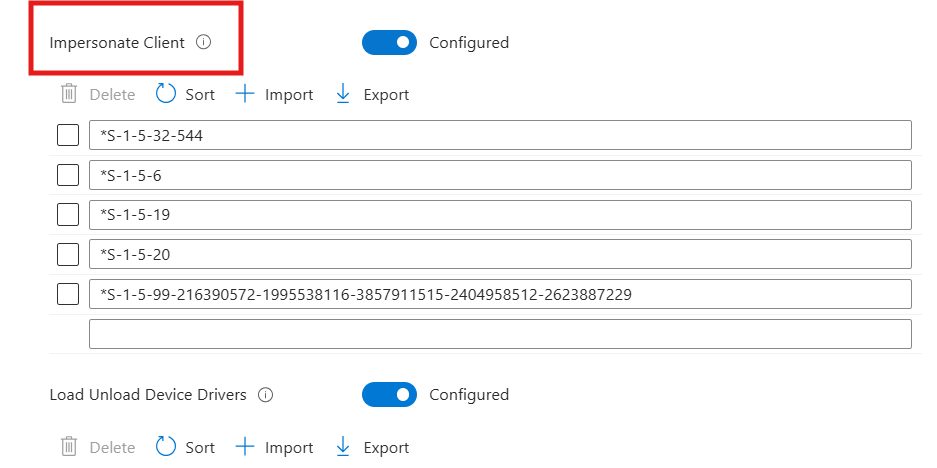
Context
The ‘Impersonate a client after authentication’ User Rights Assignment (SeImpersonatePrivilege) controls which accounts can take on the identity of authenticated users. This privilege is a known attack target, impersonation privileges are central to several local privilege escalation techniques. The baseline already restricts this right to Administrators, SERVICE, LOCAL SERVICE, and NETWORK SERVICE.
The 25H2 baseline adds RESTRICTED SERVICES\PrintSpoolerService to this list. This is the scoped, restricted service identity used by Windows Protected Print (WPP), Microsoft’s modernized print architecture that eliminates the need for third-party printer drivers running in kernel mode.
The SID Warning
This service identity may appear as a raw SID (e.g., S-1-5-99-…) in Group Policy Object Editor, Local Security Policy, or certain policy viewing tools before the Print Spooler service has fully initialized on a device. This is expected behavior — Windows resolves the SID to the friendly name once the service is running. Do not mistake this for a misconfiguration or an unknown account.
CRITICAL: Do Not Remove This Entry If you maintain a custom security baseline or have a custom User Rights Assignment policy that explicitly defines who holds SeImpersonatePrivilege, you must add this SID. Omitting it in environments where Windows Protected Print is enabled will cause print failures. This is documented in the Microsoft baseline release notes.
4. NTLM Auditing Enhancements – No Action Required
Setting Summary NTLM auditing improvements are enabled by default in Windows 11 25H2. No baseline policy change is needed – the OS handles this automatically.
Windows 11 25H2 ships with significantly enhanced NTLM audit logging enabled out of the box. These enhancements generate detailed event log entries for every NTLM authentication event, providing security teams with visibility into:
- Which accounts are still authenticating via NTLM (vs. Kerberos or modern auth).
- Which services and applications are triggering NTLM negotiations.
- Authentication patterns that indicate NTLM relay or pass-the-hash attack attempts.
Since this is an OS default in 25H2, the security baseline does not need to explicitly configure it. It is operational on any device running 25H2 regardless of baseline version. The value is in using the enhanced audit data to identify NTLM dependencies before Microsoft eventually moves to restrict or block NTLM in future Windows releases, a direction Microsoft has been signaling for several years.
Changed Settings – Detailed Technical Reference
5. Disable NetBIOS Name Resolution on All Network Adapters
Setting Summary Policy: Network\DNS Client\Configure NetBIOS settings | Value: Disable NetBIOS name resolution | Scope: ALL network adapters (including private and domain networks)

What This Change Does
NetBIOS (Network Basic Input/Output System) is a legacy name resolution protocol dating to the early 1980s. It allows computers to find each other by broadcast name resolution when DNS is unavailable or not configured. In modern enterprise environments with properly deployed DNS, NetBIOS serves no legitimate function and represents a significant attack surface.
The primary threat: NTLM relay attacks. When a Windows device fails to resolve a hostname via DNS, it falls back to NetBIOS broadcast queries. Attackers on the local network (or in lateral movement scenarios) can respond to these broadcast queries, causing the victim device to authenticate against the attacker’s machine using NTLM. The attacker relays this NTLM authentication to a target service, gaining unauthorized access without ever cracking a password. This technique NetBIOS/LLMNR poisoning is one of the most common local network attacks in penetration testing and real-world intrusions.
The 24H2 baseline disabled NetBIOS only on public network adapters. The 25H2 baseline extends this to ALL adapters, including private and domain-connected network interfaces. This is the correct security posture for environments with fully functioning DNS.
Operational Risk – This Is the Highest Risk Change in This Baseline
This setting carries the highest operational risk of any change in the 25H2 baseline. Applications and workflows that fail silently when NetBIOS is unavailable include:
- Legacy file shares accessed by short name (\\SERVER vs. \\server.domain.com).
- Print queues connected via NetBIOS name rather than FQDN.
- Legacy applications with hardcoded server names that rely on NetBIOS resolution as a DNS fallback.
- Older backup agents and monitoring tools that use broadcast discovery.
- Any script or automation that references servers by NetBIOS name rather than FQDN.
Mandatory: Test This Setting Before Production Deployment Do not deploy this setting to production devices without a 2–4 week pilot. Monitor for application errors, failed file share connections, and broken print workflows. In environments with legacy infrastructure, this single setting may generate more helpdesk tickets than any other baseline change.
Why Does NetBIOS Dependency Still Exist in 2026?
This is a fair question. If FQDN has been the recommended standard since at least 2010, why are enterprise environments still relying on NetBIOS name resolution in 2026?
The answer is almost always legacy infrastructure decisions that were never cleaned up:
The static IP / DHCP printer problem – A network printer is assigned a static IP address. Over time, a router freezes an interface, a DHCP lease conflict occurs, or the address gets reassigned by a network change. The printer becomes unreachable by its original IP. Rather than fixing the underlying DHCP issue or creating a proper DNS A record, the original admin registered the printer by its NetBIOS name as a quick workaround. That workaround has been in production ever since, often outlasting the admin who created it.
Stale DNS records – In environments where DNS was not properly maintained, records became stale or were never created in the first place. NetBIOS broadcast resolution filled the gap silently. Nobody noticed because it just worked – until it doesn’t.
Legacy LOB applications – Older line-of-business applications hardcoded server names using NetBIOS-style short names at the time of deployment. Changing those connection strings requires application testing, change control, and vendor involvement – effort that never got prioritized.
Verification
# Check current NetBIOS setting per adapter
Get-WmiObject Win32_NetworkAdapterConfiguration |
Where-Object { $_.IPEnabled } |
Select-Object Description, TcpipNetbiosOptions
# 0 = Use DHCP setting, 1 = Enable, 2 = Disable
# After policy applies, expect value 2 on all adapters
6. Disable Internet Explorer 11 Launch via COM Automation
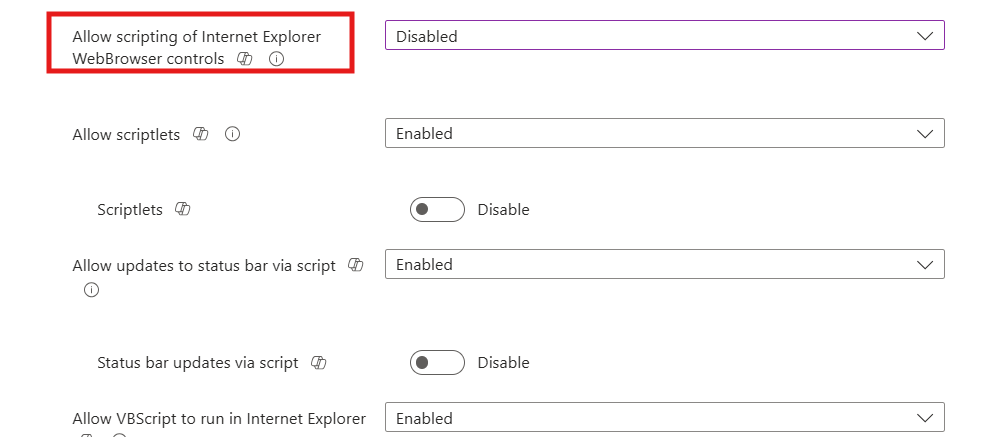
Setting Summary Policy: Windows Components\Internet Explorer\Disable Internet Explorer 11 as a standalone browser | Specifically: Prevent IE11 launch via COM automation interfaces
Why This Matters
Even though Internet Explorer 11 reached end of support in June 2023 and is disabled on modern Windows builds, it remains launchable on some systems via COM automation, the technique of programmatically creating an Internet Explorer application object via scripting. The attack path: legacy scripts or applications call CreateObject(“InternetExplorer.Application”) which instantiates MSHTML.dll and the legacy ActiveX subsystem, re-exposing attack surface that Microsoft has deliberately retired.
This policy adds a specific protection: it prevents COM automation interfaces from launching IE11 even if the binary remains on disk. Any script such as VBScript, legacy PowerShell, JScript, that attempts to instantiate Internet Explorer via COM will fail with an error.
Operational Impact
In most modern enterprise environments, this setting has zero operational impact. If your environment has:
- Legacy VBScript automation that creates InternetExplorer.Application objects.
- Old web scraping or form automation scripts using IE COM.
- Line-of-business applications with embedded IE automation.
Then those workflows will break. Audit for these patterns before deploying. Search for CreateObject in your script repositories:
# Search scripts for IE COM automation calls
Get-ChildItem -Path C:\Scripts -Recurse -Include *.vbs,*.ps1,*.js |
Select-String -Pattern ‘InternetExplorer.Application|InternetExplorer.Application.1’
7. MDAV Exclusion Visibility – Child Policy Moved to Not Configured
Setting Summary Policy: Windows Components\Microsoft Defender Antivirus\Control whether exclusions are visible to local users | Change: Moved from Configured to Not Configured
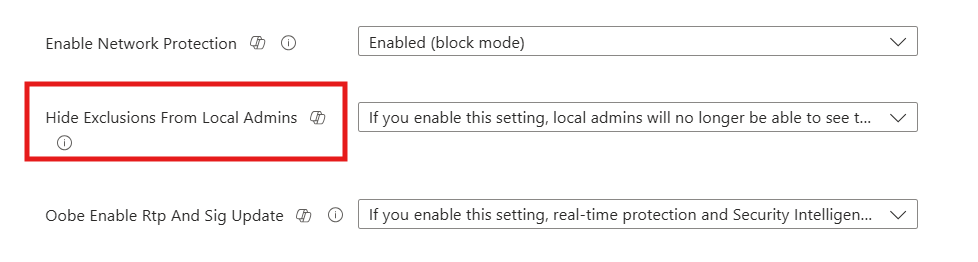
This is a housekeeping change with no operational impact. The Microsoft Defender Antivirus policy hierarchy has a parent setting, ‘Control whether or not exclusions are visible to Local Admins’, that when Enabled, takes precedence over and overrides the child setting ‘Control whether exclusions are visible to local users’. Since the parent is already Enabled in the baseline, the child setting was redundant. Setting the child to Not Configured is the correct configuration, it has no effect when the parent overrides it, and removing the explicit value eliminates potential confusion in policy reporting.
Removed Settings – Why They Were Retired
8. WDigest Authentication – Deprecated, Removed
Setting Summary Policy: Windows Components\WDigest Authentication\Allow Digest Authentication (disabling may require KB2871997) | Action: Removed from baseline entirely
WDigest is a legacy authentication protocol that was built into Windows to support HTTP Digest Authentication. Its critical security weakness: when WDigest is active, Windows caches the user’s plaintext password in LSASS memory. Any attacker who can read LSASS memory (Mimikatz, procdump targeting lsass.exe) can extract these plaintext credentials.
Microsoft originally disabled WDigest by default starting with Windows 8.1 / Windows Server 2012 R2 via security update KB2871997. The security baseline has enforced WDigest = Disabled for years as a safeguard against it being re-enabled by malware or misconfiguration. With Windows 11 24H2, Microsoft formally deprecated the WDigest policy CSP. The setting no longer writes to the registry, meaning configuring it has no effect. The 25H2 baseline removes it as dead configuration weight.
Important: Existing Environments If you have been enforcing this setting via an older baseline or a custom configuration policy, Windows will NOT clean up the existing registry value when you remove or migrate to the new baseline. The legacy registry key remains populated. This is harmless — the setting has no effect in modern Windows — but it will show up in registry audits. You can clean it up manually if needed: HKLM\SYSTEM\CurrentControlSet\Control\SecurityProviders\WDigest\UseLogonCredential
9. Scan Packed Executables – No Longer Functional
Setting Summary Policy: Windows Components\Microsoft Defender Antivirus\Scan\Scan packed executables | Action: Removed — setting has no effect in modern MDAV
Packed executables are binaries that have been compressed or obfuscated, a common technique used by both legitimate software (to reduce file size) and malware (to evade signature detection). This Defender policy historically controlled whether MDAV unpacked and scanned the contents of packed executables before allowing them to execute.
In modern versions of Microsoft Defender Antivirus, scanning packed executables is always on — it is not configurable. The OS ignores this policy setting entirely. Configuring it Enabled or Disabled has exactly the same outcome: MDAV scans packed executables in all cases. The baseline removes it to eliminate misleading dead configuration.
How to Deploy the 25H2 Baseline in Intune – Step by Step
Navigation Path
Intune Admin Center (intune.microsoft.com)
> Endpoint Security
> Security Baselines
> Security Baseline for Windows 10 and later
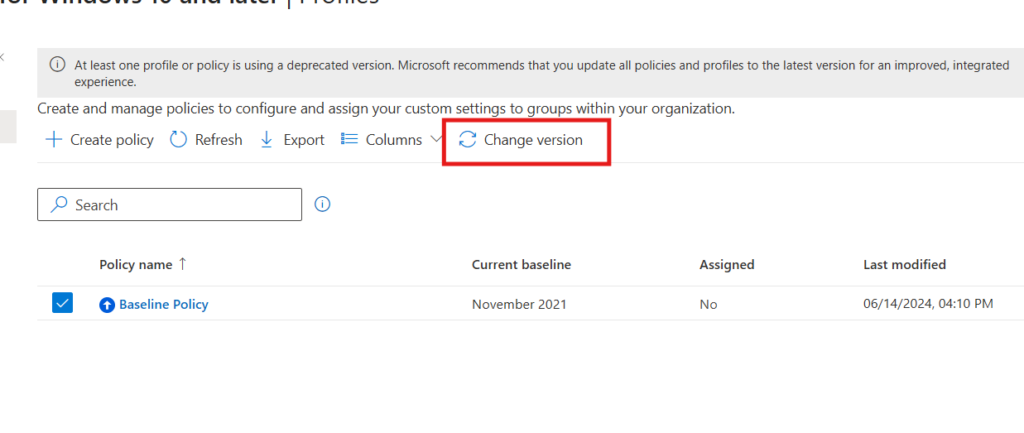
> + Create profile (or select existing 24H2 profile > Properties > Baseline version > Change version)
Option A – Create a New Profile
- Navigate: Endpoint Security > Security Baselines > Security Baseline for Windows 10 and later > Create profile.
- Basics tab: Name the profile clearly (e.g., ‘W11-25H2-Security-Baseline-Pilot’) and add a description referencing this deployment.
- Configuration settings: Select ‘Windows 11, version 25H2’ from the Baseline version dropdown. Review all settings, pay specific attention to the 9 changed settings documented in this guide.
- Scope tags: Apply your standard scope tags. For pilot rollout, use a scope tag that restricts visibility to your endpoint team.
- Assignments: Assign to your PILOT device group first. Do NOT assign to all devices in the first deployment.
Review + Create: Validate settings summary. Create the profile.
Option B – Update an Existing 24H2 Profile
- Open existing profile: Select your current 24H2 baseline profile > Properties.
- Baseline version: Click ‘Change version’ > Select ‘Windows 11, version 25H2’ > Select preview settings.
- Review the diff: Intune shows a comparison between your current settings and the new defaults. Review each of the 9 changed settings and confirm your intended values.
Save: Save the updated profile. It will deploy to already-assigned device groups.
Recommendation: Option A for Pilot For the 25H2 migration, we recommend creating a new profile (Option A) and assigning it to a pilot group alongside removing the 24H2 profile from those same devices. This gives you a clean baseline profile for 25H2 without risk of partially-applied update states. Once pilot is validated, expand the 25H2 profile to production and deprecate the 24H2 profile.
Deployment Phasing
Phase 1 – Pilot (Week 1–2)
- Create the W11-25H2-Security-Baseline-Pilot profile.
- Assign to a 10–20 device pilot group covering diverse hardware, roles, and application profiles.
- Pay particular attention to NetBIOS disable, check for file share and print failures within 48 hours of policy applying.
- Review Intune device configuration status, look for conflicts with existing Settings Catalog profiles.
- Check Event ID 1122 (ASR audit) in Defender Operational log for PSExec/WMI child process hits.
- Verify Event ID 4688 is populating with full command-line data in Security Event Log.
Phase 2 – Expanded Pilot (Week 3–4)
- Expand to a broader representative group (100–200 devices).
- Monitor helpdesk tickets for any application failures related to NetBIOS or IE COM.
- Run the ASR audit report in Intune to baseline PSExec/WMI process creation activity.
- Confirm Print Spooler SID is not causing User Rights Assignment conflicts with custom policies.
Phase 3 – Production Rollout
- Expand 25H2 baseline profile to full Windows 11 device population.
- Communicate to helpdesk: key changes that may generate tickets (NetBIOS, legacy IE scripts).
- Deprecate the 24H2 baseline profile once all devices are successfully reporting the 25H2 profile as compliant.
- Document any exclusions or setting overrides made to the baseline in your security runbook.
Detecting and Resolving Policy Conflicts
Security baseline settings can conflict with settings in your Intune Configuration Profiles (Settings Catalog) or other Endpoint Security policies. When a conflict exists, Intune reports it as a conflict on the device’s configuration profile status page. The behavior depends on the conflict type:
- Same setting, same value: No conflict. Both policies agree.
- Same setting, different values: Conflict reported. Most restrictive value typically applies, but behavior can be unpredictable. Resolve by aligning the policies.
- Baseline setting vs. legacy CSP custom profile: Custom OMA-URI profiles can conflict with baseline settings if both target the same CSP path. Baseline typically wins, but audit your custom profiles against the baseline change list.
How to Find Conflicts
Intune Admin Center > Devices > [Device Name] > Device Configuration
Filter by ‘Conflict’ status
Click any conflicting profile to see which specific settings are in conflict
For the 25H2 baseline, check specifically for conflicts on the following settings which are commonly also configured in Settings Catalog profiles:
- Attack Surface Reduction rules – commonly configured both in baseline and a dedicated ASR policy.
- Audit policy settings – process creation auditing often duplicated.
- NetBIOS – may be configured in a network configuration profile for specific adapter types.
- User Rights Assignment – often customized in organizations with complex role structures.
Monitoring After Deployment
Intune Reports
- Endpoint Security > Security Baselines > [Your Profile] > Device status: Shows per-device compliance with the baseline. States: Succeeded, Failed, Error, Conflict, Not applicable.
- Endpoint Security > Attack Surface Reduction > ASR rules report: Shows audit and block events per rule per device. Use this to baseline PSExec/WMI activity after deploying the new rule.
- Devices > Monitor > Device configuration: Filter by profile name to check rollout progress and identify devices with errors or conflicts.
Event Log Monitoring
| Event ID | Log Location | What It Tells You |
| 4688 | Security | Process creation with full command-line arguments (requires cmd-line setting enabled) |
| 1122 | Defender Operational | ASR audit event – process creation that would have been blocked by PSExec/WMI rule |
| 1121 | Defender Operational | ASR block event – process creation that was blocked (only if rule set to Block) |
| 4625 | Security | Failed logon – monitor for NTLM auth failures after NetBIOS disable |
| System | Application | Printer installation failures if IPPS enforcement is later enabled |
References
| Resource | URL |
| Windows 11 25H2 Security Baseline Announcement | https://techcommunity.microsoft.com/blog/microsoft-security-baselines/windows-11-version-25h2-security-baseline/4456231 |
| What’s New in Intune — SR2603 | https://learn.microsoft.com/en-us/intune/intune-service/fundamentals/whats-new |
| NTLM Auditing Enhancements Overview | https://support.microsoft.com/en-us/topic/overview-of-ntlm-auditing-enhancements-in-windows-11-version-24h2-and-windows-server-2025-b7ead732-6fc5-46a3-a943-27a4571d9e7b |
| ASR Rules Reference (Microsoft Docs) | https://learn.microsoft.com/en-us/defender-endpoint/attack-surface-reduction-rules-reference |
| Security Compliance Toolkit Download | https://www.microsoft.com/download/details.aspx?id=55319 |
| Microsoft Security Baselines Blog | https://aka.ms/baselines |
| Windows Protected Print (WPP) Overview | https://learn.microsoft.com/en-us/windows-hardware/drivers/print/windows-protected-print-mode |