Summary
If you manage iPhones, iPads, or Macs through Microsoft Intune, your current software update policies are running on borrowed time. At WWDC 2025, Apple officially deprecated all legacy MDM-based software update mechanisms. With the release of iOS 26, iPadOS 26, and macOS 26, expected in autumn 2026, every legacy update command, payload, and restriction that Intune currently uses to push software updates to Apple devices will stop working entirely.
Microsoft Intune has already begun marking these policies as deprecated in the admin center. When Apple OS 26 ships, devices will silently ignore your existing MDM update policies if DDM update policies are also configured. If DDM policies are not in place, devices lose all managed update control.
This is not a future concern. The migration window is open now, and completing it before the Apple OS 26 release is mandatory, not optional. This guide covers every technical aspect of the migration: what is being deprecated, what replaces it, how DDM works differently, the full configuration walkthrough in Intune, known issues including the iPad-specific enforcement problem, monitoring, and a phased deployment strategy.
CRITICAL FACTS — Read Before Continuing
Apple deprecated all legacy MDM software update commands at WWDC 2025.
iOS 26, iPadOS 26, and macOS 26 will REMOVE these commands, not just deprecate them.
Devices running OS 26+ will IGNORE your existing MDM update policies if DDM policies are enforced.
If NO DDM policy exists when OS 26 ships, you lose all managed software update control.
Microsoft Intune has already marked legacy iOS/iPadOS and macOS update policies as deprecated in the admin center.
Migration deadline: Complete DDM policy deployment BEFORE Apple OS 26 release (expected autumn 2026). Reference: MC1113111 | Apple WWDC 2025 Session 258
Background – The Shift from MDM to DDM
What Is Legacy MDM Update Management?
The traditional Apple MDM update management model is server-driven. When you configure a software update policy in Intune for iOS or macOS, the flow works as follows:
- Intune generates an MDM command instructing the device to check for and install a specific OS version.
- The command is sent to the device via the Apple Push Notification service (APNs).
- The device receives the command and initiates the update process.
- Intune must repeatedly poll the device to check update status, the device does not proactively report progress.
- If the device is offline, the command queues and waits.
This model has several well-known limitations that IT administrators have lived with for years: unreliable status reporting, race conditions when multiple policies conflict, no real-time progress visibility, and inconsistent enforcement, particularly across different device models and supervised vs. unsupervised states.
What Is Declarative Device Management (DDM)?
DDM is a fundamentally different architecture introduced by Apple to move device management from server-driven commands to device-autonomous declarations. Rather than Intune sending commands and polling for status, DDM works as follows:
- Intune declares the desired state — the target OS version and installation deadline.
- The device receives the declaration and autonomously manages the entire update process: download, scheduling, installation, and retry logic.
- The device proactively reports its status back to Intune at each stage without being polled.
- The device operates correctly even if it loses connectivity to Intune temporarily.
This is a profound architectural improvement. The device takes ownership of reaching the declared state, rather than waiting for server commands to drive each step. For IT administrators this means: more reliable update enforcement, real-time status reporting, better behavior in poor-connectivity scenarios, and far less troubleshooting of update failures caused by MDM command delivery issues.
The Core Difference in One Sentence
Legacy MDM: ‘Intune tells the device to update and keeps checking if it did.’ DDM: ‘Intune tells the device the required state, the device figures out how to get there and reports back.’
Why Apple Is Removing Legacy MDM Updates
What Exactly Is Being Deprecated
The following Intune features and policy types are being deprecated and will lose support shortly after Apple OS 26 releases:
| Legacy MDM Feature | Platform | Status |
| iOS/iPadOS software update policies | iOS 26, iPadOS 26+ | DEPRECATED – removing with OS 26 |
| macOS software update policies | macOS 26+ | DEPRECATED – removing with OS 26 |
| iOS/macOS update installation failures report | All Apple platforms | Replaced by new DDM report |
| macOS per-device software updates report | macOS | Replaced – new report in SR2508 |
| Settings catalog > Restrictions > Software update delay | iOS/iPadOS/macOS | DEPRECATED |
| macOS Settings catalog > Software Update payload | macOS | DEPRECATED – use DDM equivalent |
| Device restrictions template > Update settings | iOS/iPadOS/macOS | DEPRECATED |
What Is NOT Being Deprecated
App deployment, device configuration, compliance policies, conditional access, certificate profiles, Wi-Fi/VPN profiles, and enrollment methods are all unaffected. Only software update management via legacy MDM commands is being removed.
Configuring DDM Software Update Policies in Intune
Where to Find DDM Update Settings
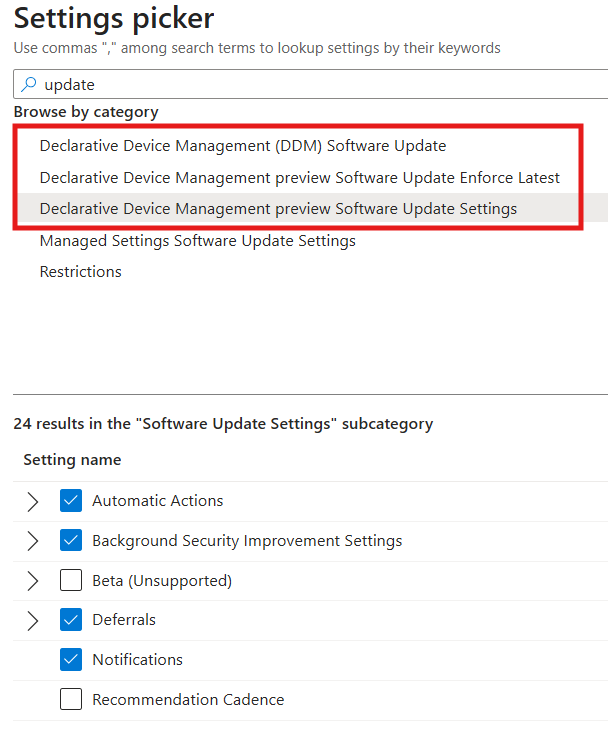
All DDM software update settings for Apple devices are configured through the Intune Settings Catalog. There are no longer separate dedicated update policy blades for iOS/macOS, everything moves to Settings Catalog profiles under the Declarative Device Management category.
Intune Admin Center > Devices > Configuration > + Create policy
Platform: iOS/iPadOS (or macOS)
Profile type: Settings catalog
Settings picker > Declarative Device Management (DDM) > Software Update
The Three DDM Update Configuration Models
DDM provides three distinct update policy models. Selecting the right model depends on your organization’s update posture, compliance requirements, and user experience tolerance.
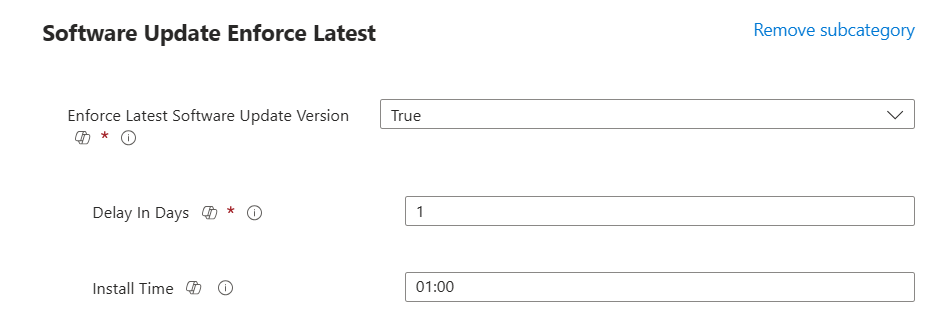
Model 1 – Software Update (Latest Version)
This model automatically installs the latest eligible OS version after a defined deferral period. It is the simplest model and is ideal for organizations that want devices to always be on the most current OS.
| Setting | Description |
| Deferral period | Number of days to delay the update after Apple releases it. Maximum 90 days. Use this to test updates before forcing fleet-wide deployment. |
| Installation time | The local device time at which the update installs. Configure to minimize user disruption, typically outside business hours. |
| Target local date/time | The deadline by which the device must have installed the update. After this point, the device enforces installation regardless of user activity. |
Model 2 – Software Update (Targeted Version)
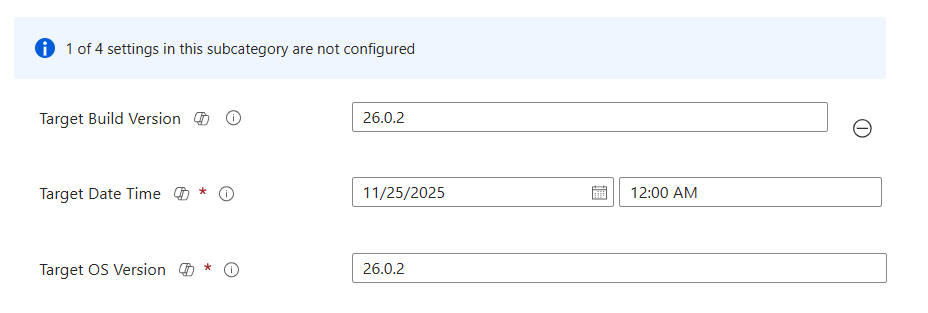
This model pins devices to a specific OS version. The device will install that version and not automatically upgrade beyond it. Use this when you need to control exactly which OS version is running across your fleet, for example, when a specific OS version has been tested and approved for line-of-business apps, or when a newer version has a known compatibility issue.
| Setting | Description |
| Target OS version | The specific OS version to enforce (e.g., 18.4.1 for iOS). Devices below this version will update to it. Devices above it are unaffected. |
| Target local date/time | Deadline for reaching the target version. |
Model 3 – Software Update Settings (macOS)
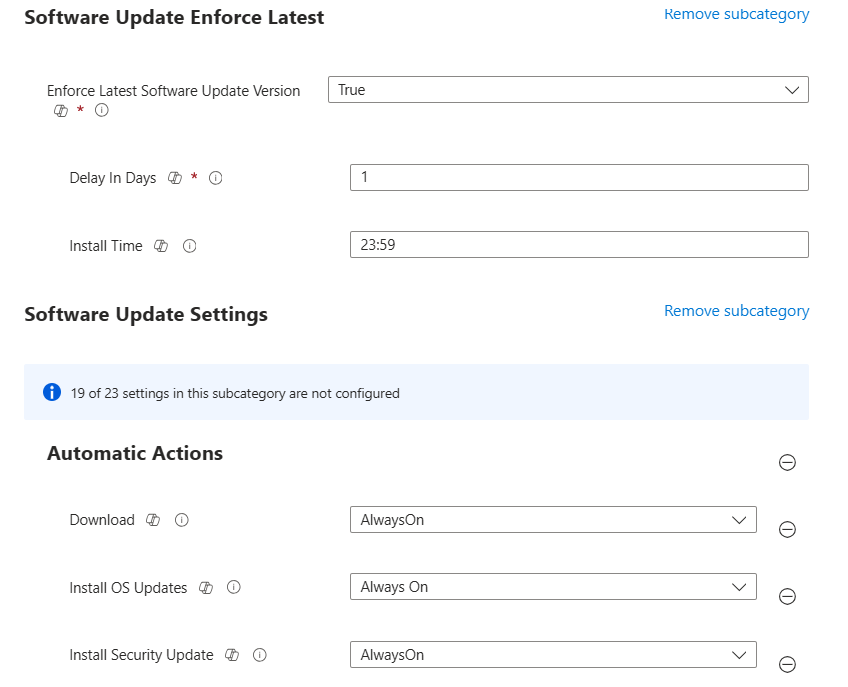
For macOS, an additional DDM settings category provides granular controls over update behaviour beyond what the iOS equivalent offers. These replace the legacy macOS Software Update payload that was previously configured via Settings Catalog.
| DDM Setting | What It Controls |
| Automatic Check Enabled | Whether the device automatically checks Apple servers for available updates. |
| Automatic Download Enabled | Whether updates are automatically downloaded in the background without requiring user initiation. |
| AutomaticallyInstallAppUpdates | Controls automatic installation of App Store app updates — separate from OS updates. |
| AutomaticallyInstallMacOSUpdates | Controls automatic installation of macOS major and minor OS updates. |
| ConfigDataInstall | Controls automatic installation of system configuration files and data updates. |
| CriticalUpdateInstall | Controls automatic installation of critical security updates — recommended to keep enabled. |
Supervision Requirements
DDM software update enforcement has supervision requirements that differ slightly between platforms:
- iOS/iPadOS: Devices must be supervised for DDM update enforcement to work. Unsupervised (user-enrolled or BYOD) devices cannot have OS updates force-installed, this has not changed from legacy MDM.
- macOS: Most DDM update settings work on both supervised and unsupervised macOS devices enrolled in Intune. However, fully enforced deadline-based installations (where the device installs regardless of user activity) require supervised macOS devices with a Bootstrap Token issued by MDM.
- Shared iPad: No differences from standard iPad DDM management, DDM software update policies apply identically to Shared iPad configurations.
Known Issues – Critical Reading Before You Deploy
Issue 1 – iPad DDM Update Enforcement Inconsistency
PRODUCTION BUG – Actively reported by multiple organizations
DDM ‘Enforce Latest Software Update Version’ works reliably on iPhones but fails silently on iPads under the same configuration. The policy shows as successfully applied in Intune, but the iPad does not enforce the update correctly. This is a current Intune/DDM limitation, not a configuration error.
Symptoms
- iPhone receives DDM policy and shows correct update deadline in Settings (e.g., ‘Install iOS 18.4.1 by March 9’).
- iPad under the same policy shows an incorrect deadline, often ‘January 1, Year 1’ or a past date, and does not install the update.
- Intune reports both devices as having the configuration successfully applied.
- The issue persists across multiple policy recreations and device re-enrollments.
Root Cause
This appears to be a platform-level inconsistency in how iPadOS 26 processes DDM software update declarations compared to iOS 26. The DDM declaration is received and acknowledged by the device, but the enforcement mechanism does not trigger correctly on iPadOS in specific configurations.
Current Workaround
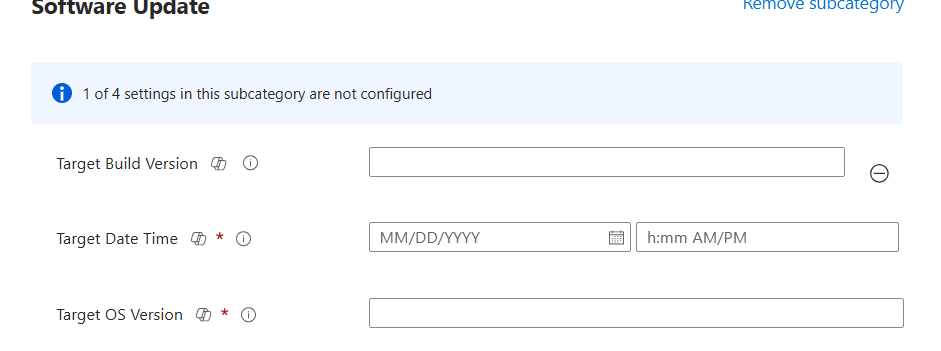
The only currently confirmed workaround is to use Targeted Version instead of Enforce Latest for iPad policies:
- Create a separate DDM update policy specifically for iPad devices.
- Use ‘Targeted version’ instead of ‘Enforce Latest Software Update Version’.
- Specify the exact iOS/iPadOS version you want to enforce.
- Assign this policy specifically to iPad device groups (filter by device model in Intune).
Status as of April 2026
Microsoft and Apple are both aware of this issue. There is no official KB or fix timeline published. Monitor the Intune What’s New page and Apple developer release notes for resolution. Test on a pilot iPad group before broad deployment.
Issue 2 – Conflict Between DDM and Legacy MDM Policies on the Same Device
If a device has BOTH a legacy MDM update policy AND a new DDM update policy assigned simultaneously, the DDM policy takes precedence and the MDM policy is ignored. This is by design and is how Apple handles the transition. However it creates a specific risk scenario:
- You create a new DDM policy and assign it to a group.
- You forget to remove the old legacy MDM update policy from the same device group.
- Intune reports both policies as applied successfully.
- The DDM policy controls the device, but if it has a configuration error, the device receives no effective update policy and you are not alerted, because the legacy policy appears to also be applied.
Best practice: remove legacy MDM update policies from any device group that has a DDM update policy applied. Do not run both simultaneously on the same devices even during transition.
Issue 3 – Legacy Policies Now Show as Deprecated in Intune Admin Center
Microsoft has already marked the legacy iOS/iPadOS and macOS update policy pages in the Intune admin center with a deprecation banner. Existing policies continue to function on devices running iOS 18/iPadOS 18 and macOS 15, the deprecation only takes effect when devices upgrade to OS 26. However:
- You can no longer create new legacy update policies, the creation option is removed or shows a deprecation warning.
- Existing legacy policies remain in your tenant and continue to apply to pre-OS-26 devices.
- Any device that upgrades to OS 26 will stop honoring the legacy policies.

Issue 4 – macOS Bootstrap Token Required for Silent Updates
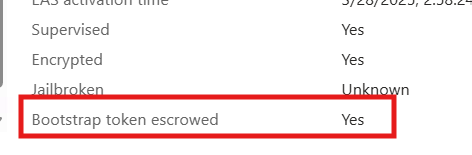
On macOS, fully automated silent updates, where the update installs without requiring user authentication, require an MDM-issued Bootstrap Token. The Bootstrap Token is a credential generated and escrowed to MDM during enrollment that allows MDM to authenticate non-interactive operations like software updates on Apple Silicon Macs.
- Devices enrolled via Automated Device Enrollment (ADE/DEP) automatically generate and escrow the Bootstrap Token.
- Devices enrolled via user-initiated enrollment (BYOD or manual enrollment) may not have a Bootstrap Token escrowed.
- Without a Bootstrap Token on macOS 13+, DDM update installations that require authentication will prompt the user rather than running silently.
# Check Bootstrap Token status via MDM report in Intune
Intune Admin Center > Devices > All devices > [macOS device] > Hardware
Field: Bootstrap Token Escrowed — should show Yes
Migration Guide – Step by Step
Phase 1 – Audit (This Week)
Before creating any DDM policies, get a complete picture of your current state:
- Inventory all legacy update policies: Intune Admin Center > Devices > iOS/iPadOS update policies AND Devices > macOS update policies. List every policy: name, target group, OS version settings, deferral period.
- Identify affected device counts: For each legacy update policy, check the assignment groups and identify how many devices are covered.
- Check OS versions: Intune Admin Center > Devices > All devices > filter by Platform > iOS/iPadOS or macOS. Add OS version column. Identify how many devices are already on OS 26 vs. earlier versions.
- Check Bootstrap Token status for macOS: Filter macOS devices, check Bootstrap Token Escrowed field. Any device showing No is a risk for silent update failures.
- Identify supervision status: Confirm all iOS/iPadOS devices intended for enforced update management are supervised. Unsupervised devices cannot receive forced OS updates.
PowerShell – Export Device OS Version Inventory
Use the Intune Graph API to export a full device inventory with OS version and supervision status. This is the fastest way to understand your fleet’s current state across all Apple platforms.
# Graph API query — get iOS/iPadOS devices with OS version
GET https://graph.microsoft.com/v1.0/deviceManagement/managedDevices
?$filter=operatingSystem eq ‘iOS’
&$select=deviceName,osVersion,isSupervised,managementState
Phase 2 – Create DDM Policies in Parallel (Weeks 1–2)
Create DDM update policies alongside your existing legacy policies do not remove legacy policies yet. This allows you to test DDM on a pilot group without disrupting the rest of the fleet.
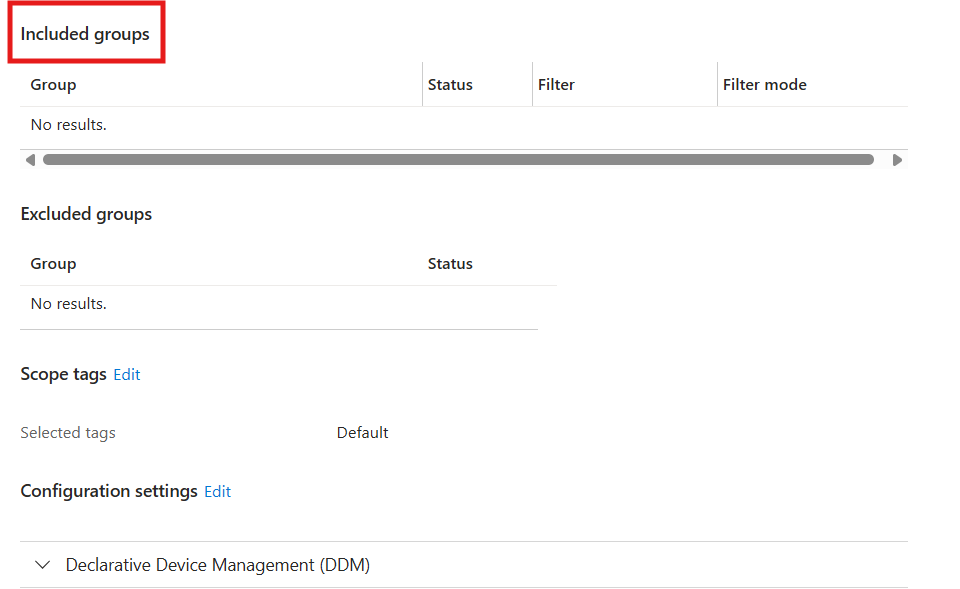
- Create iOS/iPadOS DDM update policy – Pilot: Settings catalog > DDM > Software Update Enforce Latest. Set deferral period to 14 days. Set installation deadline to 14 days out from today. Assign to iOS pilot device group (iPhones only first, due to the iPad issue).
- Create separate iPad DDM update policy: Use Targeted Version instead of Enforce Latest. Set target version to current latest iPadOS release. Assign to iPad pilot group.
- Create macOS DDM update policy – Pilot: Settings catalog > DDM > Software Update. Configure deferral, deadline. Assign to macOS pilot group. Verify Bootstrap Token status on pilot devices before deploying.
- Monitor for 14 days: Check Intune update reports. Verify iPhones enforce correctly. Validate iPads using the Targeted Version workaround. Check macOS devices install at correct deadline.
Phase 3 – Validate and Expand (Weeks 3–4)
After pilot validation, expand DDM policies to the full fleet:
- Expand iPhone DDM policy: Update assignment from pilot group to All iPhones device group (or equivalent).
- Expand iPad DDM policy: Expand Targeted Version policy to all iPad device groups. Update target version as new iPadOS releases drop.
- Expand macOS DDM policy: Expand to all macOS device groups. Confirm Bootstrap Token coverage.
- Do NOT remove legacy policies yet: Legacy policies continue to provide a safety net for pre-OS-26 devices. They do no harm alongside DDM policies on the same devices.
Phase 4 – Remove Legacy Policies
Once DDM policies are validated across the full fleet and before Apple OS 26 ships:
- Remove legacy iOS/iPadOS update policies: Intune > Devices > iOS/iPadOS update policies > select each legacy policy > Delete.
- Remove legacy macOS update policies: Intune > Devices > macOS update policies > select each legacy policy > Delete.
- Remove deprecated Settings catalog settings: Audit any Settings Catalog configuration profiles that include Restrictions > Software update delay settings or the legacy macOS Software Update payload. Remove these specific settings (do not delete the entire profile unless it contains ONLY these settings).
- Document exceptions: If any devices cannot receive DDM policies (unsupervised BYOD, non-ADE enrolled), document them and decide whether to accept unmanaged update behavior or change the enrollment method.
Monitoring DDM Update Status
New DDM Update Reports in Intune
As Intune adds DDM-specific reporting (targeted for SR2508 – August 2026), the monitoring landscape changes:
| Report | Where to Find It / Status |
| Apple software update failures | Devices > Monitor > Apple software update failures. Available from SR2508 (August 2026). Shows DDM update failure details per device. |
| macOS software updates (per device) | Devices > All devices > select macOS device > macOS software updates. Available from SR2508. |
| Configuration profile status | Devices > Configuration > [DDM policy] > Device status. Shows DDM policy assignment state per device, succeeded, failed, conflict. |
| Device compliance | Cross-reference compliance policies configured with minimum OS version requirements against DDM update status. |
On-Device Verification
For hands-on validation during pilot testing:
- iOS/iPadOS: Settings > General > Software Update. A managed update deadline shows as ‘Required update will be installed by [date]’. Correct DDM enforcement displays the specific version and date you configured.
- macOS: System Settings > General > Software Update. Shows the managed update deadline and target version under the update details.
- If the deadline shows ‘January 1, Year 1’ on an iPad, this is the iPad DDM enforcement bug. Switch to Targeted Version policy for that device.
Compliance Policy Integration
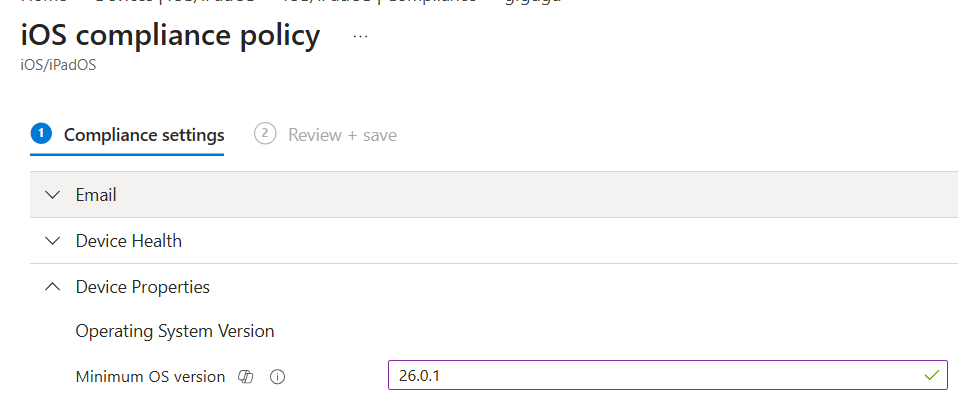
Update your Intune compliance policies to enforce minimum OS versions alongside DDM update policies. Compliance policies create a closed loop: DDM pushes the update, compliance policy enforces that the device must be on that version to access corporate resources via Conditional Access.
Intune Admin Center > Devices > Compliance policies > Create policy
Platform: iOS/iPadOS or macOS
Device Health > OS version minimum: [target version]
Actions for noncompliance: Mark as noncompliant after 0 days (or grace period)
Legacy MDM vs DDM – Full Comparison
| Aspect | Legacy MDM | DDM |
| Update trigger | Server sends command to device | Device autonomous – acts on declaration |
| Status reporting | Server polls device periodically | Device proactively reports each stage |
| Offline behavior | Commands queue – may be lost | Device continues working offline |
| Reliability | Race conditions, command loss | Consistent – device owns the process |
| Configuration location | Dedicated update policy blades | Settings Catalog > DDM |
| Assignment filters | Limited support | Full assignment filter support |
| iOS 26+ support | REMOVED – devices ignore it | Full support |
| macOS 26+ support | REMOVED – devices ignore it | Full support |
| Per-device reporting | Limited – update failures report | Full per-device DDM status report (SR2508) |
| BYOD support | No forced updates on unsupervised | No forced updates on unsupervised (same) |
Migration Checklist
Phase 1 – Audit (Now)
- List all legacy iOS/iPadOS and macOS update policies in Intune.
- Identify device counts and group assignments for each legacy policy.
- Inventory OS versions across all managed Apple devices.
- Check supervision status of all iOS/iPadOS devices.
- Verify Bootstrap Token escrowed status on all managed macOS devices.
- Flag any iPads for the Targeted Version workaround.
Phase 2 – Build DDM Policies
- Create iPhone DDM update policy (Enforce Latest) – pilot group.
- Create iPad DDM update policy (Targeted Version) – pilot group.
- Create macOS DDM update policy – pilot group.
- Validate pilot results over 14 days before expanding.
Phase 3 – Expand and Validate
- Expand all DDM policies to full fleet.
- Confirm per-device update status via Settings app on sample devices.
- Update compliance policies to enforce minimum OS version.
- Do NOT remove legacy policies yet.
Phase 4 – Clean Up Before OS 26
- Remove all legacy iOS/iPadOS update policies.
- Remove all legacy macOS update policies.
- Audit Settings Catalog profiles for deprecated Software Update payload settings.
- Remove deprecated Restrictions > Software update delay settings from all profiles.
- Document unsupervised device exceptions.
References
| Resource | URL |
| Apple WWDC 2025 — MDM Deprecation Announcement (Session 258) | https://developer.apple.com/videos/play/wwdc2025/258/ |
| Microsoft Intune Support Tip — Move to DDM for Apple Updates | https://techcommunity.microsoft.com/blog/intunecustomersuccess/support-tip-move-to-declarative-device-management-for-apple-software-updates/4432177 |
| MC1113111 — Intune Ending Support for Legacy Apple MDM Updates | https://learn.microsoft.com/en-us/intune/device-updates/apple/deprecated-mdm-policies-ios |
| Managed Software Updates with Settings Catalog (Microsoft Learn) | https://learn.microsoft.com/intune/intune-service/protect/managed-software-updates-ios-macos |
| Configure Update Policies for Apple Devices (Microsoft Learn) | https://learn.microsoft.com/en-us/intune/device-updates/apple/ |
| Apple Platform Deployment — Installing and Enforcing Software Updates | https://support.apple.com/guide/deployment/installing-and-enforcing-software-updates-depd30715cbb/web |
| iPad DDM Enforcement Issue (Apple Community Discussion) | https://discussions.apple.com/thread/256259160 |
| Intune What’s New — Service Release 2603 | https://learn.microsoft.com/en-us/intune/intune-service/fundamentals/whats-new |