How to discover, govern, and block AI agents on managed devices with Intune, Defender & Agent 365
Licensing – What you need
M365 E3 minimum required to view Shadow AI Agents in the Agent 365 admin center. M365 E5 adds Defender for Cloud Apps app governance, Purview Endpoint DLP, and full Entra network controls. Defender for Endpoint required for network-level AI app blocking across all browsers. Frontier program opt-in required for the Shadow AI page in Agent 365 (currently in public preview).
What this guide covers
What Shadow AI is – four layers, each with different risk and different controls.
How to discover Shadow AI: Defender for Cloud Apps, Device Query KQL, Agent 365 Shadow AI page.
How to block browser AI apps fleet-wide: Defender for Cloud Apps + Network Protection – one click.
How to block AI app installation: Windows, iOS/iPadOS, Android, macOS – platform by platform.
How to govern local AI agents via the Agent 365 Shadow AI page (Frontier Preview) – OpenClaw blocking, detection policies.
How to block sensitive data flowing to sanctioned AI apps via Purview Endpoint DLP. Complete phased deployment checklist.
Shadow AI – Four Layers, Four Different Controls
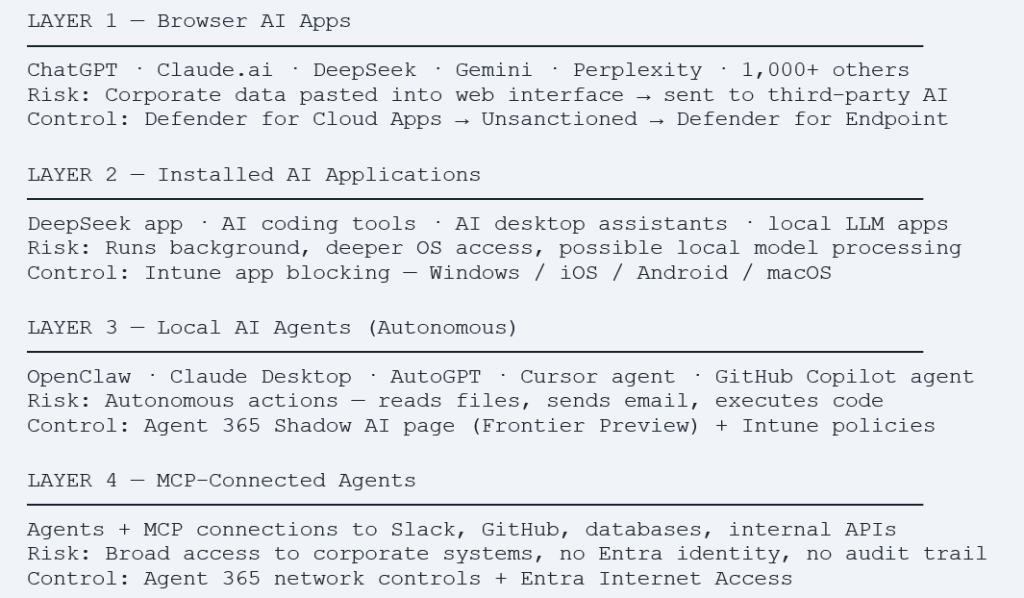
Shadow AI is the AI-specific evolution of Shadow IT, but with a significantly higher risk profile. When a user installs an unapproved productivity app, the risk is containable. When a user runs an autonomous AI agent on a managed corporate device, one that can read files, send emails, execute code, browse the web, and connect to internal APIs via MCP, the potential for data exposure and unintended automated actions is of a different order.
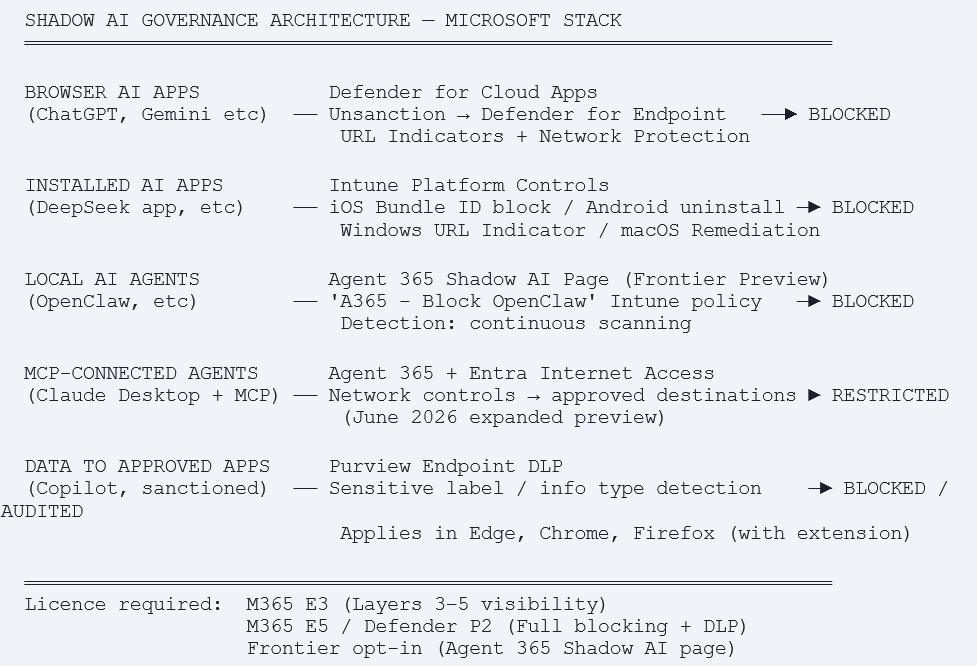
Understanding which layer of Shadow AI you are dealing with determines which tool you reach for. There are four distinct layers in enterprise environments today.
Why local agents are the highest-risk category
A developer who installs an AI coding agent on their corporate laptop has given that agent the user’s full filesystem access, the ability to commit code to repositories, and potentially access to any credentials stored in browser password managers or environment variables. The agent operates with the user’s permissions. It is not a separate identity with scoped access – it is the user, acting autonomously, 24 hours a day.
Step 1 – Discover: Know What Is Running Before You Block Anything
The single most common mistake in AI governance deployments is jumping straight to blocking without understanding what is actually running. Running discovery first gives you evidence for the governance decision, prevents blocking tools that legitimate teams depend on, and lets you prioritise your controls appropriately.
Discover Browser AI via Defender for Cloud Apps
Defender for Cloud Apps integrates with Defender for Endpoint to collect network telemetry from all managed Windows, macOS, iOS, and Android devices. Every HTTP/HTTPS connection is visible including connections to AI services without any additional agent or configuration on the device.
- Enable the Defender for Endpoint integration: Microsoft Defender portal (security.microsoft.com) → Settings → Endpoints → Advanced features → Microsoft Defender for Cloud Apps → On.
- Enable Enforce app access: Microsoft Defender portal → Settings → Cloud apps → Cloud Discovery → Microsoft Defender for Endpoint → Enable Enforce app access → On.
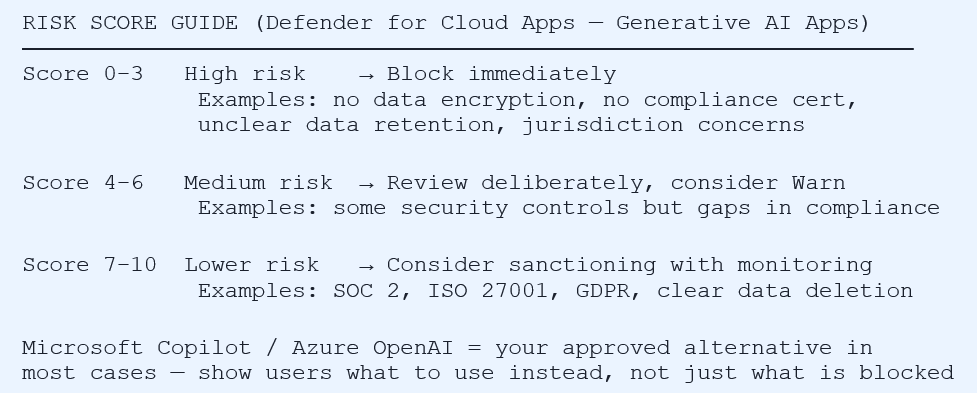
- View discovered AI apps: Microsoft Defender portal → Cloud Apps → Cloud Discovery → Discovered apps → Filter: Category = Generative AI. Review app names, risk scores (0–10), user counts, and traffic volume for the last 90 days.
- Export and review: Export the list. Focus first on apps with risk score below 5, these are your highest-priority blocking candidates.
Discover Installed AI Apps via Intune Device Query
Device Query (Advanced Analytics) runs KQL across your entire managed fleet in real time. No agent install required, data comes from the Intune management extension.
// Find devices with AI assistant apps installed
DeviceInfo

| join kind=inner (InstalledApps) on DeviceId

| where AppName has_any ('deepseek','chatgpt','claude',

    'gemini','perplexity','grok','ollama','lmstudio','jan.ai')

| project DeviceName, UserName, AppName, AppVersion, OSPlatform

| order by AppName asc
// Find devices with local LLM runtime engines installed
DeviceInfo
| join kind=inner (InstalledApps) on DeviceId
| where AppName has_any ('ollama','llamafile','lm studio',
'jan ','gpt4all','koboldai','text-generation-webui')
| project DeviceName, UserName, AppName, OSPlatform, LastSeen
Discover Local AI Agents via Agent 365 Shadow AI Page (Frontier Preview)
Frontier Preview – Important Prerequisites
The Shadow AI page is currently in public preview as part of the Frontier program.
Requirements:
(1) Opt in to the Frontier preview at microsoft.com/microsoft-365-copilot/frontier-program
(2) M365 E3 minimum license to view Shadow AI Agents
(3) Intune enrolment for managed Windows devices
(4) Role: Security Admin, AI Admin, Intune Admin, or Security Reader
Agents supported in preview: OpenClaw (detection + blocking available) More agents will be added before general availability.
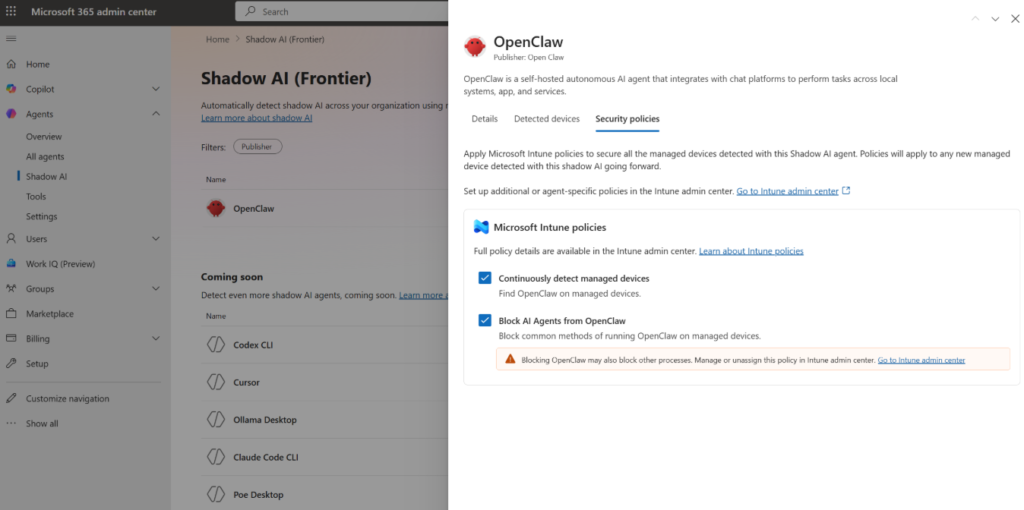
Once opted in to Frontier, the Shadow AI page appears in both the Microsoft 365 admin center and can be accessed through Intune. It shows locally running AI agents detected on managed Windows devices including the agent name, device count, when last detected, and currently applied policies.
- Access via M365 admin center: Sign in to admin.microsoft.com → left navigation → Show all → Agents → Shadow AI (Frontier). The page lists known Shadow AI agents detectable in your environment.
- View agent details: Select an agent (e.g. OpenClaw) to open the details pane. The Details tab shows: agent type, last scan time, and any Intune policies currently applied.
- Enable detection: In the agent details pane → Security policies tab → select ‘Continuously detect managed devices’ → Apply policies. After the policy applies (up to 8 hours for Intune sync), detected devices begin populating.
- View detected devices: Details pane → Detected devices tab. Shows device name, device type, OS, and last Intune scan time. Note: the list only populates after the detection policy is applied and devices have synced.
Advanced Hunting – Defender for Endpoint
For organisations with Defender for Endpoint deployed, these Advanced Hunting queries surface AI activity at the network and process level.
// AI service connections from managed devices
DeviceNetworkEvents
| where RemoteUrl has_any (
'api.openai.com','chat.openai.com','chatgpt.com',
'api.anthropic.com','claude.ai',
'gemini.google.com','generativeai.googleapis.com',
'deepseek.com','api.deepseek.com',
'api.perplexity.ai','grok.x.ai','api.x.ai')
| summarize Count=count(), Devices=dcount(DeviceId)
by RemoteUrl, bin(Timestamp, 1d)
| order by Count desc
// Local AI agent process activity
DeviceProcessEvents
| where FileName has_any ('ollama.exe','jan.exe',
'lm-studio.exe','gpt4all.exe','openclaw.exe')
| summarize Count=count() by DeviceName, FileName,
AccountName, bin(Timestamp, 1d)
| order by Count descStep 2 – Block Browser AI Apps via Defender for Cloud Apps
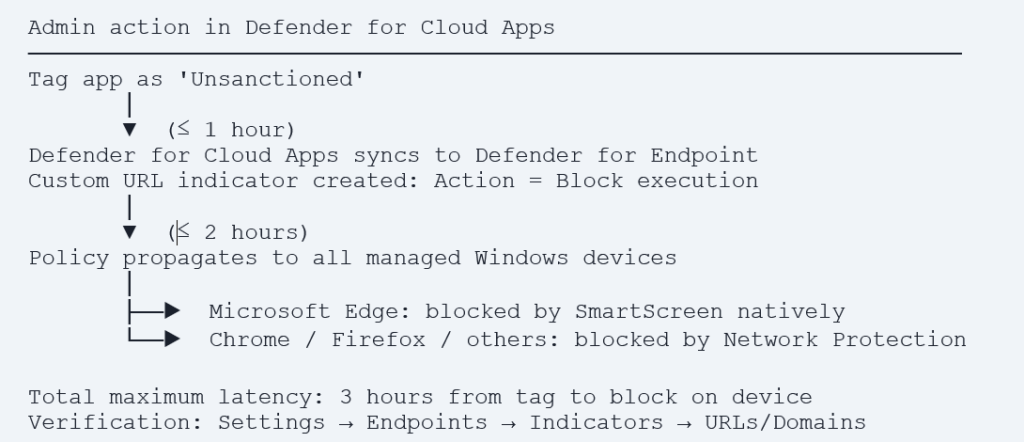
Once discovery is complete and you have identified which apps to block, Defender for Cloud Apps provides the most scalable blocking mechanism available: a single click in the Cloud App Catalog that propagates a URL block to every Defender for Endpoint-managed device within 3 hours across all browsers, without per-device configuration.
Prerequisites Before Blocking
- Defender for Endpoint: deployed and onboarded on managed devices.
- Cloud Protection: enabled in Defender Antivirus (required for Network Protection to function).
- Defender for Cloud Apps integration: Settings → Endpoints → Advanced features → Microsoft Defender for Cloud Apps → On.
- Enforce app access: Defender portal → Settings → Cloud apps → Cloud Discovery → Microsoft Defender for Endpoint → Enforce app access → On.
- Network Protection in Intune (for non-Edge browsers): see configuration below.
Configure Network Protection in Intune
- Navigate: Devices → Configuration → + Create → Windows 10 and later → Settings catalog.
- Add setting: Search ‘Network Protection’ → Microsoft Defender Exploit Guard → Enable Network Protection (Device) = Block.
- Assign: Assign to all managed Windows device groups.
Tag an App as Unsanctioned – Step by Step
- Navigate to Cloud App Catalog: Microsoft Defender portal → Cloud Apps → Cloud app catalog.
- Search for the app: Enter the app name. Review the risk score and data handling details.
- Unsanction: Three-dot menu → Unsanction. Dialog: to block all devices select Save immediately. To scope by device group: select ‘Select a profile’ → choose a Defender for Endpoint device group → Save.
- Verify propagation: After ≤3 hours: Settings → Endpoints → Indicators → URLs/Domains. App domains should appear with Action: Block execution.
Automated Policy – Block New AI Apps Automatically
Rather than manually reviewing each new AI app, create an App Discovery Policy that automatically tags newly discovered high-risk generative AI apps.
- Create policy: Microsoft Defender portal → Cloud Apps → Policies → Policy management → + Create policy → App discovery policy.
- Filters: Category = Generative AI AND App tag = No value AND Risk score ≤ 5.
- Governance action: Tag app as unsanctioned.
- Alert: Generate alert, severity Informational, daily limit per your preference.
Result – automated fleet-wide AI app governance
Any new generative AI app with risk score below 5 discovered on a managed device is automatically blocked within 3 hours, no manual admin action required. Your security team receives an alert notification for awareness. Apps with risk score above 5 remain for deliberate human review.
Step 3 – Block AI App Installation by Platform
iOS and iPadOS – Corporate Supervised Devices
Hide and prevent app launch – Settings Catalog
- Navigate: Devices → iOS/iPadOS → Configuration profiles → + Create → Settings catalog.
- Add setting: Search ‘Blocked App Bundle IDs’ → Restrictions → add Bundle IDs of apps to block.
| App | Bundle ID | Note |
| DeepSeek – AI Assistant | com.deepseek.chat | Block – jurisdiction/data concerns |
| ChatGPT | com.openai.chat | Org decision – many have M365 Copilot |
| Claude (Anthropic) | com.anthropic.claude | Org decision |
| Gemini (Google) | com.google.Bard | Org decision |
| Perplexity AI | ai.perplexity.app.ios | Org decision – risk score 6 |
Uninstall existing installations
- Navigate: Apps → iOS/iPadOS apps → + Add → iOS store app → search app name → Select.
- Assignment: Assignments tab → Uninstall section → + Add group or + Add all devices.
- Monitor: Apps → iOS/iPadOS → select app → Device install status. Status changes to ‘Not installed’ after sync.
BYOD / Personal iOS Devices – Compliance Policy + Conditional Access
- Create compliance policy: Devices → iOS/iPadOS → Compliance policies → Create policy → System Security → Restricted apps → add app name and Bundle ID.
- Action: Mark device non-compliant: Immediately.
- Combine with Conditional Access: Require device compliance grant control → blocks corporate resource access on devices with the restricted app installed.
Android Enterprise – Fully Managed Devices
- Add to Managed Google Play: Apps → Android → + Add → Managed Google Play app → search app → Sync.
- Set Uninstall assignment: Apps → Android → select app → Properties → Edit Assignments → Uninstall section → add device groups.
- Result: Google Play silently uninstalls on next sync. User receives ‘App deleted by your admin’. App no longer visible in Google Play Store.
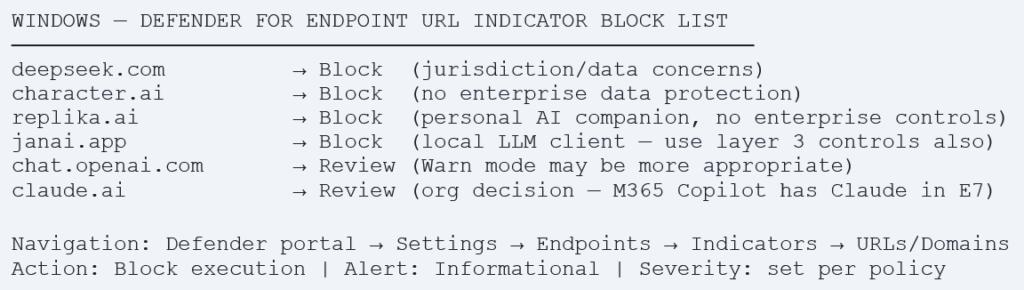
Windows – URL Indicators via Defender for Endpoint
macOS – Remediation Scripts
For macOS, deploy Intune Remediation scripts to detect and remove specific AI applications.
Detection script – macOS
$appPaths = @('/Applications/DeepSeek.app',
'/Applications/Ollama.app','/Applications/LM Studio.app',
'/Applications/Jan.app','/Applications/OpenClaw.app')
foreach ($path in $appPaths) {
if (Test-Path $path) { exit 1 } # Non-compliant
}
exit 0 # Compliant
Remediation script – macOS
$appPaths = @('/Applications/DeepSeek.app',
'/Applications/Ollama.app','/Applications/LM Studio.app',
'/Applications/Jan.app','/Applications/OpenClaw.app')
foreach ($path in $appPaths) {
if (Test-Path $path) {
Remove-Item -Path $path -Recurse -Force
Write-Output "Removed: $path"
}
}
Step 4 – Govern Local AI Agents via Agent 365 Shadow AI Page
Public Preview – Frontier Program · Accurate as of May 1, 2026
The Agent 365 Shadow AI page is in PUBLIC PREVIEW as part of the Microsoft Frontier program.
Agent currently supported for detection and blocking: OpenClaw only.
Platform: Managed Windows devices enrolled in Intune only.
Requires opt-in: microsoft.com/microsoft-365-copilot/frontier-program
Minimum licence: M365 E3 to view. M365 E5 / E7 for full governance controls.
Features, supported agents, and behaviours will change before general availability. Additional agents will be added progressively, check the Shadow AI page for updates.
What the Shadow AI Page Shows
Once opted in to Frontier and with detection policies applied, the Shadow AI page provides the following for each detected agent:
| Information | Detail |
| Agent name | Currently: OpenClaw. More agents added progressively in preview. |
| Last scanned | When the Agent 365 service last scanned managed devices for this agent. |
| Applied policies | Which Intune security policies are currently applied for this agent detection and/or blocking. |
| Detected devices | List of device name, device type, OS, and last Intune scan time. Only populated after detection policy is applied. |
| Device type | Desktop, Virtual Machine, Server, Laptop, etc. |
Enable Detection for an Agent
- Access Shadow AI page: admin.microsoft.com → … Show all → Agents → Shadow AI (Frontier).
- Select the agent: Select OpenClaw from the list of known Shadow AI agents.
- Open Security policies: In the details pane, select the Security policies tab.
- Enable detection: Select ‘Continuously detect managed devices’ → Apply policies → Confirm.
Wait for sync: Initial detection policy sync takes up to 8 hours depending on Intune configuration. After sync, detected devices begin populating in the Detected devices tab.
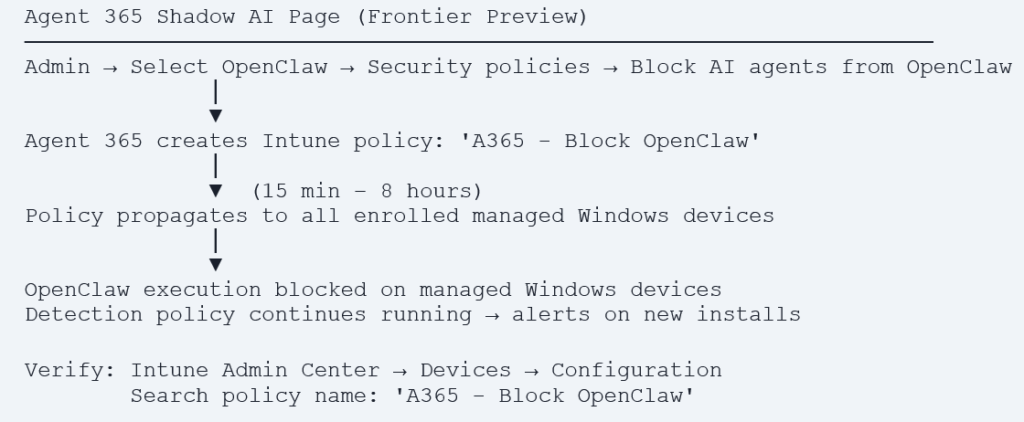
Block an Agent – OpenClaw
Once detection is enabled and devices are confirmed in the detected list, proceed to blocking.
- In the Security policies tab: Select ‘Block AI agents from OpenClaw’.
- Confirm: Select Apply policies.
- What happens: Agent 365 creates a new Intune policy named ‘A365 – Block OpenClaw’ that automatically propagates to all managed Windows devices enrolled in Intune.
- Policy propagation time: 15 minutes to 8 hours depending on Intune configuration. Full policy details visible in Intune admin center – search for ‘A365 – Block OpenClaw’.
- What the policy blocks: Common execution methods used by OpenClaw – process creation paths, script launchers, and startup mechanisms specific to the agent.
- Further customisation: The auto-created policy can be edited in Intune to add additional controls if needed.
What Comes Next in Agent 365 (June 2026 Preview)
Microsoft has announced the following capabilities coming to Agent 365 in June 2026 as part of an expanded preview:
- Defender asset context mapping: For each agent – which devices it runs on, which MCP servers it is connected to, which identities are associated with it, and which cloud resources those identities can reach.
- Context mapping + policy controls + runtime blocking: Coming to Agent 365 through Intune and Defender public preview in June 2026.
- Additional agent support: More local agents beyond OpenClaw will be added to the Shadow AI detection and blocking capabilities.
- Multi-cloud agent registry: Agent 365 registry sync with AWS Bedrock and Google Cloud connections in public preview — inventory and basic lifecycle governance across cloud platforms.
- Entra network controls for agents: Agent 365 extends Entra Internet Access to Microsoft Copilot Studio agents and agents running on user endpoint devices – restricts connections to approved destinations only.
Step 5 – Block Sensitive Data Flowing to Approved AI Apps via Purview Endpoint DLP
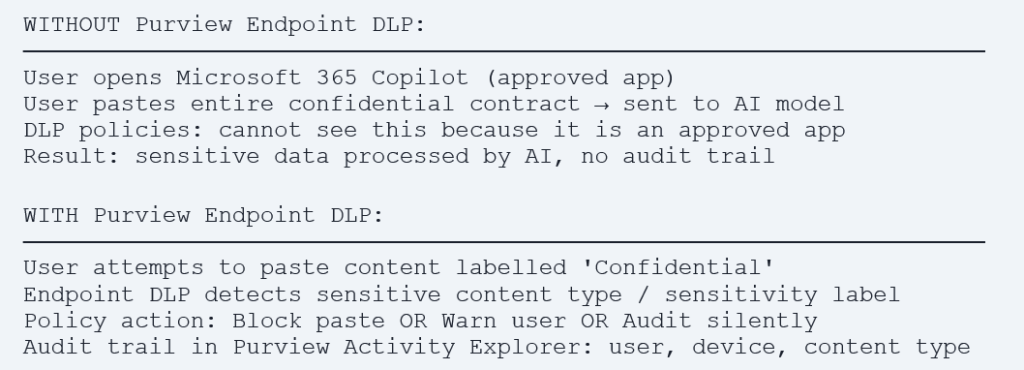
Steps 2–4 address unsanctioned AI apps. But many organisations have approved certain AI tools. Even for approved tools, you want to prevent sensitive classified data from being pasted in without controls. This is the domain of Purview Endpoint DLP – it applies to the data itself, not just the destination app.
How Endpoint DLP Catches What App Blocking Misses
Configure Endpoint DLP for AI Apps
- Enable Endpoint DLP onboarding: Microsoft Purview portal → Data loss prevention → Endpoint DLP settings → confirm Windows devices are onboarded via Defender for Endpoint.
- Create DLP policy: Purview portal → Data loss prevention → Policies → + Create policy → select sensitive info types relevant to your organisation.
- Configure endpoint activities: Endpoint activities to audit or restrict → Upload to cloud service or access by unallowed browser → Block or Block with override.
- Add AI service domains: Add the domains of AI apps you want to restrict sensitive data from reaching: chat.openai.com, claude.ai, gemini.google.com, deepseek.com, etc.
Deploy Purview Extension for Chrome and Firefox
Microsoft Edge natively supports Purview Endpoint DLP – no extension required.
Chrome: Deploy the Purview extension via Intune Settings Catalog → Microsoft Edge → Extensions (force install extension ID).
Firefox: Deploy via Intune Win32 app or Settings Catalog.
Without the extension installed, DLP monitoring does not apply to browser activity in those browsers. Block access to unsupported browsers (Brave, Opera) via Defender URL indicators to prevent DLP bypass.
The Complete Control Architecture – All Five Layers
Deployment Checklist – Phased Approach
Phase 1 – Discover (Week 1)
- Enable Defender for Cloud Apps + Defender for Endpoint integration (Advanced Features).
- Enable Enforce app access in Cloud Discovery settings.
- Filter Discovered Apps by Generative AI category – export with risk scores and user counts.
- Run Advanced Hunting queries for AI service connections and local agent processes.
- Opt in to Frontier program – access Agent 365 Shadow AI (Frontier) page.
- Enable detection policy for OpenClaw in Shadow AI page – wait 8 hours for device sync.
- Run Intune Device Query for AI application installations across managed fleet.
- Document findings: apps in use, user counts, risk scores, local agents detected.
Phase 2 – Block High Risk (Week 2)
- Configure Network Protection in Intune Settings Catalog for all Windows devices.
- Tag AI apps with risk score below 3 as Unsanctioned in Cloud App Catalog.
- Create App Discovery Policy for automatic tagging of new high-risk Generative AI apps.
- Configure iOS/iPadOS: Blocked App Bundle IDs for high-risk apps on supervised devices.
- Configure Android: Uninstall assignment for high-risk apps on fully managed devices.
- Block OpenClaw via Agent 365 Shadow AI page – verify ‘A365 – Block OpenClaw’ policy in Intune.
Phase 3 – Govern Medium Risk and Data (Week 3–4)
- Review apps with risk scores 3–7 make deliberate Sanctioned/Unsanctioned/Warn decisions.
- Configure BYOD iOS compliance policies with restricted apps + Conditional Access.
- Deploy macOS Remediation scripts for AI app detection and removal.
- Configure Purview Endpoint DLP for sensitive data flowing to approved AI apps.
- Deploy Purview browser extension for Chrome and Firefox via Intune.
- Block unsupported browsers (Brave, Opera) via Defender URL indicators.
Phase 4 – Monitor and Maintain (Ongoing)
- Weekly: Review Discovered Apps for new Generative AI apps with no tag.
- Weekly: Check Agent 365 Shadow AI page for newly detected local agents.
- Monthly: Run Advanced Hunting queries to confirm blocks are effective.
- Monthly: Review App Discovery Policy auto-tag alerts for appropriateness.
- June 2026: Enable Agent 365 Defender asset context mapping when available in preview.
- June 2026: Evaluate expanded Entra network controls for agent connections.
Quarterly: Review your AI governance policy – update approved app list.
References
| Resource | URL |
| Agent 365 GA announcement (May 1, 2026) | https://www.microsoft.com/en-us/security/blog/2026/05/01/microsoft-agent-365-now-generally-available |
| Shadow AI in M365 Admin Center – official docs | https://learn.microsoft.com/en-us/microsoft-365/admin/manage/agent-shadow-ai |
| Frontier preview programme opt-in | https://www.microsoft.com/microsoft-365-copilot/frontier-program |
| Prevent data leak to shadow AI – Microsoft blueprint | https://learn.microsoft.com/en-us/purview/deploymentmodels/depmod-data-leak-shadow-ai-intro |
| Govern discovered apps – Defender for Cloud Apps | https://learn.microsoft.com/en-us/defender-cloud-apps/mde-govern |
| Blocking apps on Intune managed devices | https://techcommunity.microsoft.com/blog/intunecustomersuccess/blocking-and-removing-apps-on-intune-managed-devices-windows-iosipados-android-a/4383156 |
| Purview Endpoint DLP overview | https://learn.microsoft.com/en-us/purview/endpoint-dlp-learn-about |
| Enable Network Protection | https://learn.microsoft.com/en-us/defender-endpoint/enable-network-protection |
| Defender for Cloud Apps Cloud Discovery | https://learn.microsoft.com/en-us/defender-cloud-apps/set-up-cloud-discovery |