Here Is What Intune Admins Need to Verify, Configure, and Monitor Right Now
Intune admin – quick reference
The issue: KB5083769 (April 14) added psmounterex.sys to the Vulnerable Driver Blocklist intentional security hardening.
Affected: Macrium Reflect, Acronis Cyber Protect Cloud, NinjaOne Backup, UrBackup Server, AOMEI Backupper (image-mount operations).
Root cause: Microsoft confirmed intentional. Do not uninstall the update. Update your backup software to a vendor-patched version.
The Intune gap: The driver blocklist only enforces on devices where HVCI (Memory Integrity) is enabled.
Your first action: Run Device Query to find which managed devices have HVCI disabled right now.
Your second action: Deploy HVCI via Settings Catalog — Virtualization Based Technology → Hypervisor Enforced Code Integrity → Value 1.
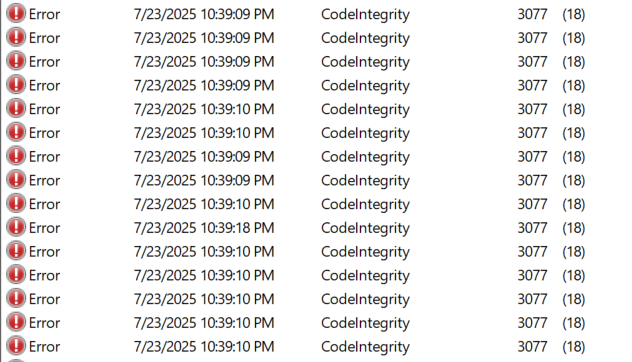
Your third action: Deploy WDAC audit mode policy via Endpoint Security → App and Browser Control. Event to monitor: Event ID 3077 in Applications and Services Logs → Microsoft → Windows → CodeIntegrity → Operational.
What Changed in April 2026 — The Context
KB5083769, released April 14, 2026, added psmounterex.sys to the Windows Vulnerable Driver Blocklist as part of routine security hardening. The driver contained CVE-2023-43896, a high-severity buffer overflow that allows kernel privilege escalation. Microsoft confirmed this to BleepingComputer: ‘In the April 2026 Windows security update, we added known vulnerable kernel driver psmounterex.sys to the Vulnerable Driver Blocklist. We do not recommend uninstalling or pausing this update.’
The practical impact was that backup software using the old driver version for image-mount operations stopped being able to mount and browse backup images. Full image creation may still succeed on some systems it is the mount, browse, and file-level restore operations that are affected.
Microsoft’s confirmed position – May 2026
- This is intentional security hardening not a bug.
- psmounterex.sys remains on the Vulnerable Driver Blocklist permanently.
- Affected backup software will continue to have issues until the vendor ships a patched driver version.
- Macrium Reflect patched in v8.0.7690+ (October 2023). Ensure you are running the patched version.
- Acronis, NinjaOne, AOMEI, UrBackup: check vendor release notes for the patched driver version.
- Do not uninstall KB5083769, it contains 167 additional security fixes beyond driver blocking. Workaround while waiting for vendor patch: boot from Macrium Reflect rescue USB for restore operations.
Why This Matters Beyond One Driver – BYOVD
This is not just a backup compatibility story. It is part of a multi-year Microsoft effort to close a serious attack vector: Bring Your Own Vulnerable Driver (BYOVD). Attackers load a legitimately signed driver that contains a known kernel-mode vulnerability. Because it is signed, Windows loads it. The attacker exploits the flaw to reach Ring 0, kernel level where they can terminate EDR processes, modify security tools, and operate without any user-mode detection capability.
The Vulnerable Driver Blocklist is Microsoft’s primary mitigation. Over 2,000 drivers are now blocked. But the blocklist only works if HVCI is enforcing it and that is the gap most Intune admins have not yet verified across their fleet.
The Intune Control Architecture – Four Layers
From an Intune perspective, kernel driver security is managed across four distinct policy layers. Understanding which layer does what and how they work together determines which Intune policies you deploy and in what order.
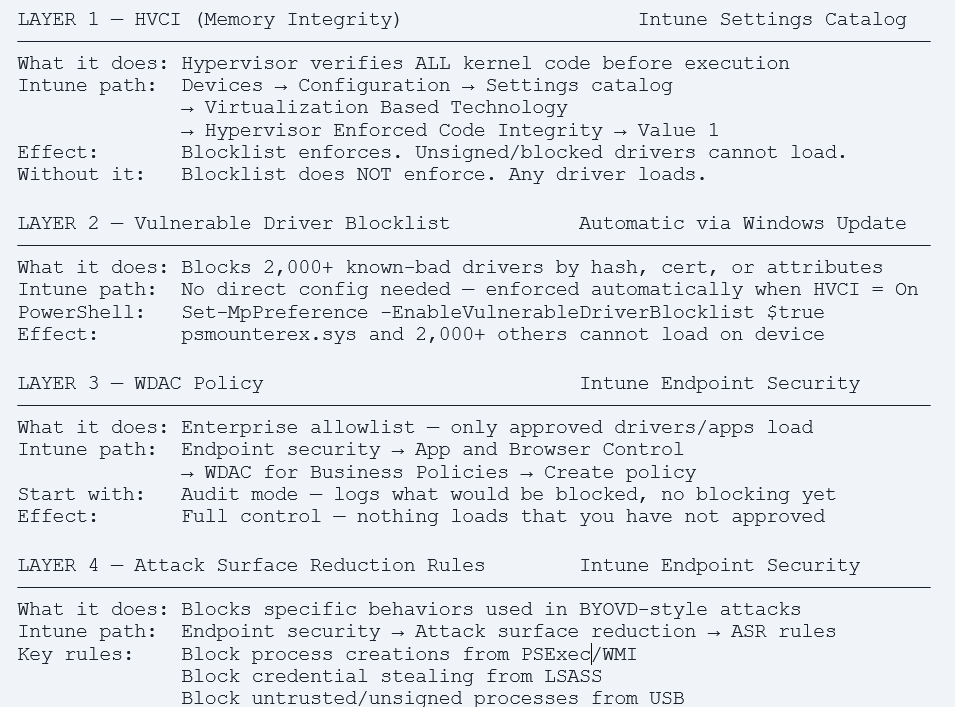
The single most important operational fact in this guide
HVCI must be ON for the Vulnerable Driver Blocklist to enforce. On any managed device where HVCI is disabled due to hardware age, a compatibility exception, a rebuild that skipped the policy, or any other reason the blocklist does nothing. psmounterex.sys loads. Every other blocked driver loads. BYOVD attacks that rely on blocked drivers succeed on that device. Your first action is to find out how many of your managed devices are in this state right now.
Step 1 – Discover HVCI Status Across Your Fleet
Before deploying any policy, you need to know your current state. The following approaches let you identify devices where HVCI is not running, meaning the driver blocklist is not enforcing on those devices right now.
Option A – Intune Device Query (Advanced Analytics)
Device Query runs KQL across your entire managed fleet in real time. No agent install required. Navigate to: Devices → All devices → select a device → Device query (single device) or Reports → Endpoint Analytics → Device query (fleet-wide).
// Find managed devices where HVCI is NOT running
DeviceInfo
| join kind=inner (DeviceProperties) on DeviceId
| where PropertyName == 'HVCIStatus'
| where PropertyValue != 'Running'
| project DeviceName, OSVersion, PropertyValue, LastSeen
| order by LastSeen desc
// Check VBS and HVCI status together for complete picture
DeviceInfo
| join kind=inner (DeviceProperties) on DeviceId
| where PropertyName in ('HVCIStatus','VBSStatus')
| summarize Properties=make_bag(pack(PropertyName,PropertyValue))
by DeviceName, OSVersion
| project DeviceName, OSVersion,
VBS=Properties['VBSStatus'],
HVCI=Properties['HVCIStatus']
| where HVCI != 'Running'Option B – Intune Remediation Script (Detection)
Deploy this as an Intune Remediation detection script to get a compliance report of HVCI status across all managed devices. Navigate to: Devices → Scripts and remediations → + Create → Remediation.
# Detection script — HVCI status check
# Deploy as: Run in 32-bit PowerShell = No, Run as system = Yes
try {
    $dg = Get-CimInstance -Namespace root\Microsoft\Windows\DeviceGuard \
        -ClassName Win32_DeviceGuard -ErrorAction Stop
    # SecurityServicesRunning value 2 = HVCI running
    if ($dg.SecurityServicesRunning -contains 2) {
        Write-Output 'HVCI: Running — blocklist enforcing'
        exit 0  # Compliant
    } else {
        $configured = $dg.SecurityServicesConfigured -contains 2
        Write-Output "HVCI: Not running. Configured: $configured"
        exit 1  # Non-compliant — HVCI not active
    }
} catch {
    Write-Output 'HVCI: Unable to query Win32_DeviceGuard'
    exit 1
}
Option C – Defender for Endpoint Advanced Hunting
For organisations with Defender for Endpoint, Advanced Hunting surfaces blocked driver events fleet-wide — showing you which devices have already encountered a blocked driver since KB5083769 deployed.
// Devices with driver blocking events since April 14, 2026
DeviceEvents
| where ActionType == 'CodeIntegrityDriverRevoked'
| where Timestamp >= datetime(2026-04-14)
| summarize Count=count(), LastSeen=max(Timestamp)
by DeviceName, FileName, FolderPath
| order by Count desc
// Verify psmounterex.sys specifically
DeviceEvents
| where ActionType == 'CodeIntegrityDriverRevoked'
| where FileName =~ 'psmounterex.sys'
| project DeviceName, Timestamp, FolderPath, InitiatingProcessFileName
| order by Timestamp descOption D – Event Viewer on Device (Single Device Verification)
For a quick check on a specific device that is reporting backup failures:
- Open Event Viewer → Applications and Services Logs → Microsoft → Windows → CodeIntegrity → Operational
- Filter for Event ID 3077 — source: Code Integrity
- Event detail will name the blocked driver: psmounterex.sys with Policy ID {D2BDA982-CCF6-4344-AC5B-0B44427B6816}
- Presence of this event confirms the driver was blocked by the vulnerable driver blocklist (enforcement mode)
Step 2 – Enable HVCI Fleet-Wide via Intune Settings Catalog
Once you have identified which devices have HVCI disabled, the next step is to enable it via Intune policy. Deploy to a pilot group first, enabling HVCI can conflict with legacy drivers on older hardware, and it requires a reboot to take effect.
Method 1 – Settings Catalog (Recommended)
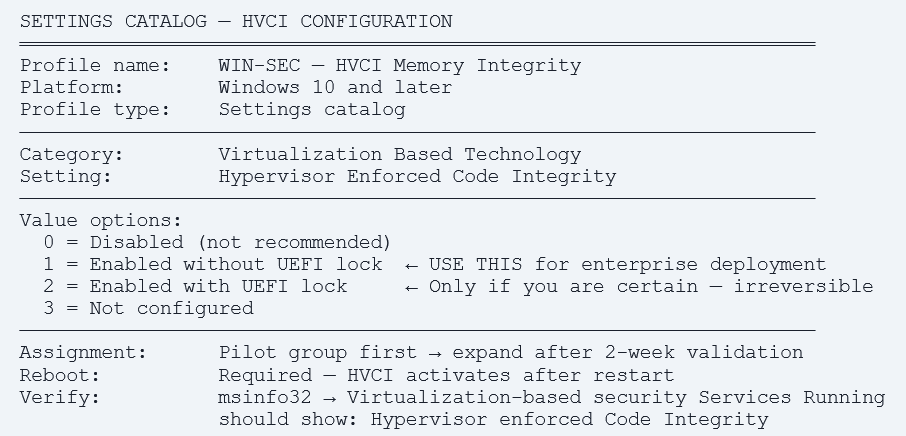
- Navigate: Devices → Configuration → + Create policy → Windows 10 and later → Settings catalog.
- Name the profile: e.g. ‘WIN-SEC — HVCI Memory Integrity — Enabled’.
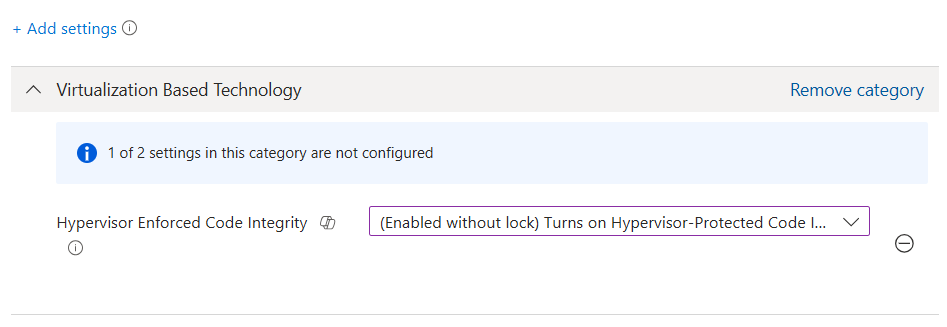
- Add the setting: Search ‘Hypervisor’ → select Virtualization Based Technology category → add ‘Hypervisor Enforced Code Integrity’.
- Set value: 1 — Enabled without UEFI lock. This is the correct enterprise setting, it allows IT to reverse the policy via Intune if a compatibility issue is found. Do not use Value 2 (with UEFI lock) unless you are certain all devices are compatible Value 2 cannot be reversed without a BIOS intervention.
- Assign: Assign to a pilot device group of 50–100 devices. Monitor for 2 weeks before broad deployment.
- Reboot required: HVCI takes effect after device restart. Users receive a Windows restart prompt.
Method 2 – Windows Security Baseline
If you have already deployed the Microsoft Windows 11 Security Baseline in Intune, HVCI should be included as a recommended setting. Verify it is configured and the baseline is assigned to all Windows 11 device groups:
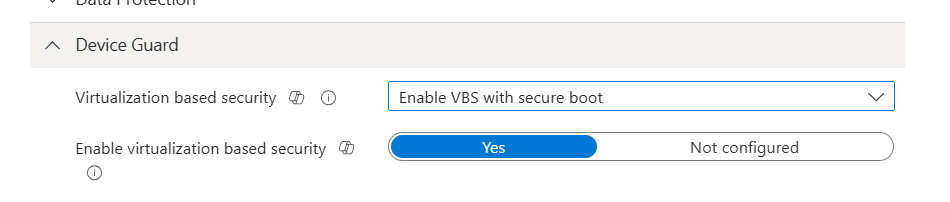
- Navigate: Endpoint security → Security baselines → Windows 11 Security Baseline → select your baseline profile.
- Review: Configuration settings → Device Guard → Virtualization Based Security → verify it is set to Enabled with UEFI lock OR Enabled without UEFI lock.
- Check assignment: Verify the baseline profile is assigned to all Windows 11 device groups, not just a subset.
- Gap check: Cross-reference with your Device Query results, if the baseline is assigned but HVCI is still not running on some devices, check for conflicting profiles or hardware compatibility issues.
Hardware Compatibility – Pre-Screen Before Broad Deployment
HVCI requires hardware virtualisation support (VT-x/AMD-V), UEFI Secure Boot, and TPM. Deploy this Remediation detection script before the HVCI policy to identify devices that cannot support it:
# Pre-screen: Check HVCI hardware prerequisites
$results = @{}
# Check hypervisor
$results['HypervisorPresent'] = (Get-CimInstance Win32_ComputerSystem).HypervisorPresent
# Check Secure Boot
try { $results['SecureBoot'] = Confirm-SecureBootUEFI }
catch { $results['SecureBoot'] = $false }
# Check TPM
$tpm = Get-Tpm
$results['TPMPresent'] = $tpm.TpmPresent
$results['TPMReady']   = $tpm.TpmReady
$supported = $results['HypervisorPresent'] -and
             $results['SecureBoot'] -and
             $results['TPMPresent']
Write-Output ($results | ConvertTo-Json)
if ($supported) { exit 0 } else { exit 1 }
Known compatibility issue – HVCI and legacy drivers
Some older drivers specialist hardware like scanners, industrial controllers, or legacy peripherals are not compatible with HVCI.
When an incompatible driver is present, Windows Security shows: ‘Memory integrity is off, A driver is incompatible with memory integrity’.
The device detail page in Intune will show: Configuration conflict for the HVCI policy.
Resolution: Identify the incompatible driver from Windows Security → Device Security → Core isolation → Details. Update or remove the driver.
If the driver cannot be updated: create a device exclusion group for the HVCI policy and document the exception with a risk acceptance. Important: an incompatible driver noted by Windows may itself be a candidate for the vulnerable driver blocklist flag it for review.
Step 3 – Deploy WDAC Audit Mode via Intune Endpoint Security
HVCI and the Vulnerable Driver Blocklist give you Microsoft-managed kernel protection. WDAC gives you enterprise-managed kernel protection you define exactly which drivers are allowed to run in your environment. For organisations with strict security requirements, WDAC is the next layer. Always start in audit mode.
WDAC vs Vulnerable Driver Blocklist – Why Both Matter
| Vulnerable Driver Blocklist | WDAC Policy | |
| Who controls it | Microsoft – updated via Windows Update and Defender definitions | Your organization – you define what is allowed |
| What it blocks | Known-bad drivers (2,000+ entries). Everything else loads. | Everything not on your approved list. Explicit allowlist. |
| Unknown drivers | Allowed – only known-bad drivers are blocked | Blocked by default – must be explicitly approved |
| Intune location | Automatic when HVCI is On. No additional policy needed. | Endpoint security → App and Browser Control → WDAC |
| Audit mode | Not available – enforcement only | Yes – logs what would be blocked without blocking |
| Use case | All managed devices – baseline kernel protection | High-security environments – full driver allowlisting |
Deploy WDAC Audit Mode Policy in Intune
- Navigate: Endpoint security → App and Browser Control → WDAC for Business Policies → + Create policy.
- Platform: Windows 10 and later.
- Profile: App Control for Business.
- Configuration: Policy enforcement: Audit mode. This logs what would be blocked without blocking. Select ‘Enforce the policy after [X] days in audit’ if you want automatic transition to enforcement.
- Base policy: Select ‘Microsoft recommended driver block rules’ – this incorporates the full Microsoft recommended driver blocklist into your WDAC policy, ensuring you have the most current block rules even between Windows Update cycles.
- Assign: Assign to your pilot device group. Same group as HVCI pilot.
Monitor: After 48 hours, run the Advanced Hunting query below to review what WDAC would block in your environment.
// Advanced Hunting — WDAC audit events
// Event ID 3076 = audit block (would be blocked in enforcement mode)
DeviceEvents
| where ActionType == 'AppControlCodeIntegrityDriverAudited'
| where Timestamp >= ago(14d)
| summarize Count=count(), Devices=dcount(DeviceId)
    by FileName, FolderPath, InitiatingProcessFileName
| order by Count desc
// Review this list carefully before switching to enforcement
// Each entry = a driver that WOULD be blocked in enforcement mode

Step 4 – Attack Surface Reduction Rules That Complement Driver Blocking
Intune’s Endpoint Security ASR rules provide an additional layer of protection against BYOVD-style attack techniques that operate at or below the driver level. These rules do not replace HVCI or WDAC they complement them by blocking the specific behaviours attackers use to load and exploit vulnerable drivers.
Configure ASR Rules in Intune
- Navigate: Endpoint security → Attack surface reduction → + Create policy → Windows 10 and later → Attack surface reduction rules.
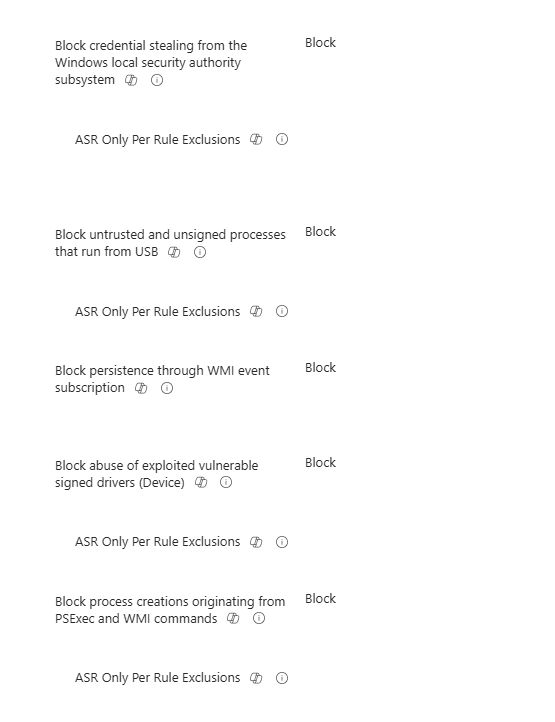
Recommended rules for driver attack scenarios:
| ASR Rule | What it blocks | Recommended mode |
| Block process creations from PSExec and WMI commands | Script-based driver loaders – common BYOVD delivery method | Block |
| Block credential stealing from LSASS | Post-exploitation credential theft often follows kernel access | Block |
| Block untrusted and unsigned processes from USB | USB-delivered driver exploits -removable media attack vector | Block |
| Block persistence through WMI event subscription | Persistence mechanisms used after BYOVD kernel access | Block |
| Block abuse of exploited vulnerable signed drivers | Direct ASR rule targeting BYOVD technique – Windows 11 only | Block |
Test ASR rules in Audit mode first
ASR rules in Block mode can impact legitimate business applications if not tested properly.
Deploy ASR rules in Audit mode for 2 weeks using the same pilot group as HVCI.
Review audit events: Microsoft Defender portal → Reports → Attack surface reduction → Audit events.
Identify any legitimate process triggering the rule, add it to the exclusions list before switching to Block mode. ASR exclusions: Endpoint security → Attack surface reduction → Exclusions – add by file path or folder.
Step 5 – Monitor and Maintain via Intune and Defender
Once HVCI, WDAC, and ASR rules are deployed to your pilot group, you need ongoing visibility into driver blocking events, HVCI compliance, and policy coverage. The following reports and queries provide that visibility.
Intune Compliance Report – HVCI Status
The Remediation report for the HVCI detection script gives you a per-device compliance view:
- Navigate: Devices → Scripts and remediations → select your HVCI Remediation → Device status.
- Review: Pre-remediation detection status shows which devices are compliant (HVCI running) vs non-compliant (HVCI not running).
Export: Export the report and filter for non-compliant devices, this is your HVCI gap report. Share with security leadership.
Ongoing Advanced Hunting – Fleet-Wide Driver Block Monitoring
// Weekly: All driver blocking events across managed fleet
DeviceEvents
| where ActionType == 'CodeIntegrityDriverRevoked'
| where Timestamp >= ago(7d)
| summarize Count=count(),
    AffectedDevices=dcount(DeviceId),
    LastSeen=max(Timestamp)
    by FileName, FolderPath
| order by AffectedDevices desc
// Monthly: HVCI coverage report
DeviceInfo
| join kind=inner (DeviceProperties) on DeviceId
| where PropertyName == 'HVCIStatus'
| summarize Total=count(),
    Running=countif(PropertyValue == 'Running'),
    NotRunning=countif(PropertyValue != 'Running')
| extend CoveragePercent = round(100.0 * Running / Total, 1)
Windows Security Baseline – Verify HVCI Is Included
If you are using the Microsoft Windows 11 Security Baseline, verify HVCI is configured and the baseline has no conflicts with the dedicated HVCI Settings Catalog profile:
- Navigate: Endpoint security → Security baselines → Windows 11 Security Baseline → your profile → Device status.
- Filter: Filter by ‘Conflict’ — any device showing a conflict between the baseline and your Settings Catalog HVCI profile needs the conflict resolved.
- Resolution: If both the baseline and a standalone Settings Catalog profile configure HVCI, remove HVCI from the standalone profile and rely on the baseline, or remove it from the baseline and manage it exclusively via the Settings Catalog. Do not configure the same setting in two places.
What Comes Next – Windows 11 25H2 and the Intune Implication
April 2026 is one step in a longer-term kernel trust hardening journey. Understanding the roadmap lets you plan ahead rather than react to each new blocklist addition.
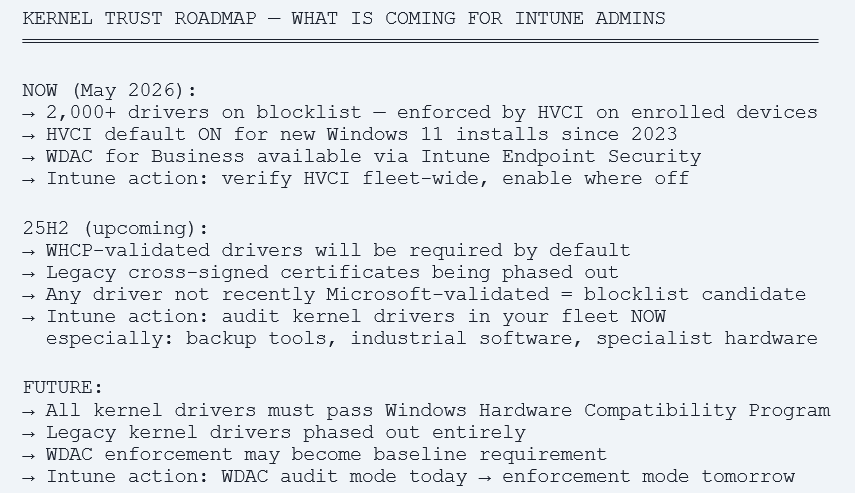
Driver Audit – Do This Before 25H2 Upgrades
Before your organization upgrades devices to Windows 11 25H2, run a driver audit to identify any drivers that may be at risk of future blocklist inclusion. Use this Advanced Hunting query to build a driver inventory:
// Build kernel driver inventory across managed fleet
DeviceDrivers
| where DriverType == 'Kernel'
| summarize DeviceCount=dcount(DeviceId),
    Versions=make_set(DriverVersion)
    by DriverName, DriverPublisher, DriverInbox
| where DriverInbox == false  // Third-party drivers only
| order by DeviceCount desc
For any third-party kernel driver with significant fleet coverage especially from smaller vendors or those not updated in the last 12 months — contact the vendor and ask:
- Is this driver signed through the Windows Hardware Compatibility Program (WHCP)?
- What is your timeline for updating to a WHCP-validated driver version?
- Does your current driver version address all known CVEs?
Intune Admin Checklist – Prioritised by Impact
Immediate – This Week
- Run Device Query: HVCIStatus != ‘Running’ – identify your HVCI gap across the managed fleet.
- Run Intune Remediation detection script – get per-device HVCI compliance report.
- Check affected backup software versions – confirm Macrium Reflect 8.0.7690+ or vendor-equivalent patched version.
- Run Advanced Hunting for CodeIntegrityDriverRevoked events since April 14 – identify devices already affected.
- Check Event ID 3077 on any device reporting backup failures since April 14.
Short Term – This Month
- Deploy hardware pre-screen Remediation script – identify devices that cannot support HVCI.
- Deploy HVCI Settings Catalog policy to pilot group (50–100 devices). Value 1 – Enabled without UEFI lock.
- Monitor pilot group for 2 weeks – check Device status report for conflicts and errors.
- Verify Windows 11 Security Baseline includes HVCI and is assigned to all Windows 11 device groups.
- Deploy WDAC audit mode policy via Endpoint Security → App and Browser Control → WDAC for Business.
- Deploy ASR rules in Audit mode to pilot group — review audit events before switching to Block.
Medium Term – 60 to 90 Days
- Expand HVCI policy to all managed Windows 11 devices after pilot validation.
- Review WDAC audit mode results – build exclusions list then transition to enforcement.
- Transition ASR rules from Audit to Block mode after exclusion list is validated.
- Run kernel driver inventory query – audit third-party drivers across fleet.
- Contact vendors for any specialist software with kernel drivers not recently WHCP-validated.
- Document HVCI exceptions (devices excluded for hardware compatibility) with risk acceptance.
Before 25H2 Upgrades
- Re-run driver inventory – confirm all drivers are WHCP-validated or on a vendor update roadmap.
- Update all backup software to vendor-patched driver versions before upgrade.
- Test HVCI + WDAC enforcement on 25H2 pilot devices – validate no compatibility regressions.
- Review Intune Security Baseline for 25H2 – update to the Windows 11 25H2 baseline when available.
References
| Microsoft Vulnerable Driver Blocklist | https://learn.microsoft.com/en-us/windows/security/threat-protection/windows-defender-application-control/microsoft-recommended-driver-block-rules |
| Enable HVCI / Memory Integrity | https://learn.microsoft.com/en-us/windows/security/hardware-security/enable-virtualization-based-protection-of-code-integrity |
| WDAC – App Control for Business in Intune | https://learn.microsoft.com/en-us/windows/security/application-security/application-control/windows-defender-application-control/deployment/deploy-wdac-policies-with-intune |
| Attack Surface Reduction rules – Intune | https://learn.microsoft.com/en-us/defender-endpoint/attack-surface-reduction-rules-reference |
| CVE-2023-43896 – psmounterex.sys | https://msrc.microsoft.com/update-guide/vulnerability/CVE-2023-43896 |
| Intune Device Query – Advanced Analytics | https://learn.microsoft.com/en-us/intune/advanced-analytics/device-query |
| Win32_DeviceGuard WMI class | https://learn.microsoft.com/en-us/windows/security/threat-protection/device-guard/enable-virtualization-based-protection-of-code-integrity |