From Frontier enrollment to a signed-in user – every gate, every policy, every gotcha.
Microsoft Scout is the new Frontier desktop app that lets end users delegate real work to an AI agent, it can reason over Microsoft 365 data, local files, and the browser, and actually take actions on the user’s behalf (draft and send mail, modify content, drive a browser to finish a task). It’s powerful, and because of that it’s gated harder than almost anything else in the Copilot family.
Here’s the thing that catches everyone: installing the app does nothing on its own. A user can download Scout, run the installer, and the install will succeed every time but sign-in silently fails until the admin work is done. There’s no friendly “ask your admin” banner. It just doesn’t let them in.
This post walks the entire deployment end-to-end the way I’d run it for a managed tenant: the two-gate access model, the Microsoft 365 admin center switch, the Intune ADMX import and Windows policy, the attestation form, GitHub Copilot licensing, the macOS profile, and finally packaging the app itself as a Win32 deployment with a proper detection rule.
Note
Scout is a preview / Frontier feature, so screens and naming change. The clearest example: the key Windows setting still ships under the internal codename Clawpilot in some templates, more on that below. Treat anything here as accurate as of the current preview.
The two-gate access model (read this first)
Scout access is enforced through two independent gates that both have to be open. Miss either one and users hit a waitlist screen or a dead sign-in. Neither gate substitutes for the other, and a GitHub Copilot license by itself grants nothing.
| Gate | What it does |
| Gate 1 – Frontier access | Turned on in the Microsoft 365 admin center. Enables Frontier (and therefore Scout) for the tenant or for specific users/groups. |
| Gate 2 – Admin enablement | Three required actions: an Intune policy that flips the Frontier-access capability on the device, the admin attestation form, and GitHub Copilot licenses for the users. |
Both gates complete = sign-in works. Anything less = it doesn’t. Keep that mental model; it makes every troubleshooting call obvious later.
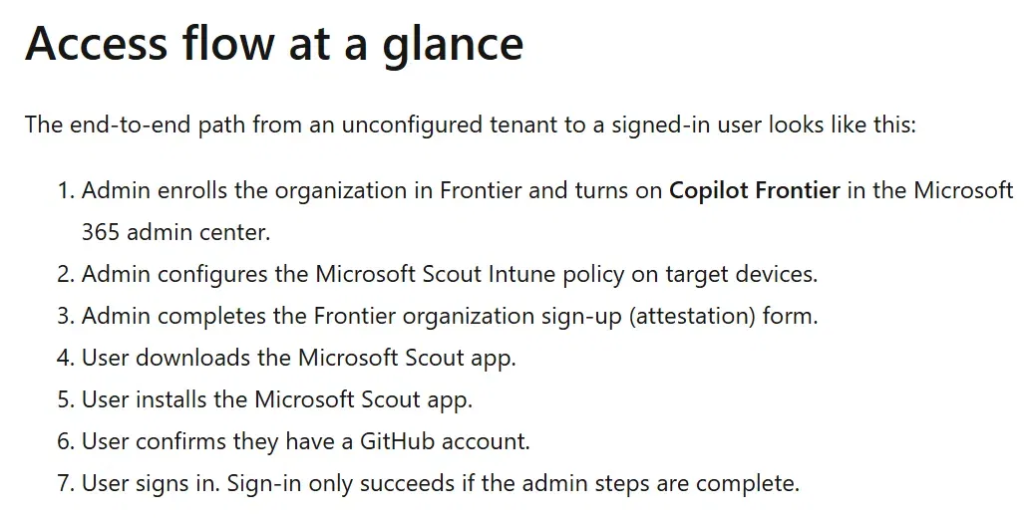
Access flow at a glance
End-to-end, an unconfigured tenant to a working user looks like this:
- Admin enrolls the org in Frontier and turns on Copilot Frontier in the M365 admin center.
- Admin configures the Microsoft Scout Intune policy on target devices.
- Admin completes the Frontier organization sign-up (attestation) form.
- User downloads the Microsoft Scout app.
- User installs the app.
- User confirms they have a GitHub account.
- User signs in – which only succeeds once every admin step above is done.
Prerequisites
Before you touch anything, line these up:
- Frontier enrollment. Your org and the admin account doing this work must be in the Frontier preview program. If Scout isn’t showing under Agent management in the admin center, the admin account itself probably isn’t enrolled.
- Copilot license. A Copilot Business or Enterprise license. Frontier without Copilot doesn’t work, and Copilot without Frontier doesn’t either.
- GitHub Copilot. Each user needs a GitHub account and a GitHub Copilot license, Scout uses GitHub for token billing and routes prompts through GitHub Copilot.
- M365 admin center access to toggle Frontier (Global Admin or the appropriate Copilot admin role).
- Intune admin access at https://intune.microsoft.com.
- The Scout policy template files from the Microsoft scout-resources repo on GitHub:
- microsoft-scout.admx + microsoft-scout.adml (Windows)
- microsoft-scout.mobileconfig (macOS, optional)
Tip
Grab the templates from github.com/microsoft/scout-resources/tree/main/admins and stash them somewhere you can reach from the Intune upload dialog. You import the ADMX and ADML together, the ADML carries the friendly setting names.
Gate 1 – Turn on Frontier in the M365 admin center
This switch makes Frontier (and Scout) available to your chosen users. It does not, by itself, let anyone sign in — it just opens the first gate.
- Sign in to the Microsoft 365 admin center.
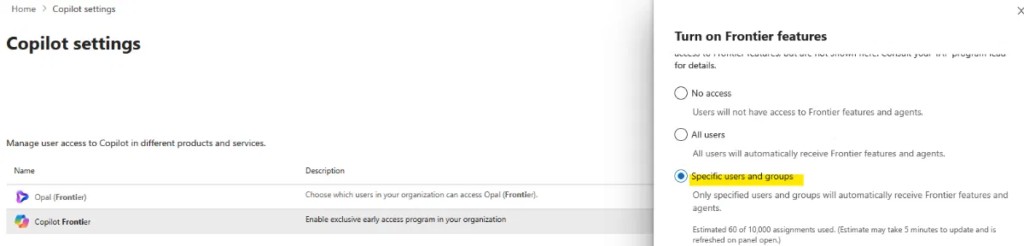
- In the left nav, go to Copilot → Settings → View all.
- In the search box, type Frontier, then open Copilot Frontier.
- Choose the access scope: No access, All users, or Specific users and groups. For a controlled rollout, pick Specific users and groups and assign your pilot group.
- Select Save.
Note
After saving, give it up to ~3 hours to propagate before Frontier features show up for the assigned users. Don’t panic if it’s not instant.
Gate 2 – Admin enablement
Three required actions live behind this gate: the Intune policy, the attestation form, and GitHub Copilot licenses. All three have to be done. Let’s do the Intune policy first, it’s the part with the most moving pieces.
Part A – Import the Scout ADMX / ADML template
Importing the administrative template makes the Scout settings available when you build a Windows configuration policy.
- Go to https://intune.microsoft.com and sign in with tenant admin credentials. Confirm you’re in the right tenant.
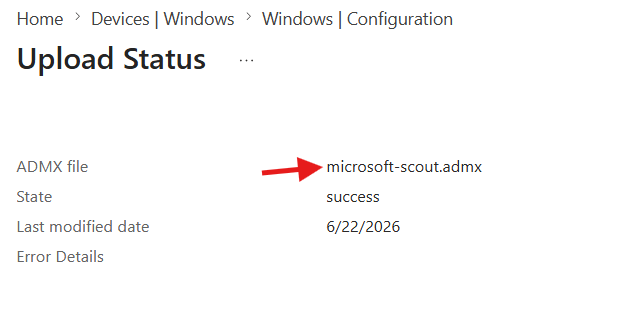
- Select Devices. Under Manage devices select Configuration, then open the Import ADMX tab.
- Select Import, then use the file pickers to upload both files: ADMX file: microsoft-scout.admx and ADML file: microsoft-scout.adml
- Select Next.
- On Review + create, confirm both files are listed, then select Create.
- Wait for the upload to process. Don’t continue until the status finishes.
- Confirm the template status reads Available. That’s your green light to build the policy.
Part B – Create the Windows Scout policy
Now build a config policy from that imported template and flip the Frontier-access capability on.
- Back in Devices → Configuration, open the Policies tab and select New policy.
- Set Platform = Windows 11 and later (Windows 10 and later also works), and Profile type = Templates.
- Choose Imported Administrative Templates, then select Create.
- Name it something obvious, e.g. Microsoft Scout – Frontier access. Add a description if you like. Select Next.
- On Configuration settings, select the imported Microsoft Scout template, then pick the policy version.
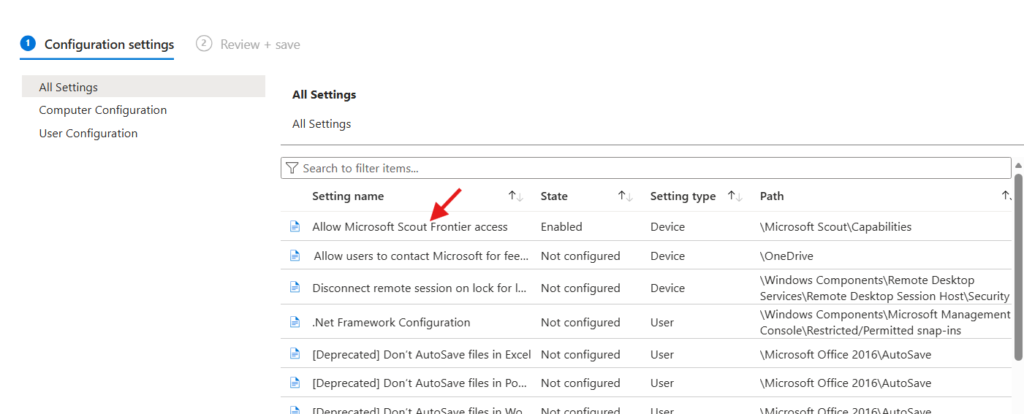
- Drill into Microsoft Scout → Capabilities and open the Frontier access setting.
- Set it to Enabled, then OK.
- Leave Scope tags default unless your RBAC model needs a specific tag. Select Next.
- On Assignments, target the right audience – All devices for a broad rollout, or your pilot device group for a controlled one. Select Next.
- Review and Create. Confirm the new policy lands in the configuration list.
Heads up
The setting name is the #1 source of confusion. In some preview templates it reads “Allow Clawpilot Frontier access” (Clawpilot = the internal codename). In a more recent template it shows as “Allow Microsoft Scout Frontier access.” Same setting, same backing capability AllowScoutFrontierAccess. Either way, you’re looking under \Microsoft Scout\Capabilities and setting it to Enabled. If it’s Disabled or Not configured, Frontier users get the waitlist screen and can’t sign in.
Part C – Complete the attestation / opt-in form
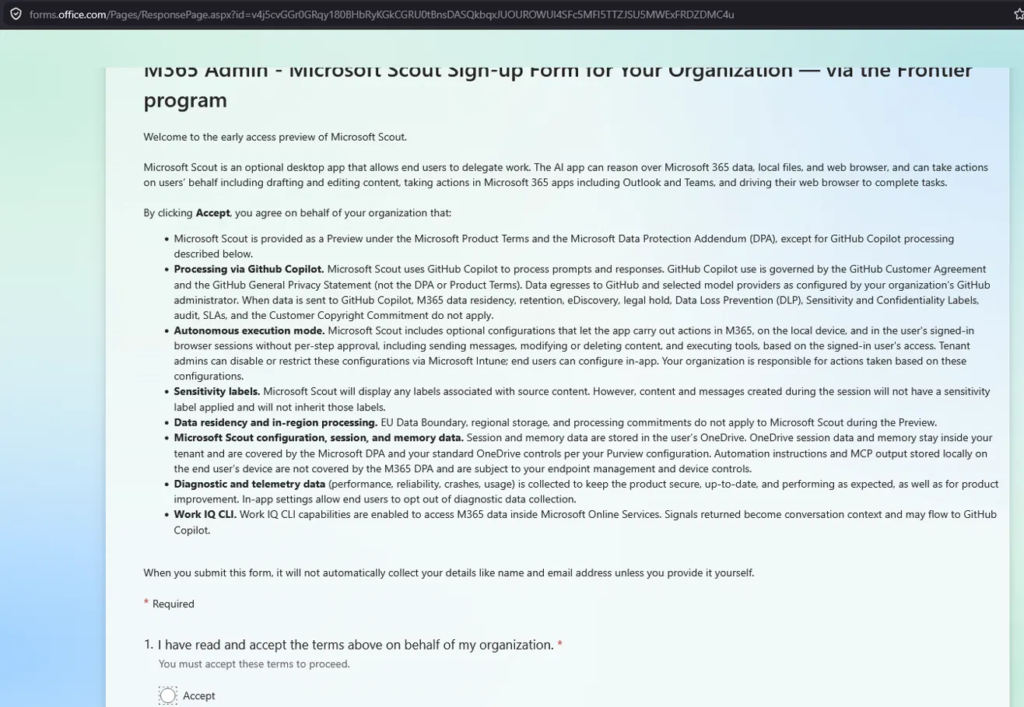
Because Scout can route data outside Microsoft 365 to third-party inference (GitHub Copilot and selected model providers), Microsoft requires an explicit admin attestation on behalf of the org. This is a separate gating layer, it applies even if Gate 1 is already done.
Open the M365 Admin – Microsoft Scout Sign-up Form (the Frontier organization sign-up), read the preview terms, accept on behalf of your organization, and submit. Microsoft records that attestation against your tenant.
Note
Read the terms properly before you accept, they spell out the bits that matter for governance: GitHub Copilot processing, autonomous execution mode (Scout can act without per-step approval), sensitivity labels not being inherited by Scout-created content, data-residency commitments not applying during preview, and where session/memory data lives (the user’s OneDrive). If you run a regulated tenant, loop in your security/compliance lead before you click Accept.
Part D – Provision GitHub Copilot licenses
Last action behind Gate 2. Scout uses GitHub Copilot to process prompts and bill tokens, so every user needs a GitHub account and a GitHub Copilot license. If your users are already licensed, you can skip this.
- Set up GitHub Copilot for your organization (GitHub Enterprise Cloud admin docs).
- Grant Copilot access to the relevant org members / teams.
Tip
Map your Scout pilot group to your GitHub Copilot seat assignment so the two audiences stay in sync. A user who’s in the Intune assignment but missing a GitHub Copilot seat will still fail at sign-in, and that one’s easy to overlook.
Optional – macOS Scout policy
If you manage Macs, deliver the same tenant settings with a custom configuration profile.
- In Devices → Configuration, select New policy.
- Set Platform = macOS, Profile type = Templates, Template name = Custom. Select Create.
- Name it, e.g. Microsoft Scout – macOS Frontier access. Select Next.
- On Configuration settings, upload the mobileconfig with these values:
| Setting | Value |
| Custom configuration profile name | macOS |
| Deployment channel | Device channel |
| Configuration profile file | microsoft-scout.mobileconfig |
Heads up
On macOS the setting only lands if you used a Custom profile on the Device channel. User-channel or the wrong template type = the setting silently doesn’t apply.
Deploying the Scout app itself (Win32 in Intune)
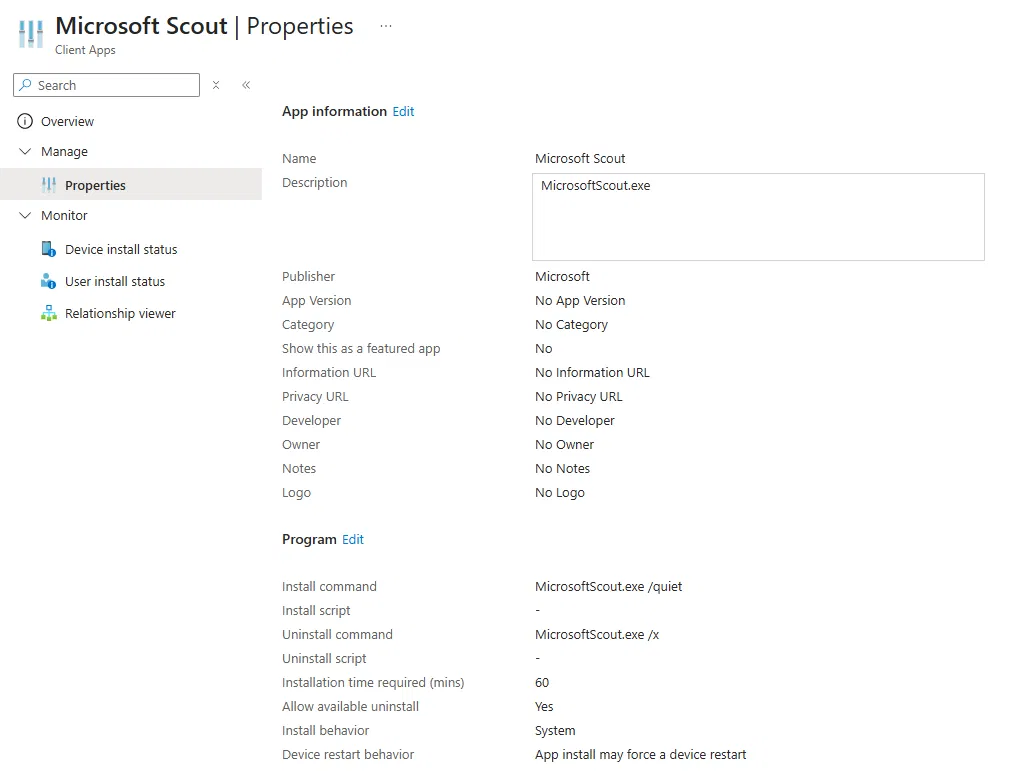
The two gates control access. You still have to get the app onto the device. End users can self-install from aka.ms/scout, but in a managed fleet you’ll want to push it. Here’s the Win32 approach, matching the app I set up.
| Field | Value |
| Name | Microsoft Scout |
| Publisher | Microsoft |
| Install command | MicrosoftScout.exe /quiet |
| Uninstall command | MicrosoftScout.exe /x |
| Install behavior | System |
| Allow available uninstall | Yes |
| Installation time required | 60 mins |
| Device restart behavior | App install may force a device restart |
Detection rule
Use a custom script detection. This is the ScoutDec.ps1 I’m running, it checks the system-level path first (the common case for a System-context install) and then falls back to every user profile to catch per-user installs:
# Detection: Microsoft Scout
$systemPath = "C:\Program Files (x86)\Microsoft Scout\Microsoft Scout.exe"

# Check system-level install (most common)
if (Test-Path $systemPath) {
    Write-Output "Microsoft Scout detected at system path"
    exit 0
}

# Fallback: check all user profiles (handles per-user installs)
$userProfiles = Get-ChildItem "C:\Users" -Directory -ErrorAction SilentlyContinue
foreach ($profile in $userProfiles) {
    $userPath = Join-Path $profile.FullName "AppData\Local\Programs\Microsoft Scout\Microsoft Scout.exe"
    if (Test-Path $userPath) {
        Write-Output "Microsoft Scout detected in user profile: $($profile.Name)"
        exit 0
    }
}

exit 1
Tip
Detection scripts run in the 64-bit PowerShell host only if you set “Run script as 64-bit” on the Win32 app — leave it 64-bit so Program Files (x86) and the user-profile paths resolve the way you expect. And do a single test install first to confirm the real install path before you trust the detection, preview builds have a habit of moving things.
Note
Win32 app delivery and the Frontier-access config policy are two different objects. The app puts MicrosoftScout.exe on disk; the ADMX policy flips the capability that lets the user actually sign in. You need both, plus Gate 1 and the attestation.
What the end user does
Once every admin step is in place, the user side is short:
- Get the app – either it arrives via Intune, or they download from aka.ms/scout.
- Install it (the install always succeeds, even if access isn’t ready, which is exactly why a successful install tells you nothing).
- Confirm they have a GitHub account (used for token billing).
- Sign in with work credentials. This only works once both gates are open.
Validation checklist
- Gate 1 – Copilot Frontier is set to All users or the right Specific users/groups in the M365 admin center (and you waited out the ~3-hour propagation).
- Gate 2 – Intune: the Windows policy shows the Frontier-access setting Enabled (AllowScoutFrontierAccess), assigned to the target devices, and the device has synced.
- Gate 2 – attestation: the sign-up form is submitted for the tenant.
- Gate 2 – licensing: target users have GitHub Copilot seats.
- App: Win32 app reports Installed and detection passes.
- Acid test: on a managed device, open Scout and confirm the user signs in with no waitlist screen.
Troubleshooting
| Symptom | What to check |
| Scout isn’t in Agent management / admin center | The admin account itself isn’t enrolled in Frontier. Enroll it, then recheck. |
| Windows Scout settings don’t appear in Intune | ADMX/ADML didn’t import cleanly, confirm both files show Available, then rebuild the policy. |
| Users still hit the waitlist screen | Frontier-access setting isn’t Enabled, the policy isn’t assigned to that device, or the device hasn’t synced. Check all three. |
| macOS devices don’t get the setting | Confirm the mobileconfig went into a macOS Custom profile on the Device channel and is assigned. |
| Sign-in fails with no clear error | Classic missing-gate symptom. Re-verify Gate 1, the Intune policy, the attestation, and the GitHub Copilot seat before debugging the client, the app won’t tell the user which one is missing. |
| Policy hits the wrong people | Review the assignment groups on both the Windows and macOS profiles. |
Wrapping up
The whole trick with Scout is remembering that install ≠ access. Two gates, both open: Frontier on in the admin center, and the Intune policy + attestation + GitHub Copilot licensing all done. Get those right and sign-in just works. Miss one and you get a silent failure that sends people down the wrong rabbit hole.
Given Scout’s autonomous-execution capabilities, I’d also treat the attestation step as a real governance decision, not a checkbox so know what you’re signing your org up for before you flip it on for everyone.