A practical, production-ready approach to keeping your device inventory clean.
If you’ve administered a Microsoft Entra ID (formerly Azure AD) tenant for any length of time, you’ve seen it, hundreds and sometimes thousands of stale device records cluttering your directory. Phones that were retired in 2019. Laptops that were reimaged and re-joined under new names. Test devices that nobody ever cleaned up. Each one is a dead object that inflates your inventory, muddies your compliance reporting, and quietly chips away at the accuracy of every device-based report you run.
Manually working through that list in the portal is soul-destroying and error-prone. In this post we’ll walk through how we automate the whole thing at Scudra, a certificate-authenticated PowerShell solution that finds stale devices by platform and last-activity date, logs everything for audit, and runs unattended on a schedule. By the end you’ll have a repeatable cleanup process you can point at your own tenant.
Why Stale Devices Are Worth Cleaning Up
It’s tempting to ignore stale device objects, they’re not actively hurting anything, right? Not quite. Stale records distort device counts used for licensing and capacity decisions, create noise in Conditional Access and compliance reporting, and make genuine security investigations harder by burying active devices among long-dead ones. A tenant that’s been running for five-plus years without a cleanup discipline can easily carry 30–40% dead weight in its device list.
The goal isn’t a one-time purge. It’s a repeatable, auditable hygiene process and something that runs quietly in the background and keeps the inventory honest.
The Approach
Our solution rests on three design decisions that make it safe to run in production:
Certificate-based authentication, not interactive login. Anything that runs unattended needs to authenticate without a human at the keyboard. We use an Entra app registration with a certificate credential, which is both more secure and more reliable than client secrets for scheduled automation.
Report first, delete second. For any cleanup project of consequence, you want eyes on the list before anything gets deleted. Our process generates a CSV of candidate devices that stakeholders can review, and only then runs deletion either manually against the reviewed list, or fully automated once you trust the criteria.
Phased by platform. Rather than blasting the entire tenant at once, we work through one OS at a time, Android, then iOS, then Windows. This keeps each batch reviewable and limits the blast radius if a filter is wrong.
Step 1 – Create the App Registration
Everything hinges on an Entra app registration with the right permission and a certificate credential.
In the Entra admin center, go to App registrations and create a new registration. Give it a clear name like Device-Cleanup-Automation so future admins know exactly what it’s for. Once created, note the Application (client) ID and your Tenant ID from the Overview page, you’ll need both.
Next, grant the permission. Under API permissions, add a permission, choose Microsoft Graph, then Application permissions (not Delegated, this is critical for unattended automation), and add:
- Device.ReadWrite.All – covers reading, querying, and deleting device objects
- Device.ReadWrite.All – Optional
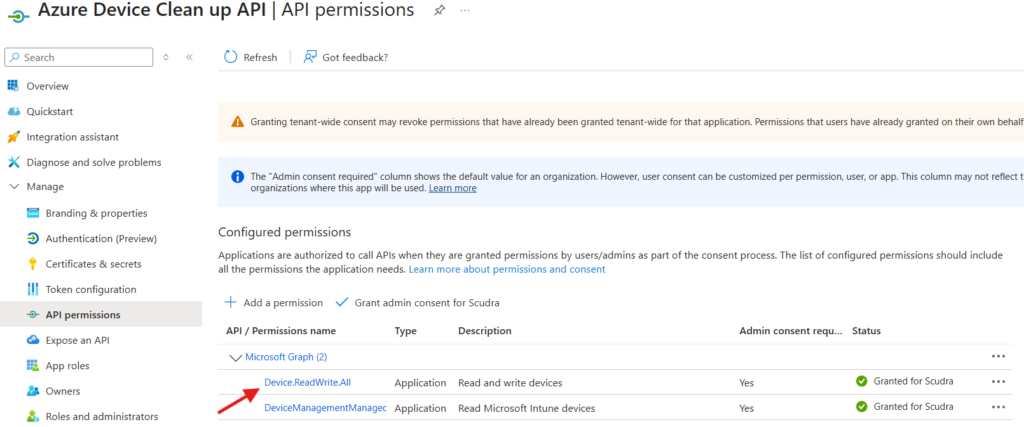
A single permission handles the whole workflow. Then click Grant admin consent, the permission won’t function until you do.
A note on least privilege: if you want a report-only app with zero deletion capability, use Device.Read.All instead. We recommend a separate read-only registration for the reporting phase and a read-write one for deletion, so the powerful credential only exists where it’s actually needed.
Step 2 – Set Up the Certificate
The certificate is what lets the script authenticate without a password sitting in plain text.
Generate a self-signed certificate (or use one from your internal CA):
$cert = New-SelfSignedCertificate `
    -Subject "CN=Device-Cleanup-Automation" `
    -CertStoreLocation "Cert:\LocalMachine\My" `
    -KeyExportPolicy Exportable `
    -KeySpec Signature `
    -NotAfter (Get-Date).AddYears(2)

# Export the PUBLIC key to upload to Entra
Export-Certificate -Cert $cert -FilePath "C:\Temp\DeviceCleanup.cer"
Upload the resulting .cer (public key only) to your app registration under Certificates & secrets → Certificates → Upload certificate. The thumbprint shown after upload is what goes into the script configuration.
The store location matters more than you’d think. Scheduled tasks that run as SYSTEM can only read certificates from the LocalMachine store, not CurrentUser. This is the single most common reason these scripts fail with a “certificate not found” error. If you generated the cert under your own user context, you’ll need to move it:
# Export from CurrentUser (with private key)
$pwd = ConvertTo-SecureString -String "TempPass123!" -Force -AsPlainText
Export-PfxCertificate -Cert "Cert:\CurrentUser\My\<THUMBPRINT>" `
    -FilePath "C:\Temp\cert.pfx" -Password $pwd

# Import into LocalMachine where SYSTEM can read it
Import-PfxCertificate -FilePath "C:\Temp\cert.pfx" `
    -CertStoreLocation Cert:\LocalMachine\My -Password $pwd -Exportable

Remove-Item "C:\Temp\cert.pfx" -Force
Step 3 – The Reporting Script
The reporting script connects to Graph, queries for devices of a given platform whose last activity predates your cutoff, and writes a CSV. No deletion, pure visibility.
The heart of it is the Graph query. We filter on both operating system and approximateLastSignInDateTime, which is Entra’s record of when the device last checked in:
$devices = Get-MgDevice -All `
    -Filter "operatingSystem eq 'Android' and approximateLastSignInDateTime le 2019-01-01T00:00:00Z" `
    -Select "id,displayName,operatingSystem,approximateLastSignInDateTime,managementType,accountEnabled"
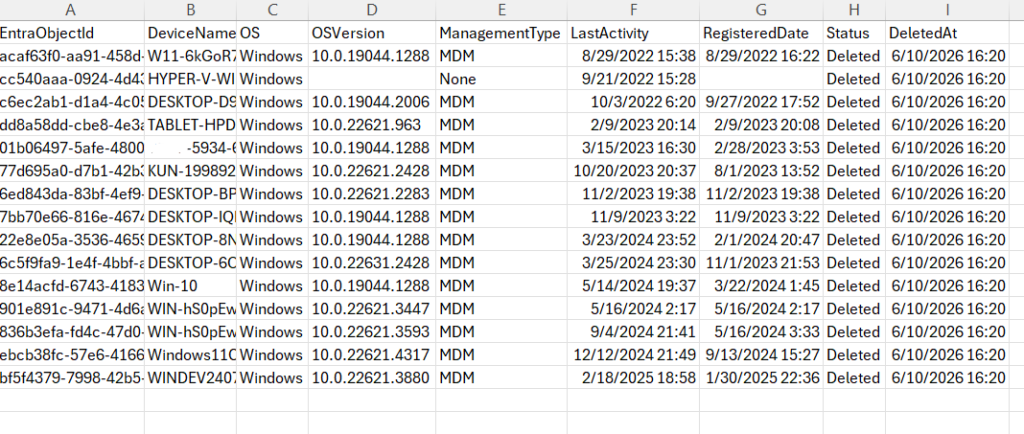
Each matched device is captured with its Object ID, the GUID Entra needs in order to delete it later, along with its name, OS version, registration date, and last activity. The full script (linked at the bottom) sorts oldest-first, exports to a timestamped CSV, and logs a clean summary.
Run it once per platform by changing a single configuration line. Review the output with your stakeholders. This is your audit trail and your safety net.
Step 4 – The Cleanup Script
Once the criteria are trusted, the cleanup script does the same query and then deletes each match:
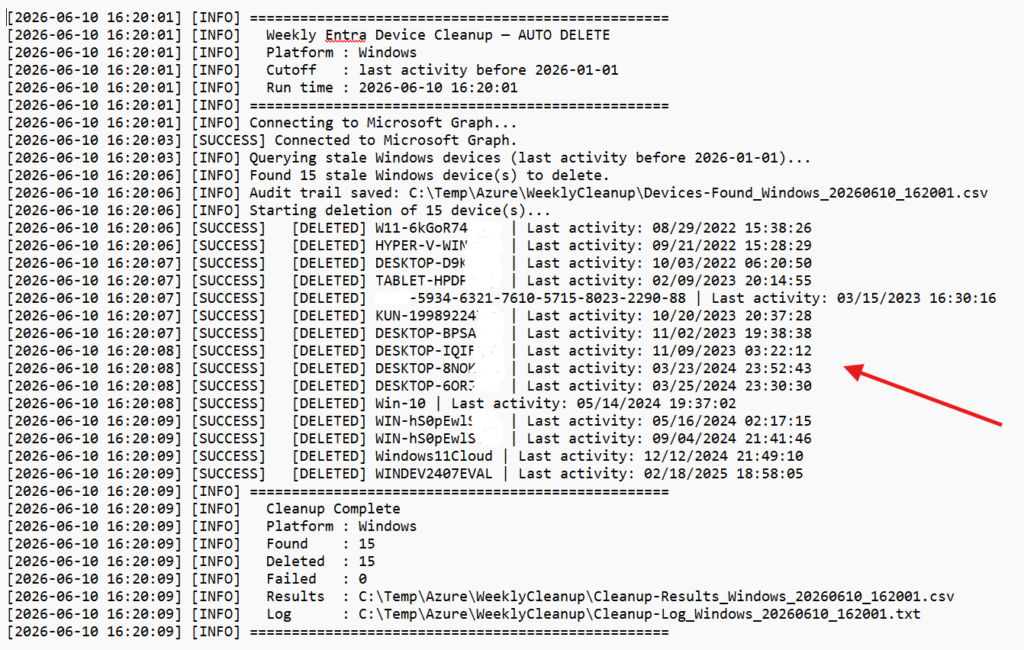
Remove-MgDevice -DeviceId $device.EntraObjectIdCritically, before it deletes a single object, it exports the full found-list to a Devices-Found CSV. That means even on a fully automated run, you always have a record of exactly what existed immediately before deletion. After the run, a Cleanup-Results CSV records the pass/fail status of every device. Nothing happens silently.
Step 5 – Schedule It
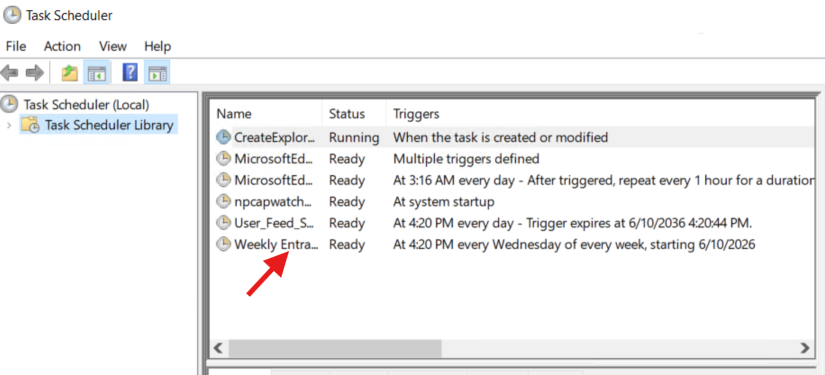
The final piece turns this from a script you remember to run into a process that runs itself. We register a Windows Scheduled Task that executes as SYSTEM, so no user needs to be logged in:
$action = New-ScheduledTaskAction -Execute "C:\Program Files\PowerShell\7\pwsh.exe" `
    -Argument "-ExecutionPolicy Bypass -NonInteractive -File `"C:\Scripts\Invoke-WeeklyEntraDeviceCleanup.ps1`""
$trigger = New-ScheduledTaskTrigger -Weekly -DaysOfWeek Sunday -At "02:00"

Register-ScheduledTask -TaskName "Weekly Entra Device Cleanup" `
    -Action $action -Trigger $trigger -User "SYSTEM" -RunLevel Highest
Every Sunday at 2 AM, the job wakes up, authenticates with the certificate, finds stale devices for the current phase, deletes them, and drops its logs into a folder for review. You can confirm it’s working any time by checking the latest log file.
Before running the “Register-WeeklyCleanupTask.ps1” – Replace the authentication details per tenant in the “Invoke-WeeklyEntraDeviceCleanup.ps1” and place them in the same folder or change the path accordingly:
Invoke-WeeklyEntraDeviceCleanup.ps1“
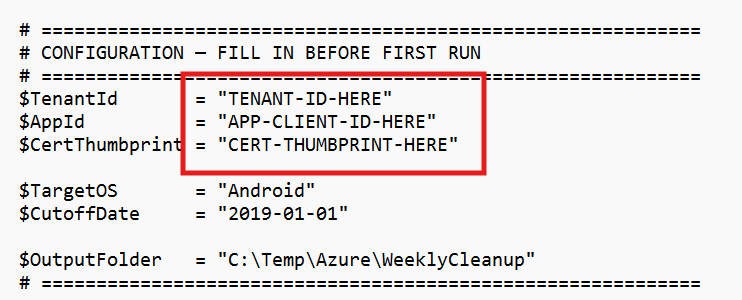
Register-WeeklyCleanupTask.ps1

Task Schedular
Running It As a Phased Project
The way we approach this for clients is deliberately incremental:
- Phase 1 – Android. Set the platform filter to Android, let the report run, review with the client, then enable deletion.
- Phase 2 – iOS. Once Android is clean, change one line and repeat.
- Phase 3 – Windows. The largest and most sensitive batch usually goes last, when you’ve built confidence in the process.
Working platform-by-platform keeps each batch small enough to actually review, and means a mistake in your filter affects one OS rather than the entire tenant.
A Few Hard-Won Tips
A handful of things that will save you debugging time:
- The SYSTEM certificate store gotcha is the number-one failure. If you get “certificate not found,” it’s almost always in CurrentUser instead of LocalMachine. See Step 2.
- Test with -WhatIf first. Both scripts support simulation mode that shows exactly what would be deleted without touching anything. Always do a dry run on a new tenant.
- Mind your cutoff date. “Before 2019” and “before 2029” are very different filters, the latter would catch nearly everything. Double-check the year before any deletion run.
- Keep the found-list CSVs. They’re your record of what existed. Archive them somewhere durable, not just the working folder.
- Watch certificate expiry. A two-year cert means a silent failure two years out. Set a calendar reminder to rotate it.
Reports captured from the task schedular
Wrapping Up
Device hygiene is one of those tasks that’s easy to defer indefinitely, until a compliance audit or a security review forces the issue. Automating it means it simply gets handled, week after week, without anyone having to remember. The combination of certificate auth, report-then-delete safety, and platform phasing makes it safe enough to trust in production.
The complete, ready-to-use scripts are available for download below. Drop in your tenant details, point them at your environment, and you’ll have a working cleanup pipeline in an afternoon.
Download the Production Ready Scripts
- Get-StaleEntraDevicesReport.ps1 – weekly report of stale devices by platform (report only – Optional)
- Invoke-WeeklyEntraDeviceCleanup.ps1 – automated find-and-delete by platform
- Register-WeeklyCleanupTask.ps1 – one-time scheduled task setup
Always test with -WhatIf on a new tenant before enabling deletion. These scripts delete directory objects, review the candidate list first.