Block use of copied or impersonated system tools | Intune ASR Policy
If you recently tried to configure the ASR rule Block use of copied or impersonated system tools in a new Intune Attack Surface Reduction policy and couldn’t find it, you weren’t going crazy. The setting was silently removed from the Intune ASR policy creation wizard for all tenants. Nobody announced it. No Message Center post. No changelog entry. It just disappeared.
I caught it, opened a Microsoft support case, escalated to the product team, and got the official confirmation. The rule has now been restored. Here is the full story.
What Is This ASR Rule?
The Block use of copied or impersonated system tools rule (GUID: c0033c00-d16d-4114-a5a0-dc9b3a7d2ceb) is an Attack Surface Reduction rule in Microsoft Defender for Endpoint. It blocks executable files that are copies or impostors of legitimate Windows system tools, things like fake versions of cmd.exe, powershell.exe, or other binaries from System32.
Malicious actors commonly copy or rename system binaries to blend in with normal Windows activity, evade detection, and gain privileges. This rule is a direct counter to that technique.
Quick reference:
- Intune name: Block use of copied or impersonated system tools
- GUID: c0033c00-d16d-4114-a5a0-dc9b3a7d2ceb
- Configuration Manager: n/a
- Dependency: Microsoft Defender Antivirus
- Advanced Hunting events: AsrAbusedSystemToolAudited / AsrAbusedSystemToolBlocked
- MDVM note: Defender Vulnerability Management shows this rule as Not Applicable in the ASR report — this is expected and documented behaviour
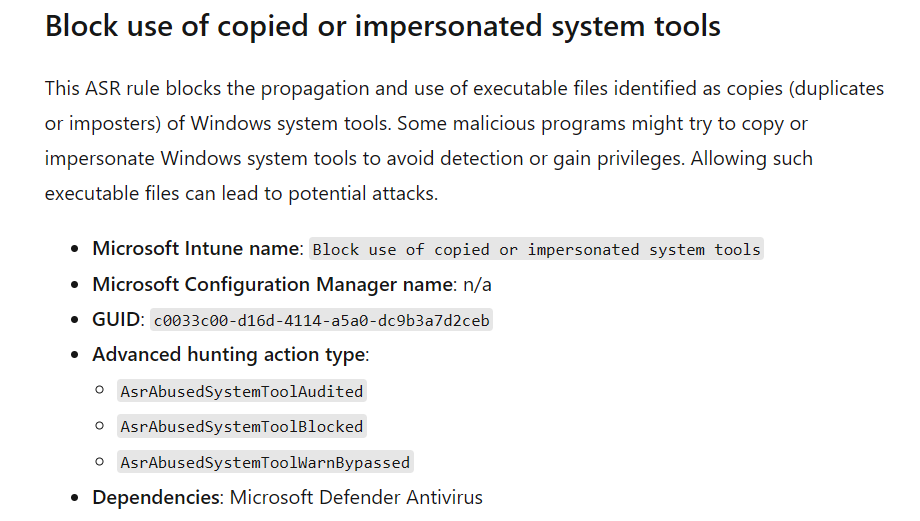
https://learn.microsoft.com/en-us/defender-endpoint/attack-surface-reduction-rules-reference
What Happened – The Timeline
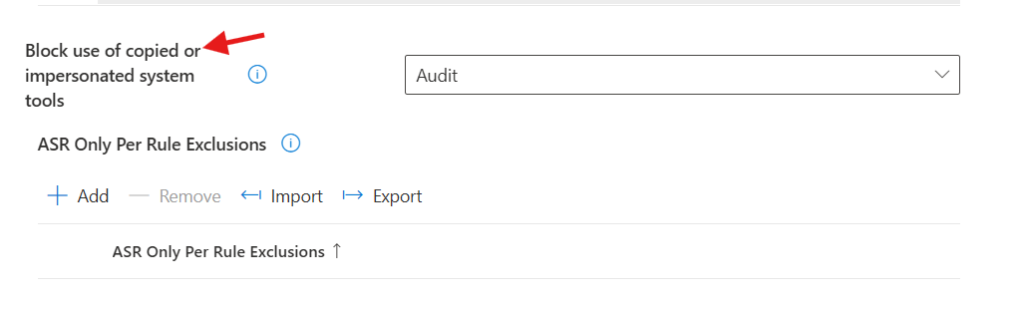
Available and Configurable
The rule was visible in the Intune ASR policy wizard under Endpoint Security > Attack Surface Reduction > Attack Surface Reduction Rules. Admins could configure it directly in the portal without any workarounds.
Silently Disappeared
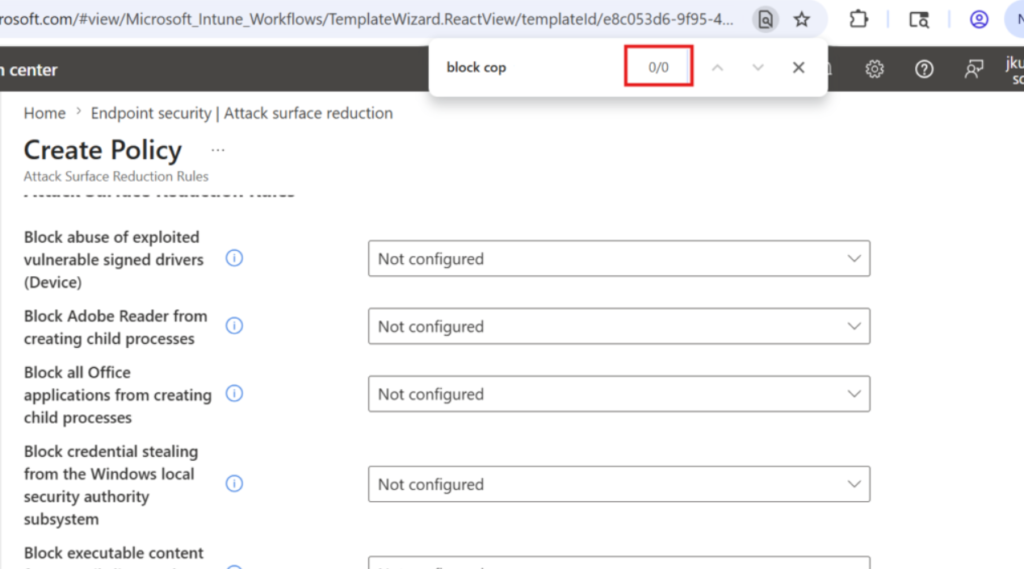
At some point, the setting vanished from the policy creation wizard. No announcement. No deprecation notice. Existing policies that already had the rule configured continued to enforce it without any issues, the rule was still working on devices. But if you tried to create a new policy, the setting was simply not there.
A Ctrl+F search for “block copy” inside the Create Policy wizard returned 0/0 results. Gone.
Support Case Opened
I opened a Microsoft support case specifically about this rule. The case was escalated to the Intune product team for investigation.
Product Team Confirms – Rule Restored
Microsoft’s support engineer confirmed that the product team investigated and identified the root cause. The rule is now back in the policy wizard. Their official explanation:
“The behaviour was caused by a recent user interface update that temporarily impacted the visibility of certain settings. The configurations themselves were not affected, only how they were displayed in the portal. After a fix deployment, everything is now functioning as expected.”
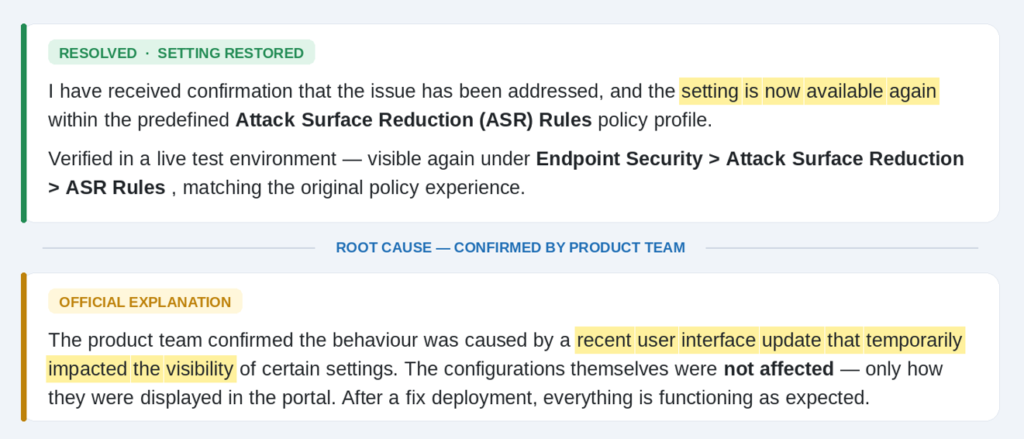
In other words: a UI update broke visibility for this setting across all tenants. The underlying configurations including any existing policies already using the rule were never touched. Only the display layer was affected.
What This Means for Your Environment
If You Had an Existing Policy
Your policy was fine the entire time. The rule continued to enforce Block (or whatever mode you had set) on enrolled devices throughout the outage. Your exclusions were intact. Nothing broke. You just couldn’t see the setting if you went to edit or review it in certain views.
If You Tried to Create a New Policy
You would have been unable to configure this rule via the standard wizard. The workaround during that period was OMA-URI:
OMA-URI: ./Device/Vendor/MSFT/Policy/Config/Defender/AttackSurfaceReductionRules
Value: c0033c00-d16d-4114-a5a0-dc9b3a7d2ceb=1
Or via PowerShell remediation:
Set-MpPreference -AttackSurfaceReductionRules_Ids c0033c00-d16d-4114-a5a0-dc9b3a7d2ceb -AttackSurfaceReductionRules_Actions EnabledNow That It Is Fixed
The setting is visible again under Endpoint Security > Attack Surface Reduction > Attack Surface Reduction Rules in new policy creation. If you deployed via OMA-URI as a workaround, you can migrate back to the native profile at your discretion, both methods work, but the native ASR profile is cleaner for reporting and management.
Why This Matters Beyond the Bug
This incident is a useful reminder of a few things:
- Silent UI regressions can affect all tenants simultaneously – this wasn’t a per-tenant issue. Every admin trying to create a new ASR policy was affected.
- Existing policies are resilient – the policy enforcement layer and the portal display layer are separate. A UI bug does not mean your security controls are broken.
- Know your fallback methods – OMA-URI and PowerShell scripts should always be in your toolkit for ASR rules that don’t surface in the GUI. The GUID is all you need.
- Microsoft Message Center is not the only signal – things can change in Intune without any announcement. Periodic checks of your policy configurations against expected baselines matter.
- Opening support cases gets results – this specific fix happened because the issue was formally escalated to the product team through a support case. If something looks wrong, raise it.
How to Verify in Your Environment
To confirm the rule is back and working in your tenant:
- Navigate to Endpoint Security > Attack Surface Reduction > Create Policy
- Select Windows 10, Windows 11, and Windows Server as platform, Attack Surface Reduction Rules as profile
- In the configuration step, scroll to or search for Block use of copied or impersonated system tools – it should now appear
- To verify it is enforcing on a device, run: (Get-MpPreference).AttackSurfaceReductionRules_Ids in PowerShell and confirm GUID c0033c00-d16d-4114-a5a0-dc9b3a7d2ceb is in the output
Final Thought
The ASR rule itself is worth enabling. Attackers impersonating system binaries is a real and common technique. Combined with your RMM tool exclusions (the Advanced Monitoring Agent paths are a good example of what typically needs to be whitelisted), this rule adds a meaningful detection and prevention layer without significant false positive risk on well-managed endpoints.
If you haven’t reviewed your ASR policy coverage recently, this is a good trigger to do so. Start with audit mode on any rules you haven’t validated, and check your per-rule exclusions are scoped as tightly as possible.