A Real-World Two-Day Incident in Microsoft 365
What Is Email Bombing?
Email bombing – also called subscription bombing or mail flooding is an attack technique where a threat actor floods a target mailbox with hundreds or thousands of emails in a very short window. The emails themselves are usually harmless. They are confirmation messages, newsletter signups, and welcome emails from real services. The goal is not to deliver malware via email.
The goal is to create chaos.
When a user’s inbox fills with hundreds of messages in minutes, they become anxious, overwhelmed, and distracted. That state of distraction is exactly what the attacker needs to make the next move which is almost never what you expect.
The Critical Misunderstanding About Email Bombing
Most people treat an email flood as a spam problem. It isn’t. In the vast majority of cases, the email flood is the setup for a social engineering attack. The attacker floods the inbox first, then calls the user posing as IT support. The flood is the excuse for the call. Always investigate beyond the emails themselves.
How the Attack Works
Modern email bombing attacks follow a well-established pattern called subscription bombing. Automated scripts submit a target email address to hundreds of real newsletter signup forms, free trial registrations, and notification services simultaneously. Because the resulting emails come from legitimate services with clean sending reputations, standard spam filters often let them through.
The email flood is only Phase 1. Here is the full attack chain as it unfolds in a real incident:
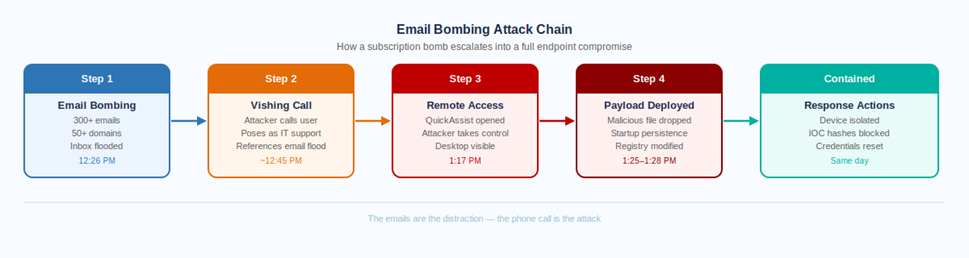
The key insight in this diagram is that the attack pivots from email to phone at Step 2. Once the inbox is flooded, the attacker calls the target posing as IT support, references the flood as the reason for the call, and asks the user to open a remote assistance tool. The user, already stressed, is primed to accept help.
With remote access established, the attacker has full control to deploy files, modify the registry, and establish persistence all within a matter of minutes.
Why QuickAssist?
QuickAssist is Microsoft’s built-in remote assistance tool, present on every Windows 10 and 11 device. Because it is a legitimate Microsoft application, it does not trigger endpoint protection alerts during normal use. Attackers specifically choose it over third-party remote access tools because it blends in. If QuickAssist is not required for legitimate IT support in your organization, consider restricting or disabling it via Intune configuration policy.
Day 1: Detecting the Flood
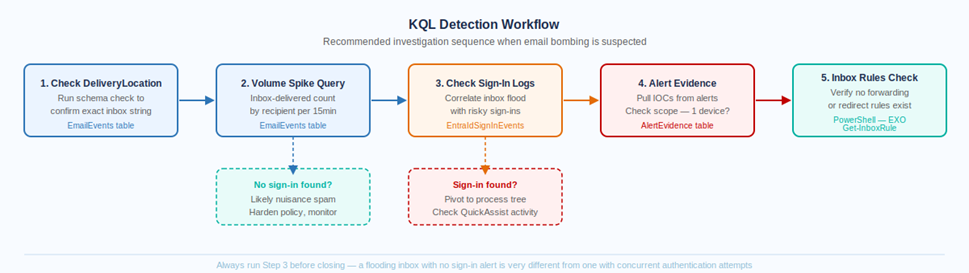
Step 1 – Confirm Your DeliveryLocation Values
Before writing any inbox-specific KQL queries in Microsoft Defender Advanced Hunting, always run this first. The DeliveryLocation field values vary between tenants, you cannot assume the string is ‘Inbox’ without checking.
| EmailEvents |
| | where Timestamp > ago(4h) |
| | where DeliveryAction == “Delivered” |
| | summarize count() by DeliveryLocation |
This tells you exactly what strings are present in your tenant. Use contains ‘nbox’ as a safe case-insensitive approach that works across variations.
Step 2 – Volume Spike Query
Once you know the DeliveryLocation string, run this to identify any mailboxes receiving an abnormal volume of inbox-delivered emails in a short window:
| EmailEvents |
| | where Timestamp > ago(4h) |
| | where DeliveryAction == “Delivered” |
| | where DeliveryLocation contains “nbox” |
| | summarize EmailCount = count(), |
| UniqueSenders = dcount(SenderFromAddress), |
| SenderDomains = dcount(SenderFromDomain), |
| Subjects = make_set(Subject, 20), |
| Senders = make_set(SenderFromAddress, 20) |
| by RecipientEmailAddress, bin(Timestamp, 15m) |
| | where EmailCount > 15 or UniqueSenders > 5 |
| | order by EmailCount desc |
Step 3 – The Critical Pivot: Check Sign-In Logs
This is the step most people skip. Once you confirm a flooding pattern, immediately check for suspicious authentication events for the same mailboxes in the same window. A flood with no sign-in activity is annoying spam. A flood with concurrent suspicious sign-ins is a live account takeover attempt.
| EntraIdSignInEvents |
| | where Timestamp > ago(24h) |
| | where AccountUpn == “targetuser@yourdomain.com” |
| | where RiskLevelDuringSignIn != “none” |
| or RiskLevelAggregated != “none” |
| | project Timestamp, AccountUpn, IPAddress, Country, |
| RiskLevelDuringSignIn, ConditionalAccessStatus, Application |
| | order by Timestamp desc |
When the Bombing Escalates to Compromise
In the incident covered by this post, the sign-in log check revealed suspicious activity. Combined with Defender alerts firing on the affected device, the investigation quickly expanded from an email problem to an endpoint compromise.
The Defender XDR process tree showed the full sequence: a remote assistance tool had been opened, followed shortly by an unknown executable, a startup folder modification, and a registry edit targeting an unrecognized ProgramData path. Two alerts had fired:
| Alert | Severity | Category |
| Possible initial access from an emerging threat | High | InitialAccess – unknown executable launched on endpoint |
| An uncommon file was added to the startup folder | Medium | Persistence – file dropped in user startup directory |
The IOC scope check confirmed the malicious files existed on a single device only, no lateral movement had occurred across the tenant. This is a critical query to run before deciding on response severity:
| AlertEvidence |
| | where Timestamp > ago(7d) |
| | where FileName in (“[suspicious-file-1]”, “[suspicious-file-2]”) |
| | summarize DeviceCount = dcount(DeviceName), |
| Devices = make_set(DeviceName) |
| by FileName, SHA1 |
If DeviceCount = 1, you are dealing with a contained single-device compromise. If DeviceCount is higher, your response needs to scale accordingly.
Containment Checklist – Day 1
Isolate the compromised device immediately via Defender XDR. Block confirmed malicious IOC hashes in the Tenant IOC list. Reset the compromised user account password and force MFA re-registration. Lower the Anti-Spam BCL threshold from the default 7 down to 5. Enable SPF Hard Fail in the Anti-Spam policy. Verify inbox rules via PowerShell Get-InboxRule, check for external forwarding.
If DeviceCount = 1, you are dealing with a contained single-device compromise. If DeviceCount is higher, your response needs to scale accordingly.
Countermeasures Applied
Responding to an email bombing incident that has escalated to endpoint compromise requires action at three distinct levels: the endpoint itself, the user account, and the email/anti-spam policy layer. All three need to be addressed closing only one leaves gaps.
Level 1 – Endpoint Countermeasures
Device Isolation
The compromised device was immediately isolated via Microsoft Defender XDR. Isolation cuts the device off from the network, it cannot communicate with other endpoints, access the internet, or reach internal resources. Critically, the device remains reachable by Defender for ongoing investigation and remediation actions while fully contained.
Device isolation is the single most important action in a confirmed endpoint compromise. Every minute a compromised device remains network-connected is a minute the attacker can use to move laterally, exfiltrate data, or establish additional footholds.
How to Isolate a Device in Defender XDR
Defender XDR → Assets → Devices → Select the device → Respond → Isolate device. The device receives the isolation command the next time it checks in with Defender typically within minutes. You will see the device status change to ‘Isolated’ in the portal.
IOC Hash Blocking
The SHA1 hashes of the confirmed malicious files identified in the alert evidence were added to the Defender Tenant Allow/Block List as IOC blocks. This means that if either file appears on any other device in the tenant, now or in the future, Defender will block its execution automatically.
Before blocking any hash, always verify the scope first using the AlertEvidence query above. Blocking a hash that exists on hundreds of legitimate devices will cause widespread disruption. Confirm DeviceCount = 1 (or a small known set) before proceeding.
In this case both hashes confirmed to a single device, safe to block tenant-wide immediately.
Inbox Rule Verification via PowerShell
After a remote access compromise, attackers frequently create inbox forwarding rules to silently copy emails to an external address. This persists even after the device is cleaned and provides ongoing intelligence access. Checking for malicious inbox rules is a mandatory post-compromise step.
| Get-InboxRule -Mailbox “compromiseduser@yourdomain.com” | |
| Select-Object Name, Enabled, ForwardTo, ForwardAsAttachmentTo, |
| RedirectTo, DeleteMessage, MoveToFolder | |
| Format-List |
Look specifically at ForwardTo and RedirectTo. Any external email address in these fields is a red flag and the rule should be removed immediately. In this incident, one rule was found, however after verification with the user it was confirmed to be a legitimate pre-existing organizational rule with no external forwarding. Always verify with the user before removing.
OAuth Consent and Graph API Audit
Attackers with brief remote access sometimes use the session to consent to a malicious OAuth application, granting it persistent delegated access to the mailbox long after the remote session ends. This is checked via GraphAPIAuditEvents in Advanced Hunting.
| GraphAPIAuditEvents |
| | where Timestamp > datetime(YYYY-MM-DD) |
| | where RequestUri has_any (“oauth2PermissionGrants”, |
| “messageRules”, “approvals”) |
| | project Timestamp, RequestUri, RequestMethod, |
| IpAddress, AccountObjectId, ResponseStatusCode |
| | order by Timestamp asc |
In this incident no malicious consent grants or API-based rule creation were found. This is a good outcome, but it must be verified explicitly. Do not assume it is clean without running the check.
Device Reimaging
Isolating a device and blocking file hashes is containment, not full remediation. The safest path to full remediation after a confirmed compromise involving persistence mechanisms (startup folder modification + registry writes) is a complete device wipe and reimage. This eliminates any artifacts that may not have been detected, any registry changes that survived the incident response, and any dormant payloads that have not yet executed.
The device should not be returned to the user until it has been fully reimaged from a known-clean baseline. A clean reimage combined with verified credential remediation gives you high confidence the device is safe to return to service.
Level 2 – User Account Countermeasures
Password Reset
The compromised user’s password was reset immediately after the device was isolated. Even though no credential harvesting was explicitly observed in the process tree, an attacker with remote desktop access for any duration of time must be assumed to have had the opportunity to observe, copy, or record credentials displayed on screen. A password reset is mandatory, not optional.
MFA Re-Registration
Resetting the password alone is not sufficient. If the attacker observed an MFA registration during the remote session or if they were able to access the authenticator app or SMS on the device, they could retain MFA access even after a password reset. The safest approach is to force MFA re-registration so the user sets up fresh authenticator enrollment on a trusted device.
How to Force MFA Re-Registration
In Microsoft Entra ID: Users → Select user → Authentication methods → Require re-register multifactor authentication. This invalidates all existing MFA methods and requires the user to set up fresh authenticator enrollment on next sign-in. Do this on a device confirmed to be clean, not the isolated device.
Active Session Revocation
After a password reset, revoke all active sessions to ensure the attacker cannot continue using any existing authenticated tokens. Even with a new password, previously issued access tokens may still be valid until they expire naturally.
| # Revoke all refresh tokens for the compromised user |
| Revoke-MgUserSignInSession -UserId “compromiseduser@yourdomain.com” |
This forces sign-out of all active sessions across all apps and devices, requiring fresh authentication with the new credentials.
Level 3 – Email and Policy Countermeasures
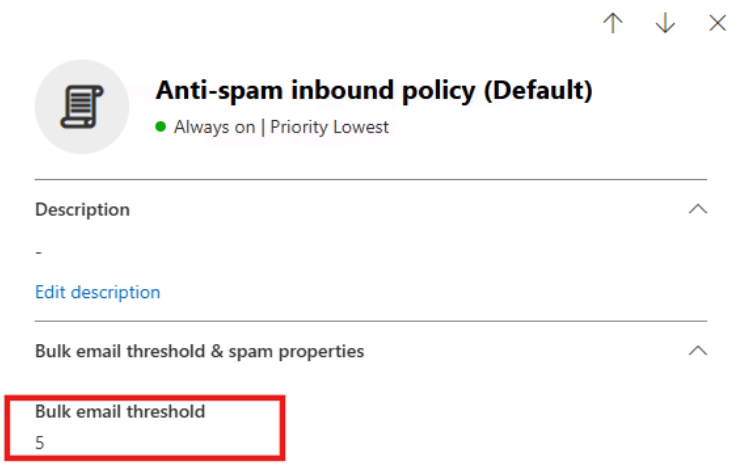
BCL Threshold and SPF Hard Fail – Day 1
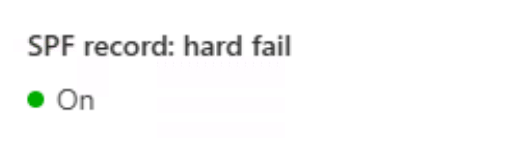
Two Anti-Spam policy changes were applied on Day 1 to reduce the volume of bombing emails reaching the inbox:
- Bulk Complaint Level (BCL) threshold lowered from the default 7 to 5. This makes the filter more aggressive against bulk mail, most subscription bombing emails carry high BCL scores from legitimate bulk sending platforms. Lowering the threshold causes them to be treated as spam rather than delivered.
- SPF Hard Fail enabled. This marks emails that explicitly fail the SPF sender validation check as spam. Low risk, high value, legitimate senders should pass SPF cleanly.
Foreign Language Filtering – Day 2
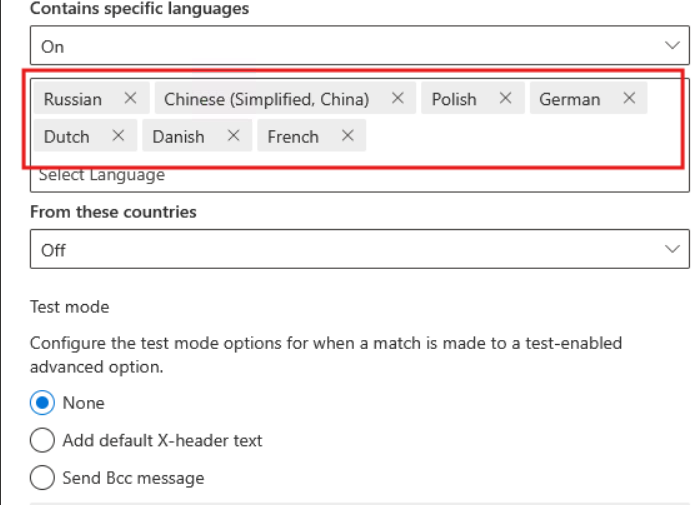
On Day 2, inbox telemetry showed that a large portion of the residual emails reaching the inbox were written in languages with no business relevance, Russian, Polish, German, Dutch, Danish, and Chinese. These were characteristic subscription bombing artifacts from international service registrations.
The Anti-Spam policy’s foreign language filter was enabled for these specific languages. Within the propagation window, inbox delivery of this content stopped.
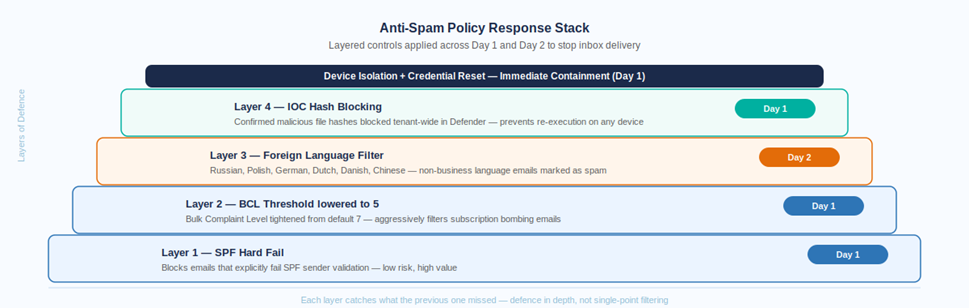
The key principle behind this layered approach is that no single control catches everything. Each layer covers a different attack surface, BCL for bulk reputation, SPF for sender authenticity, language filtering for subscription bombing residue. Applied in sequence with monitoring between each step, they progressively close the inbox gap without the risk of over-blocking that comes from applying everything at once.
Email Purge from Affected Mailboxes
The bombing emails that had already been delivered to the inbox needed to be removed. This was performed using Exchange Online PowerShell with a content search approach targeting the subscription bombing subject pattern across all affected mailboxes:
| # Preview first — always review before deleting |
| Search-Mailbox -Identity “user@yourdomain.com” \ |
| -SearchQuery ‘subject:”confirm” OR subject:”subscribe” |
| OR subject:”sign up” OR subject:”verification”‘ \ |
| -TargetMailbox “discoverymailbox@yourdomain.com” \ |
| -TargetFolder “EmailBombPurge” \ |
| -LogLevel Full |
| # Delete after reviewing the preview results |
| Search-Mailbox -Identity “user@yourdomain.com” \ |
| -SearchQuery ‘subject:”confirm” OR subject:”subscribe” |
| OR subject:”sign up” OR subject:”verification”‘ \ |
| -DeleteContent -Force |
Always run the search to a discovery mailbox first and review the results before executing the delete. Subscription bombing keywords like ‘confirm’ and ‘subscribe’ can match legitimate business emails if the scope is not reviewed carefully.
Complete Countermeasure Checklist
The following table summarizes every countermeasure applied across both days of this incident, organized by level. Use this as a reference checklist for similar incidents in your environment.
| Countermeasure | Level |
| Device isolated via Defender XDR – removed from network | Endpoint |
| Malicious IOC hashes blocked in Defender Tenant IOC list | Endpoint |
| Inbox rules verified – no external forwarding present | Endpoint / Mailbox |
| OAuth consent grants audited – none found | Endpoint / Mailbox |
| Device scheduled for full reimage before return to service | Endpoint |
| Compromised user password reset immediately | User Account |
| MFA re-registration forced in Entra ID | User Account |
| All active sessions revoked via PowerShell | User Account |
| BCL threshold lowered to 5 in Anti-Spam policy | Email Policy |
| SPF Hard Fail enabled in Anti-Spam policy | Email Policy |
| Foreign language filter enabled – Day 2 | Email Policy |
| Bombing emails purged from affected mailboxes | Email Policy |
Day 2: Residual Noise and the Language Filter
With the endpoint contained and account credentials secured, Day 2 shifted focus to the continued inbox noise. The user reported still receiving 30-40 suspicious emails. This is expected, subscription bombing generates emails from real services on their own schedules and the residual tail can persist for 24 to 48 hours even after Day 1 policy controls take effect.
Reviewing the Day 2 inbox telemetry showed a clear pattern: the residual emails were predominantly foreign language newsletter and subscription content. Dutch, Polish, German, Russian, Danish, and Chinese emails from domains with no connection to the organization’s business. Enabling the foreign language filter in the Anti-Spam policy resolved this within the policy propagation window.
The user continued reporting throughout the day, which is exactly the right behavior. Every reported email provides telemetry that helps the security team monitor whether the volume is stabilizing or escalating.
Recommendations for Your Organization
Immediate – If You Are Currently Under Attack
- Run the DeliveryLocation check query to confirm your tenant’s inbox string values.
- Run the volume spike query with a 4-hour window to confirm scope and affected mailboxes.
- Pivot immediately to sign-in logs – this single step determines your response severity.
- If a device is confirmed compromised, isolate it before doing anything else.
- Reset the compromised user’s password and force MFA re-registration on a clean device.
- Revoke all active sessions via PowerShell.
- Apply BCL 5 and SPF Hard Fail to the Anti-Spam policy.
- Check inbox rules via Get-InboxRule and verify with the user before removing anything.
Proactive – Before an Incident Occurs
- Create a custom detection rule in Defender XDR from the volume spike query, set it to run hourly with Medium severity. Automatic alerting beats manual hunting.
- Review whether QuickAssist is required in your environment. If not, restrict it via Intune policy. This eliminates the most common remote access vector for this attack type.
- Establish a verified IT support callback procedure. Users should know that IT will never call unsolicited and request remote access. A simple callback verification process breaks the social engineering chain.
- Include email bombing and vishing scenarios in your security awareness training. Technical controls stop the email. Awareness stops the phone call.
- Consider Conditional Access policies with sign-in risk enforcement, high-risk sign-ins should require step-up MFA or be blocked even when credentials are valid.
Summary
Email bombing is a multi-layer attack that requires a multi-layer response. The emails are addressed at the policy level. The endpoint is addressed through isolation, IOC blocking, and reimaging. The user account is addressed through credential reset, MFA re-registration, and session revocation. The mailbox is addressed through inbox rule verification, OAuth auditing, and email purge. Skipping any of these layers leaves a residual risk.
The most important single action in this entire response was checking the sign-in logs immediately after confirming the email flood. That one query transformed the response from a spam ticket into an active incident. Everything else followed from that pivot.