Here Is the Intune Policy to Stop It Before It Arrives.
“These changes were announced April 24, 2026 and are currently rolling out to Windows Insider channels. Microsoft confirmed commercial rollout guidance is coming. The Intune policies in this guide can be configured now – before these changes reach your managed fleet.”
What changed -Windows Insider Blog, April 24, 2026
Microsoft published three significant changes to how Windows 11 handles updates – rolling out now to Experimental and Beta channels, shipping broadly in the May 2026 update.
1. Skip updates during OOBE – users can now bypass updates entirely during device setup and get to the desktop faster.
2. Pause updates with no ceiling – users can now re-pause updates indefinitely. 35 days at a time, unlimited resets. No enforced update ever required.
3. Restart and shut down without updating – the Power menu now separates power actions from update actions. Restart = just restart. No forced update.
Microsoft’s stated intent: give users more control and reduce disruption. The security implication: each of these changes gives unmanaged devices a path to stay unpatched permanently. The Intune implication: without explicit policy, your managed fleet inherits all three of these user-controlled behaviours.
Why These Changes Matter for Enterprise IT
Microsoft’s April 24 blog post by Aria Hanson described these changes as responding to user feedback – specifically, disruption caused by untimely updates and not enough control over when updates happen. These are legitimate usability complaints. Users have historically been frustrated by forced restarts at inconvenient times, and the changes Microsoft made are a reasonable response to that feedback.
But every change that gives an unmanaged user more control over deferring or skipping updates is a change that widens the window between vulnerability disclosure and patch deployment on your managed fleet – unless you explicitly govern it via Intune.
The three changes Microsoft shipped are not malicious. They are designed with security in mind. Microsoft explicitly noted in the article that the pause-forever behaviour is ‘not applicable to commercial devices where the out of box experience is being managed.’ But that qualifier requires you to have configured the management. If you have not, the default Windows experience applies – and that experience now includes indefinite pause capability.
This guide covers the security implication of each change, the exact Intune policy that governs it, and the recommended configuration for enterprise deployments.
Change 1 – Pause Updates With No Ceiling (The Primary Risk)
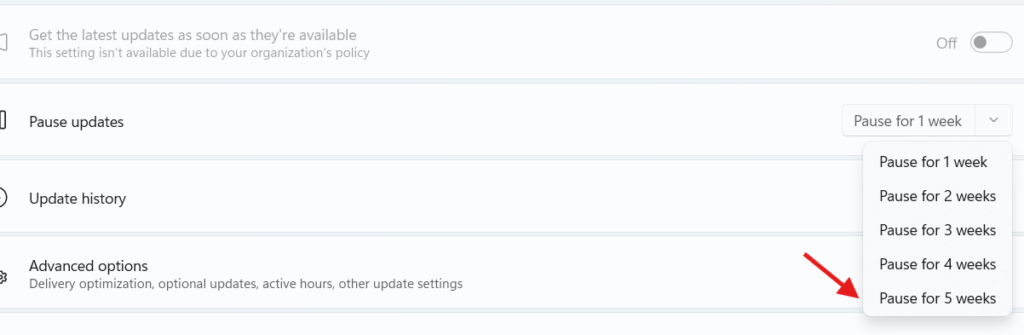
This is the most significant change from a security governance perspective. Prior to this update, users could pause updates for up to 35 days and after the pause expired, they were required to install pending updates before they could pause again. That 35-day hard limit provided a natural enforcement mechanism.
The new behaviour removes that enforcement ceiling entirely. Users can now re-pause for up to 35 days at a time with no limit on how many times they reset the pause end date. In practice, a motivated user can stay unpatched indefinitely by simply resetting the pause every 35 days. There is no system prompt requiring them to install updates first.
The Security Implication – What Indefinite Pause Means
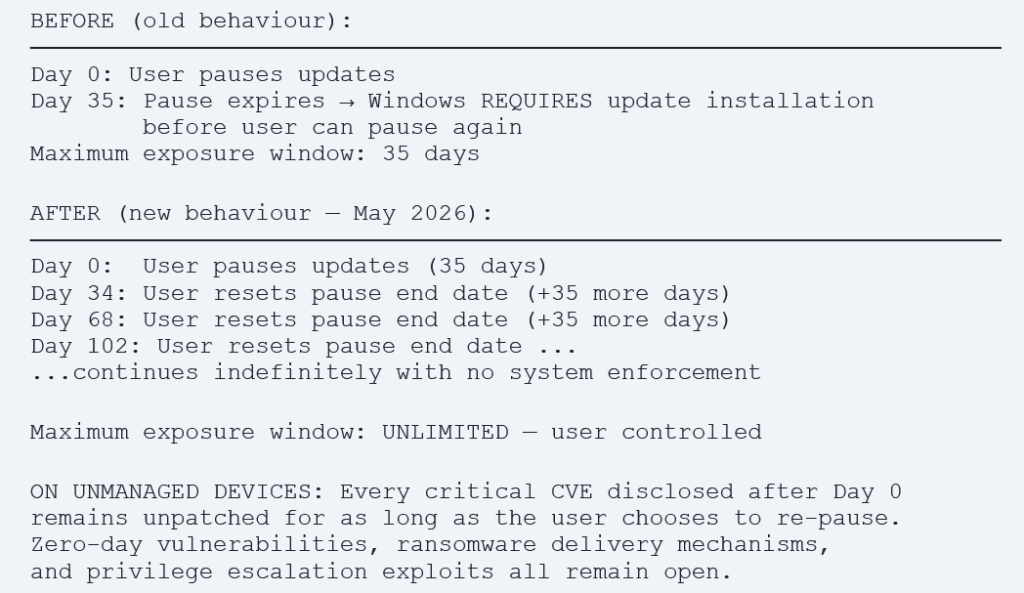
What Microsoft said – direct quote context
From the Windows Insider Blog, April 24, 2026: ‘When 35 days just isn’t long enough, we are also enabling you to extend the pause end date as many times as you need. This means you can now re-pause for up to 35 days at a time, with no limits on how many times you can reset the pause end date.’ Microsoft also noted: ‘This is not applicable to commercial devices where the out of box experience is being managed.’ That qualifier requires you to have configured the Intune policy below.
The Intune Policy – Block Pause Updates Ability
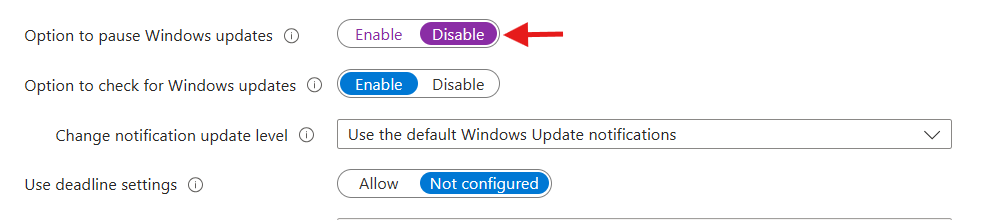
The exact setting that prevents users from pausing updates entirely is available in the Intune Settings Catalog. This policy removes the Pause updates control from the Windows Update settings page, users see the option is not available and cannot interact with it.
- Navigate: Devices → Configuration → + Create policy → Windows 10 and later → Settings catalog.
- Name: e.g. ‘WIN-UPDATE — Block User Pause Ability’.
- Add setting: Search ‘pause updates’ → Windows Update for Business category → select ‘Block Pause Updates Ability’ (Device).
- Set value: Block.
Assign: Assign to all managed Windows device groups. This is a Device-scoped policy — assign to device groups, not user groups.

The Compliance Deadline Policy – The Real Enforcement Mechanism
Blocking the pause button addresses the user-facing control but does not fully govern compliance timing. The correct enterprise approach combines the pause block with a Compliance Deadline policy – which enforces that security updates must be installed within a defined number of days regardless of any other setting.
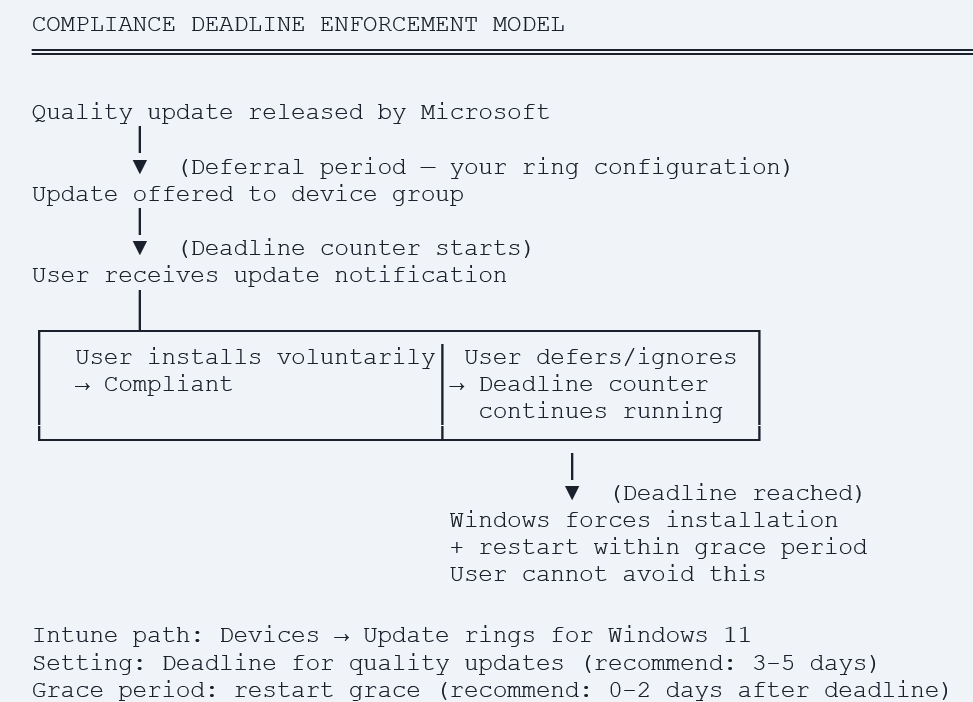
- Configure deadline: Devices → Update rings for Windows 10 and later → select your ring → Properties → Update settings.
- Deadline for quality updates: 3–5 days is the Microsoft recommended enterprise baseline. This means the update must be installed within 5 days of being offered regardless of pause state.
- Grace period: 1–2 days. After the deadline, users have this many days to restart before Windows forces the restart.
- Auto reboot before deadline: Set to Yes. This allows Windows to restart outside active hours before the deadline if the device is idle.

Change 2 – Skip Updates During OOBE
Earlier in 2026, Microsoft added the ability to skip Windows Update entirely during the Out-of-Box Experience – the setup flow users go through when first setting up a new Windows 11 device. Users now see a screen offering the choice to update immediately and get the latest features and fixes, or skip updates and get to the desktop faster.
For consumer devices this is a convenient choice. For enterprise devices, a new machine that skips updates during OOBE arrives on the network without current security patches – including potentially patches for vulnerabilities that have active exploits. The first time the device touches a corporate network or accesses corporate resources, it is doing so in an unpatched state.
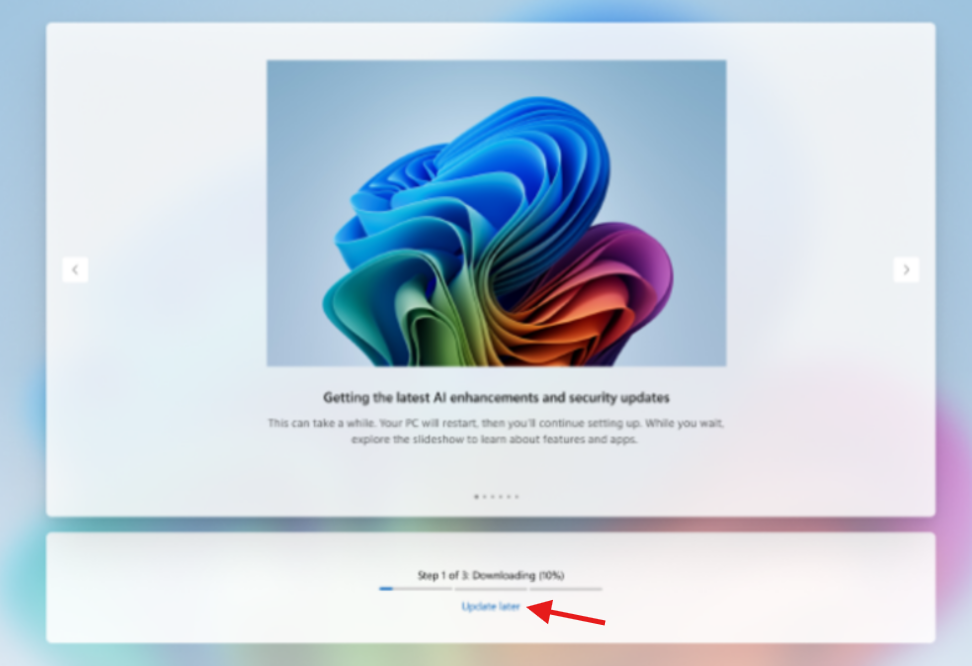
Microsoft Image Above:
The Risk – Unpatched Devices Joining the Network
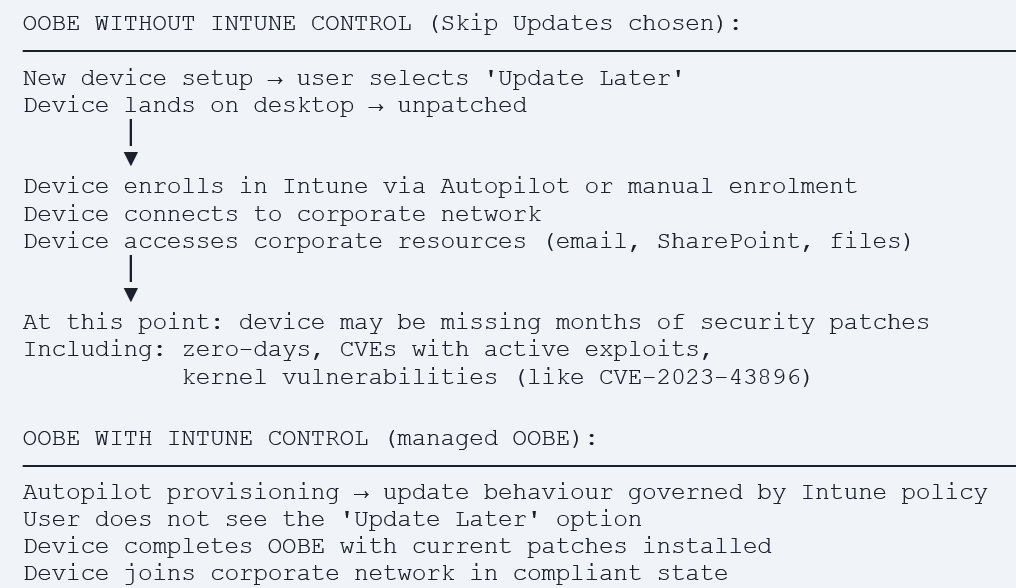
The Intune Control – Autopilot + Windows Update Policy
Microsoft explicitly noted in the blog post that the OOBE skip-updates option is ‘not applicable to commercial devices where the out of box experience is being managed.’ Managed in this context means Autopilot-provisioned devices with a Windows Update policy in Intune.
Option 1 – Windows Autopilot (Recommended for new device provisioning)
Autopilot-provisioned devices have their OOBE managed by the Autopilot deployment profile. Update behaviour during OOBE is governed by the Windows Update ring assigned to the device before provisioning. Users do not see the consumer skip-updates option.
- Verify: Devices → Windows → Windows enrollment → Deployment profiles → confirm all corporate device profiles are active.
- Confirm the device group has an Update ring assigned before Autopilot provisioning completes.
Option 2 – Force Update Compliance Immediately Post-Enrolment
For devices not going through Autopilot, use a combination of a Compliance Policy and Conditional Access to ensure devices update before they can access corporate resources:
- Create Compliance Policy: Devices → Compliance → + Create policy → Windows 10 and later. Set OS minimum version to your current baseline (e.g. build 26200.x for 25H2 current patch level).
- Set non-compliance action: Mark device non-compliant immediately.
- Conditional Access: Require device compliance as a grant control. Until the device installs current patches and becomes compliant, it cannot access Microsoft 365 resources.

Option 3 – Expedite Update Deployment for New Enrollments
For new devices that joined unpatched, use the Expedite quality updates feature in Intune to immediately push current security updates without the normal deferral period:
- Navigate: Devices → Update rings for Windows 10 and later → + Expedite update.
- Select: the current month’s quality update.
- Assign: to a dynamic device group that captures recently enrolled devices (last 7 days).
- Effect: Updates deploy immediately, bypassing any configured deferral period. Device becomes compliant within hours.
Change 3 – Restart and Shut Down Without Installing Updates
The third change is the most nuanced of the three. Previously, when a Windows update was pending, the Power menu replaced the standard Restart and Shut Down options with ‘Update and restart’ and ‘Update and shut down’ effectively requiring the update to install before the device could be powered down. Users who needed a quick restart had to install the pending update to do it.
The new behaviour separates power actions from update actions. The Power menu now always shows standard Restart and Shut down options alongside the update variants. Users can restart or shut down without installing the pending update. This is a better user experience. It is also a mechanism that allows users to continuously defer updates by always choosing Restart rather than Update and restart.
The Behaviour Change – Before and After
| Scenario | Old Power Menu | New Power Menu (May 2026) |
| No update pending | Restart / Shut down | Restart / Shut down (no change) |
| Update pending | Update and restart / Update and shut down only. Standard restart not shown. | Update and restart / Update and shut down PLUS Restart / Shut down. User chooses. |
| User action | Must install update to restart – effective forced update at restart | Can restart without update – indefinite deferral via repeated clean restart |
| Enterprise risk | Lower – update installs at every restart | Higher – user can restart indefinitely without updating unless deadline is enforced |
Why This Matters – The Active Hours Gap
The Power menu change interacts with another Windows Update setting: Active Hours. Active Hours define the window when Windows will not automatically restart to install updates. If a user’s active hours cover most of the day, and they always choose Restart (not Update and restart) when shutting down, the compliance deadline is the only remaining enforcement mechanism.
This is why the Compliance Deadline policy described in the Change 1 section is not optional, it is the single control that closes all three of these gaps simultaneously. A device that skips OOBE updates, repeatedly pauses, and always chooses Restart over Update and restart will still be forced to install the update when the deadline arrives.
The Intune Control – Active Hours + Compliance Deadline
Configure Active Hours via Intune
Limit the window during which Windows will not restart for updates. A narrower active hours window means Windows has more time to install updates automatically:
- Navigate: Devices → Configuration → Settings catalog → Windows Update for Business.
- Add setting: Active hours start and Active hours end. Set to cover only actual working hours (e.g. 8am–6pm).
- Add setting: ‘Configure active hours max range’ → set to 12 or fewer hours. This limits the maximum window users can set themselves.
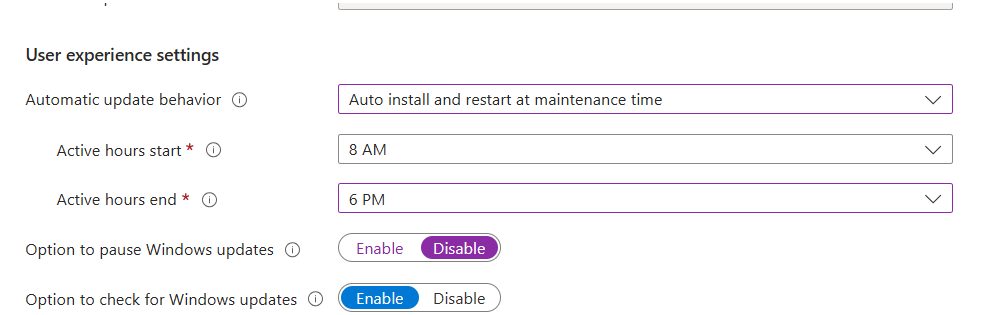
Configure Auto Restart Outside Active Hours
Ensure devices restart to install updates automatically when the device is idle outside active hours:
- In your Update ring: Devices → Update rings → [ring] → Properties.
- Set: Auto restart before deadline = Yes.
- Effect: If a user has not restarted by the deadline, Windows will restart the device automatically outside active hours — without requiring any user interaction.
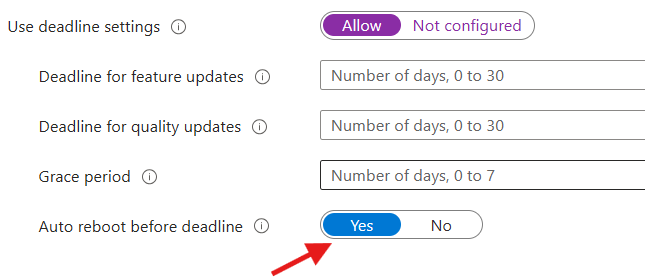
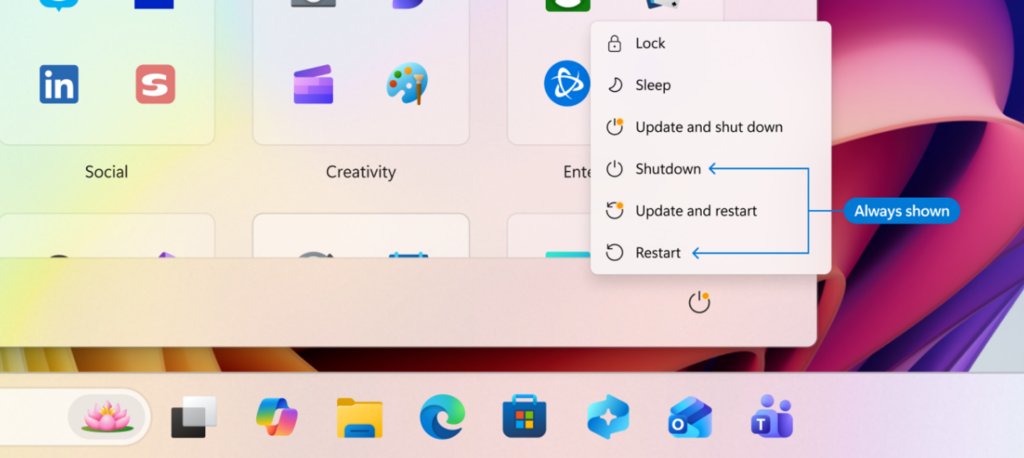
Microsoft Image above:
Complete Intune Policy Reference – All Three Changes
he table below consolidates every Intune setting needed to govern all three Windows Update behavior changes into a single reference. Deploy these in combination for full coverage.
| Setting | Intune location | Recommended value | Governs | P |
| Block Pause Updates Ability | Settings catalog → Windows Update for Business | Block | Change 1 | 1 |
| Deadline for quality updates | Update rings → Update settings | 5 days | Change 1 + 3 | 1 |
| Grace period after deadline | Update rings → Update settings | 2 days | Change 1 + 3 | 1 |
| Auto restart before deadline | Update rings → Update settings | Yes | Change 3 | 1 |
| Active hours start | Settings catalog → Windows Update for Business | 8 | Change 3 | 2 |
| Active hours end | Settings catalog → Windows Update for Business | 18 | Change 3 | 2 |
| Configure active hours max range | Settings catalog → Windows Update for Business | 12 | Change 3 | 2 |
| Autopilot deployment profile | Devices → Windows enrollment → Deployment profiles | Corporate profile assigned | Change 2 | 1 |
| Minimum OS compliance version | Devices → Compliance → Windows 10 and later | Current patch build | Change 2 | 1 |
| Conditional Access: require compliance | Entra ID → Conditional Access → Policies | Required grant control | Change 2 | 1 |
P = Priority: 1 = deploy immediately, 2 = deploy this month
Verify Your Policies Are Working – Device Query and Reports
Check Pause Block is Applied Fleet-Wide
// Confirm Block Pause Updates Ability is applied on managed devices
DeviceInfo
| join kind=inner (DeviceProperties) on DeviceId
| where PropertyName == 'SetDisablePauseUXAccess'
| where PropertyValue != '1'
| project DeviceName, OSVersion, PropertyValue, LastSeen
| order by LastSeen desc
// Every result = device where pause block is NOT applied
Check Compliance Deadline is Configured
// Find devices not receiving quality update deadline enforcement
DeviceInfo
| join kind=inner (DeviceProperties) on DeviceId
| where PropertyName == 'QualityUpdateDeadline'
| where toint(PropertyValue) > 7 or isnull(PropertyValue)
| project DeviceName, OSVersion, PropertyValue
// Deadline > 7 days or not set = insufficient enforcement
Check Update Compliance Status
The Autopatch Update Risk Visibility report (new as of April 22, 2026) classifies every managed device as Current, Exposed, or Critical based on patch compliance. This is your primary fleet-wide visibility tool:
- Navigate: Reports → Windows updates → Autopatch update risk visibility.
- Review: Devices classified as Critical or Exposed – these are your priority remediation targets.
- Filter by risk: Select Critical to see devices with the highest patch gap. Export the list and cross-reference with your update ring assignments.
The Bigger Picture – Microsoft’s Secure Future Initiative
It is worth being clear: Microsoft’s motivation for these changes is not to make devices less secure. The Windows Insider Blog post explicitly states these improvements are aligned with the Secure Future Initiative and that ‘Windows is grounded in keeping devices secure by design and secure by default.’
Microsoft also noted they have ‘made steady progress in reducing the download and overall time it takes to apply a Windows update’ and are building automatic recovery for update failures directly into Windows so updates that previously failed silently will now retry automatically without user intervention.
The tension is not between Microsoft and enterprise security. The tension is between consumer-friendly defaults and enterprise governance requirements. Microsoft’s defaults are designed for the majority of Windows users who are not in managed enterprise environments. Enterprise IT administrators are responsible for configuring the policies that govern managed devices appropriately for their security requirements.
These three policy settings, Block Pause Updates, Compliance Deadline, and Active Hours Max Range are the configuration that converts a consumer-friendly default into an enterprise-governed deployment. Without them, your managed fleet inherits consumer defaults. With them, you own the update timeline.
Action Checklist – Prioritised for Intune Admins
Priority 1 – Deploy This Week
- Create Settings Catalog profile: Windows Update for Business → Block Pause Updates Ability → Block. Assign to all managed Windows device groups.
- Verify existing Update rings have Deadline for quality updates set to 5 days or fewer. Update any ring where deadline is not configured or exceeds 7 days.
- Verify Auto restart before deadline = Yes on all Update rings.
- Run Device Query to identify devices where SetDisablePauseUXAccess is not set to 1 – these are devices where users can still pause indefinitely.
Priority 2 – Deploy This Month
- Configure Active Hours via Settings Catalog: Start 8, End 18, Max range 12.
- Verify Autopilot deployment profiles are active and assigned to all corporate device groups – OOBE skip-updates does not apply to managed Autopilot provisioning.
- Review Compliance Policy minimum OS version – update to reflect current monthly patch level.
- Confirm Conditional Access policy requires device compliance as a grant control.
- Review Autopatch Update Risk Visibility report (Reports → Windows updates) – classify your current fleet as Current, Exposed, or Critical.
Ongoing – Monthly
- Run the Autopatch update risk visibility report after each Patch Tuesday – confirm Critical device count is trending down.
- After any new Windows Update behaviour changes announced by Microsoft – review whether any Intune policy update is required.
- Verify Block Pause Updates Ability policy assignment has not drifted – Device Query check monthly.
References
| Resource | URL |
| Windows Insider Blog – April 24, 2026 | https://blogs.windows.com/windows-insider/2026/04/24/your-windows-update-experience-just-got-updated/ |
| Block Pause Updates Ability – Policy CSP | https://learn.microsoft.com/en-us/windows/client-management/mdm/policy-csp-update#setdisablepauseuxaccess |
| Configure compliance deadline – Intune Update rings | https://learn.microsoft.com/en-us/intune/protect/windows-update-for-business-configure |
| Windows Update for Business – CSP reference | https://learn.microsoft.com/en-us/windows/client-management/mdm/policy-csp-update |
| Autopatch update risk visibility report | https://aka.ms/ReassessProtect |
| Windows Autopilot – OOBE management for commercial devices | https://techcommunity.microsoft.com/blog/windows-itpro-blog/get-ready-for-windows-quality-updates-out-of-the-box/4434498 |
| Intune Settings Catalog – Windows Update settings | https://learn.microsoft.com/en-us/intune/configuration/settings-catalog |
| Windows quality update compliance deadlines | https://learn.microsoft.com/en-us/windows/deployment/update/wufb-compliancedeadlines |