Source: Microsoft Defender for Endpoint Blog – March 9, 2026 | GA in Defender XDR | Platform: Defender + Intune
The problem in one paragraph
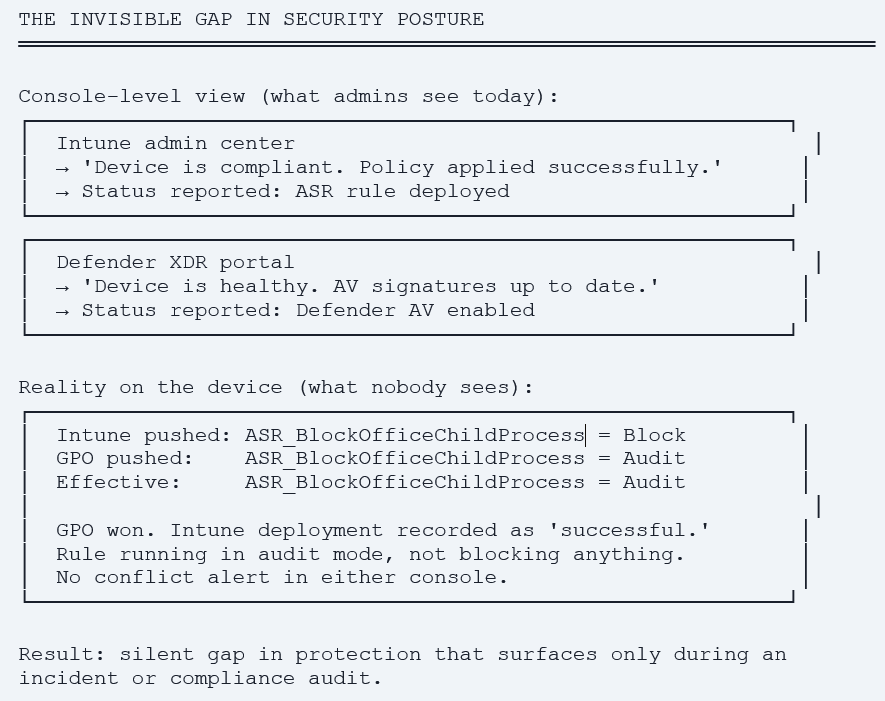
You deploy ASR rules via Intune. Intune shows ‘compliant’. Defender Antivirus shows ‘enabled’. Three weeks later, an incident occurs and post-mortem reveals the ASR rule was never actually enforced on the device because a local Group Policy override took precedence.
This pattern is common. Security policies arrive from multiple sources like Intune, on-prem GPO, local admins, configuration drift. Each console reports its own view of compliance. None of them tells you what is actually enforced on the device right now. Microsoft just shipped a fix. Defender Effective Settings is now GA, a device-level view that shows what is actually enforced, where the configuration came from, and which competing attempts were evaluated but did not win. Here is how to use it.
The Gap Effective Settings Closes
Every Intune admin has lived through this scenario. You deploy an Attack Surface Reduction rule fleet-wide via Endpoint Security. The Intune admin center shows green checkmarks across all assigned devices. Defender for Endpoint reports the rule as enabled. Compliance dashboards look clean. Then a Patch Tuesday vulnerability is disclosed that the ASR rule should have mitigated and a device on your fleet still falls victim to it.
The post-incident investigation reveals something uncomfortable: the ASR rule was not actually enforced on that device. A local Group Policy override took precedence. The Intune profile was applied but the device was simultaneously receiving a competing configuration from another management source, and that other source won. Neither console showed you the conflict.
This gap is not Microsoft’s fault. It is structural. In modern enterprise environments, security policy can reach a device from at least four different places: Microsoft Intune via MDM channel, on-premises Group Policy Objects via domain controllers, local admin configurations via PowerShell or registry edits, and Defender’s own internal enforcement logic. Each of these channels reports its own state. None of them, until now, told you what was actually being enforced.
Why This Is a Bigger Problem Than It Looks
What this gap costs in practice
Three real consequences happen when security policy reaches a device but is overridden silently. First, intended protections are not enforced your ASR rule is running in audit mode when you configured it to block. Second, incident investigations take longer analysts spend time confirming what was actually active during the attack timeline. Third, compliance audits get uncomfortable your Intune reports show the policy deployed, but evidence on the device shows it was not enforced. Effective Settings is the verification layer that closes all three.
What Defender Effective Settings Actually Shows
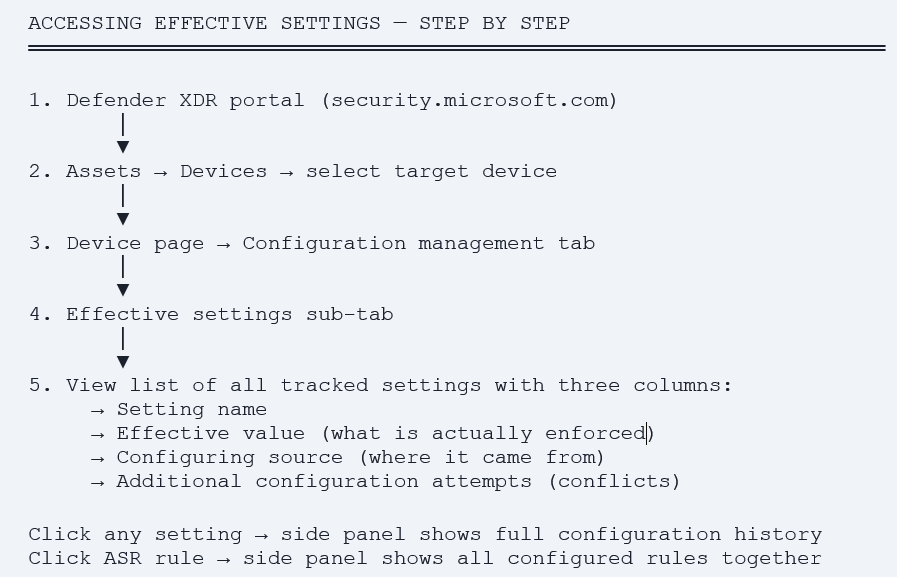
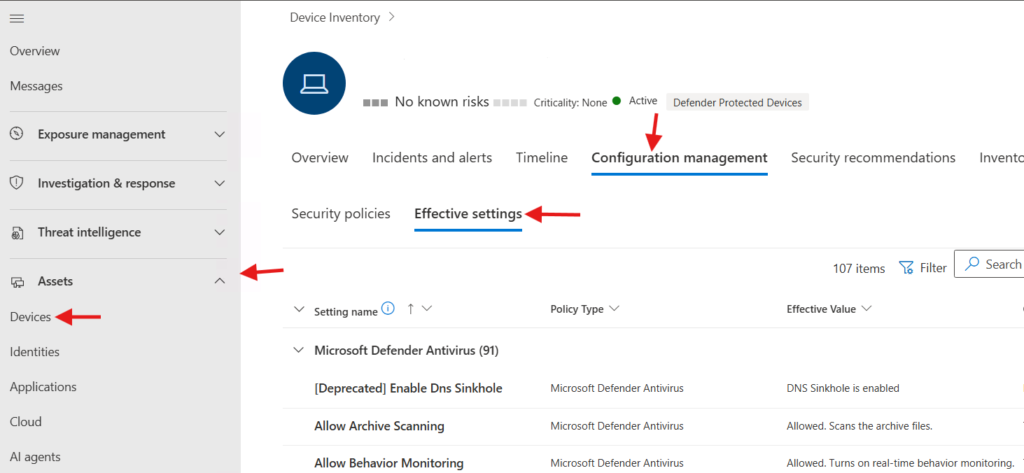
The Effective Settings experience went generally available in early March 2026 and is documented on Microsoft’s official Defender for Endpoint blog. It is a new tab on the device page in Defender XDR, accessible via Configuration management → Effective settings. The tab provides three pieces of information for every security setting it tracks:
| Column | What it tells you |
| Effective value | The actual value enforced on the device right now regardless of what any console reports. This is the ground truth. |
| Configuring source | Which management channel is responsible for the effective value – Intune, GPO, local admin, MDM CSP, or Defender default. |
| Additional configuration attempts | Other sources that tried to set this value but were not applied. These are the conflicts that silently lose and they used to be invisible. |
Initial Scope – Windows Antivirus Settings
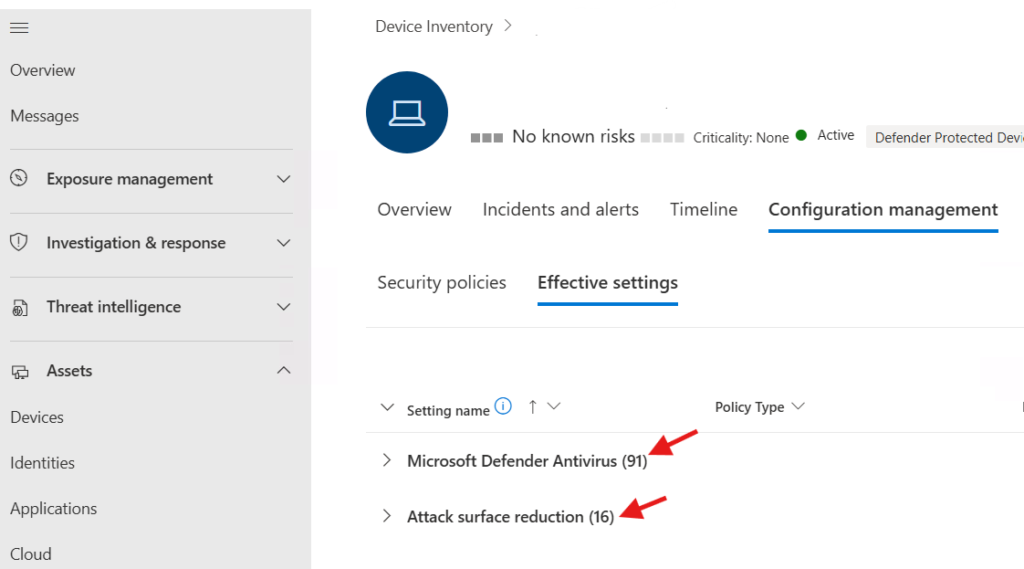
At GA, Effective Settings covers Windows platform antivirus security settings specifically, Attack Surface Reduction rules and Microsoft Defender Antivirus exclusions. This is a deliberate starting point. ASR rules and AV exclusions are precisely the settings most prone to silent override, conflict, and drift. Excluding the wrong path from real-time scanning can negate hours of policy work. An ASR rule in audit mode when it should be in block mode is a security gap. These two categories are where the value of effective settings is most immediate.
Microsoft’s stated roadmap is to expand coverage across additional platforms (Linux, macOS) and a broader set of security settings configured through the Microsoft 365 Defender and Intune portals. No specific timeline has been announced, but the architecture is clearly designed to extend.
Where to Find It – Device Page Navigation
Two Side Panel Views – Simple and Complex
Microsoft documented two side panel layouts in the announcement. For simple settings (single value, one source) the side panel shows the effective value, the source that set it, and a clean list of any other sources that attempted to set it but were overridden.
For complex layered scenarios like Defender Antivirus exclusions and ASR rules specifically the side panel shows all configured rules together with their individual effective values, configuring sources, and additional configuration attempts. This is the view that solves the daily admin pain. You see your full ASR rule inventory on a device in one panel, with the conflict picture for each rule visible without jumping between consoles.
Why this view matters most for ASR
ASR rules are the highest-value, most-misconfigured Defender feature in enterprise deployments. Each of the 19 ASR rules has three valid states – Audit, Block, or Disabled. A rule deployed by Intune in Block mode can be silently demoted to Audit by a GPO. The same rule can be set to Disabled by a local script run during troubleshooting and never reverted. Without the Effective Settings view, the only way to confirm an ASR rule is in Block mode on every device in your fleet was to RDP in and run Get-MpPreference manually. With the view, you check one panel per device or build a query across devices.
Three Concrete Use Cases for Intune Admins
Use Case 1 – Validating Intune Deployment Actually Took Effect
The most common use case. You deploy a new ASR rule via Intune Endpoint Security → Attack Surface Reduction → Attack surface reduction rules profile. Intune shows the profile as successfully deployed. You want to confirm on a real device that the rule is enforced in Block mode and that no other source has overridden it.
- Deploy the policy: Intune admin center → Endpoint Security → Attack Surface Reduction → + Create policy → Windows 10, Windows 11, and Windows Server → Attack surface reduction rules.
- Wait for sync: Default sync cycle is 8 hours. Force sync via Settings → Accounts → Access work or school → Sync, or use Microsoft Defender for Endpoint → Run device sync action.
- Open Defender XDR: security.microsoft.com → Assets → Devices → select target device → Configuration management → Effective settings.
- Verify the rule: Find your ASR rule in the list. Confirm Effective value = Block. Confirm Configuring source = Microsoft Intune. Confirm Additional configuration attempts is empty or only shows lower-priority sources you expect.
What ‘green’ looks like
A correctly deployed ASR rule via Intune should show: Effective value = Block (or your configured value), Configuring source = Microsoft Intune (MDM), Additional configuration attempts = empty. Any deviation from this means investigation is required, either an unexpected conflict source, or the Intune policy did not deploy as configured.
Use Case 2 – Troubleshooting Policy Conflicts
The use case that justifies the entire feature. You deployed an Intune policy. Reports show success. The protection is not actually enforced. Effective Settings tells you exactly why.
Common conflict scenarios you will see surface for the first time:
| Scenario | What Effective Settings shows | Resolution |
| Co-managed device with on-prem GPO | Configuring source = Group Policy. Additional attempts = Microsoft Intune (overridden). | Either update GPO to match Intune, or set MDM Wins in co-management workloads. |
| Local admin disabled rule via PowerShell | Configuring source = Local. Additional attempts = Microsoft Intune. | Investigate which user has local admin rights. Re-deploy via Intune with Tamper Protection enabled. |
| Defender Security Settings Management overlap | Configuring source = MicrosoftSense. Additional attempts = Microsoft Intune. | Confirm device is correctly classified as enrolled or unenrolled. Adjust scope. |
| Legacy SCCM policy still on device | Configuring source = ConfigMgr. Additional attempts = Microsoft Intune. | Remove stale SCCM policy. Set MDM Wins for security workload. |
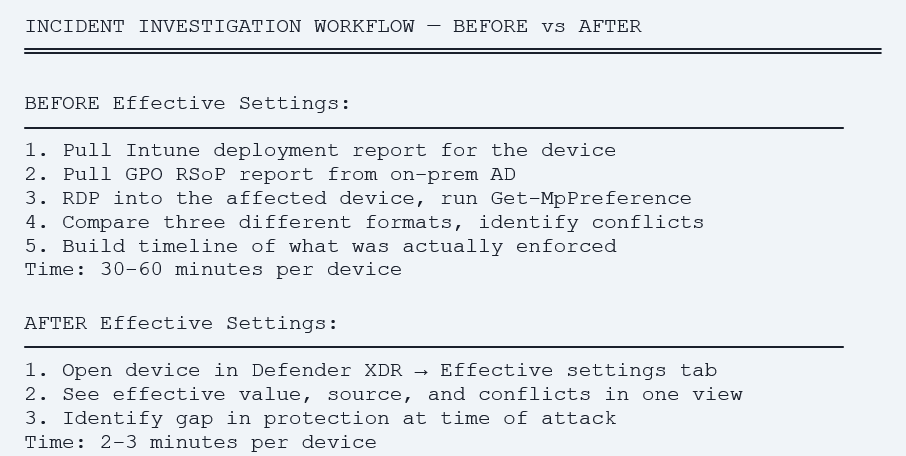
Use Case 3 – Incident Investigation Forensics
The use case SOC analysts will appreciate most. During an active incident, the question is not ‘what should have been enforced’ but ‘what was actually active on this device when the attack succeeded.’ Effective Settings answers that question directly.
Specifically, analysts can confirm: which ASR rules were actually in Block mode at the time of the incident, which Defender AV exclusions were active that may have hidden the attacker’s activity from scanning, and which management source set each configuration. This eliminates a class of post-incident investigation work where analysts cross-reference Intune deployment reports, GPO settings, and registry exports to build a picture of what the device was actually doing during the attack.
How to Use Effective Settings Alongside Intune – A Workflow
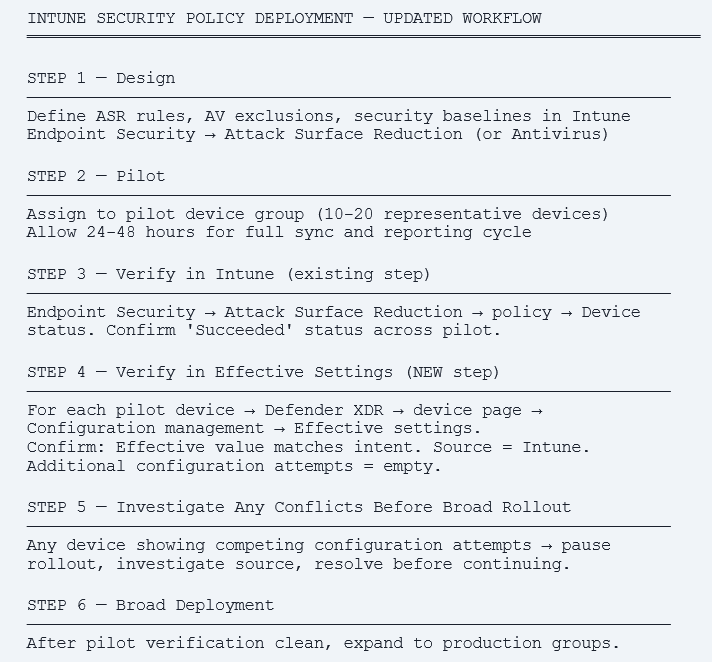
Effective Settings does not replace your Intune deployment workflow. It augments it. The recommended pattern is to treat Effective Settings as the verification step at the end of every Intune security policy deployment.
The Updated Deployment Workflow
The Permission Model – Who Can See Effective Settings
Effective Settings inherits Defender for Endpoint role-based access controls. Anyone with read access to the device page can see the Effective Settings tab. In most enterprises this means:
- Security Reader role can view but not modify.
- Security Administrator role can view and configure related policies via Defender.
- Endpoint Security Manager (Intune role) has read access through the integration if Defender for Endpoint connection is configured.
- Custom roles require the relevant Defender for Endpoint device view permissions.
Prerequisites and Supported Versions
Versions and prerequisites – from Microsoft’s documentation
Microsoft Defender for Endpoint Sense client: version 10.8735.26018.1000 or later.
Microsoft Defender Antivirus platform: 4.18.25010.11 (January 2025 release) or later.
Defender for Endpoint integration with Intune must be enabled (Endpoint Security → Microsoft Defender for Endpoint → Connection status = Enabled).
Device must be onboarded to Defender for Endpoint. Initial scope: Windows platform antivirus settings (ASR rules + Defender AV exclusions). Other platforms and settings on roadmap, no published timeline.
What Effective Settings Does and Does Not Solve
Honest assessment of the boundaries matters. Effective Settings is a major improvement for verification but it is not a complete solution to policy management problems. Here is the clean picture.
| What it DOES solve | What it does NOT solve |
| Confirms what is actually enforced on a device right now. | Does not automatically resolve conflicts. You see them. You still have to fix them. |
| Surfaces competing configuration attempts that were previously invisible. | Does not show historical state you see what is enforced now, not what was enforced last week during the incident. |
| Identifies the configuring source for each setting. | Does not cover non-Defender security settings – BitLocker, Windows Update, app installation policies are out of scope. |
| Eliminates console-jumping for verification work. | Still requires the device to be onboarded to Defender devices without Defender for Endpoint do not get this view. |
| Speeds up incident investigation significantly. | Initial GA scope is Windows AV only – Linux, macOS, broader Defender settings on roadmap. |
Combining With Other Intune Verification Tools
Effective Settings is one tool in a verification stack. Used together, three Intune-adjacent capabilities give you a complete picture of fleet security posture:
- Intune Device Query (KQL) – fleet-wide queries across thousands of devices. Best for ‘how many devices have HVCI enabled’ style questions.
- Defender Advanced Hunting – time-series queries against Defender events. Best for ‘what alerts fired on this device in the last 7 days’ style questions.
- Defender Effective Settings – point-in-time view of what is enforced on a specific device right now. Best for ‘is my ASR rule actually in Block mode’ style questions.
Each answers a different question. Intune Device Query gives you breadth across the fleet. Advanced Hunting gives you depth across time. Effective Settings gives you accuracy at a single point on a single device. The combination is what enterprise security verification looks like in 2026.
Action Checklist – What Intune Admins Should Do This Week
Immediate – This Week
- Open Defender XDR → pick three representative devices from your managed fleet → Configuration management → Effective settings. Get familiar with the view.
- For each pilot device, confirm: every ASR rule deployed via Intune shows Configuring source = Microsoft Intune. Any other source is a conflict to investigate.
- Review your top 5 most critical ASR rules across 10 pilot devices. If any show Audit when configured Block, you have a silent gap to fix.
- Verify Defender for Endpoint Sense client version on managed devices is 10.8735.26018.1000 or later. Earlier versions do not surface effective settings.
Short Term – This Month
- Build Effective Settings verification into your standard Intune deployment workflow. Any new security policy → pilot → check Effective Settings → broad rollout.
- Audit Defender AV exclusions on every device class. Confirm Intune-deployed exclusions are the effective configuration. Investigate any local-source exclusions.
- Document your fleet’s expected Configuring source for each security setting category. Anything else is an exception that needs justification.
- Train SOC analysts on using Effective Settings during incident investigation. Add to incident response runbook.
Ongoing – Quarterly
- Audit a sample of devices each quarter to confirm Effective Settings shows Intune as the source for every managed security setting.
- Track Microsoft roadmap updates coverage will expand to additional platforms (Linux, macOS) and broader Defender + Intune settings.
- When new ASR rules or Defender features ship, verify deployment via Effective Settings before relying on Intune deployment status alone.
References
| Resource | URL |
| Microsoft Defender Blog – Introducing Effective Settings (March 9, 2026) | https://techcommunity.microsoft.com/blog/microsoftdefenderatpblog/introducing-effective-settings-see-security-configurations-enforced-on-your-devi/4499551 |
| Investigate devices in Defender – Configuration management | https://learn.microsoft.com/en-us/defender-endpoint/investigate-machines#configuration-management—effective-settings |
| Configure Microsoft Defender for Endpoint integration with Intune | https://learn.microsoft.com/en-us/intune/device-security/microsoft-defender/configure-integration |
| Attack Surface Reduction (ASR) rules reference | https://learn.microsoft.com/en-us/defender-endpoint/attack-surface-reduction-rules-reference |
| Microsoft Defender Antivirus exclusions | https://learn.microsoft.com/en-us/defender-endpoint/configure-exclusions-microsoft-defender-antivirus |
| Intune Endpoint Security – Attack Surface Reduction policy | https://learn.microsoft.com/en-us/intune/protect/endpoint-security-asr-policy |
| Defender for Endpoint integration – Co-management policy precedence | https://learn.microsoft.com/en-us/mem/configmgr/comanage/how-to-switch-workloads |
| Microsoft Defender for Endpoint release notes | https://learn.microsoft.com/en-us/defender-endpoint/microsoft-defender-endpoint-releases |