Here Is What Changed, the Official Microsoft Commitment, and the Intune Edge Hardening Guide for Right Now.
Source: Microsoft Browser Vulnerability Research – May 14, 2026 | Microsoft Edge Security | Part of Microsoft’s Secure Future Initiative (SFI)
The headline – May 14, 2026
Microsoft Edge Security Lead Gareth Evans published an official commitment on the Microsoft Browser Vulnerability Research blog.
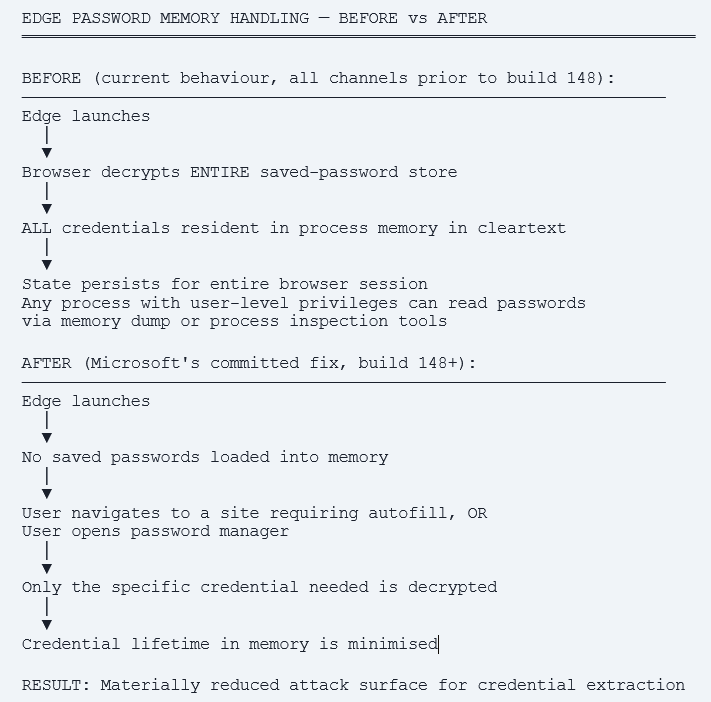
The change: Edge will no longer load all saved passwords into memory on startup as cleartext. Passwords will be decrypted only when needed for autofill or password management operations.
Status: live now in Edge Canary. Rolling out to Stable, Beta, Dev, Canary, and Extended Stable (the enterprise channel) in build 148 and newer.
Why this matters: Edge was the only Chromium-based browser that decrypted the entire saved-password store on startup and kept all credentials resident in process memory in cleartext for the whole browser session.
Microsoft’s framing: this is a defense-in-depth improvement as part of the Secure Future Initiative (SFI) even though Microsoft maintains the original behavior fell within its expected threat model. The story arc: a security researcher publicly disclosed the issue. Microsoft initially defended the behavior. A week later, Microsoft committed to changing it. That is the SFI in action.
What Just Happened – The Story Microsoft Just Closed
Last week, security researcher Tom Jøran Sønstebyseter Rønning publicly disclosed that Microsoft Edge loads saved passwords into process memory in cleartext at startup. The behavior was reproducible with basic tools. Edge would decrypt the entire saved-password store on browser launch and keep every credential resident in process memory in cleartext for the entire browser session whether or not any of those passwords were ever used.
The researcher’s specific finding was pointed: Edge is the only Chromium-based browser that behaves this way. Every other Chromium-based browser Chrome, Brave, Vivaldi, Opera, the variants uses a design that makes it materially harder for attackers to extract saved passwords by simply reading process memory. Edge’s approach was the outlier. Microsoft’s initial response, made via media statements, was that the behaviour was “by design” and fell within the expected threat model because the risk only begins after an attacker has already compromised the device. Technically accurate. Practically unsatisfying. Within roughly a week, after researcher pressure and broad community discussion, Microsoft reversed course and published an official commitment to change the behaviour.
Why this reversal matters more than the original issue
Microsoft’s threat-model argument is not wrong. If an attacker already has user-level code execution on the device, every application’s secrets are theoretically at risk. But that is not the same as saying nothing more can be done. The original Edge design made password extraction trivial any process running with user privileges could read every saved password from Edge memory using basic tools. Other browsers had already adopted designs that made this materially harder. Microsoft’s reversal acknowledges that ‘within the threat model’ is not the same as ‘we have done what we reasonably can.’ That distinction is exactly what defense-in-depth means.
Microsoft’s Official Commitment – From the Edge VR Blog
Microsoft’s commitment was published on May 14, 2026 by Gareth Evans, Microsoft Edge Security Lead, on the Microsoft Browser Vulnerability Research blog. The change has three components, what is changing technically, when it lands across channels, and how Microsoft is positioning it within the broader Secure Future Initiative.
The Technical Change
The Rollout Timeline
Microsoft’s official statement places the change in immediate motion. Edge Canary, the experimental preview channel has the new behavior live now. The rollout to broader channels follows the standard Edge release cadence:
| Channel | Status | Audience |
| Canary | Live now | Edge engineering and early-adopter testers. Daily updates. |
| Dev | Build 148+ | Developer-focused users. Weekly updates. |
| Beta | Build 148+ | Pre-release testing. Four-week cycle. |
| Stable | Build 148+ | General users. Most managed Windows endpoints. |
| Extended Stable | Build 148+ | Enterprise customers eight-week update cycle, slower but more stable cadence. |
Microsoft’s Framing – The Secure Future Initiative
Microsoft positioned this change explicitly within the Secure Future Initiative (SFI) framework. SFI is Microsoft’s 2024 commitment to make security the top priority across all products announced after a series of high-profile security incidents and increasing customer and regulatory pressure. Edge VR Lead Gareth Evans framed this Edge change as a concrete example of SFI in practice.
The key SFI-aligned principle Microsoft articulated: looking not only at whether something meets the bar for a classic security issue, but also at where exposure can be reduced through defense-in-depth improvements even when the issue is technically within the documented threat model. This is a meaningful shift in how Microsoft is choosing to respond to researcher findings and a signal of what to expect from future Edge security communications.
Direct quotes from Microsoft’s May 14 announcement
“We will no longer load passwords into memory on startup. This defense-in-depth change will come to every supported version of Edge.”
“The change is live now in Edge Canary and included in the next update for all Edge releases, build 148 and newer.”
“If you use Edge’s password manager today, you don’t need to take any action. The change will reach you through the normal update channel.”
“Even for issues that don’t meet the security criteria, Edge invests heavily in defense-in-depth.” “We’re reviewing how we handle researcher reports, with a focus on speed, clarity, and applying defense-in-depth thinking earlier.”
What This Means for Enterprise IT and Intune – Managed Fleets
Microsoft is fixing the underlying behaviour at the browser level. That is genuinely good news, and the rollout is moving fast. But Microsoft’s fix only addresses one of several Edge password-handling risks that enterprise IT should be thinking about. The broader picture: browser-stored credentials remain a high-value attack target regardless of how each individual browser handles memory. Enterprise IT needs to make policy decisions about whether the browser should store passwords at all on managed devices, and if it does, what controls should be in place around access.
The Three Enterprise Policy Questions
Three questions every enterprise IT team should answer this week independent of when build 148 lands on managed devices:
- Should Edge be allowed to save passwords on managed devices at all? Many enterprise security teams have already made this decision and the answer is usually no. Corporate identity belongs in Microsoft Entra / Active Directory with SSO. Password manager belongs in a dedicated, audited password vault. Browser password storage sits in an awkward middle ground.
- If Edge can save passwords, who has access to those credentials in memory? Even with the build 148 fix, any process running with user-level privileges can still read decrypted credentials when they are in use. Local admin escalation is a separate problem. EDR coverage matters. Application allowlisting matters.
- Are Edge security policies actually being enforced on managed devices? Tuesday’s blog covered Defender Effective Settings, the same principle applies here. An Intune policy that disables Edge password manager is only useful if it is actually enforced on the device, not silently overridden by a GPO or local configuration.
Intune Edge Hardening – The Practical Deployment Guide
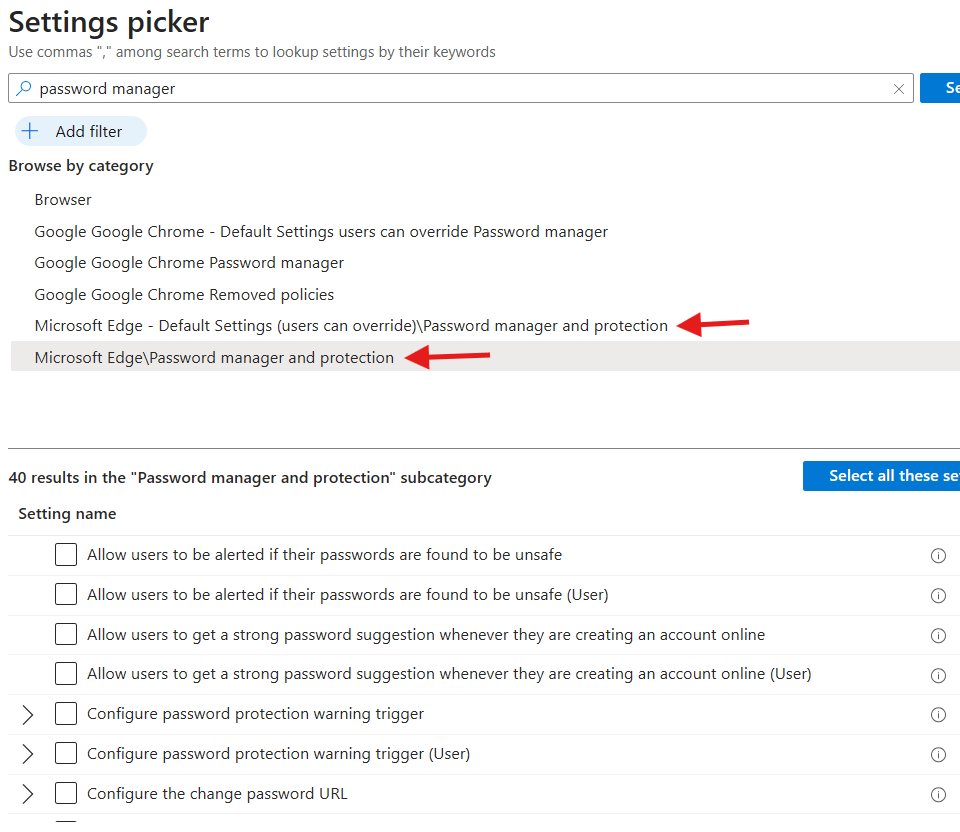
The following Intune policies harden Edge password handling beyond what Microsoft’s build 148 fix provides. They are all configurable via Settings Catalog today. Deploy them via Endpoint Security → or Devices → Configuration → New policy → Windows 10 and later → Settings catalog.
Policy 1 – Disable Edge Built-in Password Manager
The strongest enterprise stance. If your users do not need to save passwords in Edge, do not let them. Corporate credentials belong in SSO. Personal passwords belong in a dedicated password manager.
- Settings Catalog path: Microsoft Edge → Password manager and protection → Enable saving passwords to the password manager → Disabled.
- Effect: Edge will no longer offer to save passwords. Existing saved passwords remain accessible if not separately cleared.
- Combine with: Microsoft Edge → Password manager and protection → Allow import of passwords from default browser on first run → Disabled. Prevents users importing saved passwords from Chrome on first run.
Policy 2 – Block DevTools (Memory Access Vector)
DevTools is one of the primary tools attackers use to extract data from browser memory. Blocking DevTools on managed devices is a defense-in-depth control that aligns directly with the Edge VR team’s stated philosophy.
- Settings Catalog path: Microsoft Edge → Control where developer tools can be used → Enabled.
- Sub-setting: Don’t allow using the developer tools.
- Effect: Users cannot open DevTools (F12, right-click → Inspect, Ctrl+Shift+I). Removes a common memory inspection vector.
- Trade-off: Web developers in your fleet may need this exception. Use Intune groups to scope the policy.
Policy 3 – Deploy the Microsoft Edge Security Baseline
The Edge security baseline in Intune captures Microsoft’s recommended baseline configuration for Edge on managed devices. It includes the password-related controls plus around 60 other hardening settings. If you have not deployed it, this is the week to do it.
- Path: Endpoint security → Security baselines → Microsoft Edge security baseline → + Create profile.
- Use latest version: Microsoft refreshed the Edge security baseline to v139 in April 2026 (service release 2604). Use the latest baseline.
- Settings included by default: Saving passwords to password manager = Disabled. NTLM/Negotiate as supported auth schemes. SmartScreen enabled. Minimum TLS version configured. Block extension installation.
- Deploy to: Pilot group first, then expand. Review baseline conflict reports before broad rollout.
Policy 4 – Force Edge for Business with Managed Profile
Edge for Business is the enterprise-managed mode of Edge. When forced via Intune, it ensures users sign in with their corporate Entra account, which enables centralized credential management and prevents personal account spillover into the corporate profile.
- Settings Catalog path: Microsoft Edge → Configure the list of types that are excluded from synchronization → configure to limit personal sync types.
- Plus: Microsoft Edge → Restrict which accounts can be used as Microsoft Edge primary accounts → Configure to require corporate account.
Policy 5 – Verify the Build Version Across Your Fleet
Microsoft’s fix is in build 148 and newer. Use Intune Device Query to identify devices on Edge build 148+ and devices still on older versions. This gives you visibility into rollout progress without waiting for the next quarterly audit.
// Devices with Edge version 148+ (have Microsoft's fix)
DeviceTvmSoftwareInventory
| where SoftwareName == 'Microsoft Edge'
| where SoftwareVersion startswith '148.' or
        toint(split(SoftwareVersion, '.')[0]) >= 148
| project DeviceName, SoftwareName, SoftwareVersion
| order by SoftwareVersion desc

// Devices still on Edge < 148 — fix not yet deployed
DeviceTvmSoftwareInventory
| where SoftwareName == 'Microsoft Edge'
| where toint(split(SoftwareVersion, '.')[0]) < 148
| project DeviceName, SoftwareVersion, LastSeen
| order by LastSeen desc
Defender Advanced Hunting – Detect Edge Memory Inspection Attempts
Beyond Intune configuration, Defender Advanced Hunting lets you detect attempts to inspect Edge process memory across your fleet. These queries surface the techniques an attacker would use to extract passwords from Edge’s memory useful both for active hunting and as a deployment validation check for your hardening policies.
Hunt 1 – DevTools usage on managed devices
// Edge DevTools launches across the fleet (last 7 days)
DeviceProcessEvents
| where FileName == 'msedge.exe'
| where ProcessCommandLine has_any ('--remote-debugging-port',
    '--remote-debugging-pipe', '--inspect')
| where Timestamp >= ago(7d)
| project DeviceName, AccountName, ProcessCommandLine, Timestamp
| order by Timestamp desc
Hunt 2 – Process memory inspection of msedge.exe
// Suspicious process access to Edge memory
DeviceEvents
| where ActionType == 'OpenProcessApiCall'
| where ProcessCommandLine !has 'msedge.exe'
| where AdditionalFields has 'msedge.exe'
| where Timestamp >= ago(7d)
| summarize Attempts=count() by DeviceName,
    InitiatingProcessFileName
| order by Attempts desc
Hunt 3 – Edge password manager file access
// Direct access to Edge password store files
DeviceFileEvents
| where FolderPath has 'Microsoft\\Edge\\User Data'
| where FileName in~ ('Login Data', 'Login Data For Account',
    'Web Data')
| where InitiatingProcessFileName != 'msedge.exe'
| project DeviceName, InitiatingProcessFileName, FileName,
    ActionType, Timestamp
| order by Timestamp desc
The Bigger Picture – What the Edge VR Response Signals
Beyond the specific Edge password change, this story is worth reading for what it tells us about how Microsoft is choosing to respond to security research findings going forward. Three signals from the official announcement matter for enterprise IT planning.
- Defense-in-depth is becoming the Microsoft default response. Even when an issue technically falls within a documented threat model, Microsoft is committing to look for additional risk reduction opportunities. This is a more conservative posture than the historical norm and aligns with regulatory and customer pressure.
- Researcher feedback loops are being reviewed. Microsoft explicitly committed to reviewing how it handles researcher reports with a focus on speed, clarity, and applying defense-in-depth thinking earlier. Expect future researcher findings to be triaged through this lens rather than the older ‘within threat model = no change’ framing.
- Secure Future Initiative is showing up in concrete product changes. SFI was announced as a strategic commitment. Two years later, it is producing tangible product behaviour changes. The Edge password fix is a small but real example of what to expect from SFI moving forward.
For enterprise IT, the practical implication is that the Edge controls in this guide are not just for this specific issue. They are the foundation for a broader ‘browser as enterprise security boundary’ approach that Microsoft itself is now reinforcing at the product level. Deploy them this week. They pay off across many scenarios beyond just the password memory issue.
Action Checklist – What Intune Admins Should Do This Week
Immediate – This Week
- Read Microsoft’s official commitment: https://microsoftedge.github.io/edgevr/posts/Saved-passwords-in-Edge-memory-what-were-changing-and-why/
- Run Edge version Device Query, identify managed devices on Edge < 148. These do not yet have Microsoft’s fix.
- Decide org-level policy on Edge password storage. Default recommendation: disable for all managed devices.
- Deploy or refresh the Microsoft Edge security baseline (v139 or later) via Endpoint security → Security baselines.
Short Term – This Month
- Deploy Settings Catalog policy disabling Edge password manager to pilot group, then expand.
- Deploy DevTools restriction policy to non-developer user groups.
- Add the three Defender Advanced Hunting queries from this guide to your scheduled hunts.
- Verify enforcement via Defender Effective Settings (see last Tuesday’s blog for the workflow).
Ongoing – Quarterly
- Track Edge build progression across the fleet confirm build 148+ is reaching managed devices via normal update channel.
- Monitor Microsoft Edge VR blog for additional defense-in-depth changes, Microsoft has signaled more SFI-driven changes are coming.
- Audit Edge configuration policies against current Microsoft baseline at each baseline refresh.
References
| Resource | URL |
| Microsoft Edge VR – Saved passwords in Edge memory (May 14, 2026) | https://microsoftedge.github.io/edgevr/posts/Saved-passwords-in-Edge-memory-what-were-changing-and-why/ |
| Microsoft Secure Future Initiative (SFI) | https://www.microsoft.com/en-us/trust-center/security/secure-future-initiative |
| Microsoft Edge security baseline in Intune – settings reference | https://learn.microsoft.com/en-us/mem/intune/protect/security-baseline-settings-edge |
| Microsoft Edge policies (Settings Catalog reference) | https://learn.microsoft.com/en-us/deployedge/microsoft-edge-policies |
| Microsoft Edge release notes (Extended Stable channel) | https://learn.microsoft.com/en-us/deployedge/microsoft-edge-relnote-stable-channel |
| Intune Settings Catalog – Microsoft Edge configuration | https://learn.microsoft.com/en-us/intune/configuration/settings-catalog |
| Defender Advanced Hunting – DeviceProcessEvents schema | https://learn.microsoft.com/en-us/defender-xdr/advanced-hunting-deviceprocessevents-table |
| Microsoft Edge Vulnerability Research blog (root) | https://microsoftedge.github.io/edgevr/ |