What changed in June 2026, why your certificate-based automation suddenly returns 403, and how to build a script that submits retire and delete the right way through the MAA approval workflow.
If you run certificate-based (app-only) automation against Intune and your tenant has Multi Admin Approval (MAA) access policies for Device retire or Device delete, your scripts started failing with 403 Forbidden in late June 2026. This is not a bug, a permissions gap, or a broken token. Microsoft expanded MAA enforcement to cover Graph API automation, not just interactive admins.
The fix is to make your script MAA-aware: send a Base64-encoded x-msft-approval-justification header with each action. Instead of executing immediately, the call returns 412 Precondition Failed and a pending approval request appears in the Intune portal. Once a second admin approves it, Intune executes the action automatically. No interactive sign-in. No stored password. Pure certificate auth.
The Setup: A Script That Worked Yesterday
The task was simple and common: retire and delete a list of stale Intune devices supplied in a CSV. The original script authenticated with a certificate against an Entra app registration, looped through each device ID, and called the Graph retire and delete endpoints. It had worked reliably for months.
Then one day every device came back with the same failure:
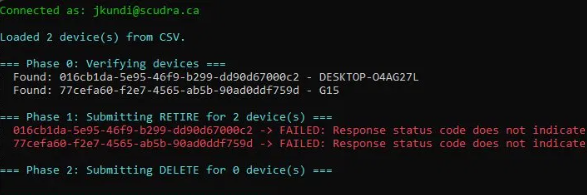
Retire FAILED - Response status code does not indicate success:
BadRequest (Bad Request).
All 47 devices in the CSV failed identically. When the same retire was attempted manually from the Intune portal, that worked fine. So the device state was healthy, something about the API path specifically was being rejected.
The First Clue: A Missing Header
The generic .NET exception message hides the real Graph error. The actual JSON body lives in $_.ErrorDetails.Message. Pulling it out revealed the truth:
{"error":{"code":"BadRequest","message":"{
  \"Message\": \"Header 'x-msft-approval-justification'
   is required to request approval ...\"
}"}}
KEY INSIGHT
When you see x-msft-approval-justification in a Graph error, you are not looking at a broken request. You are looking at Multi Admin Approval enforcement standing between your script and the change.
This is the heart of what changed. Historically, MAA only applied to user identities, the portal UI, delegated Graph calls, and interactive PowerShell. App-only tokens (client-credentials flow) bypassed MAA entirely. That was a documented gap, and frankly a security hole: a compromised service principal could wipe or delete devices with no approval gate at all.
What Microsoft Actually Changed (June 2026)
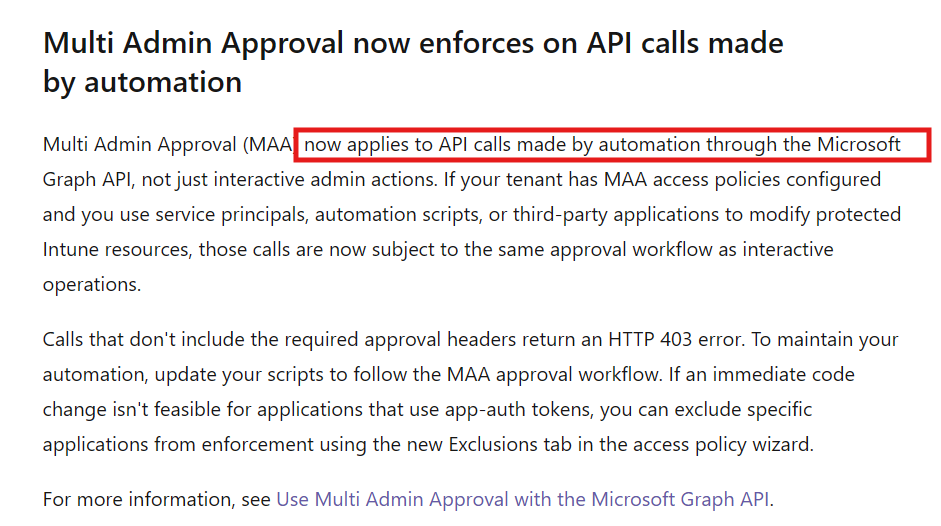
In the Intune service update for the week of June 15, 2026, Microsoft published this under Tenant administration:
MICROSOFT Multi Admin Approval now applies to API calls made by automation through the Microsoft Graph API, not just interactive admin actions. If your tenant has MAA access policies configured and you use service principals, automation scripts, or third-party applications to modify protected Intune resources, those calls are now subject to the same approval workflow as interactive operations. Calls that don’t include the required approval headers return an HTTP 403 error.
That single paragraph explains the entire mystery. The app-only bypass is gone. Every automation identity such as certificate, secret, managed identity is now intercepted by MAA the same way a human admin is.
The Error Progression (And Why Each One Matters)
Working through this produced a sequence of different HTTP errors. Each one is a checkpoint that tells you exactly how far the request got before MAA or Intune stopped it. This table is the single most useful troubleshooting reference if you hit this:
| HTTP Code | Meaning | What to do |
| 400 | Header missing or not Base64-encoded | Add the x-msft-approval-justification header; Base64-encode the value |
| 403 | App-only call blocked before the June rollout reached your tenant, or permissions/RBAC missing | Confirm Graph permissions + Intune RBAC; if pre-rollout, wait for enforcement to deploy |
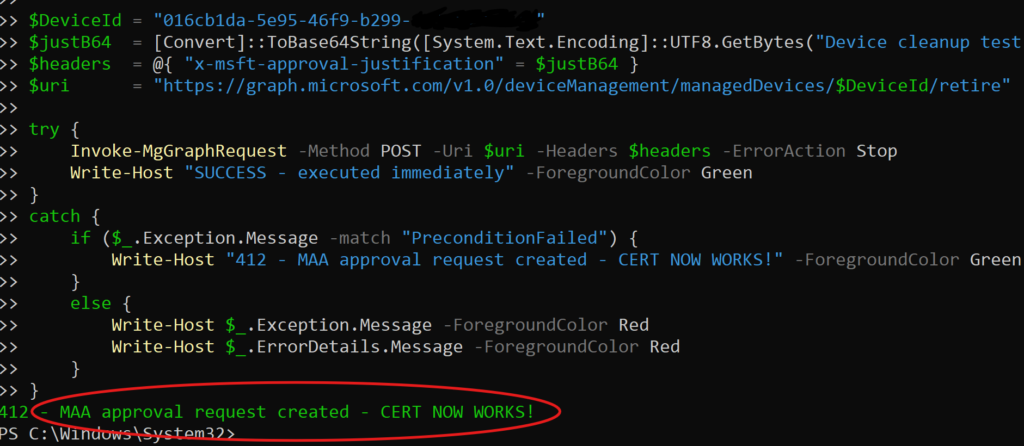
| 412 | SUCCESS – MAA approval request created | This is the goal. A pending request now exists in the portal |
| 409 | An approval request already exists for this device | Don’t re-submit; the existing request is still pending. Approve or wait |
| 500 | Device in a broken/confused state from repeated attempts | Test against a fresh device that hasn’t been hammered |
The crucial mental shift: 412 is not a failure. It is Graph telling you “I accepted this and created an approval request.” Your script must treat 412 as success.
The Two-Request MAA Flow
MAA for automation is fundamentally a two-call pattern. Understanding this is what makes the whole thing click:
- First call – your action (retire/delete) with a Base64-encoded x-msft-approval-justification header. Returns 412. A pending approval request now exists in the portal.
- Approval – a second admin (member of the approver group) reviews the request in Tenant administration › Multi Admin Approval and approves it.
- Execution – for device actions, Intune executes automatically once approved. The request status moves to Completed and the device is retired or deleted.
NOTE
Some MAA resource types use a three-step lifecycle where the original requester must click ‘Complete’ after approval. For Device action resource types (retire/delete/wipe), testing confirmed Intune completes automatically on approval, no separate completion step is required.
Prerequisites: App Registration & Permissions
The certificate-based app registration needs the following Application permissions, each with admin consent granted:
| Permission | Type | Purpose |
| DeviceManagementManagedDevices.ReadWrite.All | Application | Read devices + submit delete |
| DeviceManagementManagedDevices.PrivilegedOperations.All | Application | Submit retire (user-impacting action) |
| DeviceManagementRBAC.Read.All | Application | Read the MAA approval queue for the email |
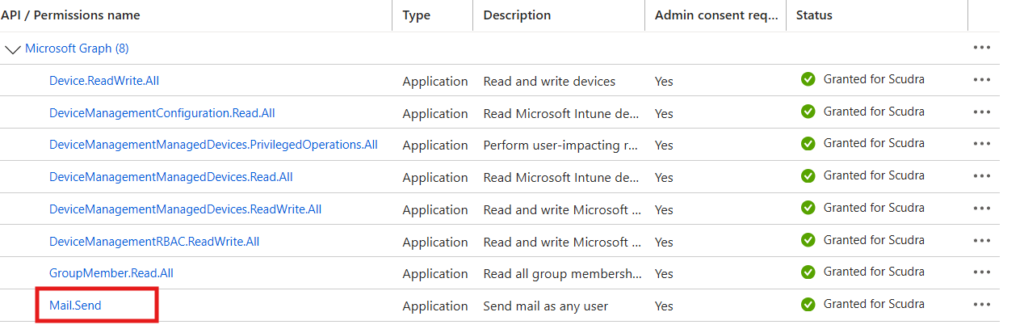
| Mail.Send | Application | Send the approval-notification email via Graph |
DON’T HARDCODE PASSWORDS
Notice Mail.Send is on the list. The notification email is sent through Graph using the same certificate connection, there is no SMTP server, no port, and no password stored anywhere in the script. If you ever find yourself pasting a password into a .ps1 file, stop and use Graph Mail.Send or a DPAPI-encrypted secret instead.
Building the Script, Piece by Piece
1. Authenticate with the certificate
Connect-MgGraph -ClientId $AppClientId `
    -TenantId $TenantId `
    -CertificateThumbprint $CertThumbprint -NoWelcome
Pure app-only auth. No browser, no MFA prompt, no interactive sign-in. This is what makes it schedulable.
2. Base64-encode the justification
$JustificationText = "Scheduled stale-device cleanup"
$JustificationB64  = [Convert]::ToBase64String(
    [System.Text.Encoding]::UTF8.GetBytes($JustificationText))
$ActionHeaders = @{
    "x-msft-approval-justification" = $JustificationB64
}
THE #1 GOTCHA
The justification value MUST be Base64-encoded. Sending it as plain text returns 400 with the message ‘must be a valid base64 encoded string’. This single line is what trips up most people migrating their scripts.
3. Submit the action and treat 412 as success
try {
    Invoke-MgGraphRequest -Method POST -Uri $retireUri `
        -Headers $ActionHeaders -ErrorAction Stop
    # 2xx = executed immediately (no MAA on this action)
}
catch {
    if ($_.Exception.Message -match "PreconditionFailed") {
        # 412 = MAA approval request created — SUCCESS
    }
    elseif ($_.Exception.Message -match "Conflict") {
        # 409 = request already pending for this device
    }
    else { # real error — log it }
}
This catch logic is the core of a MAA-aware script. A naive try/catch treats the 412 as an error and never proceeds, which is exactly why an unmodified script reports “failed” even though the approval request was created successfully.
4. Read the approval queue
$uri = "https://graph.microsoft.com/beta/deviceManagement/" +
       "operationApprovalRequests"
$queue = (Invoke-MgGraphRequest -Method GET -Uri $uri).value |
    Where-Object { $_.status -eq "needsApproval" }
Reading the queue is a plain GET, read-only operations are never blocked by MAA, even for app-only identities. This lets the script enrich its notification email with exactly what is sitting pending.
5. Email the approver via Graph (no password)
$mailBody = @{ message = @{
    subject = "ACTION REQUIRED: Intune Device Retire"
    body = @{ contentType = "HTML"; content = $htmlBody }
    toRecipients = @(@{ emailAddress = @{ address = $to } })
}} | ConvertTo-Json -Depth 10

Invoke-MgGraphRequest -Method POST `
  -Uri "https://graph.microsoft.com/v1.0/users/$from/sendMail" `
  -Body $mailBody -ContentType "application/json"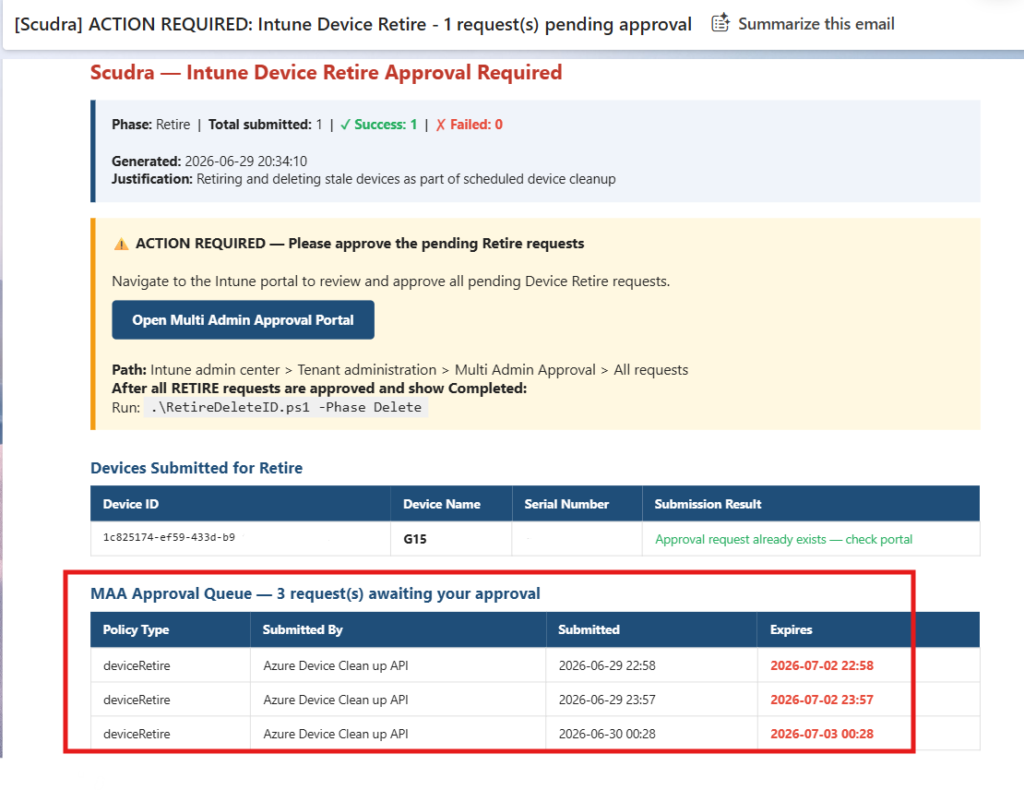
Why the Script Runs in Two Phases
Retire and delete cannot be fired back-to-back in a single pass. Submitting a retire only creates a pending request, the device isn’t actually retired until an admin approves it. If the script immediately tried to delete, it would be deleting a device whose retire hasn’t completed.
So the workflow is split:
- Phase 1 – .\RetireDeleteID.ps1 -Phase Retire submits all retires, emails the approver, exits.
- Approver approves the retire batch in the portal; Intune completes them.
Phase 2 – .\RetireDeleteID.ps1 -Phase Delete submits all deletes, emails the approver, exits.
EXPIRY WARNING
Approval requests expire after 30 days if not actioned, and Intune sends no native notification when new requests appear. That’s exactly why the script emails the approver directly, so requests don’t sit unnoticed in a queue nobody checks.
Hard-Won Gotchas
- Permissions added mid-session don’t apply. If you add Mail.Send (or any permission) after Connect-MgGraph has already run, the existing token doesn’t have it. Disconnect and reconnect to mint a fresh token.
- The real error is in ErrorDetails.Message. The default exception text is useless (“BadRequest”). Always parse the JSON body to see the actual Intune message.
- Don’t re-run Phase 1 on a device that already has a pending request. You’ll get 409 Conflict. The script treats this as “already submitted,” which is correct.
- RBAC role assignments and directory-role changes take time to propagate. Allow 15–30 minutes before concluding a permission change “didn’t work.”
- MAA policies are tenant-wide. There is no scoping to a test group. Plan rollout carefully because it affects your whole device-lifecycle process.
The Alternative: Excluding a Trusted App
Microsoft also shipped an Exclusions tab in the access policy wizard. If rewriting an automation tool to be MAA-aware isn’t feasible (think third-party patching products), you can exclude a specific enterprise application from MAA enforcement. That app’s calls then bypass the approval workflow entirely.
CHOOSE DELIBERATELY
Excluding an app re-opens the exact bypass that this June change was designed to close for that one app. Use it only for genuinely trusted automation identities, document which apps are excluded and why, and treat the exclusion list as a sensitive security control in its own right.
For an in-house cleanup script that you control, building the MAA-aware approval flow (as above) is the better choice: you keep the safety net and the automation.
Closing Thoughts
This change caught a lot of automation off guard, and the generic 403 made it look like a permissions problem when it wasn’t. The mental model to keep: MAA is now a gate in front of automation, not just humans. Once you accept that and teach your script the two-request dance such as justification header, handle 412, wait for approval, certificate-based device cleanup works cleanly again, with a proper second set of eyes on every destructive action.
And that second set of eyes is the entire point. The Stryker incident earlier this year, where compromised Intune admin credentials were used to mass-wipe devices is exactly the scenario MAA exists to prevent. Extending it to automation closes a real hole. A little extra script plumbing is a fair price for that.