Moving every Outlook meeting to the new Alberta and BC time zones, centrally, with no action from users
Microsoft’s Outlook guidance is that each user changes their own Outlook time zone and then opens every upcoming meeting they organized, switches it to the new zone, and saves it. For a finance team with years of recurring meetings, that’s a lot of clicking and a lot of room for error.
This post is the approach we built and piloted for a client: two scripts that do all of it centrally, mailbox time zone, working hours, single meetings and recurring series, including series with moved and deleted occurrences. It also covers the five things that broke along the way, so you don’t have to find them yourself.
- New Outlook and Outlook on the web read the mailbox time zone, not the device. Set it centrally with Exchange Online PowerShell and set the working-hours time zone, or users get a prompt.
- Existing meetings keep the old zone forever unless someone re-saves them. Microsoft Graph can do that for every organizer, keeping each meeting at the same local time.
- Recurring series with moved or deleted occurrences need special handling: changing the zone resets them. The script captures and re-applies them.
- Everything runs from a CSV of users, dry run first, with a per-meeting log of what changed and why.
Two scripts are attached: Set-MailboxTimeZone2026.ps1 and Update-CalendarTimeZone2026.ps1.
1. What changes on November 1
From 2:00 AM on November 1, 2026, Alberta (plus Yellowknife and Inuvik), most of British Columbia and Manitoba stop falling back. Microsoft’s Message Center post MC1510951 lists the new region-specific zones:
| Region | Old zone (display / ID) | New zone (display / ID) |
| Alberta, NWT | (UTC-07:00) Mountain Time (US & Canada) Mountain Standard Time | (UTC-06:00) Mountain Time (Alberta) Alberta Standard Time |
| British Columbia | (UTC-08:00) Pacific Time (US & Canada) Pacific Standard Time | (UTC-07:00) Pacific Time (British Columbia) British Columbia Standard Time |
| Manitoba | (UTC-06:00) Central Time (US & Canada) Central Standard Time | (UTC-05:00) Manitoba look up at run time |
Note the difference between display name and ID. Outlook shows “Mountain Time (US & Canada)”; every API and cmdlet uses Mountain Standard Time, even in summer, and even though the word “standard” appears nowhere on screen. The Alberta ID above is what Exchange Online returned in our tenants. The meeting script looks the IDs up at run time rather than hard-coding them.
2. Why existing meetings break
Exchange stores a meeting as a fixed moment in UTC plus the zone it was created in. A Calgary user who booked 9:00 AM Mountain Time for November 9 got a meeting stored as 16:00 UTC, because the old zone assumes November is UTC-7.
On November 9, Calgary is UTC-6. 16:00 UTC is 10:00 AM local. Moving the user’s mailbox or device to the new zone doesn’t help, it just displays 16:00 UTC correctly, at 10:00. The only fix is to re-save the meeting in the new zone so it’s stored as 15:00 UTC.
That re-save is what Microsoft asks users to do by hand, and it’s what we automate.
3. The approach
| Layer | What reads it | Tool | Script |
| Device time zone | Windows clock, classic Outlook | Intune (Part 1) | * |
| Mailbox time zone + working hours | New Outlook, Outlook on the web | Exchange Online PowerShell | Set-MailboxTimeZone2026.ps1 |
| Existing meetings | Every attendee’s calendar | Microsoft Graph (app-only) | Update-CalendarTimeZone2026.ps1 |
Both scripts read the same CSV of in-scope users, so scoping is decided once, by the business, in a file you can attach to the change ticket.
4. Mailbox time zone and the “meeting hours” prompt
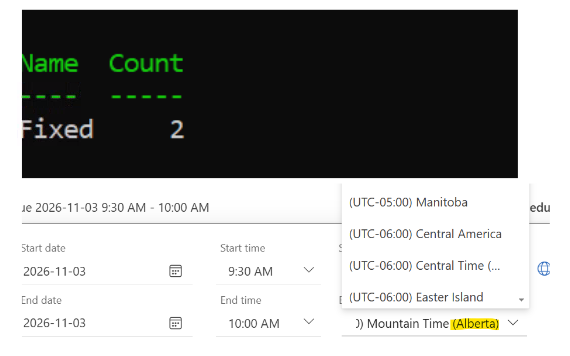
The first thing we tried in the lab was changing only the calendar display time zone. New Outlook immediately showed this to the user:
What the user sees
“Your meeting hours time zone is set to (UTC-07:00) Mountain Time (US & Canada). Do you want to update it to (UTC-06:00) Mountain Time (Alberta)?” [Yes, update]
Outlook shows this whenever the mailbox display time zone and the working-hours time zone disagree. They live in two different places, so set both:
Set-MailboxTimeZone2026.ps1 (core logic)
$From = 'Mountain Standard Time'   # (UTC-07:00) Mountain Time (US & Canada)
$To   = 'Alberta Standard Time'    # (UTC-06:00) Mountain Time (Alberta)

if ($reg.TimeZone -eq $From) { Set-MailboxRegionalConfiguration -Identity $id -TimeZone $To }
if ($cal.WorkingHoursTimeZone -ne $To -and ($reg.TimeZone -eq $From -or $reg.TimeZone -eq $To)) {
    Set-MailboxCalendarConfiguration -Identity $id -WorkingHoursTimeZone $To
}
The conditions matter: only mailboxes currently on the old zone (or already on the new one) are touched. Someone in Calgary who deliberately runs their calendar on Eastern time for a Toronto-based role is left alone. The script touches no meetings and sends no email.
5. Converting meetings with Microsoft Graph
5.1 The core trick: same wall-clock time, new zone
The goal isn’t to keep the UTC moment, that’s exactly what’s wrong. The goal is to keep the time the organizer intended. Graph’s Prefer: outlook.timezone header returns an event’s times in any zone you ask for. Ask for the meeting’s own original zone and you get the wall-clock time the organizer typed in. Write that back with the new zone:
Update-CalendarTimeZone2026.ps1 (excerpt)
# 1. Read the meeting in its ORIGINAL zone -> Graph returns the intended wall-clock time
$orig = Invoke-MgGraphRequest -Method GET -OutputType PSObject -Uri "$base?`$select=$select" `
    -Headers @{ Prefer = "outlook.timezone=`"$($e.originalStartTimeZone)`"" }

# 2. Format explicitly - Invoke-MgGraphRequest turns date strings into [datetime]
$startLocal = ([datetime]$orig.start.dateTime).ToString('yyyy-MM-ddTHH:mm:ss')
$endLocal   = ([datetime]$orig.end.dateTime).ToString('yyyy-MM-ddTHH:mm:ss')

# 3. Write the SAME wall-clock time back with the NEW zone
$body = @{
    start = @{ dateTime = $startLocal; timeZone = 'Alberta Standard Time' }
    end   = @{ dateTime = $endLocal;   timeZone = 'Alberta Standard Time' }
}
# Series also need recurrence.range.recurrenceTimeZone set to the new zone
Attendees keep the Teams link and the agenda. Only the stored time zone changes, and with it the UTC moment for dates after November 1.
5.2 Only the organizer’s copy matters
The script processes meetings the user organized (isOrganizer). Meetings they only attend are skipped and logged, because the attendee copy follows the organizer. Put every in-scope organizer in the CSV and each shared meeting is fixed exactly once by its organizer’s run.
5.3 Finding the new zone ID
Rather than hard-code IDs, the script asks Exchange Online which zones it supports and matches on the display name. One catch: supportedTimeZones has no application permission. The script handles it with a one-time interactive sign-in using only User.Read, which reads nothing from any mailbox, before switching to app-only for the real work.
Looking up the zone ID
# Delegated only - this API has no application permission
Connect-MgGraph -TenantId $TenantId -Scopes 'User.Read' -NoWelcome
$exoZones = (Invoke-MgGraphRequest -Method GET -OutputType PSObject -Uri `
  "https://graph.microsoft.com/v1.0/me/outlook/supportedTimeZones(TimeZoneStandard=microsoft.graph.timeZoneStandard'Windows')").value

$exoZones | Where-Object { $_.displayName -match 'Alberta' }
# alias         displayName
# -----         -----------
# Alberta Standard Time   (UTC-06:00) Mountain Time (Alberta)
If the zone isn’t in that list, Exchange Online doesn’t support it yet in your tenant, and the script stops before changing anything.
5.4 Recurring series with moved or deleted occurrences
This is the part that makes Microsoft’s user guidance painful. Changing the time zone of a series resets its exceptions: cancelled occurrences come back and moved ones snap back to their usual slot. The script handles it in three steps:
- Before the change, record each deleted occurrence date (beta cancelledOccurrences) and each moved occurrence’s slot date, new time, subject and location (v1.0 instances where type is exception).
- Move the series to the new zone.
- List the regenerated occurrences, delete the ones that were deleted, and move the moved ones back again keeping the same local time in the new zone.
Only occurrences from today onward are re-applied. Re-deleting an occurrence sends a cancellation, and nobody needs a cancellation email for a meeting that happened last month. Past exceptions show their original slot in calendar history; future ones are exactly as the organizer left them.
What is not restored
- Changes to the body or attendee list of an individual moved occurrence. Time, subject and location are restored, anything else is logged so you can tell the organizer.
- If any re-apply step fails, the meeting is logged as Partial with exactly what’s left to do.
5.5 Dry run first, and a reason for every meeting
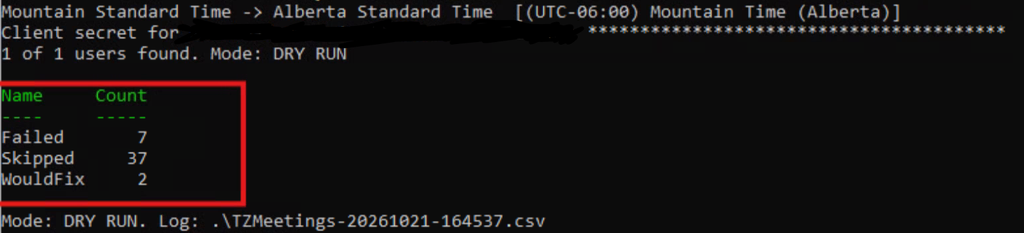
$Apply = $false is the default. The dry run writes a CSV with one row per upcoming meeting and an explicit action:
| Action | Meaning |
| WouldFix / Fixed | Meeting will be / was moved to the new zone. For series, the detail lists moved and deleted occurrences re-applied. |
| Skipped – attendee | Someone else organized it. Their run fixes it, if they’re in scope. |
| Skipped – zone ‘UTC’ | All-day items like holidays and vacation. Correctly left alone, they stay on the same day. |
| Skipped – zone ‘tzone://Microsoft/Custom’ | Created by a non-Outlook client (often a training provider’s invite). Review manually. |
| Partial | Series moved, but some occurrences couldn’t be re-applied. Detail says which. |
| Failed | Graph’s actual error code and message, plus the step that failed. |
6. Permissions
The meeting script runs as an app registration with a client secret (prompted at run time, never stored) or a certificate:
| Permission | Type | Why |
| User.Read.All | Application | Resolve each user in the CSV |
| Calendars.ReadWrite | Application | Read and update the organizers’ meetings |
| User.Read | Delegated (your sign-in) | Read Exchange Online’s supported time zone list |
Calendars.ReadWrite granted in Entra ID reaches every calendar in the tenant, executives included. The script itself only ever touches the users in the CSV, but the permission is broader than the job. For production, grant it through Exchange RBAC for Applications instead, scoped to a mail-enabled group of the in-scope users, and don’t add it in Entra, the two are additive, so an Entra grant cancels out the scope.
Scoping calendar access with RBAC for Applications
Connect-ExchangeOnline
$AppId = '<application-client-id>'
$SpId  = '<object id from Enterprise applications>'   # not App registrations
New-ServicePrincipal -AppId $AppId -ObjectId $SpId -DisplayName 'TZ2026 Calendar Fix'

$GroupDN = (Get-Group 'TZ2026-Alberta-Users').DistinguishedName
New-ManagementScope -Name 'TZ2026-Alberta' -RecipientRestrictionFilter "MemberOfGroup -eq '$GroupDN'"
New-ManagementRoleAssignment -App $AppId -Role 'Application Calendars.ReadWrite' `
    -CustomResourceScope 'TZ2026-Alberta'

Test-ServicePrincipalAuthorization -Identity $AppId -Resource 'in-scope.user@contoso.com'
Scope changes can take 30 minutes to 2 hours to apply. Remove the role assignment, scope and secret when you’re done.
7. Five things that broke in the lab
None of these are in the documentation as a list. All of them cost us a run.
1. Graph returns dates as [datetime], not strings
Invoke-MgGraphRequest -OutputType PSObject converts dateTime strings into [datetime] objects, which render as 10/27/2026 10:00:00 on some systems and serialize unpredictably back to JSON. Always format explicitly: .ToString(‘yyyy-MM-ddTHH:mm:ss’) for times and ‘yyyy-MM-dd’ for recurrence dates.
2. exceptionOccurrences is not selectable
3. The beta endpoint rejects /calendar/events
Two beta gotchas
# cancelledOccurrences is beta-only - and beta rejects the /calendar/events path:
#   NavigationNotSupported: Recursive navigation is not allowed after property 'events'
GET https://graph.microsoft.com/beta/users/{id}/calendar/events/{id}?$select=cancelledOccurrences   # fails
GET https://graph.microsoft.com/beta/users/{id}/events/{id}?$select=cancelledOccurrences            # works

# exceptionOccurrences is a navigation property, not a property - don't $select it.
# Find moved occurrences from the v1.0 instances list instead: type -eq 'exception'
4. Instance queries are limited to five years
Our first full run failed on every yearly series, birthdays, a recurring “send out FX rates” reminder because the script queried two years back and five forward:
Keeping the window under five years
# Graph rejects instance queries spanning more than 5 years:
#   ErrorInvalidRequest: The range between the start and end dates is greater than
#   the allowed range. Maximum number of years: 5
$winStart = if ((Get-Date).Date -lt $Cutover) { (Get-Date).Date } else { $Cutover }
$fromIso  = $winStart.ToString('yyyy-MM-ddTHH:mm:ss')
$endIso   = $winStart.AddYears(5).AddDays(-1).ToString('yyyy-MM-ddTHH:mm:ss')
5. Simplified Where-Object syntax and method calls don’t mix
Where-Object displayName -match [regex]::Escape($x) throws “A positional parameter cannot be found”. The simplified syntax only accepts a plain value. Use a script block: Where-Object { $_.displayName -match $pattern }.8. The runbook
| When | Step |
| Now | Get the list of in-scope users from the business. Exclude anyone in East Kootenay (BC), which keeps Mountain Time with seasonal changes. |
| Before Nov 1 | Patch devices and move them to the new zone (Part 1). |
| Pilot | Run both scripts for one user. Check the organizer’s calendar, an attendee’s calendar, and message trace. |
| Rollout | Set-MailboxTimeZone2026.ps1 for the CSV, then Update-CalendarTimeZone2026.ps1 as a dry run. Review the CSV, then run with $Apply = $true. |
| Follow-up | Review Skipped meetings organized by people outside the CSV, including external organizations, and let those organizers know. |
| Clean-up | Remove the app’s calendar permission, RBAC scope and secret. |
9. What this doesn’t cover
- Meetings organized outside your tenant. Only the external organizer can update them.
- Microsoft Bookings. Reported to still treat post-November BC appointments as Pacific Standard Time, check Bookings pages separately.
- Classic Outlook on unpatched devices. It follows the Windows time zone – that’s Part 1.
- Shared and resource mailboxes. Add them to the CSV if they organize meetings, room mailboxes only hold attendee copies.
Downloads
| File | What it does |
| Set-MailboxTimeZone2026.ps1 | Sets the mailbox time zone and working-hours time zone for every user in the CSV. Exchange Online PowerShell. |
| Update-CalendarTimeZone2026.ps1 | Moves every meeting the CSV users organized to the new zone, including series with moved and deleted occurrences. Dry run by default. Microsoft Graph, PowerShell 7. |
| users.csv | Sample input. One column: UserPrincipalName. |
Wrapping up
The official guidance for this change puts the meeting work on every user. With two scripts and a CSV, it becomes a change you run, review and roll back on your own schedule and on November 2, nobody in Calgary shows up an hour late to the Monday finance call.