A side-by-side against Proactive Remediations with the limits Microsoft buried in a bullet point.
Intune 2607 added native Windows registry collection to the properties catalog. It retires a specific class of detection script, the ones whose entire body is Get-ItemProperty followed by exit 0 or exit 1. It retires nothing else. HKLM only, 100 keys per device, 6 KB per value, non-recursive, no logic, no comparison, no remediation, and at launch the data lands in exactly one place: the per-device Device Inventory blade. If your script computes anything, keep the script.
If you manage a Windows fleet in Intune, you have a folder somewhere, probably in a repo, probably named something like Remediations, full of PowerShell whose only job is to read a registry value and report it back. Not fix it. Read it.
Every one of those is a script package you had to author, sign, test in a ring, assign, and then babysit forever. Every one of them consumes one of your 200 script package slots. Every one of them truncates its answer at 2,048 characters. And every one of them exists because Intune had no native way to answer the question “what is actually in this registry value across my fleet?”
That changed in the 2607 service release (week of 27 July 2026). Registry collection is now a first-class property in the properties catalog. This post covers what it does, how it actually works on the device, exactly where it beats a detection script, and the part most write-ups skip, the five limits that will stop you cold.
What actually shipped
The properties catalog is not new. It has been collecting BIOS, TPM, CPU, disk, battery, network adapter and OS data for a while, and more recently application inventory and the Local AI Agent entity. What 2607 adds is a Registry category with a single required property, Registry keys that opens a custom editor rather than a fixed list of predefined values.
That distinction matters. Every other properties catalog category is a menu: Microsoft decides what BIOS attributes exist, you tick the ones you want. The Registry category is a form: you supply the key path, the collection pattern, and (where applicable) the value name. You define the schema.
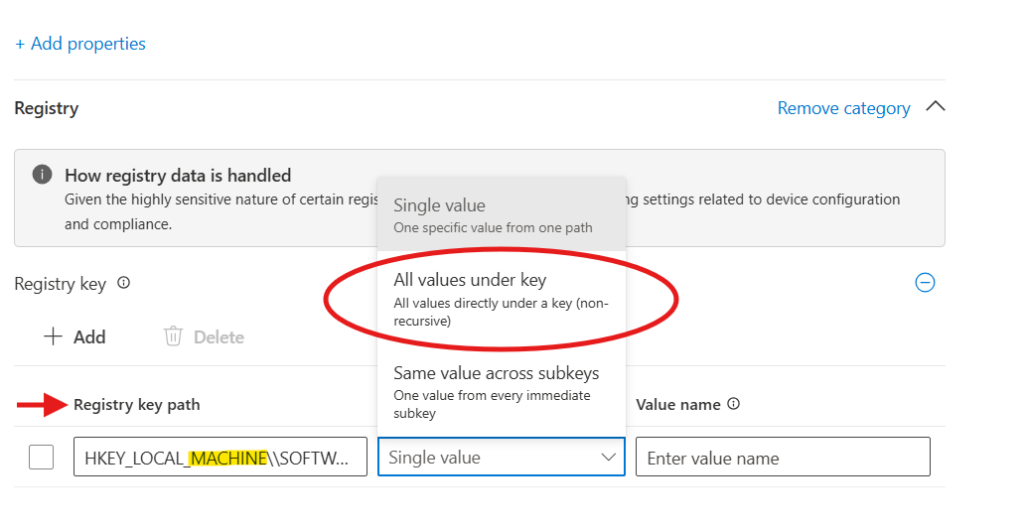
The three collection patterns
Microsoft ships exactly three, and all three are constrained to HKEY_LOCAL_MACHINE.
| Pattern | What it does | Worked example |
| Single value | Reads one named value from one key. You supply path + value name. | Secure Boot certificate servicing state: read UEFICA2023Status from HKLM\SYSTEM\CurrentControlSet\Control\SecureBoot |
| All values under a key (non-recursive) | Reads every value sitting directly under the key. Does not descend into subkeys. You supply the path only. | Dump a Windows Update policy path in one shot to validate what actually landed vs. what you assigned |
| Same value across subkeys | Reads one value name from every immediate child key. One level deep, explicitly not recursive. | DHCP state per NIC: read the value from each interface subkey under HKLM\SYSTEM\CurrentControlSet\Services\Tcpip\Parameters\Interfaces |
For every targeted device, the agent reports four fields back: registry key path, value name, value type, and value data. That last one is the point, you get the data, not a Boolean. A detection script gives you “compliant / not compliant” plus up to 2,048 characters of output you have to parse. This gives you the typed value.
Result semantics
- Value exists but holds no data → collection succeeds, reported as Empty.
- Path or value name does not exist → that device reports Not found.
- One device missing the value does not block the others — collection continues fleet-wide.
This is a genuine improvement over detection scripts, where “key missing” and “key present but wrong” both collapse into exit 1 unless you deliberately write three-state logic and stuff it into the output stream.
Under the hood: how it reaches the device
This is the part worth understanding, because it explains both the speed and the limits.
Registry collection does not run PowerShell. It does not use the Intune Management Extension script pipeline at all. It runs inside the Device Inventory Agent, the same agent that already collects your hardware and app inventory through a native registry provider.
The chain, end to end
- You create the properties catalog policy. The portal editor is driven by a client-side display model the agent package ships with.
- On check-in, the definition is delivered down the Device Inventory policy path as registry inventory metadata, key path, collection pattern, value name, expected type.
- The Inventory Service stores the policy locally.
- When collection is due, the harvesting provider factory recognises the registry metadata type and instantiates the default registry harvester provider.
- That provider registers three native action processors, one per collection pattern and executes the one your policy asked for.
- Results are transformed into inventory entities, written to the shared uploader database, and sent up the existing Device Inventory upload path. No separate registry channel.
Why this matters operationally
Because there is no PowerShell process, there is no execution policy to satisfy, no script signing, no AMSI surface, no 32-bit vs 64-bit host decision, no AgentExecutor timeout, and nothing for an EDR product to flag. A detection script that reads a registry key is, from a security telemetry standpoint, indistinguishable from a script that does something far less benign. This is not.
The three action processors map 1:1 to the portal patterns
| Portal pattern | Client action | Behaviour observed in the client package |
| Single value | Get-value action | Selects hive + subkey, reads the named value using the configured type. Clean for String, MultiString, DWord and QWord. |
| All values under key | Get-key action | Enumerates subkey names and value names under the key. Note: the full name-to-value expansion is not fully exposed in the current client build, treat this pattern as the least mature of the three. |
| Same value across subkeys | Enumerate-key-value action | Enumerates immediate child keys, builds each child path, reads the configured value from every child. Hard-limited to one level in code. |
Lab note
The “All values under a key” pattern is the one to test hardest before you build reporting on it. The client code enumerates names, but the complete name-to-value expansion is not visibly wired up in the build examined at release. Validate against a key where you know every value and its data, and compare what lands in Device Inventory against a local reg query.
Building it – step by step
Prerequisites
- Windows only. On Android and Apple platforms, device properties are collected automatically, there is no equivalent knob.
- Devices must be Intune managed, co-managed (Intune + Configuration Manager), Microsoft Entra joined, or Microsoft Entra hybrid joined.
- To configure: the Policy and Profile Manager built-in role, or a custom role with Organization/Read, Managed Devices/Read, and Device configurations Create + Read + Assign.
- To view collected data: Managed Devices/Read.
- Licensing: registry data collection in Device Inventory is included with Microsoft Intune Plan 1. No Suite, no Advanced Analytics, no add-on.
Create the policy
- Intune admin center → Devices → Windows.
- Manage devices → Configuration → Create → New Policy.
- Platform: Windows 10 and later. Profile type: Properties catalog.
- Name it something that survives contact with a future admin. I use a convention: PC-W-Inventory-<Domain>-<Purpose>.
- Add properties → select the Registry category → the Registry keys child item opens the custom editor.
- For each entry, supply Registry Key Path, Collection Pattern, and Value Name where the pattern requires it.
- Scope tags, then Assignments. In a multi-tenant CSP context, scope-tag this properly on day one, inventory policies get inherited and forgotten.
- Review + create.
Latency — set expectations before you demo this
Initial inventory collection can take up to 24 hours. This is not a “sync the device and refresh the blade” feature. If you are validating in a lab, create the policy, go do something else, and come back tomorrow. If you are demoing to a client, pre-seed the policy the day before.
Viewing the data
Devices → Windows → select a device → Tools → Device Inventory → select the category.
At initial release that is the only surface. Microsoft has stated that access will expand to additional reporting and exploration experiences in the coming months. Read that as: no fleet-wide registry report, no Device Query lens over registry data, and no documented Graph surface on day one. Section 5 covers what that costs you.
Three worked examples – with the scripts they replace
This is where the comparison stops being theoretical. For each scenario: the properties catalog config, then the detection script you would otherwise be maintaining.
Example A – Secure Boot certificate servicing state
Relevant right now, given the 2026 Secure Boot certificate rollout. You want to know which devices have picked up the new certificates and which threw an error, across the fleet.
Properties catalog config
Pattern     : Single value
Key path    : HKLM\SYSTEM\CurrentControlSet\Control\SecureBoot
Value names : UEFICA2023Status
              UEFICA2023Error
              UEFICA2023ErrorEvent

(three entries, one per value — or use "All values under a key"
 to sweep the whole SecureBoot key in a single entry)
The detection script it replaces
# Detect-SecureBootCertStatus.ps1
$Path = "HKLM:\SYSTEM\CurrentControlSet\Control\SecureBoot"

try {
    $k = Get-ItemProperty -Path $Path -ErrorAction Stop
    $status = $k.UEFICA2023Status
    $err    = $k.UEFICA2023Error

    if ($null -eq $status) {
        Write-Output "NOTFOUND: UEFICA2023Status absent"
        exit 1
    }

    Write-Output "Status=$status; Error=$err"

    if ($status -eq 0 -and [string]::IsNullOrEmpty($err)) { exit 0 }
    else { exit 1 }
}
catch {
    Write-Output "ERROR: $($_.Exception.Message)"
    exit 1
}
Twenty lines, a try/catch, a null check, and an output string you now have to regex out of the Pre-remediation detection output column in the Device status report. The properties catalog version is three form entries and returns typed values. This is the clean kill.
Example B – Windows Update policy state as actually applied
Assignment reports tell you a policy was delivered. They do not tell you what the device ended up with after GPO, co-management, a legacy WSUS registry blob and three vendor agents finished arguing. This pattern reads the resulting state.
Properties catalog config
Pattern  : All values under a key (non-recursive)
Key path : HKLM\SOFTWARE\Policies\Microsoft\Windows\WindowsUpdate\AU

# Second entry for the parent, if you want the WSUS server values:
Pattern  : All values under a key (non-recursive)
Key path : HKLM\SOFTWARE\Policies\Microsoft\Windows\WindowsUpdate
The detection script it replaces
# Detect-WUPolicyState.ps1
$Paths = @(
    "HKLM:\SOFTWARE\Policies\Microsoft\Windows\WindowsUpdate",
    "HKLM:\SOFTWARE\Policies\Microsoft\Windows\WindowsUpdate\AU"
)

$out = foreach ($p in $Paths) {
    if (Test-Path $p) {
        (Get-Item $p).GetValueNames() | ForEach-Object {
            "{0}\{1}={2}" -f $p, $_, (Get-ItemProperty $p).$_
        }
    } else { "$p=NOTFOUND" }
}

$s = $out -join "; "
if ($s.Length -gt 2000) { $s = $s.Substring(0,2000) }   # 2048 char ceiling
Write-Output $s
exit 0
Notice line 15
That truncation guard is the tell. Any detection script used as an inventory mechanism eventually hits the 2,048-character output ceiling, and you end up either truncating, hashing, or splitting one logical check across multiple script packages. The properties catalog has a 6 KB ceiling per value instead, roughly 3× the room, applied per value rather than per script.
Example C – One value across every network interface
The pattern nobody expects to need until they need it: read the same value out of an unknown number of GUID-named subkeys.
Properties catalog config
Pattern    : Same value across subkeys
Base path  : HKLM\SYSTEM\CurrentControlSet\Services\Tcpip\Parameters\Interfaces
Value name : EnableDHCP

# One entry. Returns one row per immediate child key (per NIC).
The detection script it replaces
# Detect-DhcpPerInterface.ps1
$Base = "HKLM:\SYSTEM\CurrentControlSet\Services\Tcpip\Parameters\Interfaces"

$rows = Get-ChildItem $Base | ForEach-Object {
    $v = (Get-ItemProperty $_.PSPath -Name EnableDHCP -EA SilentlyContinue).EnableDHCP
    "{0}={1}" -f $_.PSChildName, $(if ($null -eq $v) { "NOTFOUND" } else { $v })
}

Write-Output ($rows -join "; ")
exit 0
Same answer, one form entry, no enumeration logic, no null-coalescing, no join, no output budget. If you maintain a script that walks subkeys to grab one value, this pattern is aimed directly at it.
The side-by-side
Here is the whole comparison in one place. Read the last four rows twice, they are where the feature stops.
| Dimension | Properties catalog (Registry) | Proactive Remediations (detection script) |
| Execution engine | Device Inventory Agent, native registry provider. No PowerShell process. | Intune Management Extension launches powershell.exe per script. |
| Licensing | Intune Plan 1. | Windows 10/11 Enterprise E3 or E5 (via M365 F3/E3/E5), Education A3/A5, or VDA per user, plus tenant-level license verification toggle. |
| Authoring effort | Form: path, pattern, value name. | Write, encode UTF-8 (non-BOM if signing), test, sign, version, maintain. |
| Registry hive scope | HKLM only. | Any hive, including HKCU and per-user hives via loaded profiles. |
| Recursion | None. One level for the subkey pattern; non-recursive for the all-values pattern. | Unlimited – whatever you can write. |
| Logic and computation | None. It reads and reports. | Full PowerShell: comparison, thresholds, date maths, WMI/CIM joins, external calls. |
| Can it fix anything? | No. Read-only by design. | Yes – that is the entire point of the paired remediation script. |
| Output size ceiling | 6 KB per collected value. | 2,048 characters total per script run. |
| Volume ceiling | 100 registry keys per device. | 200 script packages per tenant. |
| Scheduling control | None exposed. Collection runs on the inventory cadence. | Once, hourly (interval under 24h), or daily; local time or UTC; missed runs catch up when online. |
| Time to first data | Up to 24 hours for initial collection. | Detection runs on the IME cycle; scripts re-run every 24 hours. |
| Data typing | Returns key path, value name, value type, value data. | Returns a string you wrote plus an exit code you chose. |
| Three-state result | Native: value data, Empty, or Not found. | You have to build it, and encode it into the output string. |
| Reporting surface (at launch) | Per-device Device Inventory blade only. Expansion promised. | Device status report, per-script export, Graph, and Device Query / Advanced Analytics joins. |
| Sensitive values | Heuristic detection blocks ingestion of suspected secrets, credentials, tokens, certificates, private keys and connection strings. Flagged values are not collected. | No guardrail. It will happily exfiltrate whatever you tell it to, which is on you. |
| Security telemetry footprint | Effectively none. | A signed-or-unsigned PowerShell process running as SYSTEM, every cycle, on every device. |
| Removal | Only at category level, remove every property in the category. Last-collected data lingers up to 28 days. | Delete or unassign the script package. |
| Client logs | C:\Program Files\Microsoft Device Inventory Agent\Logs | C:\ProgramData\Microsoft\IntuneManagementExtension\Logs |
The honest limits
Every write-up so far has led with “no more scripts.” That is not what shipped. Here is what will actually stop you.
Limit 1 – HKLM only. No HKCU. At all.
This is the big one and it is architectural, not a rollout gap. Microsoft’s stated rationale is that inventory should stay focused on device-level configuration and avoid user-specific registry contexts. Reasonable position. It also means an entire class of check is permanently out of scope:
- Per-user Office and Outlook configuration state
- OneDrive sync client state under the user hive
- Per-user application settings and licensing state
- Anything under HKCU that your line-of-business app writes
- User-scoped policy results that differ from the machine-scoped ones
If you are inventorying user-context state, you are keeping your detection scripts and specifically the ones that run in user context, which is the flag on the script package settings page. There is no roadmap statement suggesting HKCU is coming.
Limit 2 – 100 keys per device, 6 KB per value
Both ceilings are enforced, and excess data is skipped rather than queued. In a single-tenant enterprise, 100 is generous. In a CSP or MSP context where you may layer a baseline inventory policy, a client-specific policy, and a troubleshooting policy on the same device, it is a budget you have to manage deliberately.
Practical guidance
Treat the 100-key budget like a scope-tagged resource. Publish a baseline inventory policy of no more than 40–50 entries that every device gets, and reserve the remainder for per-client and ad-hoc troubleshooting policies. Document the budget somewhere your team will actually read, because nothing in the portal warns you that you are approaching it.
Limit 3 – No logic, no comparison, no threshold
The feature reads and reports. It does not evaluate. Every one of these stays a script:
- “Is this version greater than X?” – the catalog gives you the string; you compare it downstream, manually, per device.
- “Has this timestamp elapsed?” – date maths is not on the menu.
- “Does this registry value match this file version?” – no cross-source joins.
- “If A is set, check B; otherwise check C.” – no conditional collection.
- Anything that needs to also touch WMI, CIM, the filesystem, a certificate store, or the network.
And of course: it never fixes anything. If your script package has a remediation half, the detection half is not going anywhere either, you still need the exit code to trigger it.
Limit 4 – Device Inventory only, at launch
This is the one that determines whether the feature is useful to you today or in six months.
At initial release the collected registry data surfaces in the per-device Device Inventory blade. That is a troubleshooting surface, not a fleet surface. You can answer “what does this value look like on this device?” You cannot, natively and on day one, answer “show me every device where this value is 0” without clicking through devices one at a time.
A detection script, by contrast, gives you a Device status report with a filterable output column and an export, on day one, for every device in the assignment.
Read this before you retire anything
Microsoft has said access will expand to additional reporting and exploration experiences in the coming months. Until that lands, registry inventory is a troubleshooting accelerator, not a reporting replacement. Do not decommission a detection script whose output you currently consume as a fleet-wide report, you will lose the report and gain nothing.
Limit 5 – Two behavioural quirks
- Deletion is category-level only. You cannot remove a single registry entry from collection; you remove every property in the Registry category. Plan your policy structure around that separate policies per purpose, not one monolith.
- Data lingers for 28 days. Delete the policy and the last-collected data remains visible in Device Inventory for up to 28 days. Useful for forensics; worth knowing if a client asks you to prove collection has stopped.
- The sensitive-value heuristic is silent. If a value is flagged as potentially containing a secret, it simply is not collected. Confirm what a blocked value looks like in the blade during your lab test so you can distinguish “blocked” from “Not found” when a client asks why a value is missing.
Decision framework
Four rules. Apply in order.
| # | If your check… | Then |
| 1 | Reads one or more HKLM values and reports them, with no comparison, and you consume the result while troubleshooting an individual device | Move it to the properties catalog now. This is the target case. Retire the script. |
| 2 | Reads HKLM values but you consume the result as a fleet-wide report or export | Build the properties catalog entry in parallel, keep the script, and revisit when the expanded reporting surfaces land. |
| 3 | Touches HKCU, computes anything, crosses data sources, or has a paired remediation half | Keep the script. Nothing here helps you. |
| 4 | Exists mainly to burn one of your 200 script package slots on a trivial read | Move it, and reclaim the slot for something that actually needs logic. |
The migration play I’d run
- Inventory your own inventory. Export your script packages and tag each one: read-only vs. remediating, HKLM vs. HKCU, logic vs. no logic.
- Filter to read-only + HKLM + no logic. That is your candidate list. In most fleets I have looked at, it is between a fifth and a third of the packages.
- Build one properties catalog policy covering the candidates, up to your key budget.
- Run both in parallel for two weeks. Compare the catalog output against the detection output per device. You are specifically looking for disagreement on Empty vs. Not found, and for silently blocked sensitive values.
- Retire only the candidates whose output you consume per-device. Park the rest until the reporting surfaces expand.
- Document the key budget consumed per policy, in the policy description field, where the next admin will find it.
Validation and troubleshooting
Client-side logs
# Device Inventory Agent (registry collection lives here)
C:\Program Files\Microsoft Device Inventory Agent\Logs

# For comparison — remediation scripts still log here
C:\ProgramData\Microsoft\IntuneManagementExtension\Logs
You can also pull them centrally with the Collect diagnostics device action, which is the better move when you are troubleshooting a client device you cannot touch.
A validation script for your parallel-run window
Run this locally on a pilot device to produce ground truth, then compare against what Device Inventory reports for the same device.
# Validate-RegistryInventory.ps1
# Ground-truth reader for properties catalog parallel validation.
# Run as SYSTEM (psexec -s) to match the inventory agent context.

[CmdletBinding()]
param(
    [Parameter(Mandatory)] [string] $KeyPath,          # HKLM\... form
    [string] $ValueName,
    [ValidateSet("SingleValue","AllValues","AcrossSubkeys")]
    [string] $Pattern = "SingleValue"
)

$ps = "Registry::" + ($KeyPath -replace "^HKLM\\", "HKEY_LOCAL_MACHINE\")

function Get-Result {
    param($Path, $Name)
    if (-not (Test-Path $Path)) { return [pscustomobject]@{
        Key = $Path; Value = $Name; Type = "-"; Data = "Not found" } }

    $item = Get-Item $Path
    if ($item.GetValueNames() -notcontains $Name) { return [pscustomobject]@{
        Key = $Path; Value = $Name; Type = "-"; Data = "Not found" } }

    $data = $item.GetValue($Name)
    $type = $item.GetValueKind($Name)
    $shown = if ($null -eq $data -or "$data" -eq "") { "Empty" } else { "$data" }

    # mirror the 6 KB per-value ceiling
    $bytes = [Text.Encoding]::UTF8.GetByteCount("$shown")
    if ($bytes -gt 6144) { $shown = "OVER-6KB ($bytes bytes)" }

    [pscustomobject]@{ Key = $Path; Value = $Name; Type = $type; Data = $shown }
}

switch ($Pattern) {

    "SingleValue" {
        Get-Result -Path $ps -Name $ValueName
    }

    "AllValues" {
        if (-not (Test-Path $ps)) { "Not found"; break }
        (Get-Item $ps).GetValueNames() | ForEach-Object {
            Get-Result -Path $ps -Name $_
        }
    }

    "AcrossSubkeys" {
        if (-not (Test-Path $ps)) { "Not found"; break }
        Get-ChildItem $ps | ForEach-Object {
            Get-Result -Path $_.PSPath -Name $ValueName
        }
    }
}
Usage
.\Validate-RegistryInventory.ps1 `
    -KeyPath "HKLM\SYSTEM\CurrentControlSet\Control\SecureBoot" `
    -ValueName "UEFICA2023Status" `
    -Pattern SingleValue | Format-Table -AutoSize

.\Validate-RegistryInventory.ps1 `
    -KeyPath "HKLM\SYSTEM\CurrentControlSet\Services\Tcpip\Parameters\Interfaces" `
    -ValueName "EnableDHCP" `
    -Pattern AcrossSubkeys | Format-Table -AutoSize
What to record during your lab test
- Actual time from policy assignment to first data in the blade (Microsoft says up to 24h – measure yours).
- What a blocked sensitive value renders as, versus Not found, versus Empty.
- Whether the All-values-under-a-key pattern returns complete name-to-value pairs in your tenant, or names only.
- Behaviour when you exceed 100 keys, which entries get skipped, and whether anything surfaces in the portal.
- Whether a REG_MULTI_SZ or REG_BINARY value renders usefully, or at all.
- Co-managed device behaviour confirm the inventory agent is collecting on devices where the workload sliders are still pointed at ConfigMgr.
What to watch next
- Expanded reporting surfaces. This is the gating item. Registry inventory becomes a genuine detection-script replacement the day the data is queryable fleet-wide rather than device-by-device.
- Device Query and Advanced Analytics coverage. The Local AI Agent entity got a Device Query lens. Registry data getting the same treatment would let you join registry state against hardware and app inventory in one query, which is the version of this feature worth rebuilding your tooling around.
- Whether the all-values pattern matures. The client code suggests it is the least finished of the three. Retest after the next couple of service releases.
- HKCU. Nothing announced. The client package reportedly contains some CurrentUser handling, but the public editor is HKLM-bound and Microsoft has framed that as intentional. I would not plan around it changing.
The one-line verdict
Registry inventory in the properties catalog is a well-built, low-risk, Plan 1 feature that removes a real maintenance tax for exactly one class of script. It is a troubleshooting tool today and a reporting tool later. Move your trivial HKLM readers now, keep everything else, and re-evaluate the moment fleet-wide querying ships.