Microsoft renamed the .rdp trusted-publisher policy and added SHA-2 support in the July 2026 update and Intune still shows the old SHA-1 label. Here is the complete deployment, signing, and audit playbook.
- The April 2026 security update (CVE-2026-26151) rewrote the Remote Desktop Connection client’s RDP-file experience. Every .rdp file now throws a security dialog before any connection, and every redirection is off by default until the user explicitly ticks it.
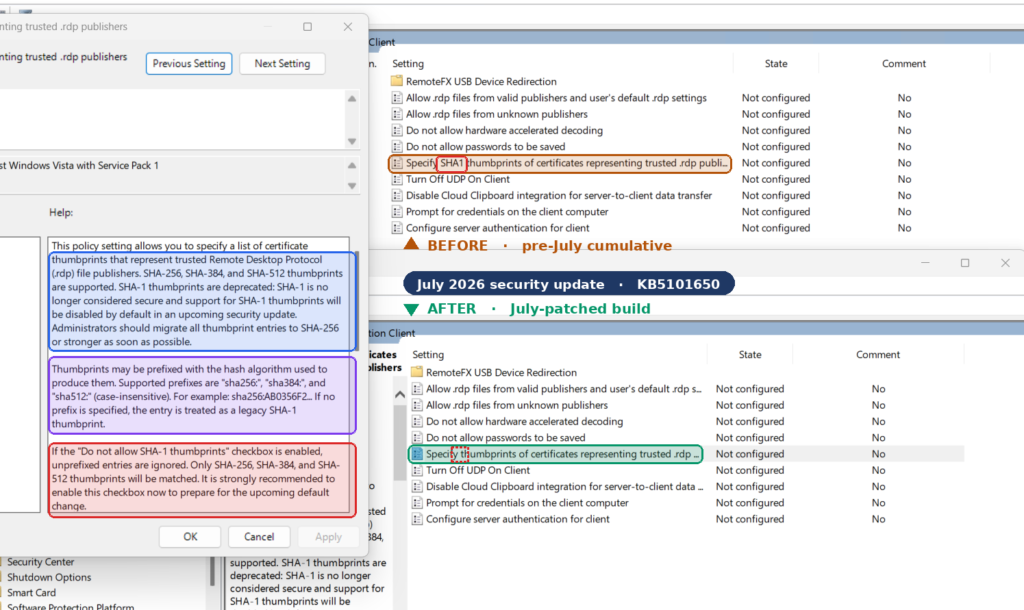
- The July 2026 security update (KB5101650) renamed the Group Policy setting from *Specify SHA1 thumbprints of certificates representing trusted .rdp publishers* to *Specify thumbprints of certificates representing trusted .rdp publishers*, and added SHA-2 support. SHA-1 is now backward-compatibility only and is scheduled for removal.
- If you deployed the SHA-1 thumbprint workaround in April, you are now pinned to a deprecated algorithm on a control Microsoft has publicly flagged for removal.
- If you deployed the RedirectionWarningDialogVersion registry stopgap, you are relying on a value Microsoft says a future update might remove, even on older versions of Windows.
- Intune has not caught up. The Settings Catalog and the Policy CSP documentation both still carry the old SHA-1 name and SHA-1-only description. This article explains why that is probably cosmetic, how to prove it in your own lab, and how to deploy the control correctly from Intune anyway Settings Catalog, OMA-URI, and PowerShell.
Timeline: what changed, and when
| Date | What happened | What it means for you |
| Pre-April 2026 | Opening a .rdp file showed the legacy warning with a “don’t ask me again” checkbox. Redirections declared in the file were applied silently. | A phishing .rdp file could silently map local drives and clipboard on first connect. |
| 14 April 2026 | CVE-2026-26151 fix. New first-launch educational dialog, plus a per-launch connection security dialog. All redirections off by default. | Helpdesk volume spike. Every unsigned internal .rdp file now shows “Unknown publisher”. |
| April – June 2026 | Field workarounds spread: pin a SHA-1 thumbprint via GPO, or set RedirectionWarningDialogVersion = 1 to revert the dialog. | Both are now legacy. One is deprecated, the other is explicitly temporary. |
| 14 July 2026 | KB5101650. Policy renamed; SHA-2 thumbprints supported; SHA-1 retained for backward compatibility only and planned for removal. New Learn article published same day. | Re-do your thumbprint deployment on SHA-256 before SHA-1 support is pulled. |
| Today | Intune Settings Catalog and the ADMX_TerminalServer Policy CSP page still show the old SHA-1 name and description. | Portal metadata is stale. Device-side behavior is what actually matters. |
What your users actually see now
Two distinct dialogs were introduced in April. Understanding the difference matters, because your remediation target is the second one, not the first.
The first-launch dialog
The first time a user opens any .rdp file after the update, an educational dialog appears explaining what RDP files are and warning about phishing. Once the user allows RDP file connections, it does not appear again for that account. It is per-user, not per-file.
The connection security dialog
This one fires every time an .rdp file is opened, before any connection is made. It shows the remote computer address and a checkbox for each local resource the file requests. Access to all of these is off by default, the user must explicitly enable each one. It has two variants:
Unsigned file – banner reads *”Caution: Unknown remote connection”*, and the Publisher field reads *”Unknown publisher”*.
Signed file – banner reads *”Verify the publisher of this remote connection”*, and the publisher’s name is displayed.
Signing is identity, not safety
A signature confirms who created the file and that it has not been tampered with since. It does not make the file safe. An attacker can obtain a certificate in a name that closely resembles yours, “Contoso Security” instead of “Contoso Ltd.” Train users to read the publisher name, not just look for the absence of a warning.
What connections are NOT affected
Connections started manually from the Remote Desktop Connection UI by typing a computer name are unchanged. This update only affects connections started by opening an .rdp file.
Azure Virtual Desktop and Windows 365 files are typically signed by Microsoft, so users should not see the new dialog for those. If they do, that is a signal to investigate not to click through.
The redirection inventory and why each one matters
The dialog surfaces every redirection the file requests. This table is worth putting in front of your security team, because it reframes “an annoying popup” as “an exfiltration checklist”.
| Redirection | What it exposes | Attack value |
| Drives | Local hard drives, USB drives, and network-mapped drives, readable and writable from the remote host. | Highest. File theft, credential harvesting from disk, malware written to the Startup folder, and lateral reach into mapped network shares. |
| Clipboard | Everything copied on the local device, both directions. | Password capture from password managers; malicious content injected for the user to paste locally. |
| Smart card / Windows Hello for Business | Local smart card and WHfB credentials usable by the remote host. | Authenticate as the user on the remote system and anything reachable from it. |
| WebAuthn (Hello / FIDO2 keys) | Local security keys and passkeys used to answer remote web-auth challenges. | Authentication prompts relayed from a hostile session to the local device. |
| Microphone | Local audio recording devices. | Eavesdropping on the room, meetings, calls. |
| Camera | Local video capture devices. | Visual surveillance surroundings, desk documents, screens. |
| Location | Device geographic location. | Physical targeting; sensitive for executive, law-enforcement, and field roles. |
| Printers | Local printers. | Nuisance and social engineering printing convincing fake documents locally. |
| Ports (COM / LPT) | Serial and parallel ports. | Access to legacy or specialist attached hardware. |
| Point-of-service devices | Barcode scanners, receipt printers. | Transaction interference, reading financial data from attached devices. |
| Other PnP devices | A wide range of USB and other peripherals. | Data read, device interaction, pivot point. |
| RemoteFX USB | Low-level USB redirection with deeper access than standard redirection. | Reaches authentication tokens and storage at a level that bypasses typical application-layer protections. |
Note that the available set differs by OS version, older builds support a different redirection list, so your dialog screenshots will not match across a mixed fleet.
WebAuthn has a built-in tell
When a WebAuthn request is redirected through a remote session, Windows shows that fact in the authentication prompt, wording along the lines of “Requested from a remote session by Remote Desktop Connection”. Put that in your user awareness material: if you see it and you did not expect it, do not approve.
The July change, precisely
From the Microsoft Learn article published 14 July 2026:
Verbatim from Microsoft Learn
Before the July 2026 security update, the “Specify thumbprints of certificates representing trusted .rdp publishers” policy was named “Specify SHA1 thumbprints of certificates representing trusted .rdp publishers” and only accepted SHA-1 thumbprints. After the update, it supports SHA-2 thumbprints. SHA-1 thumbprints are supported for backward compatibility only, do not use them for certificate pinning. A future release will remove support for SHA-1 thumbprints. Migrate to SHA-256 thumbprints or stronger to avoid disruption.
The KB5101650 release notes describe the same change from the servicing side: support for SHA-2 certificate thumbprints added for trusted RDP publishers, with SHA-1 retained only for backward compatibility and planned for future removal, alongside new guidance for managing RDP file security through Group Policy.
The undocumented part
Microsoft’s article ends that section with a pointer, not an answer:
The gap
After installing the July 2026 security update, refer to the Help section of the policy in the Local Group Policy Editor to learn more about how to configure SHA-2 certificates and the required prefixes.
“The required prefixes” are not documented anywhere on Microsoft Learn. They exist only in the in-box ADMX/ADML resources on a patched machine.
Proof: the rename in the wild
Two machines, same OU, same everything except the July cumulative update. Local Group Policy Editor, Computer Configuration → Administrative Templates → Windows Components → Remote Desktop Services → Remote Desktop Connection Client:
A screenshot is suggestive. The file system is evidence. Run this on both machines:
PowerShell  —  prove the ADMX changed on disk
$admx = "$env:SystemRoot\PolicyDefinitions\TerminalServer.admx"
$adml = "$env:SystemRoot\PolicyDefinitions\en-US\TerminalServer.adml"

[PSCustomObject]@{
    Build   = "{0}.{1}" -f (Get-ItemProperty "HKLM:\SOFTWARE\Microsoft\Windows NT\CurrentVersion").CurrentBuild,
                            (Get-ItemProperty "HKLM:\SOFTWARE\Microsoft\Windows NT\CurrentVersion").UBR
    AdmxSize    = (Get-Item $admx).Length
    AdmxWritten = (Get-Item $admx).LastWriteTime
    AdmlSize    = (Get-Item $adml).Length
    AdmlWritten = (Get-Item $adml).LastWriteTime
    AdmxHash    = (Get-FileHash $admx -Algorithm SHA256).Hash
} | Format-List

# The friendly-name string itself
Select-String -Path $adml -Pattern 'thumbprints of certificates representing trusted'
Differing LastWriteTime, differing SHA-256, and a differing .adml display string is a far stronger artifact than a UI capture, and it is what makes the post citable.
Getting the truth out of the ADMX
Before you can push this from Intune via OMA-URI you need three things the portal will not tell you: the element ID of the thumbprint list, the registry subkey the list writes to, and the value prefix, which is almost certainly what Microsoft means by “the required prefixes”.
All three are attributes on the <list> element inside TerminalServer.admx. Extract them:
PowerShell  —  extract element IDs, list keys, and value prefixes
[xml]$admx = Get-Content "$env:SystemRoot\PolicyDefinitions\TerminalServer.admx" -Raw

$admx.policyDefinitions.policies.policy |
    Where-Object { $_.name -like 'TS_CLIENT_TRUSTED_CERTIFICATE_THUMBPRINTS*' -or
                   $_.name -like 'TS_CLIENT_ALLOW_*SIGNED_FILES*' } |
    ForEach-Object {
        $p = $_
        $els = @()
        if ($p.elements) {
            foreach ($e in $p.elements.ChildNodes) {
                $els += [PSCustomObject]@{
                    Type        = $e.LocalName          # list / text / boolean / enum
                    Id          = $e.id                 # <-- OMA-URI data id
                    Key         = $e.key                # <-- registry subkey the list writes
                    ValuePrefix = $e.valuePrefix        # <-- the "required prefix"
                    ExplicitVal = $e.explicitValue
                    Additive    = $e.additive
                }
            }
        }
        [PSCustomObject]@{
            Policy   = $p.name
            Class    = $p.class                          # Machine | User | Both
            Key      = $p.key
            ValueName= $p.valueName
            Elements = $els
        }
    } | ForEach-Object { $_; $_.Elements | Format-Table -AutoSize | Out-String | Write-Host }
Working hypothesis worth testing and publishing
ADMX list elements carry an optional valuePrefix attribute that Windows prepends to every stored entry. Microsoft telling admins to read the Help section “to learn how to configure SHA-2 certificates and the required prefixes” strongly suggests SHA-2 entries must be written with an algorithm prefix so the client can distinguish a 64-character SHA-256 hash from a 40-character SHA-1 hash. Do not assume the exact syntax, enable the policy in gpedit with a real SHA-256 thumbprint, then dump the registry and read the literal string Windows wrote. Whatever appears there is the authoritative answer, and publishing it is the single most valuable thing in this article.
Dump exactly what the policy writes
Enable the policy locally with a known SHA-1 value, dump, then repeat with a known SHA-256 value and diff. This is how you discover the real storage format without guessing.
PowerShell  —  discover the real registry shape
$root = 'HKLM:\SOFTWARE\Policies\Microsoft\Windows NT\Terminal Services'

function Dump-PolicyTree {
    param([string]$Path)
    if (-not (Test-Path $Path)) { Write-Host "absent: $Path"; return }
    Get-Item $Path | ForEach-Object {
        $k = $_
        Write-Host "`n[$($k.Name)]" -ForegroundColor Cyan
        foreach ($v in $k.GetValueNames()) {
            "{0,-24} {1,-12} {2}" -f $v, $k.GetValueKind($v), $k.GetValue($v)
        }
    }
    Get-ChildItem $Path -Recurse -ErrorAction SilentlyContinue | ForEach-Object {
        Write-Host "`n[$($_.Name)]" -ForegroundColor Cyan
        foreach ($v in $_.GetValueNames()) {
            "{0,-24} {1,-12} {2}" -f $v, $_.GetValueKind($v), $_.GetValue($v)
        }
    }
}

Dump-PolicyTree -Path $root
The three policies and their exact CSP mappings
Only three Group Policy settings govern this behaviour. All three live under Windows Components → Remote Desktop Services → Remote Desktop Connection Client and all three are ADMX-backed, meaning they are exposed through the ADMX_TerminalServer area of the Policy CSP.
| Setting | Controls | CSP node |
| Allow .rdp files from valid publishers and user’s default .rdp settings | Whether users can open signed RDP files or launch connections manually. Disable to block every RDC launch that does not come from a trusted-publisher-signed file. | TS_CLIENT_ALLOW_SIGNED_FILES_1 (User) · TS_CLIENT_ALLOW_SIGNED_FILES_2 (Device) · Registry value: AllowSignedFiles |
| Allow .rdp files from unknown publishers | Whether users can open unsigned RDP files. Disable to block all unsigned files. | TS_CLIENT_ALLOW_UNSIGNED_FILES_1 (User) · TS_CLIENT_ALLOW_UNSIGNED_FILES_2 (Device) · Registry value: AllowUnsignedFiles |
| Specify thumbprints of certificates representing trusted .rdp publishers | The trusted publisher thumbprint list. A match means no security warning at all, and the redirections the file requests are enabled automatically. | TS_CLIENT_TRUSTED_CERTIFICATE_THUMBPRINTS_1 (Device) · TS_CLIENT_TRUSTED_CERTIFICATE_THUMBPRINTS_2 (User) |
Trap #1 – the suffix numbering is inverted on the thumbprint policy
On the two “Allow” policies, _1 is the USER-scoped node and _2 is the DEVICE-scoped node. On the thumbprint policy it is the other way round: _1 is DEVICE and _2 is USER. Anyone who pattern-matches the suffix across the three settings will scope the thumbprint list backwards, and it will fail silently, the profile still reports Success. Verify scope against the CSP reference every time, not against the setting next to it.
Behavioural rules that are easy to miss
- The thumbprint policy overrides the behaviour of *Allow .rdp files from valid publishers and user’s default .rdp settings*. Pinning a thumbprint is stronger than the general “valid publisher” allowance.
- Device and user lists combine. If you define the list in both Computer Configuration and User Configuration, the trusted set for that user is the union of both. That is a delegation risk if user-scoped policy is looser than device-scoped policy.
- Malformed entries are silently ignored. If the list contains a string that is not a certificate thumbprint, Windows discards it. There is no error, no event, and the policy still reports as applied. A typo in a SHA-256 value means you have deployed a policy that trusts nothing while every console you own shows green.
- Applicability: Windows 10 version 2004 with KB5005101 and later, and Windows 11 21H2 and later. Pro, Enterprise, Education, and IoT Enterprise / IoT Enterprise LTSC.
Trap #2 – this control fails open, loudly reported as success
Combine “malformed entries are ignored” with “ADMX-backed policies report Success once the SyncML is accepted” and you get the worst class of security control: one that reports healthy while enforcing nothing. Section 11 builds the detection that closes this gap. Do not deploy this policy without it.
The Intune documentation gap and why it probably does not matter
Search the Settings Catalog for the setting today and you get the pre-July label, for both scopes:
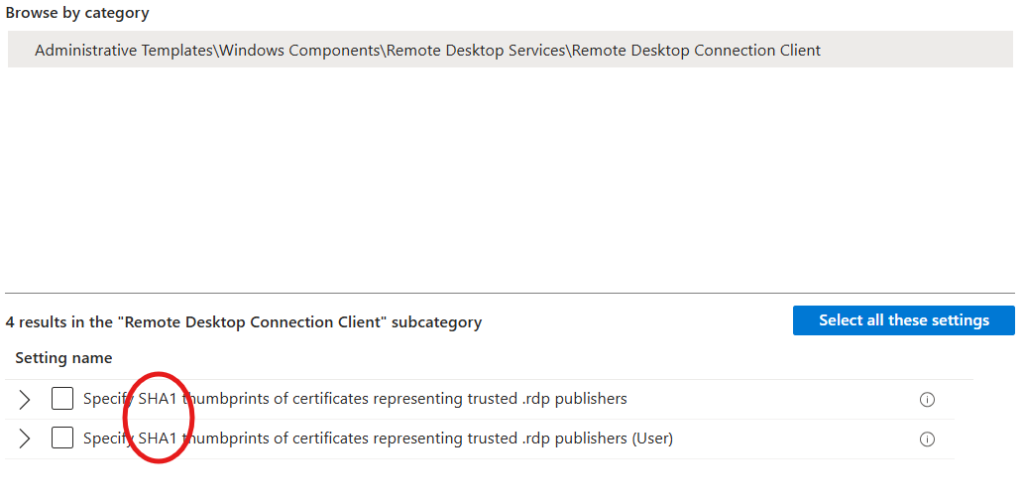
The ADMX_TerminalServer Policy CSP reference page tells the same stale story. It still carries the old friendly name and still describes the behavior as SHA-1 only, “any certificate with an SHA1 thumbprint that matches a thumbprint on the list is trusted.”
Why the stale label is probably cosmetic
This is the analytical core of the article, and it is worth stating carefully.
ADMX-backed policies are not evaluated in the cloud. Intune transmits a SyncML payload naming the policy and its element data; the MDM client on the device resolves that payload against the ADMX definitions installed locally on that device. The Settings Catalog label is metadata rendered from Microsoft’s service-side copy of the ADMX, presentation only.
If that model holds, then a July-patched client should honour a SHA-256 thumbprint pushed through the Settings Catalog even though the portal calls the setting “SHA1” because the client-side ADMX is the one that changed, and the client is what does the work.
What to do while it is unproven
- Deploy through the Settings Catalog if the test comes back (a). It is supported, reportable, and survives ADMX changes.
- Fall back to a custom OMA-URI profile if you hit (b) – you bypass the catalog’s presentation layer and speak directly to the CSP node.
Fall back to Remediations only if both fail, and understand what you are giving up.
Deploying from Intune – Settings Catalog
The supported path, and the one to try first.
- Intune admin center → Devices → Manage devices → Configuration → Create → New policy.
- Platform: Windows 10 and later. Profile type: Settings catalog.
- Name it explicitly, e.g. WIN-SEC-RDP-TrustedPublishers-SHA256-v1. Version the name — you will be rotating certificates against it.
- Add settings → browse to Administrative Templates \ Windows Components \ Remote Desktop Services \ Remote Desktop Connection Client.
- Select Specify SHA1 thumbprints of certificates representing trusted .rdp publishers — the device-scoped one, *without* the (User) suffix. Despite the label, this maps to TS_CLIENT_TRUSTED_CERTIFICATE_THUMBPRINTS_1.
- Set it to Enabled and add your SHA-256 thumbprint entries, one per line, using whatever prefix syntax.
- In the same profile, add Allow .rdp files from unknown publishers → Disabled, and Allow .rdp files from valid publishers and user’s default .rdp settings → Disabled if you are going to the high-security configuration.
- Assign to a pilot group. Do not assign to All Devices on day one.
Assignment scope matters more than usual here
The device-scoped setting applies to every user on the machine. The user-scoped setting applies to the user across every machine. Because the two lists combine, assigning both with different contents produces a trusted set larger than either policy shows on its own. Pick one scope and stay there. Device scope is correct for almost every corporate fleet.
Deploying from Intune – custom OMA-URI
Use this when the Settings Catalog rejects your value, when you need to be certain exactly what payload reaches the device, or when you want the deployment to be self-documenting in source control.
Profile creation
- Devices → Configuration → Create → New policy → Platform Windows 10 and later → Profile type Templates → Custom.
- Add a row per OMA-URI setting below.
The OMA-URI settings
| Purpose | OMA-URI | Type | Value |
| Trusted publisher thumbprints (device) | ./Device/Vendor/MSFT/Policy/Config/ADMX_TerminalServer/TS_CLIENT_TRUSTED_CERTIFICATE_THUMBPRINTS_1 | String | <enabled/> <data id=”TS_CLIENT_TRUSTED_CERTIFICATE_THUMBPRINTS_LIST” value=”1THUMBPRINT_ONE2THUMBPRINT_TWO”/> |
| Block unsigned .rdp files | ./Device/Vendor/MSFT/Policy/Config/ADMX_TerminalServer/TS_CLIENT_ALLOW_UNSIGNED_FILES_2 | String | <disabled/> |
| Block valid-publisher + manual launches | ./Device/Vendor/MSFT/Policy/Config/ADMX_TerminalServer/TS_CLIENT_ALLOW_SIGNED_FILES_2 | String | <disabled/> |
The list payload
ADMX-backed list elements take an indexed payload delimited by the Unicode character U+F000. In an Intune custom profile you enter it XML-encoded as . The shape is index, delimiter, value, delimiter, index, delimiter, value:
OMA-URI value — template
<enabled/>
<data id="TS_CLIENT_TRUSTED_CERTIFICATE_THUMBPRINTS_LIST"
value="1THUMBPRINT_ONE2THUMBPRINT_TWO"/>Generating the payload with PowerShell
Do not hand-assemble this. Generate it, so rotation is a one-line change.
PowerShell  —  build a valid OMA-URI list payload
function New-RdpThumbprintPayload {
    [CmdletBinding()]
    param(
        [Parameter(Mandatory)][string[]] $Thumbprint,
        [Parameter(Mandatory)][string]   $ElementId,   # from the ADMX (see section 5)
        [string] $ValuePrefix = ''                     # from the ADMX valuePrefix, if any
    )

    $clean = foreach ($t in $Thumbprint) {
        $n = ($t -replace '[^0-9A-Fa-f]', '').ToUpperInvariant()
        switch ($n.Length) {
            40 { Write-Warning "SHA-1 thumbprint supplied ($n). Deprecated - migrate to SHA-256." }
            64 { }
            default { throw "Not a valid SHA-1 (40) or SHA-256 (64) thumbprint: '$t' (length $($n.Length))" }
        }
        "$ValuePrefix$n"
    }

    $sb = [System.Text.StringBuilder]::new()
    for ($i = 0; $i -lt $clean.Count; $i++) {
        if ($i -gt 0) { [void]$sb.Append('') }
        [void]$sb.Append(($i + 1)).Append('').Append($clean[$i])
    }

    "<enabled/><data id=""$ElementId"" value=""$($sb.ToString())""/>"
}

# Example
New-RdpThumbprintPayload -ElementId 'TS_CLIENT_TRUSTED_CERTIFICATE_THUMBPRINTS_LIST' `
                         -Thumbprint 'A1B2...64hex', 'C3D4...64hex'
The validation in that function is the point. It refuses anything that is not 40 or 64 hex characters, which is precisely the failure mode Windows silently swallows.
Deploying from Intune – the PowerShell path
When to use it
- The Settings Catalog rejects SHA-2 and you cannot use OMA-URI for a policy reason.
- You need conditional logic for example, apply a different thumbprint set to a specific business unit based on installed software.
You are remediating the stopgap registry value rather than deploying the thumbprint list itself. This is the strongest use case.
The script
PowerShell  —  Set-RdpTrustedPublishers.ps1
<#
    Set-RdpTrustedPublishers.ps1
    Writes the trusted .rdp publisher thumbprint list and the two Allow policies.
    Run in SYSTEM context (Intune Remediations / Win32 app).
#>
[CmdletBinding()]
param(
    [Parameter(Mandatory)][string[]] $Thumbprint,
    [string]  $ListSubKey    = 'TrustedCertThumbprints',  # CONFIRM against section 5 output
    [string]  $ValuePrefix   = '',                          # CONFIRM against section 5 output
    [switch]  $BlockUnsigned,
    [switch]  $BlockUnpinned
)

$ErrorActionPreference = 'Stop'
$tsRoot   = 'HKLM:\SOFTWARE\Policies\Microsoft\Windows NT\Terminal Services'
$listPath = Join-Path $tsRoot $ListSubKey

# --- normalise + validate ------------------------------------------------
$entries = foreach ($t in $Thumbprint) {
    $n = ($t -replace '[^0-9A-Fa-f]', '').ToUpperInvariant()
    if ($n.Length -notin 40, 64) { throw "Invalid thumbprint length ($($n.Length)): $t" }
    if ($n.Length -eq 40) { Write-Warning "SHA-1 entry $n is deprecated." }
    "$ValuePrefix$n"
}
if (-not $entries) { throw 'No valid thumbprints supplied.' }

# --- write the list ------------------------------------------------------
if (Test-Path $listPath) { Remove-Item $listPath -Recurse -Force }
New-Item -Path $listPath -Force | Out-Null
for ($i = 0; $i -lt $entries.Count; $i++) {
    New-ItemProperty -Path $listPath -Name ($i + 1) -Value $entries[$i] `
                     -PropertyType String -Force | Out-Null
}

# --- the two Allow policies ---------------------------------------------
if (-not (Test-Path $tsRoot)) { New-Item -Path $tsRoot -Force | Out-Null }
if ($BlockUnsigned) {
    New-ItemProperty -Path $tsRoot -Name AllowUnsignedFiles -Value 0 -PropertyType DWord -Force | Out-Null
}
if ($BlockUnpinned) {
    New-ItemProperty -Path $tsRoot -Name AllowSignedFiles   -Value 0 -PropertyType DWord -Force | Out-Null
}

Write-Output "Wrote $($entries.Count) thumbprint(s) to $listPath"
What you give up with the script path
| Capability | Settings Catalog / OMA-URI | PowerShell script |
| Per-device apply/error reporting in Intune | Yes | Detection output only |
| Automatic removal when assignment is removed | Yes | No – values persist |
| Conflict detection against other profiles | Yes | No |
| Survives ADMX schema changes | Yes | No – you own the registry contract |
| Conditional / computed values | No | Yes |
| Works when the catalog rejects the value | No | Yes |
Retiring the April stopgap
Many organisations reverted the new dialog in April with a registry value. Microsoft is explicit that this is temporary and may be removed by a future update, even on older versions of Windows. Find it and remove it before it is removed for you, unannounced, mid-quarter.
PowerShell  —  Intune Remediation pair
# Detection — is the legacy dialog stopgap in place?
$k = 'HKLM:\SOFTWARE\Policies\Microsoft\Windows NT\Terminal Services\Client'
$v = (Get-ItemProperty -Path $k -Name RedirectionWarningDialogVersion -ErrorAction SilentlyContinue).RedirectionWarningDialogVersion
if ($null -ne $v) { Write-Output "Stopgap present: RedirectionWarningDialogVersion=$v"; exit 1 }
Write-Output 'Stopgap absent'; exit 0

# Remediation — remove it
Remove-ItemProperty -Path $k -Name RedirectionWarningDialogVersion -Force -ErrorAction SilentlyContinue
Write-Output 'Removed RedirectionWarningDialogVersion'
Developers embedding the Remote Desktop ActiveX control (mstscax.dll) have an equivalent lever through the RedirectionWarningDialogVersion property on IMsRdpExtendedSettings. If you have in-house applications wrapping RDC, that is where to look and the same deprecation warning applies.
Certificate strategy
The thumbprint list is only as good as the key behind it. Get this wrong and you have built a phishing primitive with your own logo on it.
Choosing the certificate
| Option | When it fits | Watch out for |
| Internal PKI code-signing certificate | Any organisation with ADCS or Cloud PKI. The right default. | Template must include the Code Signing EKU. Plan the renewal, thumbprint changes on renewal. |
| Public code-signing certificate | You distribute RDP files to parties outside your tenant. | Cost, and hardware-token requirements on modern issuance rules make automation awkward. |
| Self-signed | Lab and proof-of-concept only. | Thumbprint pinning makes it *work*, which is exactly the trap, no revocation, no chain, no governance. |
| RDS RDPublishing role certificate | You publish RemoteApp or desktop collections. | Server Manager generates self-signed by default; use Set-RDCertificate to bind a proper chained certificate instead. |
Creating and protecting the key
PowerShell  —  obtain the signing certificate and both thumbprints
# Internal PKI (preferred) - request against a Code Signing template
# Get-Certificate -Template "CodeSigningRDP" -CertStoreLocation Cert:\LocalMachine\My

# Lab only - self-signed code signing certificate
$cert = New-SelfSignedCertificate `
    -Type CodeSigningCert `
    -Subject 'CN=Contoso RDP Publishing' `
    -KeyUsage DigitalSignature `
    -KeyAlgorithm RSA -KeyLength 3072 `
    -HashAlgorithm SHA256 `
    -NotAfter (Get-Date).AddYears(2) `
    -CertStoreLocation 'Cert:\LocalMachine\My'

# The SHA-256 thumbprint you will deploy
$sha256 = (Get-FileHash -InputStream ([IO.MemoryStream]::new($cert.RawData)) -Algorithm SHA256).Hash

[PSCustomObject]@{
    Subject   = $cert.Subject
    NotAfter  = $cert.NotAfter
    Sha1      = $cert.Thumbprint          # legacy - what the April workaround used
    Sha256    = $sha256                   # what you deploy now
} | Format-List
Signing your RDP files
Manual signing with rdpsign.exe
rdpsign.exe ships with Windows and signs an individual .rdp file. It suits files distributed by email, file share, or intranet portal.
PowerShell  —  sign and verify .rdp files
<#
    Invoke-RdpFileSigning.ps1
    Signs one or many .rdp files with SHA-256 and verifies the result.
#>
[CmdletBinding()]
param(
    [Parameter(Mandatory)][string] $Thumbprint,   # SHA-1 thumbprint of the SIGNING CERT (cert store id)
    [Parameter(Mandatory)][string[]] $Path
)

$ErrorActionPreference = 'Stop'
$cert = Get-ChildItem Cert:\LocalMachine\My, Cert:\CurrentUser\My |
        Where-Object { $_.Thumbprint -eq ($Thumbprint -replace '\s', '') } |
        Select-Object -First 1
if (-not $cert)             { throw "Signing certificate $Thumbprint not found." }
if (-not $cert.HasPrivateKey) { throw 'Certificate has no private key on this machine.' }

foreach ($file in (Get-Item $Path)) {
    if ($file.Extension -ne '.rdp') { Write-Warning "Skipping $($file.Name)"; continue }

    # /sha256 takes the certificate hash with spaces removed
    $args = @('/sha256', ($cert.Thumbprint -replace '\s', ''), "`"$($file.FullName)`"")
    $p = Start-Process -FilePath "$env:SystemRoot\System32\rdpsign.exe" `
                       -ArgumentList $args -NoNewWindow -Wait -PassThru

    $signed = Select-String -Path $file.FullName -Pattern '^signature:s:' -Quiet
    [PSCustomObject]@{
        File     = $file.Name
        ExitCode = $p.ExitCode
        Signed   = [bool]$signed
        SignedAt = (Get-Date).ToString('s')
    }
}
The signature:s: line check matters. rdpsign can exit zero in situations where the file was not actually signed; reading the file back is the only honest verification.
Automated signing in RDS collections
If you publish through RemoteApp or virtual desktop collections, the certificate bound to the RDPublishing role signs every published RemoteApp and desktop connection automatically, no per-file step. The Server Manager RDS certificate UI generates self-signed certificates; for a properly chained certificate, bind it with Set-RDCertificate against the RDPublishing role instead.
Distributing the trust
Signing alone changes the dialog from “Unknown publisher” to a named publisher. It does not remove the dialog. Managed devices skip the warning only for a signing certificate they trust, which is what the thumbprint policy delivers. Two artifacts, two pipelines:
- The signing certificate’s thumbprint → the trusted publisher policy.
- The certificate chain → an Intune Trusted certificate profile, if you also want the file to validate as a “valid publisher” for the second policy. Optional when you pin, mandatory when you rely on chain validation.
Rotation: the thing that will bite you in 24 months
Certificates expire. Thumbprints change. If you swap the certificate and the policy in the same change window, every signed .rdp file in your estate throws warnings until policy converges across the fleet, which on a laptop population means days, not minutes.
Run an overlap window instead:
- T-60 days. Issue the new signing certificate. Do not sign anything with it yet.
- T-45. Add the new thumbprint to the policy alongside the old one. The list accepts multiple entries; both are now trusted.
- T-30. Confirm ≥98% policy convergence using the audit script. Do not proceed until you can prove it, this is the gate.
- T-14. Re-sign all distributed .rdp files with the new certificate. Devices trust both, so nothing breaks.
- T-0. Old certificate expires. Nothing happens, because nothing depends on it.
- T+30. Remove the old thumbprint from the policy. Archive the old private key; do not delete it until you have confirmed no signed artifact still references it.
The audit script
There is no native report for any of this. Build one. This runs as an Intune Remediation detection script, emits a single-line JSON object for the remediation output column, and exits non-zero when the device needs attention.
PowerShell  —  Get-RdpTrustState.ps1
<#
    Get-RdpTrustState.ps1  |  Intune Remediation - DETECTION
    Reports RDP file trust posture. Exit 1 = attention required.
    Run as SYSTEM, 64-bit.
#>

$ErrorActionPreference = 'Stop'
$r = [ordered]@{}

function Classify-Thumbprint {
    param([string] $Raw)
    $prefix = ''
    $val    = $Raw
    if ($Raw -match '^(?<p>[^0-9A-Fa-f]*[A-Za-z0-9]+[:=])(?<v>.+)$') {
        $prefix = $Matches.p; $val = $Matches.v
    }
    $hex = ($val -replace '[^0-9A-Fa-f]', '')
    $alg = switch ($hex.Length) { 40 { 'SHA1' } 64 { 'SHA256' } default { 'INVALID' } }
    [PSCustomObject]@{ Prefix = $prefix; Hex = $hex.ToUpperInvariant(); Length = $hex.Length; Algorithm = $alg }
}

try {
    # --- build ----------------------------------------------------------
    $cv = Get-ItemProperty 'HKLM:\SOFTWARE\Microsoft\Windows NT\CurrentVersion'
    $r.Build   = "{0}.{1}" -f $cv.CurrentBuild, $cv.UBR
    $r.Edition = $cv.EditionID
    # July 2026 cumulative: 26100.8875 (24H2) / 26200.8875 (25H2)
    $r.JulyPatched = ([int]$cv.CurrentBuild -ge 26100 -and [int]$cv.UBR -ge 8875) -or [int]$cv.CurrentBuild -gt 26200

    # --- ADMX on disk ---------------------------------------------------
    $adml = "$env:SystemRoot\PolicyDefinitions\en-US\TerminalServer.adml"
    if (Test-Path $adml) {
        $txt = Get-Content $adml -Raw
        $r.AdmlRenamed = ($txt -match '>Specify thumbprints of certificates representing trusted')
        $r.AdmlLegacy  = ($txt -match '>Specify SHA1 thumbprints of certificates representing trusted')
        $r.AdmlWritten = (Get-Item $adml).LastWriteTime.ToString('s')
    } else { $r.AdmlRenamed = $false; $r.AdmlLegacy = $false }

    # --- policy state ---------------------------------------------------
    $ts = 'HKLM:\SOFTWARE\Policies\Microsoft\Windows NT\Terminal Services'
    $p  = Get-ItemProperty -Path $ts -ErrorAction SilentlyContinue
    $r.AllowSignedFiles   = if ($null -ne $p.AllowSignedFiles)   { [int]$p.AllowSignedFiles }   else { 'unset' }
    $r.AllowUnsignedFiles = if ($null -ne $p.AllowUnsignedFiles) { [int]$p.AllowUnsignedFiles } else { 'unset' }

    # --- thumbprint list (discovered, not assumed) ----------------------
    $found = @()
    if (Test-Path $ts) {
        foreach ($k in (Get-ChildItem $ts -Recurse -ErrorAction SilentlyContinue)) {
            foreach ($vn in $k.GetValueNames()) {
                $raw = [string]$k.GetValue($vn)
                if ($raw -match '[0-9A-Fa-f]{40,}') {
                    $c = Classify-Thumbprint -Raw $raw
                    $found += [PSCustomObject]@{
                        Key = $k.Name.Split('\\')[-1]; Name = $vn
                        Alg = $c.Algorithm; Len = $c.Length; Prefix = $c.Prefix
                        Hash = $c.Hex.Substring(0, [Math]::Min(12, $c.Hex.Length))
                    }
                }
            }
        }
    }
    $r.ThumbprintCount = $found.Count
    $r.Sha1Count       = @($found | Where-Object Alg -eq 'SHA1').Count
    $r.Sha256Count     = @($found | Where-Object Alg -eq 'SHA256').Count
    $r.InvalidCount    = @($found | Where-Object Alg -eq 'INVALID').Count
    $r.ObservedPrefix  = (($found | Select-Object -ExpandProperty Prefix -Unique) -join ',')

    # --- April stopgap --------------------------------------------------
    $cli = Join-Path $ts 'Client'
    $rw  = (Get-ItemProperty -Path $cli -Name RedirectionWarningDialogVersion -ErrorAction SilentlyContinue).RedirectionWarningDialogVersion
    $r.StopgapPresent = ($null -ne $rw)

    # --- verdict --------------------------------------------------------
    $issues = @()
    if (-not $r.JulyPatched)                        { $issues += 'NotJulyPatched' }
    if ($r.StopgapPresent)                          { $issues += 'LegacyDialogStopgap' }
    if ($r.Sha1Count   -gt 0)                       { $issues += 'DeprecatedSha1Pin' }
    if ($r.InvalidCount -gt 0)                      { $issues += 'MalformedThumbprint' }
    if ($r.ThumbprintCount -eq 0)                   { $issues += 'NoTrustedPublisher' }
    if ($r.AllowUnsignedFiles -eq 1 -or $r.AllowUnsignedFiles -eq 'unset') { $issues += 'UnsignedRdpAllowed' }
    $r.Issues  = ($issues -join ',')
    $r.Verdict = if ($issues.Count) { 'AttentionRequired' } else { 'Compliant' }
}
catch { $r.Error = $_.Exception.Message; $r.Verdict = 'Error' }

$json = $r | ConvertTo-Json -Compress
if ($json.Length -gt 2000) { $json = $json.Substring(0, 2000) }
Write-Output $json
if ($r.Verdict -eq 'Compliant') { exit 0 } else { exit 1 }
Custom compliance policy
Remediation output tells you the state. Compliance turns it into a Conditional Access decision. Discovery script:
PowerShell  —  custom compliance discovery script
$cv  = Get-ItemProperty 'HKLM:\SOFTWARE\Microsoft\Windows NT\CurrentVersion'
$ts  = 'HKLM:\SOFTWARE\Policies\Microsoft\Windows NT\Terminal Services'
$p   = Get-ItemProperty -Path $ts -ErrorAction SilentlyContinue
$cli = Join-Path $ts 'Client'

$sha1 = 0; $sha256 = 0
if (Test-Path $ts) {
    foreach ($k in (Get-ChildItem $ts -Recurse -ErrorAction SilentlyContinue)) {
        foreach ($vn in $k.GetValueNames()) {
            $hex = ([string]$k.GetValue($vn)) -replace '[^0-9A-Fa-f]', ''
            if ($hex.Length -eq 40) { $sha1++ } elseif ($hex.Length -eq 64) { $sha256++ }
        }
    }
}

$hash = @{
    RdpBuildUbr        = [int]$cv.UBR
    RdpSha256Pins      = $sha256
    RdpSha1Pins        = $sha1
    RdpUnsignedBlocked = ($p.AllowUnsignedFiles -eq 0)
    RdpStopgapPresent  = ($null -ne (Get-ItemProperty -Path $cli -Name RedirectionWarningDialogVersion -ErrorAction SilentlyContinue))
}
return $hash | ConvertTo-Json -Compress
Matching rules JSON:
JSON  —  custom compliance rules
{
  "Rules": [
    {
      "SettingName": "RdpSha256Pins",
      "Operator": "GreaterEquals",
      "DataType": "Int64",
      "Operand": 1,
      "MoreInfoUrl": "https://scudra.ca/rdp-trusted-publishers",
      "RemediationStrings": [
        { "Language": "en_US",
          "Title": "RDP trusted publisher not configured",
          "Description": "This device has no SHA-256 trusted .rdp publisher pinned. Contact IT." }
      ]
    },
    {
      "SettingName": "RdpUnsignedBlocked",
      "Operator": "IsEquals",
      "DataType": "Boolean",
      "Operand": true,
      "MoreInfoUrl": "https://scudra.ca/rdp-trusted-publishers",
      "RemediationStrings": [
        { "Language": "en_US",
          "Title": "Unsigned RDP files are permitted",
          "Description": "This device allows unsigned .rdp files to run. Contact IT." }
      ]
    },
    {
      "SettingName": "RdpStopgapPresent",
      "Operator": "IsEquals",
      "DataType": "Boolean",
      "Operand": false,
      "MoreInfoUrl": "https://scudra.ca/rdp-trusted-publishers",
      "RemediationStrings": [
        { "Language": "en_US",
          "Title": "Legacy RDP dialog override present",
          "Description": "A temporary registry override is suppressing RDP security warnings. Contact IT." }
      ]
    }
  ]
}
Hunting: find the exposure before you close it
Before you enforce, find out what you are about to break and whether anyone is already being targeted.
Which RDP files are actually in use
KQL  —  RDP file inventory (Defender advanced hunting)
DeviceProcessEvents
| where Timestamp > ago(30d)
| where FileName =~ "mstsc.exe"
| where ProcessCommandLine has ".rdp"
| extend RdpFile = tostring(extract(@'([^\s"]+\.rdp)', 1, ProcessCommandLine))
| where isnotempty(RdpFile)
| summarize Launches = count(),
            Devices  = dcount(DeviceId),
            Users    = dcount(AccountUpn),
            LastSeen = max(Timestamp)
          by RdpFile
| order by Launches desc
This is your migration backlog. Every distinct file in that list needs an owner and a signing decision before you disable unsigned files.
RDP files arriving from hostile channels
KQL  —  .rdp files written by mail and browser processes
let deliveryApps = dynamic(["outlook.exe","olk.exe","msedge.exe","chrome.exe",
                            "firefox.exe","teams.exe","ms-teams.exe","explorer.exe"]);
DeviceFileEvents
| where Timestamp > ago(30d)
| where FileName endswith ".rdp"
| where ActionType in ("FileCreated", "FileModified")
| where InitiatingProcessFileName in~ (deliveryApps)
| project Timestamp, DeviceName, FileName, FolderPath, FileOriginUrl,
          InitiatingProcessFileName, InitiatingProcessAccountUpn
| order by Timestamp desc
Devices still carrying the April stopgap
KQL  —  stopgap registry value
DeviceRegistryEvents
| where Timestamp > ago(30d)
| where RegistryKey has @"Terminal Services\Client"
| where RegistryValueName =~ "RedirectionWarningDialogVersion"
| summarize arg_max(Timestamp, RegistryValueData) by DeviceId, DeviceName
| order by Timestamp desc
The Central Store trap (hybrid and AD-managed estates)
This is the trap that will outlive the article, and it is worth understanding even in a cloud-first shop, because most of us still touch a domain somewhere.
- gpedit.msc reads the local %SystemRoot%\PolicyDefinitions folder. The July cumulative update refreshed it. That is why the rename shows up locally.
- GPMC reads the SYSVOL Central Store if one exists. No Windows update ever touches SYSVOL.
The consequence: a domain-managed organisation with a Central Store will keep seeing the old “SHA1” name and the old Help text indefinitely, while their clients have already moved to SHA-2 support. The admin console and the endpoint disagree, and the console is the one that is wrong.
PowerShell  —  Central Store drift check
# Compare Central Store against a patched reference machine
$central = "\\$env:USERDNSDOMAIN\SYSVOL\$env:USERDNSDOMAIN\Policies\PolicyDefinitions"
$local   = "$env:SystemRoot\PolicyDefinitions"

foreach ($f in 'TerminalServer.admx', 'en-US\TerminalServer.adml') {
    $c = Join-Path $central $f; $l = Join-Path $local $f
    [PSCustomObject]@{
        File          = $f
        CentralExists = Test-Path $c
        CentralHash   = if (Test-Path $c) { (Get-FileHash $c -Algorithm SHA256).Hash.Substring(0,16) }
        LocalHash     = (Get-FileHash $l -Algorithm SHA256).Hash.Substring(0,16)
        InSync        = (Test-Path $c) -and
                        ((Get-FileHash $c).Hash -eq (Get-FileHash $l).Hash)
    }
}

# Refresh (run from a fully patched reference machine, out of hours)
# Copy-Item "$local\TerminalServer.admx"        "$central\"        -Force
# Copy-Item "$local\en-US\TerminalServer.adml"  "$central\en-US\"  -Force
Recommended configurations
Microsoft’s high-security configuration
Microsoft recommends this for all organisations, regardless of security posture, whenever the environment allows it — and especially for those handling sensitive data or frequently targeted by phishing.
| Policy | Setting |
| Allow .rdp files from valid publishers and user’s default .rdp settings | Disabled |
| Allow .rdp files from unknown publishers | Disabled |
| Specify thumbprints of certificates representing trusted .rdp publishers | Enabled – only your own signing thumbprints, preferably SHA-2 |
Effect: users can only open .rdp files signed by an explicitly trusted publisher. Everything else is blocked, including files signed by valid but untrusted publishers, and connections launched from the Remote Desktop Connection UI itself. That last clause is the one that generates tickets.
Microsoft’s permissive configuration
For organisations that cannot yet stop using unsigned .rdp files
| Policy | Setting |
| Allow .rdp files from valid publishers and user’s default .rdp settings | Enabled (default) |
| Allow .rdp files from unknown publishers | Enabled (default) |
| Specify thumbprints of certificates representing trusted .rdp publishers | Enabled with your thumbprints, or Disabled (default) |
Effect: everything still opens, but the security warnings remain and redirections stay off until the user opts in. Protection rests entirely on end-user judgement. Microsoft is blunt that this should be considered temporary.
A practical baseline by device class
Microsoft’s two configurations are the poles. Most fleets need something in between during migration.
| Device class | Unsigned | Valid publishers / manual launch | Thumbprints | Rationale |
| Privileged access workstations, Tier-0 admin | Disabled | Disabled | Enabled, SHA-256, minimal list | Highest value target. Manual RDC launch should come from a jump host, not a laptop. |
| Standard knowledge worker | Disabled | Enabled | Enabled, SHA-256 | Kills the phishing vector without breaking ad-hoc support connections. |
| IT / service desk | Disabled | Enabled | Enabled, SHA-256 | They launch RDC manually all day. Disabling that is how you get an exception request that never closes. |
| Developer / engineering | Disabled | Enabled | Enabled, SHA-256 | Watch for tooling that generates unsigned .rdp files on the fly- inventory first. |
| Frontline / shared / kiosk | Disabled | Disabled | Enabled, SHA-256, single entry | Fixed, known connections only. Nothing ad-hoc is legitimate here. |
| Contractor / unmanaged-adjacent | Disabled | Enabled | Enabled, SHA-256 | You cannot control what lands in their inbox; block the unsigned path at minimum. |
Rollout plan
| Ring | Population | Configuration | Exit gate |
| Ring 0 – Lab | 5–10 VMs, mixed 24H2/25H2, mixed Pro/Enterprise, at least one pre-July build | Full high-security config; SHA-256 pins | Prefix syntax confirmed. |
| Ring 1 – IT | Endpoint and security teams, 20–50 devices | Thumbprints + block unsigned. Leave valid-publisher enabled. | Zero unexplained RDP failures for 7 days. Audit script reports 100% pinned. |
| Ring 2 – Pilot BU | One business unit with known RDP usage, 100–300 devices | Same as Ring 1 | Helpdesk ticket rate below agreed threshold for 10 days. |
| Ring 3 – Broad | Remainder, staged by device class | Per device class | ≥98% compliant on the custom compliance policy before enabling Conditional Access enforcement. |
| Ring 4 Hardening | PAW and frontline classes only | Add valid-publisher = Disabled | Exception register closed; jump-host path validated. |
Lab test matrix
These are the tests that turn this from a summary of documentation into original research. Record every result, including the boring ones.
| # | Test | Why it matters |
| 1 | Confirm the gpedit rename pre- and post-July on identical hardware; hash TerminalServer.admx / .adml on both. | Establishes the change is real and locally delivered. |
| 2 | Extract element ID, list key, and valuePrefix from the ADMX. | Produces the undocumented prefix syntax. The headline finding. |
| 3 | Enable the policy in gpedit with SHA-1, dump the registry. Repeat with SHA-256. Diff. | Reveals the authoritative storage format, prefix included. |
| 4 | Push SHA-256 via Settings Catalog. Check portal status, registry, and actual dialog suppression. | Answers whether the stale SHA-1 label is cosmetic. Three possible outcomes, all publishable. |
| 5 | Push SHA-256 via OMA-URI. Same three checks. | Confirms the fallback path works if the catalog validates against a stale schema. |
| 6 | Push a deliberately malformed 64-char value. | Confirms the silent fail-open. Screenshot the green portal status against a still-warning client. |
| 7 | Push a SHA-256 pin to a pre-July device. | Establishes blast radius during a staggered patch rollout. |
| 8 | Pin device-scope and user-scope with different lists on one machine. | Confirms the union behaviour and quantifies the delegation risk. |
| 9 | Sign an .rdp with rdpsign /sha256, then edit it, then reopen. | Demonstrates signature invalidation on edit, the most common field mistake. |
| 10 | Pin a self-signed cert whose chain is untrusted. | Proves thumbprint pinning bypasses chain validation. Good, slightly alarming demo. |
| 11 | Repeat 4–6 on Windows 11 Pro as well as Enterprise. | Catches any edition-scoped behaviour before it catches you. |
| 12 | Set RedirectionWarningDialogVersion = 1 on a July build. | Confirms whether the April stopgap still functions post-July, or has already been quietly retired. |