Because “Windows Update Says We’re Fine” Isn’t a Report
If you manage a Windows fleet through Microsoft Intune, you’ve probably had a version of this conversation with a client or a security team:
“Are all our devices on the latest BIOS and drivers?”
“We have a driver update policy in Intune.”
“Okay… but are they actually updated? Which devices have something pending right now?”
And that’s where it falls apart. Intune has a Windows Driver Update policy. It even shows you per-driver approval counts. What it doesn’t give you is the answer to the actual question: a per-device report showing which machines have pending BIOS, firmware, Bluetooth, or display driver updates, and which are genuinely up to date.
This post walks through the full solution we built to close that gap, a hands-off, Intune-automated reporting pipeline that scans every enrolled device, checks Windows Update and the OEM’s own catalog (Dell, HP, Lenovo, Surface), and produces a clean Excel + HTML report. No agents, no third-party licensing, no touching the endpoints.
The problem, stated precisely
The native Intune experience gives you two things, and neither answers the question:
- The Driver Update policy view shows drivers the Windows Update for Business (WUfB) service considers applicable, grouped by approval status. It’s a deployment-pipeline view, “here are drivers you could approve”, not a device-state view.
- The per-driver counts tell you how many devices a given driver applies to, but you can’t pivot it to “show me everything pending on DESKTOP-1234.”
There’s a deeper issue too: Windows Update is not the whole truth for firmware. OEMs don’t publish every BIOS/UEFI release to Windows Update. A device can look perfectly clean in Settings > Windows Update while Dell, HP, or Lenovo have a newer BIOS sitting in their catalog. If your report only trusts WU, you’ll hand the client a green dashboard that’s quietly wrong.
So the requirements were:
- Per-device, real-time state – what’s actually pending on each endpoint now, by driver class (firmware, Bluetooth, display, etc.).
- Beyond Windows Update – check the OEM’s own update catalog for BIOS/firmware, per manufacturer.
- Fully automated – runs itself on a schedule, no device interaction.
- A report a client will actually read – Excel for the analysts, HTML for the exec summary.
The architecture
The whole thing is two scripts and a piece of native Intune plumbing:
1. A detection script that runs on each device via Intune Remediations. It performs the scan and emits a compact JSON blob describing what’s pending. This is the “sensor.”
2. Intune Remediations (Devices > Scripts and remediations) as the delivery and scheduling engine. It runs the detection script on every assigned device on a schedule, as SYSTEM, and stores the script’s output, which Microsoft Graph exposes back to us.
3. A report script that runs on an admin workstation or unattended via an app registration. It pulls every device’s stored detection output through Graph, merges it with the tenant device list and (optionally) the Driver Update policy inventory, and renders the report.
The elegant part: Intune Remediations are just “run a script and keep its output.” Nobody says the output has to be a health-check pass/fail, we use it as a data channel. The detection script’s job is to emit structured JSON; the “remediation” half is left empty because we’re reporting, not remediating (though you can add an install step, more on that later).
Part 1 – The detection script (the sensor on each device)
The detection script does two scans and packs the result into JSON that fits Intune’s output size limit.
Scan A – Windows Update Agent (the COM API)
Instead of parsing the Settings UI or guessing, we query the Windows Update Agent directly via its COM interface. This is the same engine Windows itself uses, so it sees exactly what’s applicable to the device:
$session  = New-Object -ComObject 'Microsoft.Update.Session'
$searcher = $session.CreateUpdateSearcher()
$searcher.Online = $true
$result = $searcher.Search("IsInstalled=0 and Type='Driver' and IsHidden=0")
For each result we capture the title, the driver class (this is what lets us split firmware vs Bluetooth vs display), the driver version date, and whether it needs a reboot. We also grab the current BIOS version and release date from Win32_BIOS so the report shows what’s installed today.
Key insight #1:
The COM scan finds everything applicable in the catalog, but the Windows Update UI only shows what your servicing policy is currently offering. That difference is exactly why a device can show “pending” in our report while looking clean in Settings, the Intune Driver Update policy (with manual approval) is holding those drivers back until approved. That’s not a bug; that’s the report surfacing the approval backlog.
Scan B – OEM-native catalog (the part that matters for firmware)
This is where we go beyond Windows Update. The script detects the manufacturer from Win32_ComputerSystem and branches:
| Manufacturer | Tool | What it checks |
| Dell | Dell Command | Update CLI (dcu-cli.exe /scan) | Full applicable-update scan: BIOS, firmware, drivers |
| HP | HP CMSL (Get-HPBIOSUpdates -Check) | Authoritative BIOS/UEFI currency vs HP’s catalog |
| Lenovo | LSUClient module (Get-LSUpdate) | Applicable Lenovo packages incl. BIOS/UEFI |
| Surface | Windows Update (native) | Microsoft ships Surface firmware through WU, so the WU scan is authoritative |
Each branch normalizes its output into the same shape, a status (ok / notool / err), a pending count, a “newer BIOS available” flag, and a list of items. If the OEM tool isn’t installed on the device, it reports notool gracefully and the WU results still apply, you don’t get a failed scan, you get a data point (“this device is missing its OEM tool”) that becomes a fleet-wide gap metric in the report.
Key insight #2:
OEMs don’t publish everything to Windows Update. Relying on WU alone gives you a falsely reassuring picture of firmware currency. The OEM catalog is the source of truth for BIOS, so we check both and merge.
Fitting inside Intune’s output limit
Intune caps a remediation’s detection output at roughly 2 KB. A device with a dozen pending drivers plus OEM items can blow past that. So the JSON uses short keys (m for manufacturer, b for BIOS, c for count, etc.) and, if it’s still too large, truncates the driver list while always preserving the accurate count and setting a truncation flag. The report shows “5 pending” even if it could only carry details for 4.
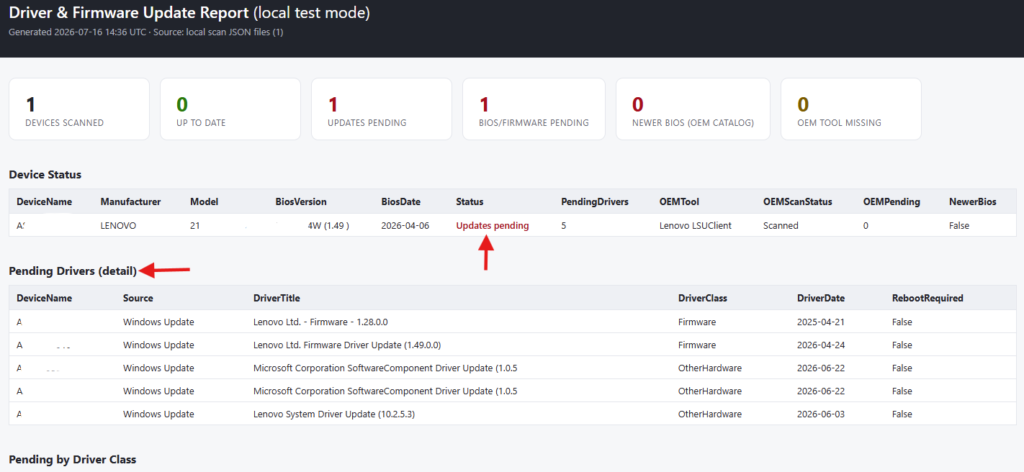
Here’s a real (lightly reformatted) detection output from a Lenovo test machine:
{
  "m": "LENOVO", "mo": "21KDSM8A00",
  "b": "N3YET84W (1.49)", "bd": "2026-04-06",
  "c": 5,
  "u": [
    { "t": "Lenovo Ltd. - Firmware - 1.28.0.0", "k": "Firmware", "v": "2025-04-21", "r": 0 },
    { "t": "Lenovo Firmware Driver Update (1.49.0.0)", "k": "Firmware", "v": "2026-04-24", "r": 0 },
    { "t": "Lenovo System Driver Update (10.2.5.3)", "k": "OtherHardware", "v": "2026-06-03", "r": 0 }
  ],
  "o": { "p": "lenovo", "t": "lsu", "s": "ok", "c": 0, "nb": 0, "i": [] }
}
Note something instructive here: the WU scan found firmware updates, but the Lenovo tool (o) returned zero pending. That’s not a contradiction, Lenovo publishes much of its firmware through Windows Update itself, so WU catches it and the vendor tool sees nothing left to do. Either source alone would have given an incomplete answer. Merging both is the whole point.
Exit codes as signal
The script exits 1 (“With issues” in the Intune console) when anything is pending from either source or a newer BIOS exists and also on scan errors, so failures show up loudly instead of hiding as green. It exits 0 only when the device is genuinely clean. In the Remediations blade, “With issues” becomes your visual heat map of the fleet.
Part 2 – Deploying it through Intune (the automation)
This is the “we don’t touch the device” part. Once deployed, it’s self-running.
Create the remediation:
- Intune admin center → Devices > Scripts and remediations > Create
- Name it something the report script can match on, e.g. “Pending Driver Updates – Detection”
- Upload the detection script as the detection script; leave the remediation script empty
- Run using logged-on credentials: No (runs as SYSTEM) · Enforce signature check: No · Run in 64-bit PowerShell: Yes
Assign and schedule:
- Assign to a device or user group (start with a small test group)
- Schedule Hourly while validating, then drop to Daily for production, the WU and OEM scans hit vendor CDNs each run, so hourly is unnecessary load once you trust it
That’s it. Every assigned device now runs the sensor on schedule, as SYSTEM, invisibly. New devices that join the group pick it up automatically at their next check-in.
Deployment reality check:
First-run latency is normal, a device has to check in, receive the assignment, then run the script at the next schedule tick, so budget a couple of hours. And Remediations require qualifying Windows licensing (Enterprise/Education/VL, or E3/E5/A3/A5/F3). A plain Windows Pro VM may silently never run it. If one device reports and another stays quiet, licensing is the first thing to check.
Deploying the OEM tools to the fleet
the detection script uses Dell Command | Update, HP CMSL, and LSUClient, but doesn’t install them. Package each as an Intune Win32 or PowerShell deployment, targeted by manufacturer with a dynamic group filter (e.g. deviceManufacturer -eq “Dell Inc.”). The report’s “OEM tool missing” metric tells you precisely how many devices still need theirs, a self-measuring rollout.
Part 3 – The report script (turning stored output into a deliverable)
The report script never touches an endpoint. It talks to Graph, pulls the stored detection outputs, and renders.
What it does:
- Finds the remediation by name via deviceManagement/deviceHealthScripts
- Pages through deviceHealthScripts/{id}/deviceRunStates (with @odata.nextLink pagination and 429/503 exponential-backoff retry, a real fleet will rate-limit you)
- Parses each device’s JSON detection output
- Left-joins against the full managed Windows device list, so devices that haven’t reported yet show up as Not reported, coverage gaps are visible, not hidden
- Optionally pulls the Windows Driver Update policy inventory (windowsDriverUpdateProfiles/{id}/driverInventories) for the approval-pipeline view
- Renders Excel (multi-sheet, with conditional formatting) and a self-contained HTML report with summary cards
The output.
The HTML leads with summary cards, total devices, up to date, updates pending, BIOS/firmware pending, newer BIOS in OEM catalog, OEM tool missing, reboot required, compliance %. Below that, a per-device status table, then a detailed pending-drivers table with a Source column distinguishing Windows Update rows from OEM-tool rows, and a breakdown by driver class. The Excel workbook carries the same data across sheets, Summary, Device Status (red/green conditional formatting), Pending Drivers, Policy Inventory, By Driver Class, so analysts can filter and pivot.
Part 4 – Running it unattended (app registration + certificate)
Interactive sign-in is fine for testing, but the point is automation. For scheduled runs, the report script supports app-only authentication with a certificate, no human, no password.
Set up an Entra app registration with application (not delegated) permissions, admin-consented:
- DeviceManagementConfiguration.Read.All
- DeviceManagementManagedDevices.Read.All
- WindowsUpdates.Read.All (only if you use the policy inventory sheet)
Then run:
.\Get-DriverUpdateReport.ps1 `
    -RemediationName "Pending Driver Updates" `
    -TenantId "<tenant-guid>" `
    -ClientId "<app-registration-client-id>" `
    -CertificateThumbprint "<thumbprint>" `
    -Format Both
Supply the trio and it uses certificate auth; omit them and it falls back to interactive. A couple of gotchas worth knowing:
- With app-only auth, the requested scopes are ignored, the token carries whatever’s consented on the app. A 403 mid-run means a missing application permission, not a script bug.
- For Task Scheduler running as SYSTEM, the certificate (with private key) must live in LocalMachine\My. For a service account, its own CurrentUser\My. Get this wrong and you’ll get a “certificate not found” at connect time.
Wire that into Task Scheduler or Azure Automation on a weekly trigger, attach the HTML output to a Send-MgUserMail call, and the client gets a driver/firmware report in their inbox every Monday with zero human involvement.
The two “gotchas” worth putting in front of the client
These will be the first two questions anyone asks, so answer them pre-emptively.
1. “Why does the report show pending when Windows Update looks clean?”
Because a managed device’s WU UI only shows what the servicing policy is offering. Your Intune Driver Update policy (manual approval) or an Update Ring driver block holds applicable drivers back until you approve them, the COM scan still sees them as applicable. The report is showing you the approval backlog. The supported install path is to approve the drivers in the Driver Update policy; they’ll then install on the next scan.
2. “One update is dated 2025 but it’s the same ‘Firmware’ class as a 2026 one, is it stale?” No. “Firmware” is a device class covering every firmware node, system UEFI/BIOS, embedded controller, Intel ME, Thunderbolt retimer, fingerprint reader, and so on. Two “Firmware” entries are usually different components, not two versions of one thing. And the date shown is the driver package’s INF version date (when the vendor built it), not a publish date, a 2025-dated firmware can absolutely be the current package for a component that rarely changes.
Optional: from “report” to “self-healing”
Everything above is report-only by design, most clients want visibility before enforcement. But the same Intune remediation can auto-install: fill in the remediation-script half with a Windows Update COM Download + Install restricted to driver class, with reboot suppression. Detection flags pending, remediation installs, next detection confirms clean. Some clients want report-only; others want the fleet to heal itself. The architecture supports both without changing the sensor.
What you end up with
- A per-device, real-time view of pending driver and firmware updates across the entire Intune fleet, broken down by driver class.
- Firmware currency that isn’t hostage to Windows Update – the OEM catalog is checked directly for Dell, HP, and Lenovo, with Surface covered natively.
- A pipeline that runs itself – devices scan on schedule as SYSTEM, results flow to Graph, and a scheduled app-only report lands in an inbox.
- Two clean deliverables – an HTML exec summary and a filterable Excel workbook, plus visibility into your own coverage gaps (not-reported devices, missing OEM tools).
No third-party agent, no per-seat licensing, no endpoint interaction. Just the Windows Update engine, the OEM’s own tooling, and Intune’s remediation channel used as a data pipe.