A layered approach using Defender for Endpoint network indicators, Defender for Cloud Apps, and Intune allowing only Microsoft Copilot and Claude while blocking 120+ AI tools.
The Request Nobody Thinks Is Complicated
It starts simply enough. A client comes to you and says: “We want to block all AI tools except Microsoft Copilot and Claude.” Short sentence. Clear intent. You nod and say sure, we can do that.
Then you sit down to actually build it and realize this touches three different Microsoft control planes, has a browser coverage gap that most people miss, and has a CSV import format that silently rejects everything if a single field value is wrong.
This post walks through exactly how we built this, what broke along the way, and the final architecture that gives you real, enforceable AI app control across managed endpoints.
The Environment
The client runs Microsoft 365 with Business Premium licensing, which is the sweet spot for this kind of work. Business Premium gives you:
- Microsoft Intune – device management and policy enforcement
- Defender for Endpoint (Plan 1) – network indicators and endpoint protection
- Defender for Cloud Apps – cloud app visibility and session control
- Entra ID P1 – Conditional Access and group-based policy targeting
All devices are Windows, Intune-enrolled, and onboarded to Microsoft Defender for Endpoint. That last part is important without the MDE sensor active on the endpoint, none of the network indicator controls we’re about to build will do anything.
The Architecture: Three Layers of Control
The right approach here isn’t a single control. AI apps are accessed through browsers, native apps, APIs, and background sync clients. A single policy layer will always have gaps. The architecture uses three complementary layers:
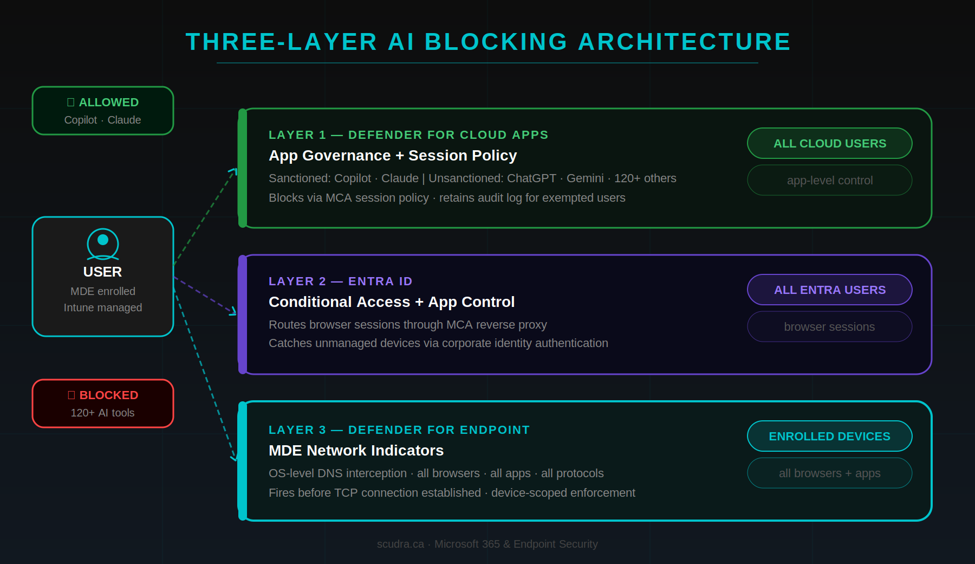
| Layer | Control | Coverage | Catches |
| 1 | Defender for Cloud Apps | All devices via CA proxy | Browser sessions – managed and unmanaged devices |
| 2 | Conditional Access + App Control | All Entra-joined users | Routes sessions to MCA proxy for inspection |
| 3 | MDE Network Indicators | Intune-enrolled devices | All browsers + apps + API calls at OS layer |
Why three layers? MCA proxy only intercepts browser traffic. Native apps and direct API calls bypass it entirely. MDE network indicators work at the OS network filter layer underneath all browsers and apps. Together, they close the gap.
Layer 1: Defender for Cloud Apps – App Governance
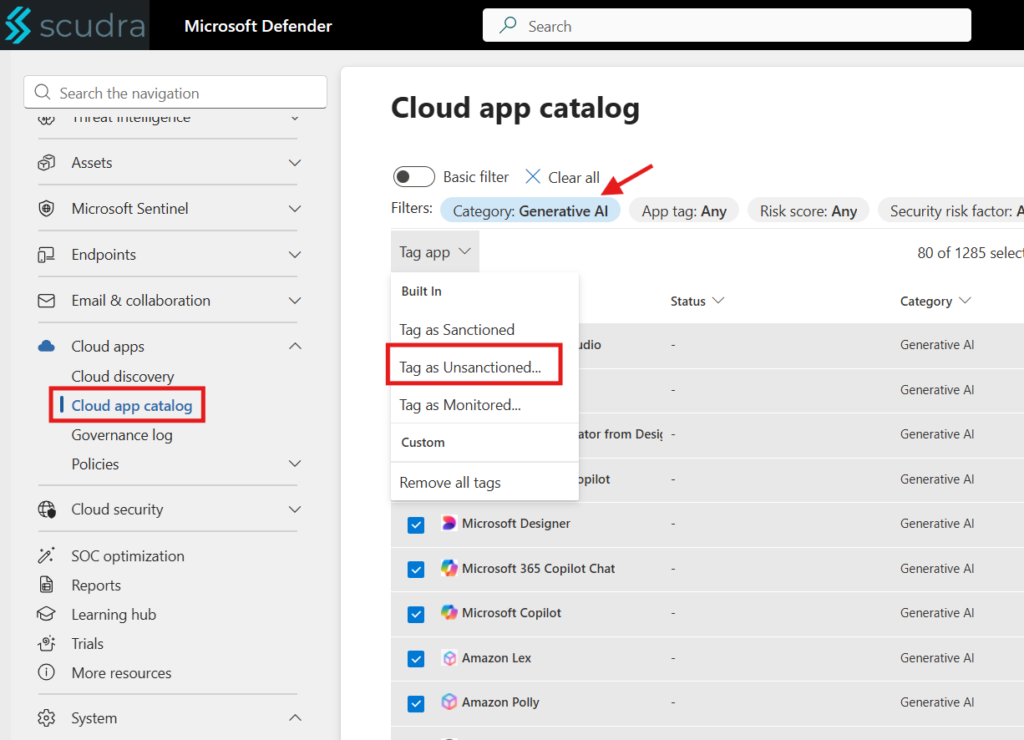
Start in Defender for Cloud Apps. Navigate to the Cloud App Catalog and find each AI tool you want to manage. Every app in the catalog can be tagged as Sanctioned or Unsanctioned this tag is the foundational signal that the rest of the policy stack reads from.
Sanctioned Apps (Allow)
- Microsoft Copilot
- Claude (claude.ai)
Unsanctioned Apps (Block)
Tag everything else as Unsanctioned. The MCA catalog includes ChatGPT, Gemini, Perplexity, Grok, Meta AI, DeepSeek, and most of the tools on the Microsoft CASB discovery list. For apps not in the catalog, you can create custom app entries.
MCA Session Policy
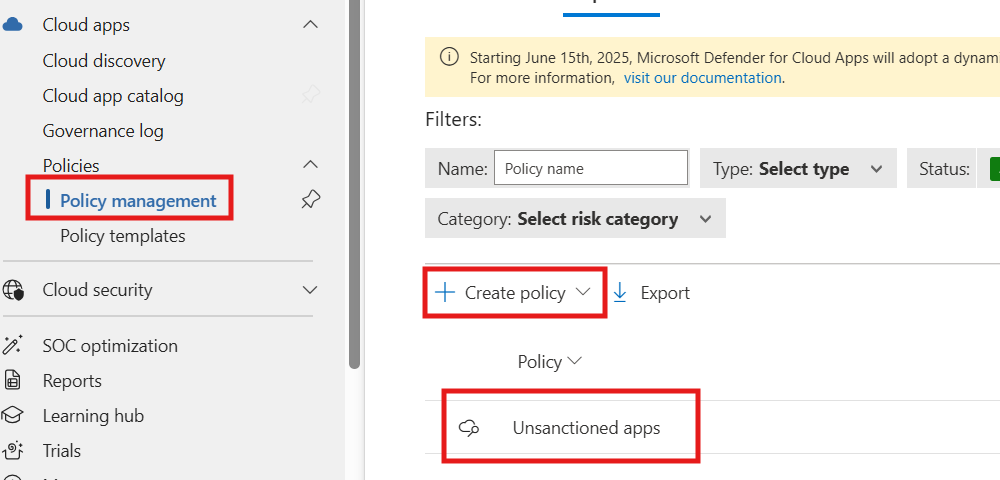
Once apps are tagged, create a Session Policy in MCA that blocks access to Unsanctioned apps. Scope it to All Apps with a filter on the Unsanctioned tag. This policy fires when a user’s browser session is routed through the MCA reverse proxy — which is what the next layer sets up.
Layer 2: Conditional Access – Session Routing
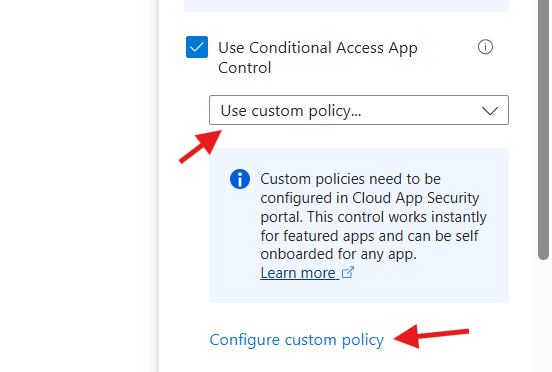
Conditional Access is the routing mechanism. It intercepts the authentication request and redirects the session through the MCA reverse proxy, where your sanctioned/unsanctioned tags are enforced.
Policy Configuration
- Users: All users (or scoped to a group for pilot)
- Cloud apps: All cloud apps
- Session: Use Conditional Access App Control → Use custom policy
Important: CA App Control only covers browser sessions authenticated through Entra ID. Apps that don’t use Entra SSO won’t route through the proxy. This is exactly why Layer 3 exists.
Layer 3: MDE Network Indicators – The Real Enforcement Layer
This is the control that actually matters for comprehensive coverage. MDE network indicators work at the Windows network filter layer via the Defender sensor. When a process, any process, any browser tries to resolve a blocked domain, the MDE sensor intercepts it before the TCP connection is established.
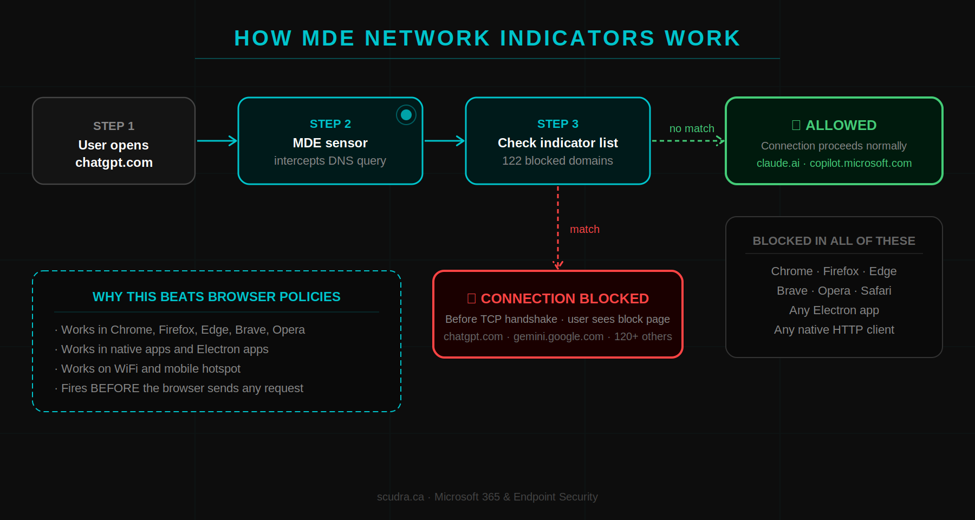
This means it doesn’t matter if the user opens Chrome, Firefox, Edge, Brave, Opera, or a custom Electron app. It doesn’t matter if they’re on corporate WiFi or their phone hotspot. As long as the MDE sensor is active on the device, the block fires.
Prerequisites to Verify First
Before deploying indicators, confirm these are enabled or the entire CSV import will silently fail:
| Setting | Location | Required State |
| Custom network indicators | Defender XDR → Settings → Endpoints → Advanced features | ON |
| Web content filtering | Defender XDR → Settings → Endpoints → Advanced features | ON |
| MDE sensor | Intune → Endpoint Security → Microsoft Defender for Endpoint | Active / Onboarded |
Silent failure warning: If Custom network indicators is OFF, the portal will accept your CSV import (Total: 20, Imported: 0) with no error message. It just drops everything. Always verify this toggle before troubleshooting your CSV format.
Building the Indicator CSV
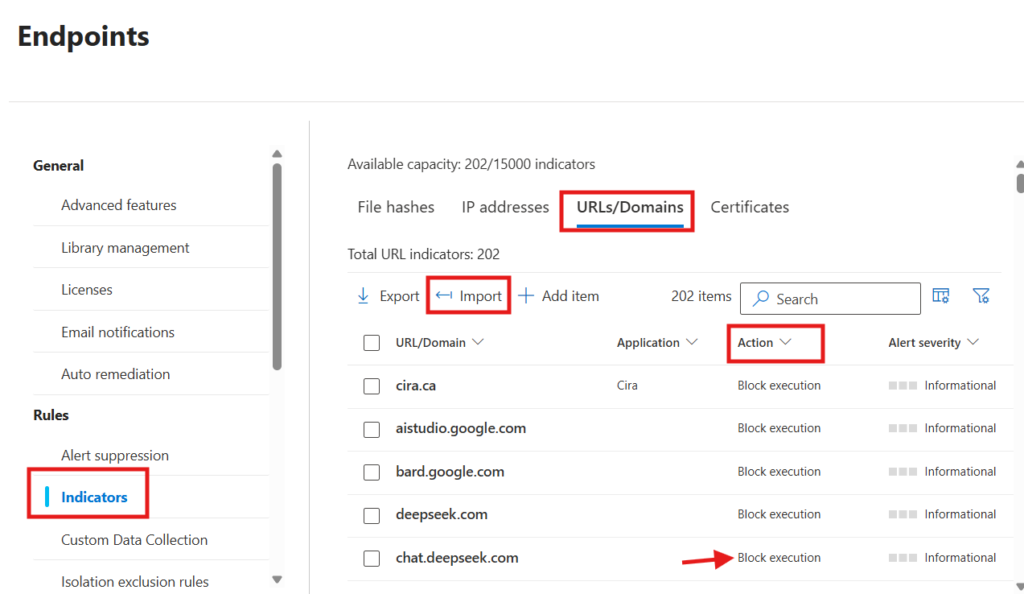
Network indicators can be added one at a time through the portal UI, but with 120+ domains to block, you want the bulk import. The portal has a CSV import function under Settings → Endpoints → Indicators → URLs/Domains → Import.
Why IP Address Blocking Doesn’t Work Here
The URLs/Domains tab is the right choice, not IP Addresses. AI apps run on CDN infrastructure with dynamic, shared IP ranges. The IPs behind chatgpt.com change constantly and overlap with other legitimate services. Domain-based blocking is stable, precise, and doesn’t cause collateral damage.
The CSV Format – What Actually Works
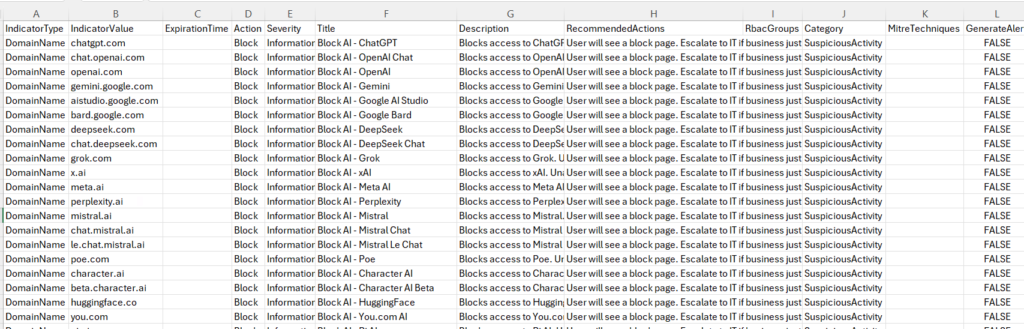
The Defender portal is strict about the import format. After several failed attempts with various configurations (wrong action type, wrong encoding, wrong IndicatorType value), the working format is:
IndicatorType,IndicatorValue,ExpirationTime,Action,Severity,Title,Description,
RecommendedActions,RbacGroups,Category,MitreTechniques,GenerateAlert

DomainName,chatgpt.com,,Block,Informational,Block AI - ChatGPT,
Blocks access to ChatGPT. Unauthorized AI tool per company policy.,
User will see a block page. Escalate to IT if business justification exists.,
,SuspiciousActivity,,false
The critical fields that trip people up:
- IndicatorType: DomainName – not Url, not IpAddress. Using Url imports 0 rows silently.
- Action: Block – not BlockAndRemediate (that’s file hashes only) and not Audit
- ExpirationTime: Leave blank for never expires
- GenerateAlert: false – set true only if you want an alert flood from curious users
Encoding Requirements
The portal requires UTF-8 with BOM and Windows CRLF line endings. Plain UTF-8 with Unix line endings imports as 0/0 with no error message. The correct Python generation pattern:
with open('AI_Block_Indicators.csv', 'wb') as f:
    f.write(b'\xef\xbb\xbf')  # UTF-8 BOM — required by Defender portal
    f.write(buf.getvalue().encode('utf-8'))  # lineterminator='\r\n' in csv.writer
The Domain Block List – 122 Domains
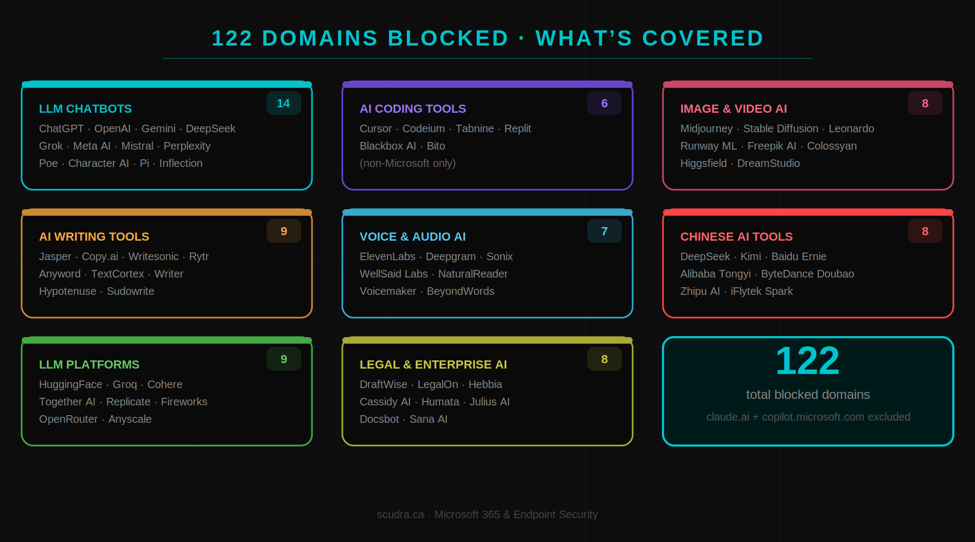
The final list covers 122 domains across every major AI category. Claude.ai and Copilot domains are intentionally excluded.
| Category | Apps Covered |
| LLM Chatbots | ChatGPT, OpenAI, Gemini, DeepSeek, Grok, Meta AI, Mistral, Perplexity, Poe, Pi, Inflection, Character AI |
| AI Coding | Cursor, Codeium, Tabnine, Replit, Blackbox AI, Bito |
| AI Writing | Jasper, Copy.ai, Writesonic, Rytr, Anyword, TextCortex, Writer, Hypotenuse |
| Image / Video Gen | Midjourney, Stable Diffusion, DreamStudio, Runway ML, Leonardo AI, Freepik AI, Colossyan, Higgsfield |
| Voice / Audio AI | ElevenLabs, Deepgram, Sonix, WellSaid Labs, NaturalReader, Voicemaker, BeyondWords |
| AI Productivity | Notion AI, Gamma, Tome, Beautiful.ai, Quizlet AI, Bluedot, Circleback |
| LLM Platforms / APIs | HuggingFace, Groq, Cohere, Together AI, Replicate, Fireworks AI, OpenRouter |
| Chinese AI | DeepSeek, Kimi, Alibaba Tongyi, Baidu Ernie, ByteDance Doubao, Zhipu AI, iFlytek Spark |
| Legal / Enterprise AI | DraftWise, LegalOn, Prime Legal AI, Hebbia, Cassidy AI, Humata |
Collateral damage note: Notion, Quizlet, Freepik, and Replit block the entire platform not just the AI features. Confirm with the client before deploying if any users depend on these tools for non-AI workflows.
Coverage Gaps and How to Address Them
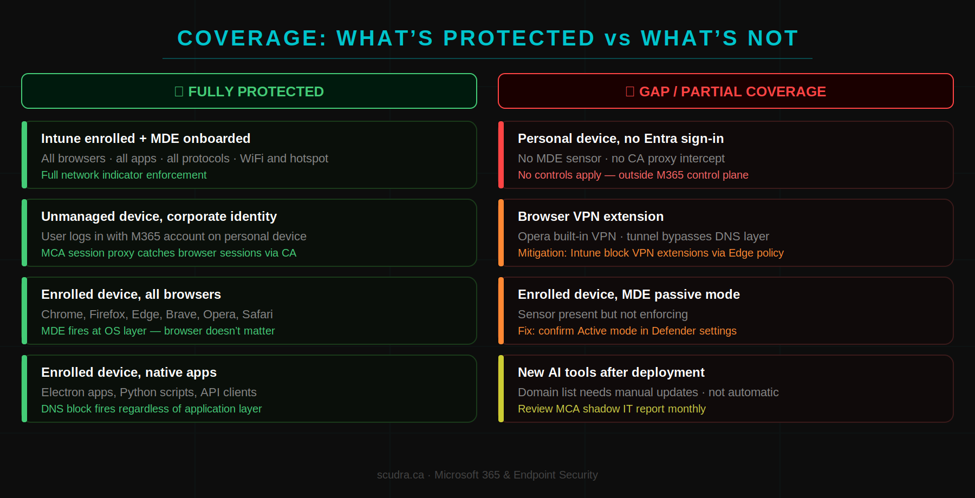
Understanding what this architecture doesn’t cover is as important as knowing what it does. Here’s the full picture:
Unmanaged Devices
MDE network indicators only fire on enrolled, onboarded devices. A user on a personal laptop or mobile device bypasses the endpoint controls entirely. This is where MCA session control via Conditional Access fills the gap, it catches any browser session authenticated with the corporate identity, regardless of device enrollment state.
Browser VPN Extensions
Opera’s built-in VPN and browser extension VPNs can tunnel around DNS-layer blocks. MDE network indicators operate at the DNS resolution layer, so a VPN that routes traffic through an encrypted tunnel before DNS resolution can bypass them.
Mitigation: Push an Intune configuration profile blocking unauthorized browser extensions and VPN apps. Pair with Defender for Endpoint’s web content filtering as a second enforcement layer, it operates deeper in the network stack and is harder to bypass.
Scoping to Specific Devices for Testing
Network indicators apply to all devices in the organization by default there is no per-user or per-device scope in the indicator UI. The workaround for piloting is:
- Device groups: Create a device group in Defender XDR, tag your pilot devices, and scope the indicator policy to that group via the RBAC group field in the CSV or API.
- Test tenant first: Import into a test tenant, validate blocking behavior end-to-end, then export and import to production.
User Exemptions
Because network indicators are device-scoped, you cannot exempt a specific user from a block only a specific device. For named users who need access to blocked AI tools:
- Small exemption list with dedicated devices: Assign those devices to an exempt device group and exclude the group from indicator scope.
- Larger or user-based exemptions: Handle exceptions entirely in MCA access policy scoped to an Entra security group. This keeps the exempted users under proxy visibility and retains audit logs of what they accessed.
Bonus: Edge Policy via Intune
For organizations that standardize on Microsoft Edge, you can add a second enforcement layer using Intune Administrative Templates. This blocks AI domains at the browser level, independent of the MDE sensor.
In Intune, navigate to Devices → Configuration → Create → Administrative Templates → Windows → Microsoft Edge. Configure the following policies:
| Policy | Setting |
| URLBlocklist | Add all blocked AI domains (chatgpt.com, gemini.google.com, etc.) |
| URLAllowlist | Explicitly permit claude.ai and copilot.microsoft.com |
| ExtensionInstallBlocklist | Block AI browser extensions by extension ID |
Edge-only: This policy only covers Microsoft Edge. Users on Chrome or Firefox bypass it entirely. Use it as a complement to MDE network indicators, not a replacement.
Keeping the List Current
New AI tools launch constantly. The 122-domain list in this post is a snapshot — it will be stale within months. Two signals to monitor:
- Defender for Cloud Apps discovery: MCA continuously discovers cloud app usage across your tenant. Shadow IT reports will surface new AI tools as users find them. Review the Discovered Apps report monthly and add new entries to the indicator list as needed.
- Microsoft’s CASB app catalog: Filter by the Generative AI category in Defender for Cloud Apps. Microsoft maintains this list and adds new apps regularly.
Final Architecture Summary
| Control | Tool | Scope | What It Blocks |
| App tagging | Defender for Cloud Apps | All users | Classifies apps as sanctioned/unsanctioned |
| Session control | Conditional Access + MCA | All Entra users (browser) | Unsanctioned apps via reverse proxy |
| Network indicators | Defender for Endpoint | Enrolled devices, all browsers/apps | 122 AI domains at OS network layer |
| Browser policy | Intune + Edge Admin Templates | Enrolled devices, Edge only | AI domains at browser layer |
The result: a user on a managed device cannot reach any AI tool outside the approved list through any browser or application. A user on an unmanaged device is caught by the MCA proxy layer as long as they authenticate with their corporate identity.
Wrapping Up
Blocking AI tools sounds like a simple request until you start pulling the thread. The Defender network indicator approach is the most robust control available in the M365 stack for this use case, it fires at the OS layer, covers all browsers and native apps, and doesn’t depend on proxy routing or browser extensions.
The main gotchas to remember:
- Verify Custom network indicators is ON in Advanced features before importing – it fails silently if it’s off
- IndicatorType must be DomainName and Action must be Block – BlockAndRemediate is file hashes only
- The CSV must be UTF-8 with BOM and CRLF line endings or it imports as 0/0 with no error
- Network indicators are device-scoped, not user-scoped – exemptions require device groups or MCA policy
- This needs ongoing maintenance – new AI tools launch constantly and won’t auto-add to your block list